
Creating a Poll
Use Core Polls for a question with a set of answer options and vote results. Use a regular Core Forms form for an inquiry, application, or survey that needs several fields and submission actions.
Create your question
- Open Core Forms > Polls and click Add New Poll.
- Give the poll a title so you can identify it in the admin list.
- In Question, write the question visitors will see.
- Choose Single choice (radio) or Multiple choice (checkboxes).
- Enter at least two answer options. Press Enter in the last option to add another, or click Add Option.
- Drag options to reorder them. Enable the Other write-in option if visitors should be able to supply their own answer.
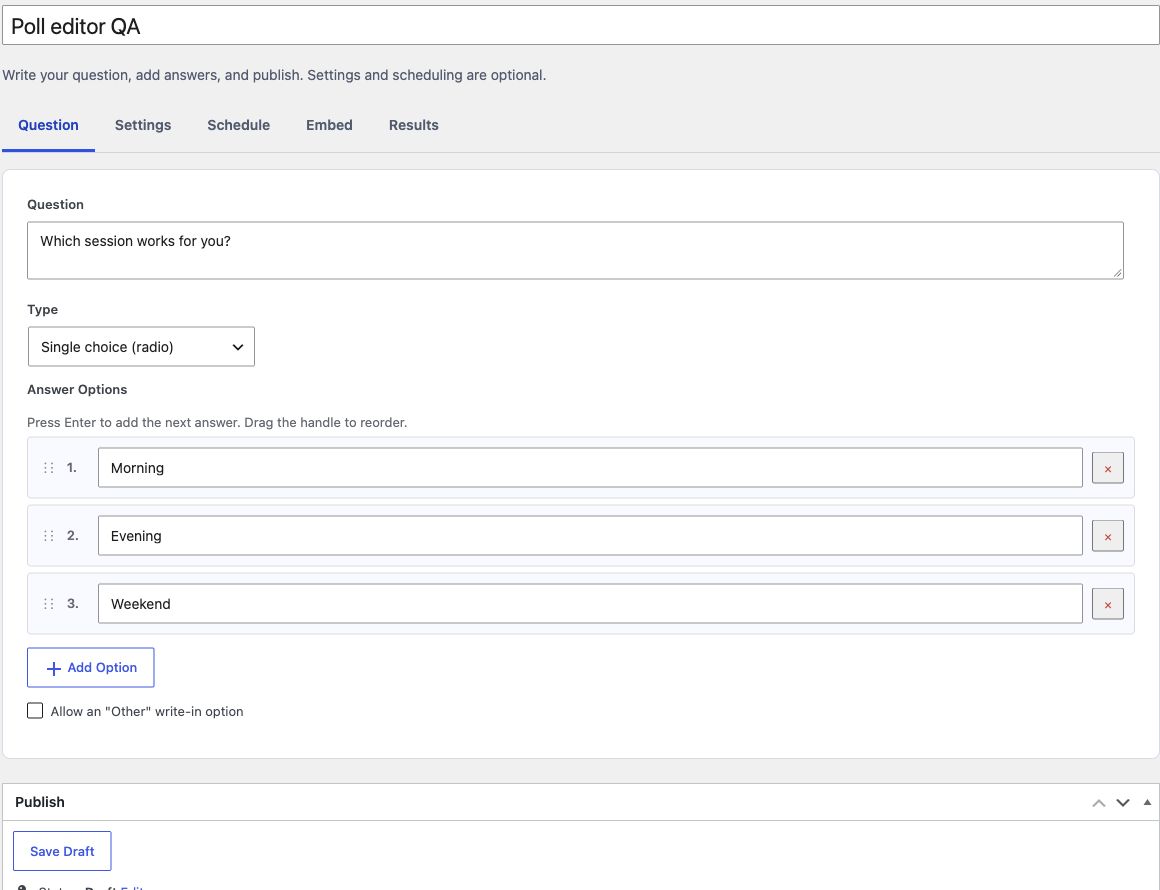
Question, Settings, Schedule, Embed, and Results load together. Switching tabs does not reload the page or discard your edits. Use the arrow keys, Home, and End when focused on a tab to move between panels.
Choose voting and result settings
In Settings, choose your vote limit and result style. IP and cookie limiting is the default; account-based limiting requires visitors to log in. You can allow results before voting, enable live results, or set a window for changing a vote.
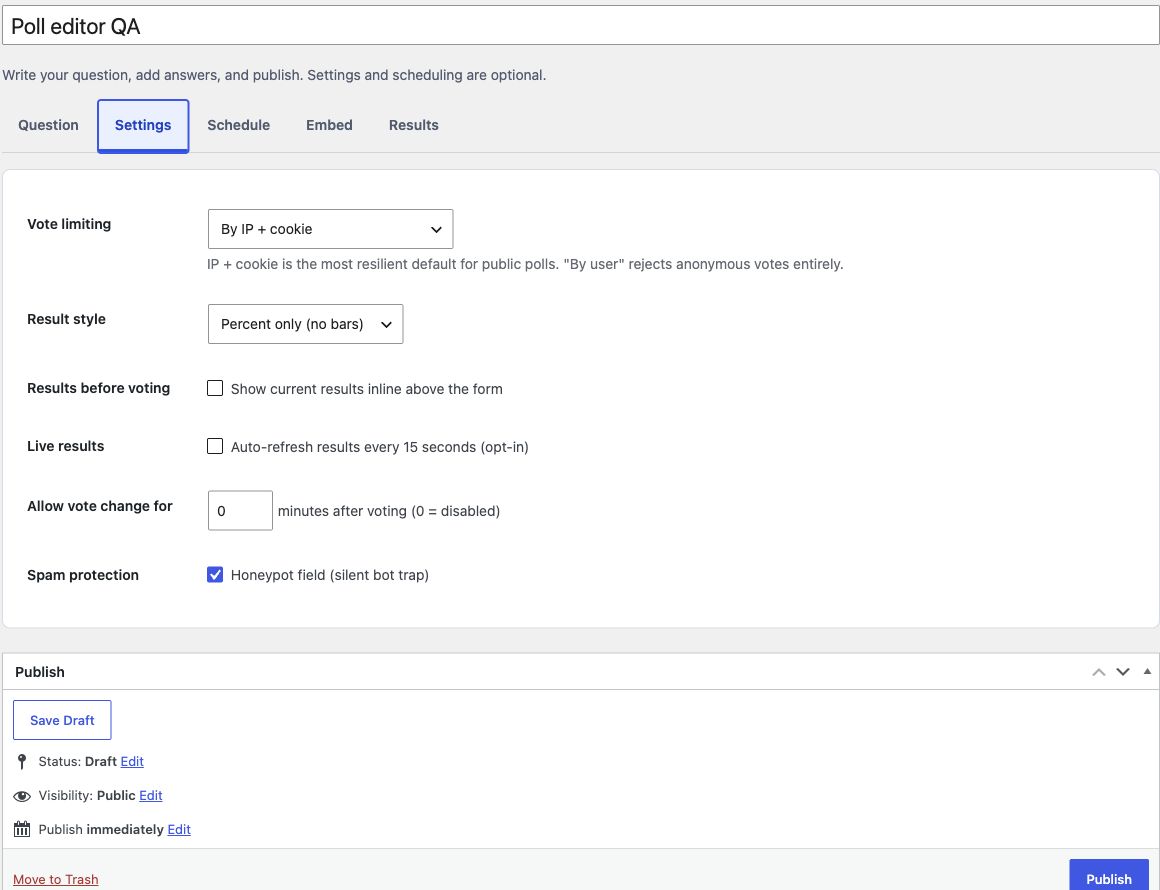
Honeypot protection is available here too. Leave live result refresh disabled unless the poll needs it.
Schedule voting
Use Schedule to set the poll's voting status and optional opening or closing times. Choose what visitors see after voting closes: final results, no poll, or a notice with a link. Enter the destination URL when choosing the link behavior.
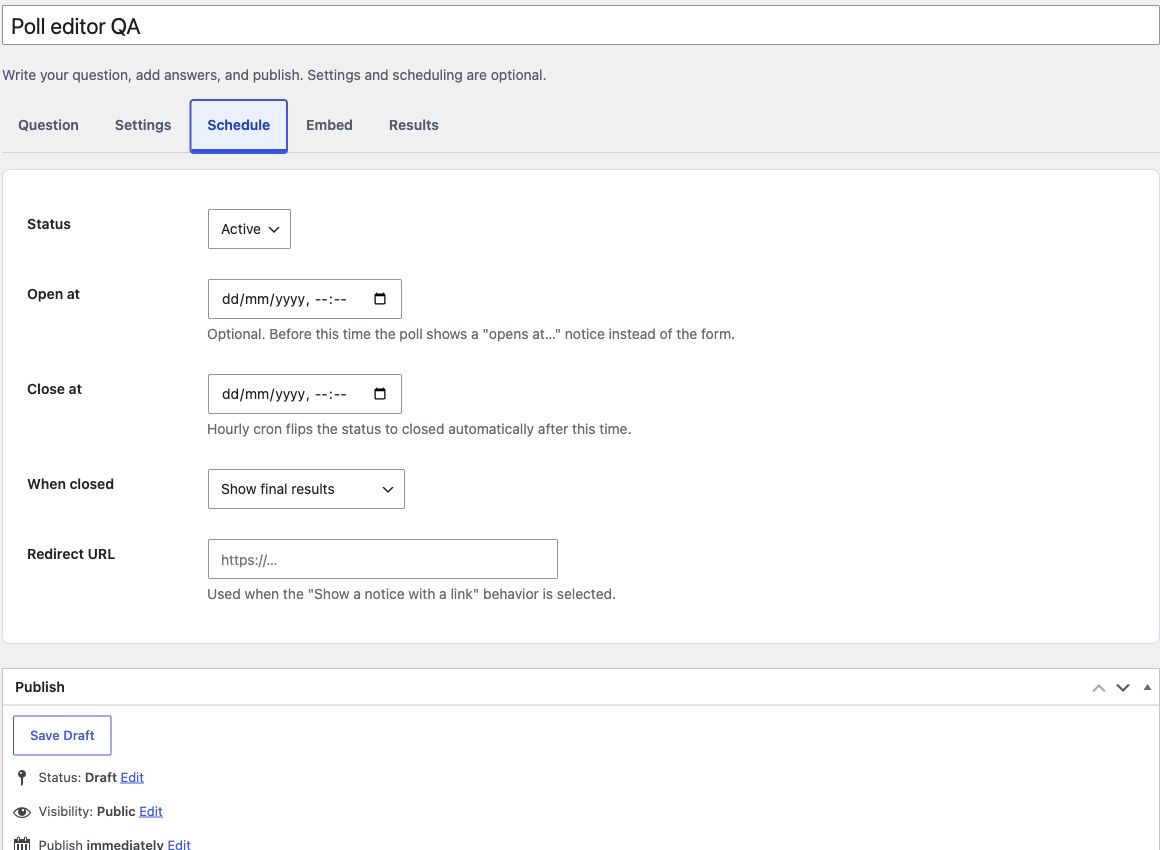
WordPress publishing status and the poll's voting status are separate. Save a draft while preparing the poll, then publish it when ready. Closing voting does not delete the poll or its results.
Publish and embed
The WordPress Publish controls sit below the editor. Use Save Draft, Publish, or Update as appropriate. Saving includes edits across the tabs and returns you to the selected tab.
Open Embed for the poll shortcode. You can also insert the Core Polls block in the WordPress block editor: type cf in the inserter search to find it. Choose the intended poll and save the page.
Review results
Open Results to view the option breakdown. Use Open full analytics for the fuller report or Export votes (CSV) for a download. Check the published page to confirm that the poll, voting rules, and results behave as intended.