
Moving Core Forms Data and Importing Other Form Plugins
Go to Core Forms → Migrate to move data between Core Forms sites or import forms from Contact Form 7, Gravity Forms, WPForms, Fluent Forms, Ninja Forms, and Formidable Forms.
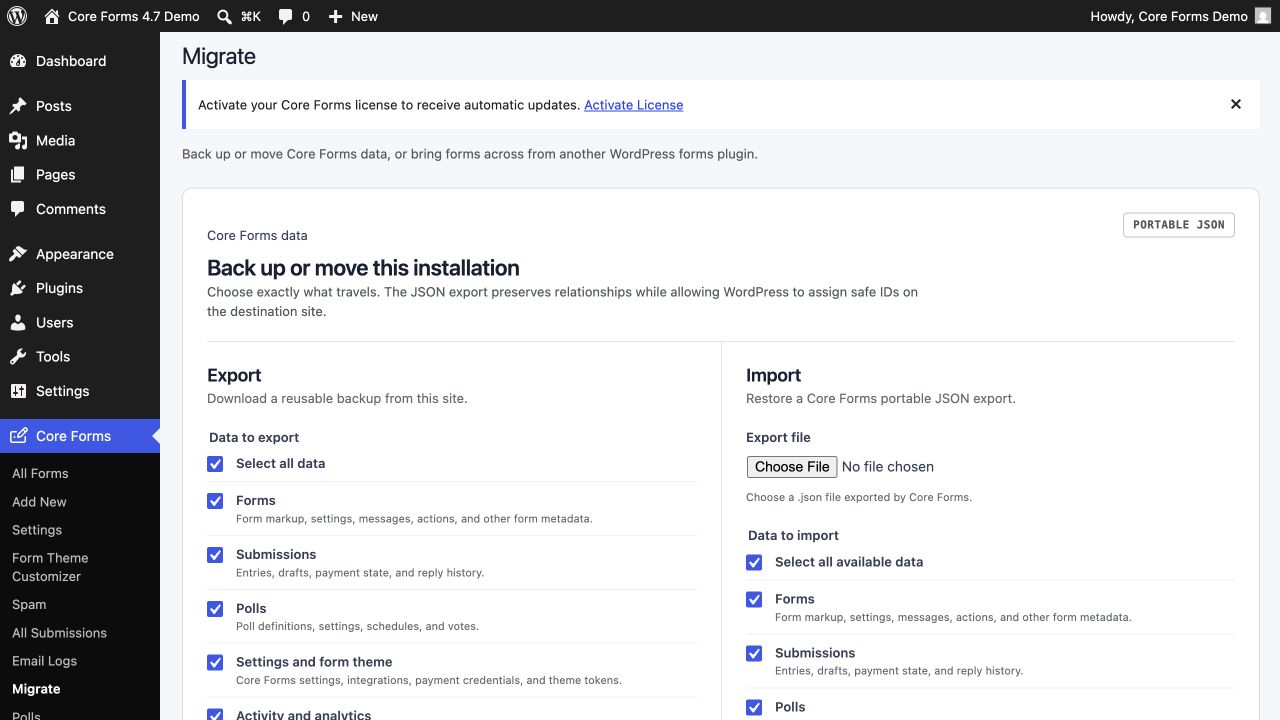
Back up or move Core Forms data
The Core Forms data section creates a portable JSON export. An administrator can choose any combination of:
- Forms, including markup, settings, messages, actions, and metadata
- Submissions, drafts, payment state, and reply history
- Poll definitions, settings, schedules, and votes
- Global settings, integration/payment credentials, and form-theme tokens
- Email logs, workflow history, queued actions, and analytics
- Core Commerce products, plans, orders, subscriptions, licenses, activations, releases, and download history
Choose Only selected forms and related records to limit Forms, Submissions, and Activity to specific forms. Polls, Settings, and Core Commerce are site-wide datasets.
The JSON file can contain personal information, credentials, and software license keys. Store it like a database backup. Media files, uploaded form files, and release ZIP packages are referenced but not embedded; copy the WordPress uploads directory separately when moving to another server. The site-bound Core Forms updater license, generated CSS/cache records, and schema version are deliberately excluded.
To restore an export:
- Take a database backup of the destination site.
- Open Core Forms → Migrate, choose the JSON file, and select the datasets to import.
- Choose how matching forms and commerce records are handled: create new forms, update matching records, or skip matches.
- Click Import selected data and review the created, updated, skipped, and warning counts.
Core Forms assigns new database IDs and remaps relationships during import. Pending workflow actions are restored in a paused state so a migration cannot resend emails or webhooks unexpectedly. If you restore Settings, the public form-theme CSS asset is regenerated from the imported tokens.
Import forms from other plugins
Each selected source form becomes a new Core Forms form. Source forms and their data are never modified, so you can run both plugins side by side while you cut over.
- Go to Core Forms → Migrate in the WordPress admin (requires the
edit_formscapability). - Pick a source from the plugin cards. Each card shows how many forms are ready to import, or a note when the plugin isn't detected.
- Review the per-form list. Every row shows the form title plus a summary of what will be converted — detected field names for Contact Form 7 (with an expandable Preview converted HTML panel), or field and action counts for the other sources — so you can inspect a form before committing.
- Tick the forms you want (or Select all) and click Import selected forms.
After the import you get a success notice with a link to your Core Forms list, plus a warning listing any forms that were skipped because they could not be parsed. Imported forms get unique slugs automatically, so re-running an import creates fresh copies rather than overwriting anything.
What carries across
All importers convert source fields to Core Forms' plain-HTML markup, map notifications to Send Email actions, and carry success messages and redirect URLs into the form settings. Field tokens in email templates are translated too (for example Gravity's {field:name} or WPForms' "all fields" table become [name] and [all:label]).
| Source | Detected via | What is imported |
|---|---|---|
| Contact Form 7 | CF7 active | Shortcode markup → HTML, the mail template → an Email action, and custom messages → Core Forms message overrides. |
| Gravity Forms | GF active (GFAPI) |
Fields, every notification (with its conditional logic as per-recipient conditions), the default confirmation → success message / redirect, and field-level conditional logic. |
| WPForms (Lite + Pro) | WPForms active | Form definitions and notifications (with conditional logic), plus an optional entry import — see below. |
| Fluent Forms | fluentform_forms table exists |
Fields, notifications (with per-recipient conditions), webhook integrations → Webhook actions, and field-level conditional logic. |
| Ninja Forms (new in 4.4) | Ninja Forms active | Field schemas, email actions, success messages, redirects, webhooks, and supported conditions. |
| Formidable Forms (new in 4.4) | Formidable active | Field definitions, email notifications, confirmations (message and redirect), and supported field settings such as placeholders and options. |
WPForms entry import
When a WPForms Pro entries table is present, the WPForms panel shows an "Also import existing entries" checkbox (on by default). Selected forms then bring their stored entries into the Core Forms submissions table alongside the form definition, and the success notice reports how many entries came across.
Fluent Forms works without the plugin active
The Fluent Forms importer reads the fluentform_forms and fluentform_form_meta database tables directly rather than calling the Fluent Forms API. That means it also works on sites where Fluent Forms has already been deactivated or deleted — as long as its tables are still in the database, your forms appear on the Import screen.
Conditional logic
Field-level show/hide rules carry across where the source supports them (Gravity Forms, WPForms, Fluent Forms, Ninja Forms) and become data-show-if / data-hide-if attributes that the Core Forms runtime evaluates on the frontend. Two limitations to know about:
- A single attribute holds one rule per field. When a source field has multiple AND-combined rules, the importer keeps the first usable rule and you re-add the rest in the editor.
- "Is not" operators are converted by flipping show ↔ hide, which produces the same effective behavior.
What doesn't carry across
- Contact Form 7 submissions stored in Flamingo are out of scope.
- Layout-only elements (HTML blocks, section dividers) are replaced with an HTML comment placeholder rather than converted.
- Source-plugin add-ons and integrations beyond email and webhook actions need to be reconnected using Core Forms' own actions.
Forms that can't be parsed at all are skipped and reported — nothing partial is created.
After importing
- Open each imported form under Core Forms and review the generated markup in the editor.
- Send a test submission and confirm the Email/Webhook actions fire as expected.
- Swap the old plugin's shortcode or block for the Core Forms one — see Embedding Forms.
- Once you're satisfied, deactivate the source plugin. Your imported forms are fully independent copies.
Prefer the command line? Core Forms' own JSON export/import is available via WP-CLI for moving forms between Core Forms installs.