Preview
The preview system lets you see how your form will look on the frontend without leaving the builder. There are two preview modes: inline preview in the right sidebar and fullscreen preview via the toolbar.
Inline Preview
The right sidebar serves double duty. When a field is selected, it shows the inspector panel. When no field is selected and the inserter panel is closed, the sidebar automatically switches to display a live inline preview of the form.
How It Works
The inline preview renders the form inside an iframe in the right sidebar (320px wide). The iframe loads the form's actual frontend output, including:
- The form HTML generated from the current schema
- Core Forms frontend styles (
forms.css) - The active WordPress theme's stylesheet
- Any custom CSS classes applied to fields
This means the preview reflects the true appearance of the form as visitors will see it, including theme-specific typography, colors, and spacing.
Triggering the Inline Preview
The inline preview appears automatically when both conditions are met:
- No field is selected on the canvas (click an empty area of the canvas or press Escape to deselect).
- The inserter panel is closed (click the + button to toggle it off if open).
When either condition changes (you select a field or open the inserter), the sidebar switches back to the inspector or remains hidden behind the inserter.
Limitations of Inline Preview
- The preview width is fixed at the sidebar width (320px), so it shows a narrow/mobile-like view of the form.
- Interactive elements (submit button, file upload) are disabled in the preview to prevent accidental submissions.
- Conditional fields are shown in their default visibility state.
- The preview reflects the last saved state, not unsaved changes. See "Preview Updates" below.
Fullscreen Preview
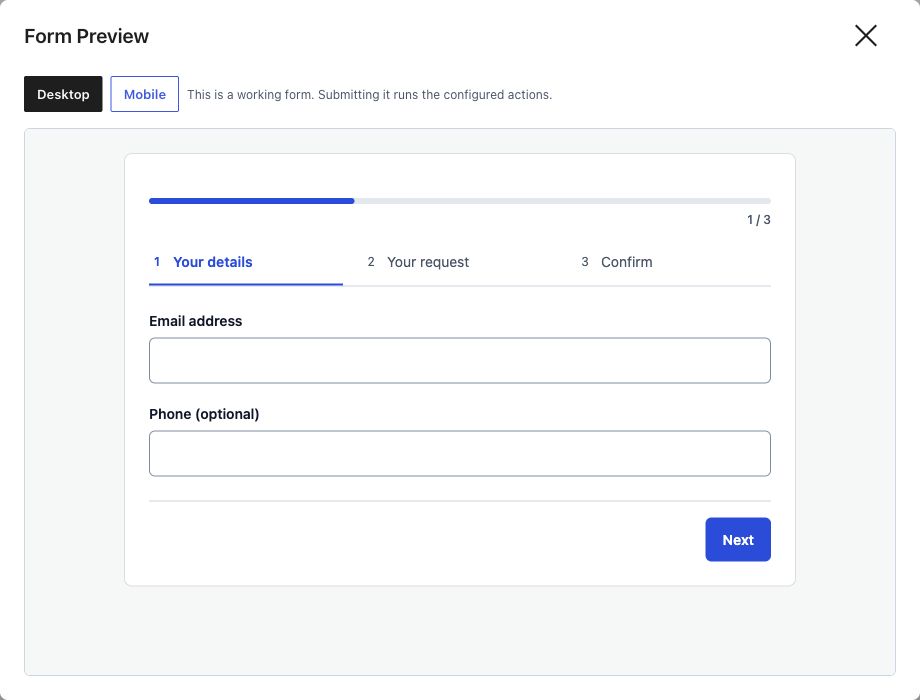
For a full-width preview of the form, click the Preview button in the toolbar. This opens a modal overlay that covers the entire builder interface.
Modal Layout
The fullscreen preview modal contains:
- Close button (X) in the top-right corner to return to the builder.
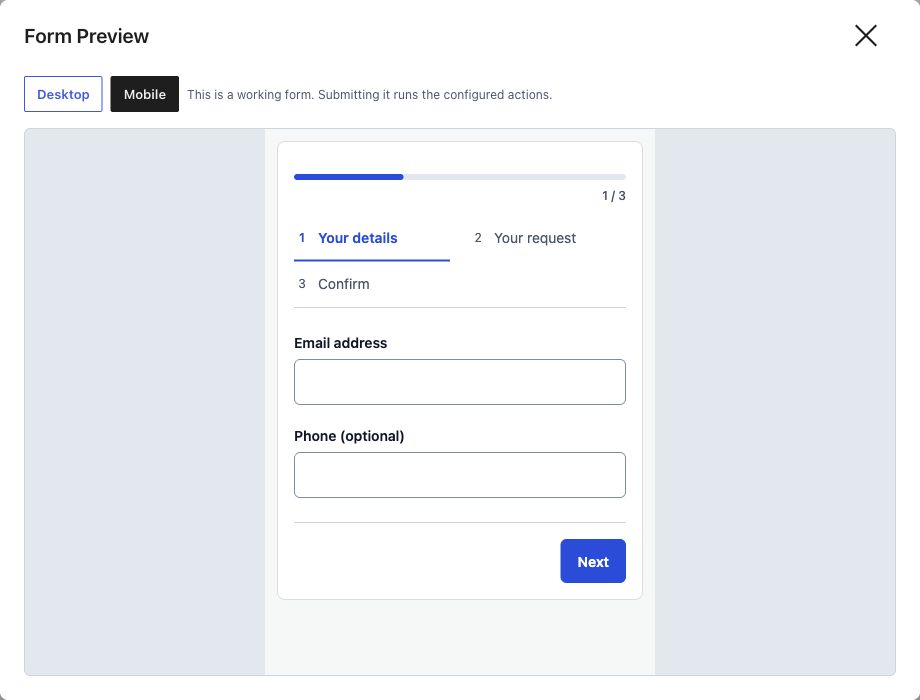
- Device width controls at the top: Desktop (1280px), Tablet (768px), Mobile (375px). Click each to resize the preview iframe.
- Preview iframe centered in the modal, rendering the form at the selected device width.
Device Width Controls
| Button | Width | Description |
|---|---|---|
| Desktop | 1280px | Full-width desktop view |
| Tablet | 768px | Tablet portrait view |
| Mobile | 375px | Mobile phone view |
The iframe is centered horizontally in the modal. When a smaller device width is selected, the iframe narrows and the surrounding area fills with a neutral gray background, simulating the device viewport.
Closing the Preview
Close the fullscreen preview by:
- Clicking the X button in the top-right corner.
- Pressing the Escape key.
- Clicking the gray backdrop area outside the iframe.
Closing the preview returns you to the builder in the exact state you left it.
Preview Updates
The preview (both inline and fullscreen) loads the form's frontend rendering, which is based on the saved post content. This means:
- After saving: The preview reflects the latest saved version of the form. Click Save in the toolbar, then view the preview to see your changes.
- Before saving: The preview shows the previously saved version. Unsaved changes to fields, labels, or structure are not reflected until you save.
This behavior ensures the preview is always an accurate representation of what the form looks like on the actual frontend. It uses the same rendering pipeline (Form::get_html()) that the shortcode and Gutenberg block use.
Workflow Recommendation
- Make your changes in the visual builder or code editor.
- Click Save in the toolbar.
- Click Preview or deselect all fields to see the inline preview.
- If adjustments are needed, make changes and save again.
Preview and Form Features
Honeypot and Nonce Fields
The preview renders the full form output including the honeypot field and nonce. The honeypot field is hidden via CSS as it would be on the frontend. The nonce field is present but non-functional in preview context.
CAPTCHA
If reCAPTCHA, Turnstile, or Math CAPTCHA is enabled for the form, the CAPTCHA element appears in the preview. Third-party CAPTCHAs (reCAPTCHA, Turnstile) require valid API keys to render. If keys are not configured, a placeholder message appears in the CAPTCHA area.
Conditional Fields
Fields with data-show-if or data-hide-if conditions are rendered in their default state:
- Fields with
data-show-ifare hidden by default (they appear only when the condition is met). - Fields with
data-hide-ifare visible by default (they hide only when the condition is met).
The preview loads the Core Forms JavaScript (forms.js), so conditional logic is functional in the preview. You can interact with the trigger field to see the conditional field appear or disappear.
File Upload Fields
File upload inputs are rendered but non-functional in the preview. Selecting a file does not trigger an upload.
Submit Button
The submit button is rendered but the form action is neutralized in the preview to prevent accidental submissions. Clicking the submit button has no effect.
Accessibility in Preview
The preview iframe includes a title attribute ("Form Preview") for screen reader users. The fullscreen preview modal traps focus within the modal while open and returns focus to the Preview button when closed.
The device width controls are keyboard accessible and announce the selected width to screen readers.
Troubleshooting
Preview Shows Stale Content
If the preview does not reflect recent changes, confirm that you clicked Save before opening the preview. The preview always renders the saved version of the form.
Preview Styles Differ from Frontend
The preview loads inside an iframe with the active theme's styles. If your theme uses JavaScript to modify form appearance on page load, those scripts may not execute in the preview context. The HTML and CSS rendering will be accurate.
Preview Is Blank
A blank preview usually indicates one of:
- The form has no fields (add at least one field and save).
- The form post has been trashed or the post ID is invalid.
- A PHP error in the form rendering pipeline. Check the browser console for errors.
CAPTCHA Not Showing
Third-party CAPTCHAs require valid API keys configured in Core Forms settings. If keys are missing or invalid, the CAPTCHA area will show an error message or be empty. Math CAPTCHA works without any configuration.