
Templates
Choose a starting form instead of building every field by hand. The gallery includes general-purpose forms, industry inquiries, guided multi-step forms, payment forms, and licensing forms.
Choose a starting point
- Open Core Forms > Add New.
- Search by name or use a category such as Education, Real Estate, Healthcare, or Events.
- Use Form layout to show Multi-step or Single page templates.
- Click Preview to inspect a sample, then Use this template to create the form. Choose Start blank for an empty form.
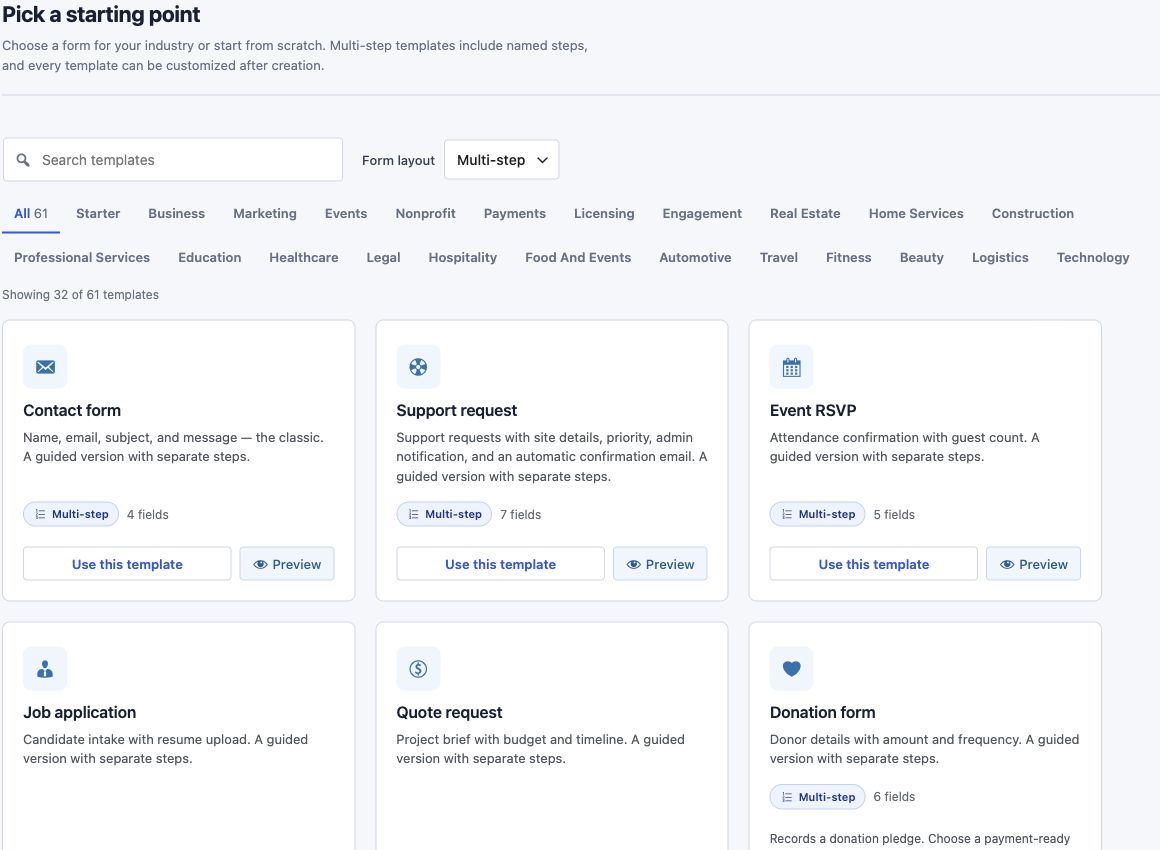
Categories wrap across the available width. A Multi-step badge means the sample includes named steps, not simply a long list of fields. The gallery's sample preview lets you navigate steps without submitting an entry.
Apply a template in the builder
Click Templates in the visual builder toolbar. Choose a template and review the replacement confirmation when your form already contains fields. Applying a template replaces the current field layout; use a new form if you want to keep the original separately.
The template's schema, settings, actions, and messages are part of its starting configuration. Review all of them after applying a template, especially when replacing an existing form.
Choose the right kind of sample
| Need | Starting point |
|---|---|
| A general inquiry | Contact form or Quote request |
| A longer inquiry split into steps | A Multi-step variant |
| Industry-specific intake | Education, home services, real estate, legal, hospitality, or another industry category |
| An online purchase | A payment-ready template for your provider |
| A donation pledge | Donation form; use a payment-ready donation template to collect money |
| Mailing-list interest | Newsletter signup, then connect the email marketing action |
Check actions and settings before publishing
- Notifications: Review the recipient, sender, subject, and field variables in each email action.
- Acknowledgements: Check the submitter email field and confirmation wording. An inquiry is not a confirmed booking or completed payment.
- External services: Connect the relevant account. A template cannot supply your provider credentials or list IDs.
- Payments: Confirm the provider, amount, currency, and test/live configuration before collecting money.
- Storage and spam: Review submission storage, honeypot, rate limits, duplicate handling, and any additional spam protection appropriate for your form.
- Preview: Test required fields, step order, mobile width, and the final submission. Saved-form previews run real actions.
For step editing, see Multi-Step Forms. For the preview controls, see Preview.