
Embedding Forms
Choose the block or shortcode workflow
Both methods render the same saved form. Use the native block in the block editor, or the shortcode anywhere WordPress processes shortcodes.
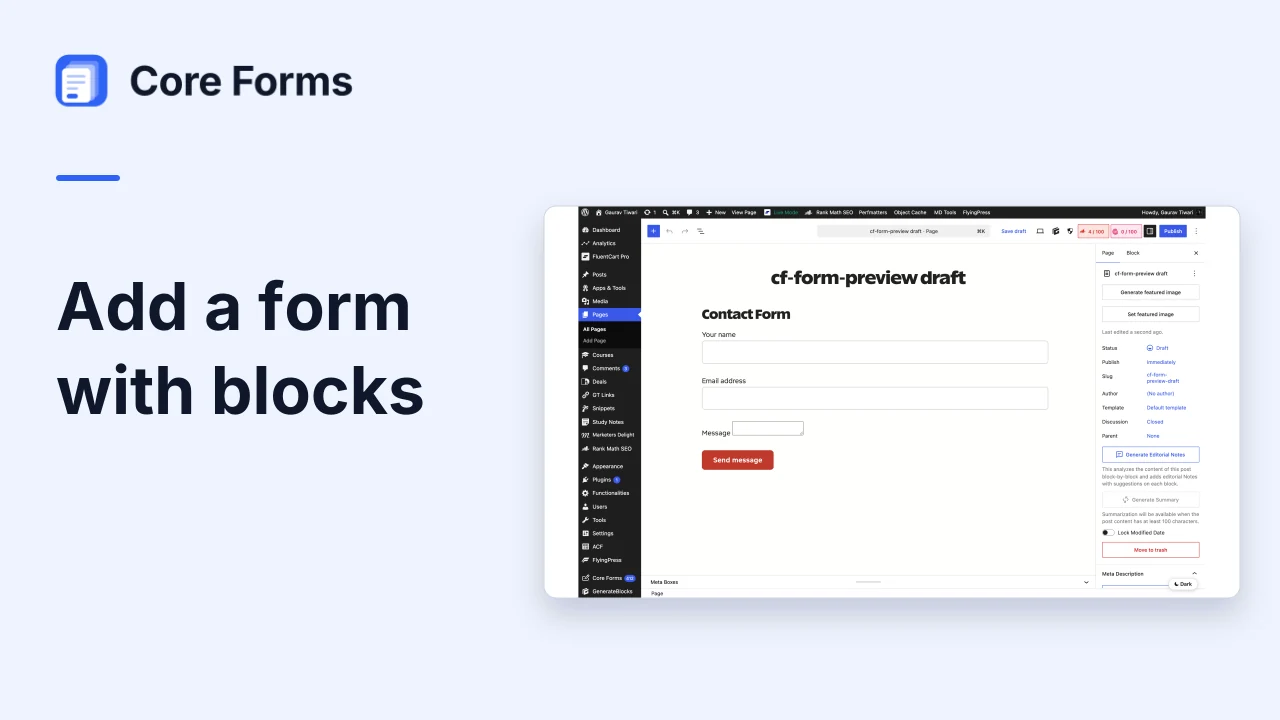
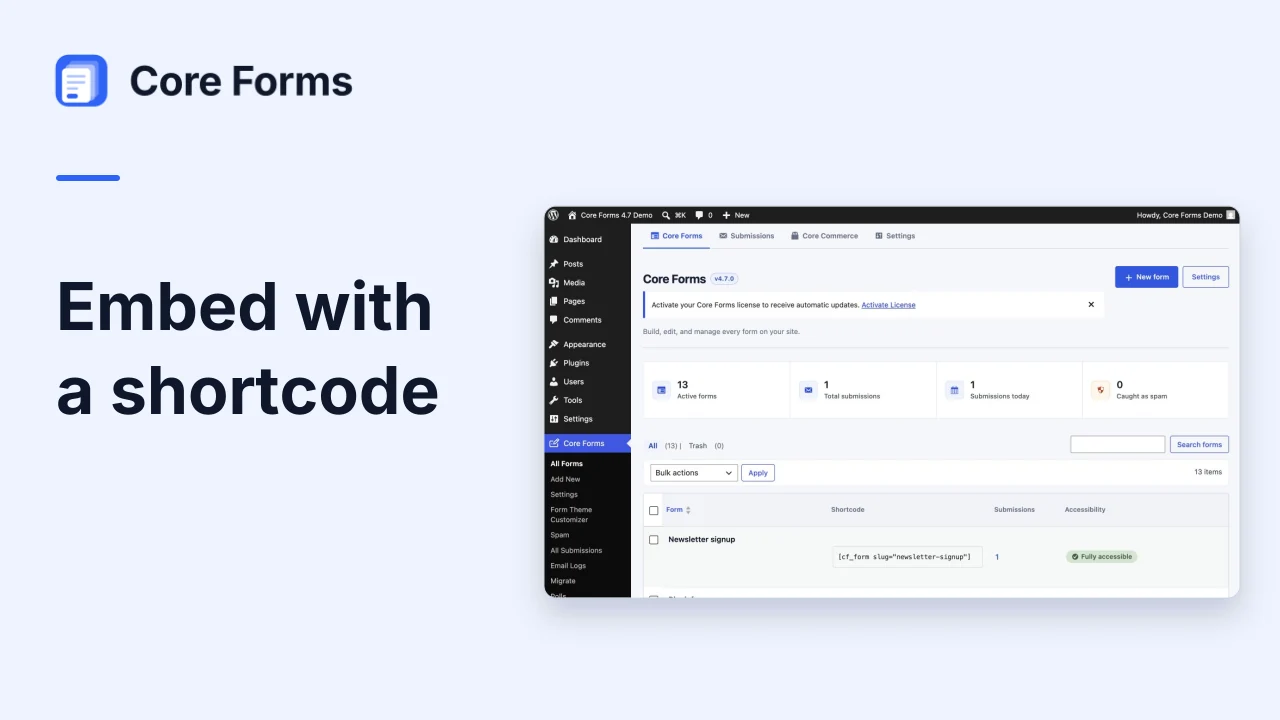
Once you have created a form, you need to place it on a page, post, or widget area for visitors to use. Core Forms supports multiple embedding methods: a shortcode, a Gutenberg block, and direct PHP functions for theme templates.
In the block inserter, type cf to find Core Forms and Core Polls. Choose the form or poll block that matches what you want to embed.
Method 1: Shortcode
The [cf_form] shortcode is the simplest way to embed a form anywhere that supports shortcodes -- posts, pages, widgets, and page builder text modules.
By Slug
[cf_form slug="contact"]
The slug is the URL-friendly version of your form title. You can find it in the form editor, below the title. Using the slug is recommended because it is human-readable and does not change if you delete and recreate a form with the same name.
By ID
[cf_form id="42"]
The form ID is the WordPress post ID of the core-form post. You can find it in the URL when editing a form (?page=core-forms&tab=fields&form_id=42). Using the ID is useful when you have multiple forms with similar slugs.
Shortcode Examples
<!-- Basic contact form -->
[cf_form slug="contact"]

<!-- Form by ID -->
[cf_form id="42"]

<!-- Multiple forms on one page -->
[cf_form slug="contact"]
[cf_form slug="newsletter"]
Both slug and id parameters are supported. If both are provided, id takes priority.
Method 2: Gutenberg Block
The Core Form block is the recommended embedding method for the WordPress block editor.
Adding the Block
- Open a page or post in the block editor.
- Click the + inserter button or type
/to open the quick inserter. - Search for "Core Form".
- Click the block to insert it.
Selecting a Form
After inserting the block, use the Form dropdown in the block toolbar or sidebar to select which form to display. The dropdown lists all your Core Forms by title.
You can also type a form slug directly into the Slug field in the block sidebar if you prefer.
Live Preview
The block renders a live preview of your form directly in the editor. This shows you exactly how the form will look on the frontend, including all fields, labels, and the submit button. The preview updates automatically when you change the selected form.
Block Variations
Core Forms registers two block variations that appear as separate entries in the block inserter:
| Variation | Description | Default Slug |
|---|---|---|
| Contact Form | A simple contact form | contact |
| Newsletter Form | An email signup form | newsletter |
These are convenience shortcuts. They insert the same Core Form block but pre-fill the slug attribute. If a form with the matching slug does not exist yet, you will need to create it or change the slug to an existing form.
Shortcode Transform
If you have existing content that uses the [cf_form] shortcode, the block editor automatically detects it and offers to convert it to a native Core Form block.
When you open a page containing [cf_form slug="contact"] in the block editor:
- The shortcode appears as a "Shortcode" block.
- Click the block and select Transform to in the block toolbar.
- Choose Core Form from the transform options.
- The shortcode is replaced with a native Core Form block, preserving the
slugandidattributes.
This also works the other way -- you can transform a Core Form block back to a shortcode block if needed.
Block Supports
The Core Form block supports the following WordPress block features:
| Feature | Options | Description |
|---|---|---|
| Align | Wide, Full | Control the block width in supported themes |
| Spacing | Margin, Padding | Adjust spacing around the form via the block sidebar |
| className | Any CSS class | Add custom CSS classes via the "Advanced" panel |
Alignment Examples
<!-- Wide alignment -->
<!-- wp:core-forms/form {"slug":"contact","align":"wide"} /-->

<!-- Full width -->
<!-- wp:core-forms/form {"slug":"contact","align":"full"} /-->
Custom CSS Class
- Select the Core Form block in the editor.
- Open the Advanced panel in the block sidebar.
- Enter your custom class names in the Additional CSS class(es) field.
<!-- With custom class -->
<!-- wp:core-forms/form {"slug":"contact","className":"my-custom-form hero-form"} /-->
Method 3: Widgets
You can place a form in any widget area (sidebar, footer, etc.) using either a shortcode widget or a block widget.
Shortcode Widget (Classic Widgets)
- Go to Appearance > Widgets.
- Add a Text or Custom HTML widget to your desired widget area.
- Enter the shortcode:
[cf_form slug="newsletter"]
Block Widget (Block-based Widgets)
- Go to Appearance > Widgets.
- Click the + inserter and search for "Core Form".
- Select the block and choose your form from the dropdown.
Method 4: Theme Templates (PHP)
For developers who need to embed forms directly in theme template files, Core Forms provides two approaches.
Using do_shortcode()
The simplest PHP approach -- process the shortcode in a template file:
<?php echo do_shortcode( '[cf_form slug="contact"]' ); ?>
Or with the form ID:
<?php echo do_shortcode( '[cf_form id="42"]' ); ?>
Using cf_get_form()
For more control, use the cf_get_form() function to retrieve the form object and render it:
<?php
// Get form by slug
$form = cf_get_form( 'contact' );

if ( $form ) {
    echo $form->get_html();
}
?>
You can also retrieve a form by ID:
<?php
// Get form by ID
$form = cf_get_form( 42 );

if ( $form ) {
    echo $form->get_html();
}
?>
Accessing Form Properties
The cf_get_form() function returns a Core_Forms\Form object with these properties:
<?php
$form = cf_get_form( 'contact' );

if ( $form ) {
    echo $form->ID;       // 42
    echo $form->title;    // "Contact Form"
    echo $form->slug;     // "contact"
    echo $form->markup;   // Raw HTML of the form fields

    // Render the complete form (with wrapper, nonce, honeypot, etc.)
    echo $form->get_html();
}
?>
Theme Template Examples
In a Page Template
<?php
// File: theme/page-contact.php
get_header();
?>

<main class="site-content">
    <div class="container">
        <h1><?php the_title(); ?></h1>
        <?php the_content(); ?>

        <?php
        $form = cf_get_form( 'contact' );
        if ( $form ) {
            echo $form->get_html();
        }
        ?>
    </div>
</main>

<?php get_footer(); ?>
In a Sidebar or Footer
<aside class="sidebar-form">
    <h3>Get in Touch</h3>
    <?php echo do_shortcode( '[cf_form slug="sidebar-contact"]' ); ?>
</aside>
Conditionally by Page
<?php
// Show different forms on different pages
if ( is_page( 'careers' ) ) {
    echo do_shortcode( '[cf_form slug="job-application"]' );
} elseif ( is_page( 'support' ) ) {
    echo do_shortcode( '[cf_form slug="support-request"]' );
} else {
    echo do_shortcode( '[cf_form slug="contact"]' );
}
?>
Enqueuing Form Assets
Core Forms automatically enqueues its JavaScript and CSS when a form is rendered on the page. You do not need to manually enqueue any scripts or stylesheets.
The following assets are loaded when a form is present:
| Asset | Handle | Purpose |
|---|---|---|
| JavaScript | core-forms |
AJAX submission, validation, conditional fields |
| Accessibility JS | core-forms-a11y |
Keyboard navigation, screen reader support |
| Form Theme CSS | (block style) | Default form styling (if enabled) |
If you are loading forms via AJAX or in unusual contexts where automatic enqueuing does not work, you can manually enqueue the assets:
wp_enqueue_script( 'core-forms' );
wp_enqueue_script( 'core-forms-a11y' );
Multiple Forms on One Page
You can embed multiple forms on the same page. Each form operates independently -- its own validation, submission handling, and success messages.
[cf_form slug="contact"]

<hr>

[cf_form slug="newsletter"]
Each form is wrapped in a <form> element with a unique class (cf-form-{ID}) so you can target them individually with CSS:
/* Style only the contact form */
.cf-form-42 {
    max-width: 600px;
    margin: 0 auto;
}

/* Style only the newsletter form */
.cf-form-58 {
    background: #f5f5f5;
    padding: 2rem;
}
Troubleshooting
Form is not rendering
- Verify the form exists and has the correct slug or ID. Go to Core Forms in the admin to check.
- If using
do_shortcode()in a theme file, make sure the function is called within the WordPress loop or afterwphas initialized.
Block shows "No forms found"
- You have not created any forms yet. Go to Core Forms > Add New to create one.
Form styles are missing
- Check if the Default form theme is enabled in the form's Settings tab.
- Check if Load Stylesheet is enabled in Core Forms > Settings (global settings).
JavaScript errors on submission
- Open your browser console (F12) and look for errors. Common causes: another plugin's JavaScript conflicting, or the
cf_js_varslocalization not loading.
Next Steps
- Configure form settings for spam protection, scheduling, and confirmation behavior
- Set up email notifications to receive submissions
- Learn about conditional fields for dynamic forms