
How to Create a Survey in WordPress (Single-Step and Multi-Step)
Build a WordPress survey from a template, split it into steps, show a follow-up question only to unhappy customers and read every answer in your own database.

Most WordPress sites that want customer feedback end up sending people to a Google Form or a hosted survey tool, and the answers land somewhere outside the site.
I build Core Forms, so every screen in this guide comes from a working survey, built the same way you will build yours.
Every survey asks different questions, so one guide cannot write yours. But the build is almost always the same: pick a template, decide between one page and several steps, add a follow-up for unhappy answers and read the results. In this one I will try my best to cover those properly.
The Customer survey template used here ships with the plugin, so you can follow along click for click. Or, if you get stuck halfway, support is a message away.
What You Need Before You Start
The setup is short. You need three things in place, and the first one is the only one that takes any thought.
- A purpose for the survey. One decision you will make with the answers, such as which feature to fix first or whether a price change hurt satisfaction.
- WordPress with Core Forms active. It is the WordPress survey plugin used throughout this guide, and the templates, the builder and the submissions inbox all come with it.
- A page to publish on. Any page or post works, or the form can live on its own shareable URL.
A survey without a decision behind it collects opinions nobody reads.
Survey or Poll
Core Forms ships two separate tools for asking visitors questions, and they suit different jobs. A survey is a form with several questions, saved submissions and actions such as email notifications. A poll is one question with a set of answers and a live result.
- Use a survey when you need several answers from the same person, free-text reasons or a follow-up that depends on an earlier answer.
- Use a poll when one question is enough and the crowd should see the result, like picking a webinar day or a feature name.
The guide to creating a poll in WordPress covers the second case. The rest of this guide is about the first.
Create the Survey From a Template
Starting from a template saves you from building the scoring scale by hand, which is the most tedious part. Here is the path:
- Go to Core Forms > Add New.
- Type
surveyin the template search. - Click Use this template on Customer survey.
Three templates match the search, and each one fits a different survey:
- Customer survey has 5 fields: an NPS question, the reason for the score, a feature checklist and an open improvement question.
- NPS / satisfaction survey has 3 fields: the 0 to 10 score, a free-text reason and nothing else.
- Customer survey (Multi-step) is the first template split into named steps.
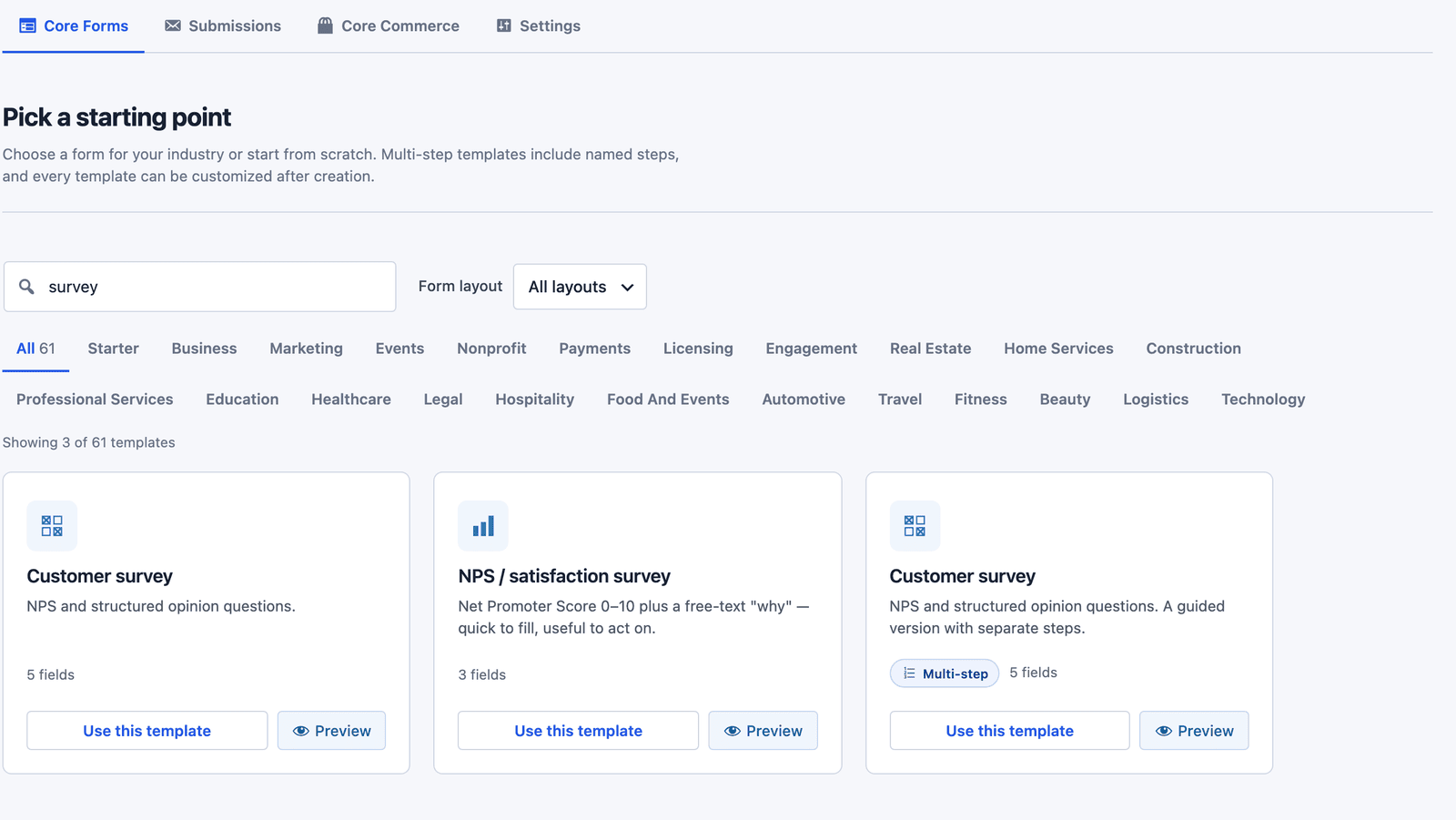 The Multi-step badge marks a template that already has its steps defined.
The builder opens with the template’s fields in place. The Customer survey asks for:
- Email address (optional). Useful when you want to reply to someone, and optional so nobody skips the survey over it.
- How likely are you to recommend us to a friend? A required 0 to 10 radio scale, stored under the name
NPS. - What’s the main reason for your score? A required text answer, which is where the useful feedback usually sits.
- Which features do you use most? A checklist of 5 options, so one person can pick several.
- What’s the one thing we could improve? An optional open question.
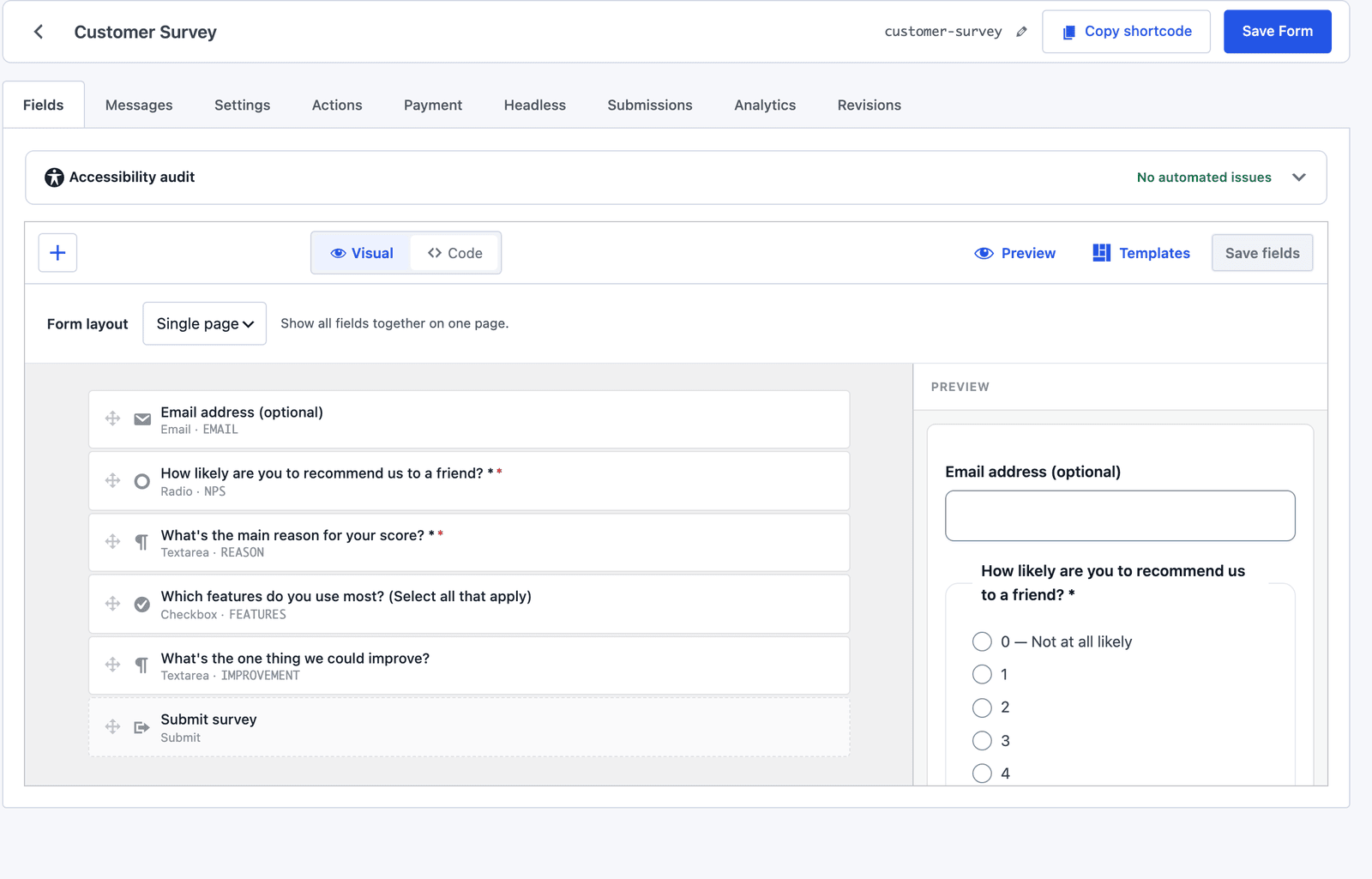 The accessibility audit above the builder already reports no automated issues for this template.
The required reason field is the most valuable part of the template. A score of 6 tells you something is wrong, and the sentence next to it tells you what.
Edit the Questions
Click any field in the visual builder to open its settings panel, which is split into General, Validation, Conditions and Advanced sections. The label, name and placeholder sit under General. Choice options take one line each, and a line written as value|label stores a short value while showing a longer label.
Wording matters more than the field type. Compare the same question written two ways.
What most surveys ask:
How was your experience with us?
What works better:
What’s the main reason for your score?
Both are open questions. The second one gets reasons instead of adjectives, because it points at a specific answer the person has already given.
The Code tab next to Visual shows the same form as HTML. Changes in either view stay in sync, so you can switch between them without losing work.
Single Page or Multi-Step
The Form layout control at the top of the builder switches between Single page and Multi-step. You can also start from the multi-step template directly. Both routes end in the same place.
For a 5-question survey, one page is the right call. Everything fits on a laptop screen, and people can see how short it is before they start. Multi-step earns its place once a survey passes about 8 questions or falls into clear sections, such as questions about the product and then questions about support.
When the layout is set to multi-step, the builder gives you these controls:
- Step name renames the current step without changing its ID.
- Add step creates a new, empty step.
- Move step earlier and Move step later reorder the steps.
- Remove step deletes the step but moves its fields to the step next to it.
- Dragging a field onto another step’s tab moves it there.
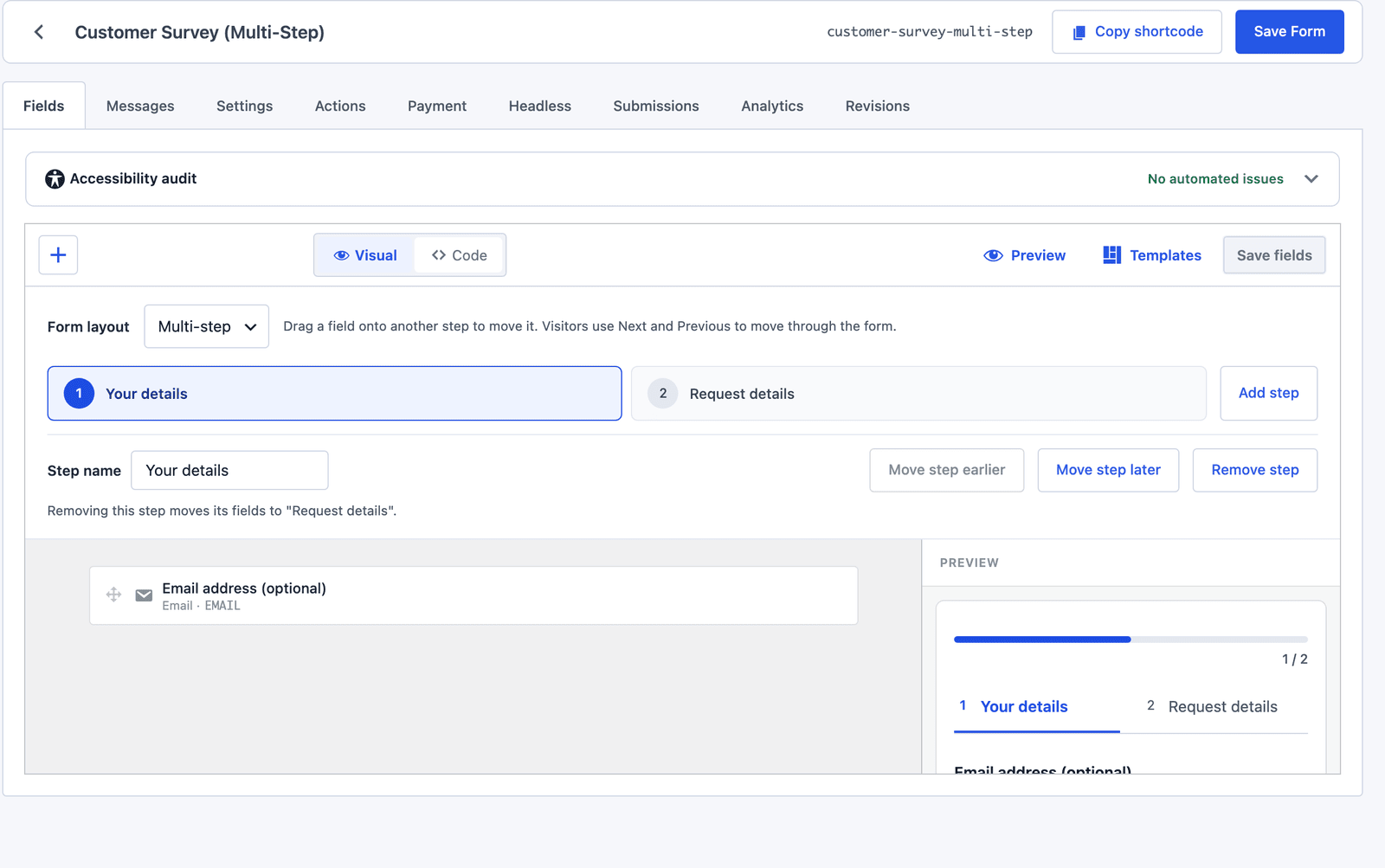 The multi-step template puts the email in step 1 and every opinion question in step 2.
That default split is worth changing for a survey. A first step with only an optional email field feels like paperwork, so moving the NPS question into step 1 gets people answering straight away.
On the page, visitors see a progress bar and the step names. Next checks the current step before moving on, and Previous goes back without clearing anything.
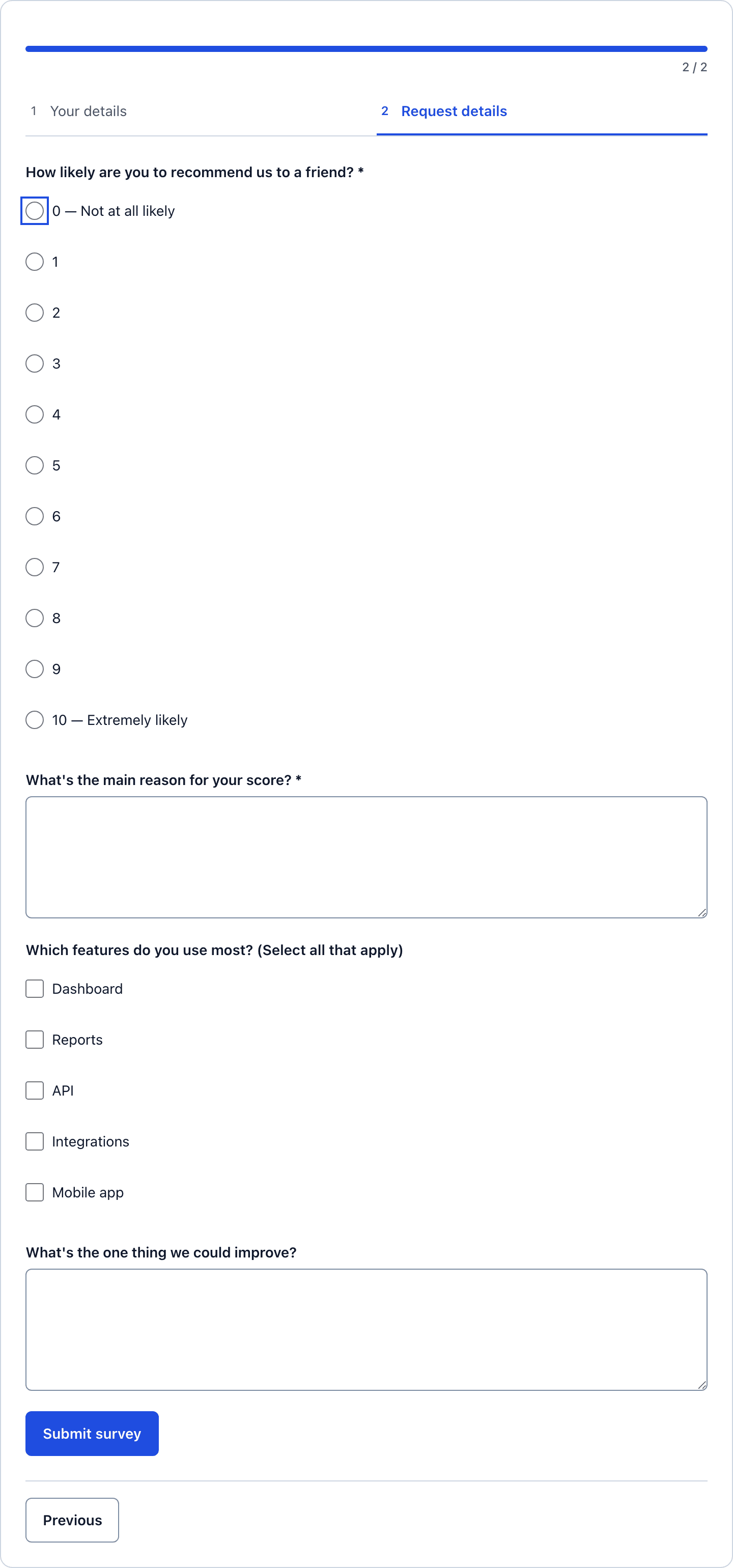 Required fields are checked on each step, so nobody reaches the end and finds an error three screens back.
If you are unsure whether steps will help or hurt, the guide to multi-step forms goes through the tradeoff, and the multi-step documentation covers every control. For a short survey where each question should get a screen of its own, full-screen mode shows one question at a time instead.
Add a Follow-Up for Low Scores
A follow-up question works best when only the people who need it see it. In an NPS survey, the people who scored 0 to 6 are the ones with something to tell you, and asking a happy customer “what should we improve?” mostly gets you “nothing, it’s great.”
Core Forms handles this with a condition on the field itself:
- Click What’s the one thing we could improve? in the visual builder.
- Expand Conditions in the field panel on the right and click + Add Condition.
- Set Action to Show if.
- Type this rule into Rule:
NPS:0|1|2|3|4|5|6
- Click Save fields.
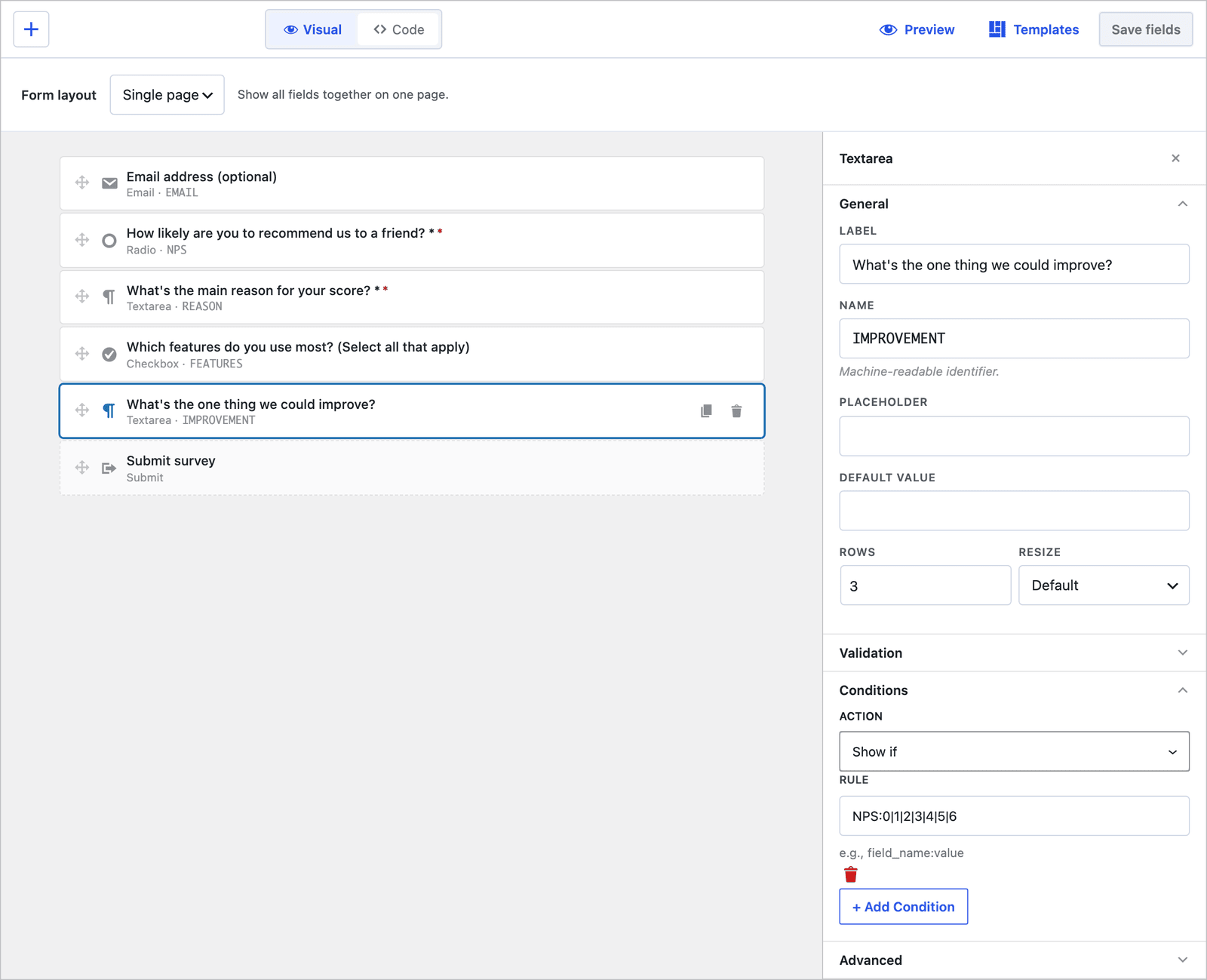 One rule on the follow-up question is all the branching this survey needs.
The rule reads as “show this field when NPS is any of these values.” The pipe separates the values, and the part before the colon has to match the field’s name, NPS, exactly.
Here is the same survey with a promoter’s score and a detractor’s score:
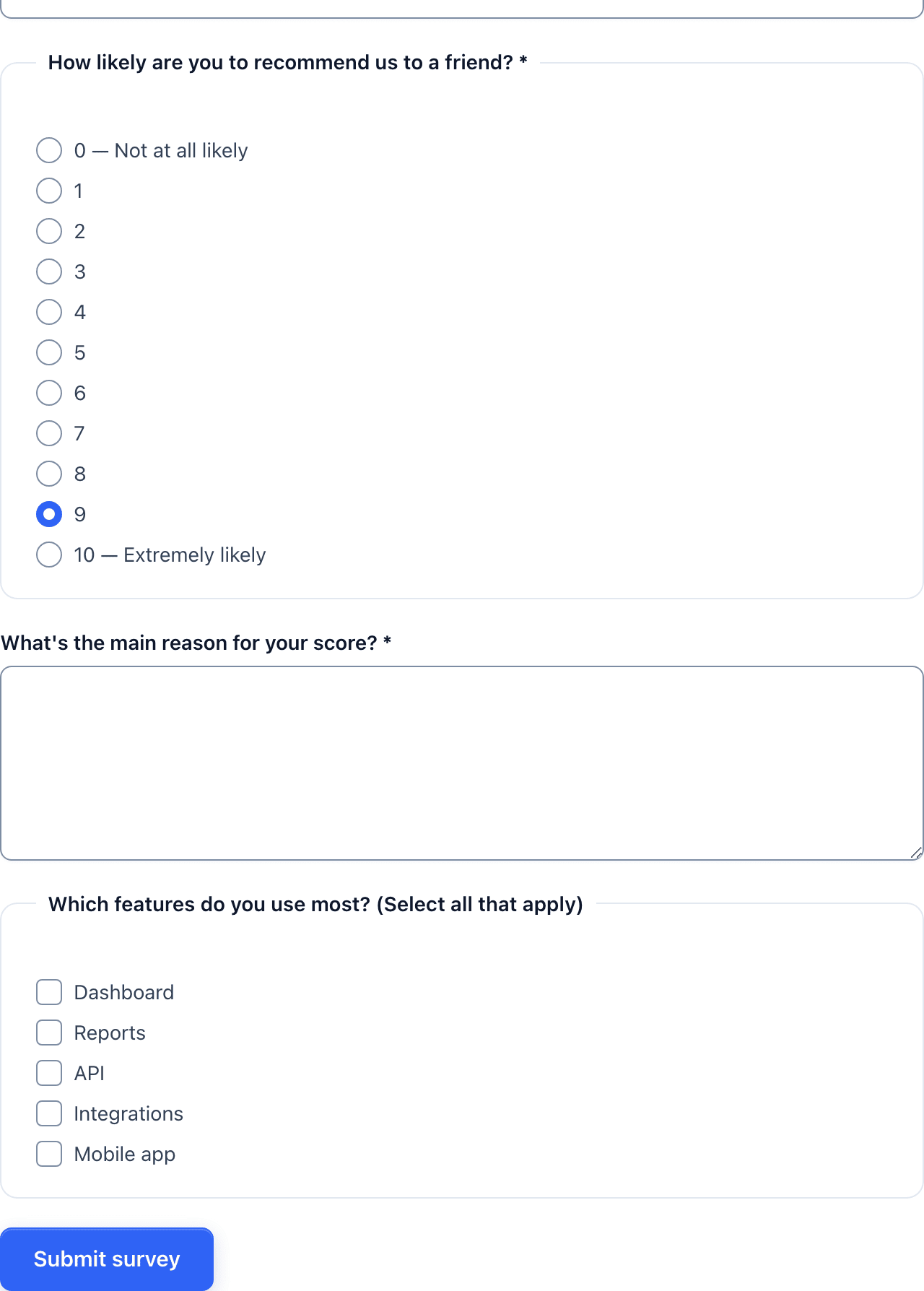 A score of 9 hides the improvement question completely.
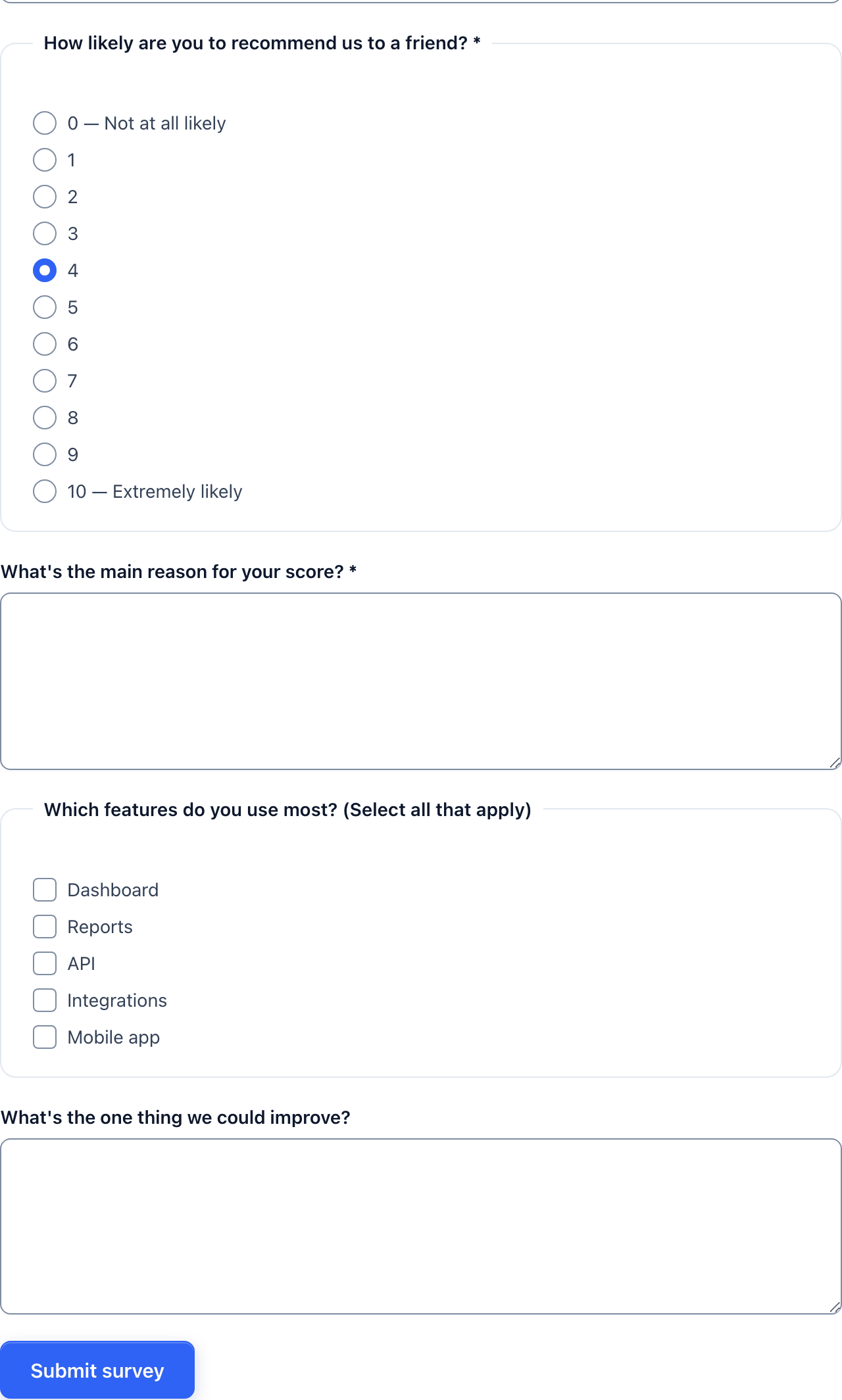 A score of 4 brings it back, and it stays optional.
The condition does more than hide a box on the screen:
- A hidden field is left out of validation, so a required follow-up never blocks a happy customer.
- A hidden field is left out of the submitted data.
- The server checks the same conditions again when the form is submitted, so nobody can force a hidden answer through by editing the page.
Other rules use the same format. Hide if does the opposite, field=value matches one exact value and field=* matches any non-empty answer. The same rule can also be written by hand in the Code view as a data-show-if attribute on the field’s wrapper, which is handy when you paste in markup from another form. The conditional logic documentation lists every format, and the post on conditional fields without a builder explains the plain HTML version.
Publish the Survey
Every form has a shortcode, shown next to its name at the top of the editor. For this survey it is:
[cf_form slug="customer-survey"]
Paste it into any page or post. In the block editor, the Core Forms block does the same job, and typing cf in the block inserter finds it.
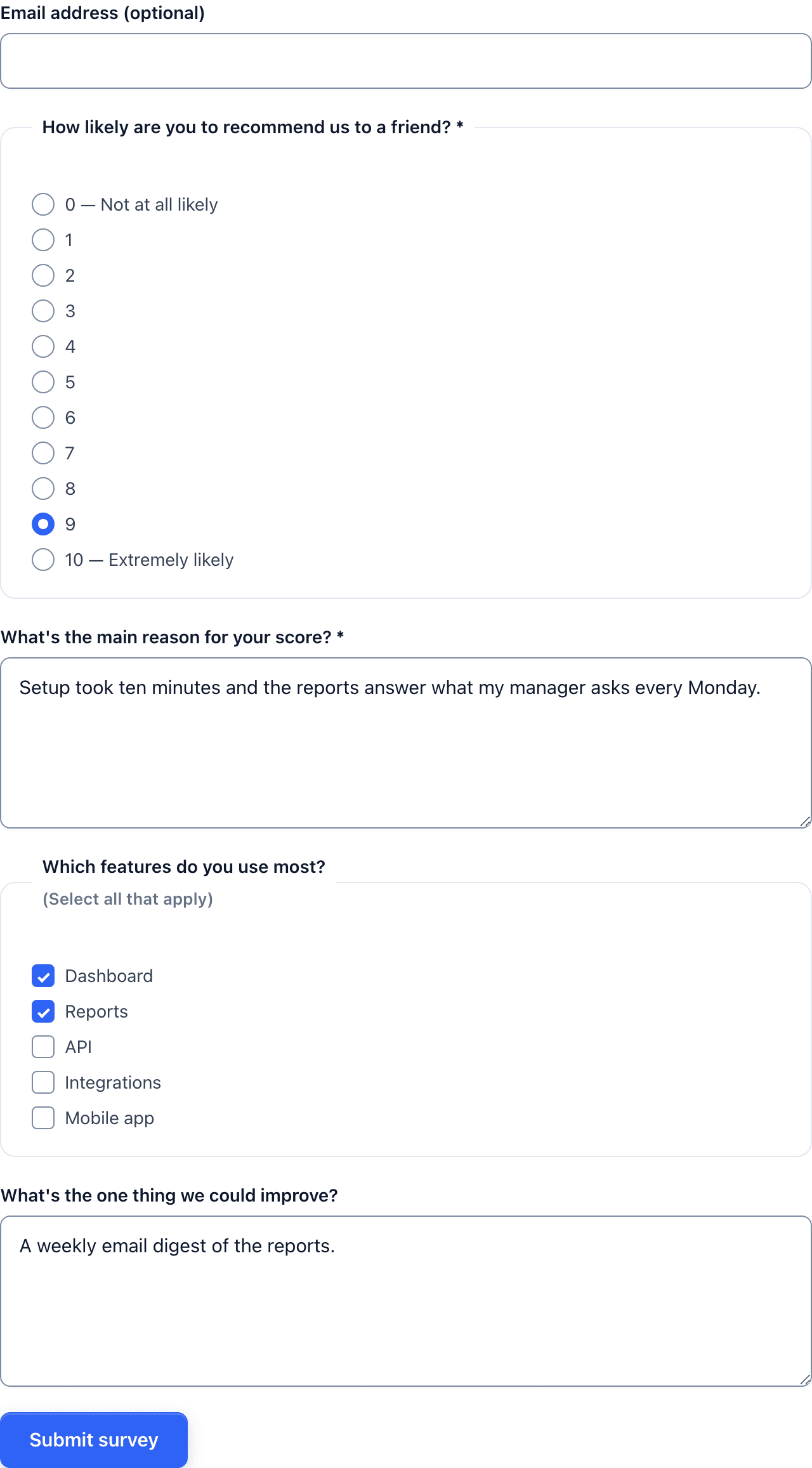 The template’s styling sits inside your theme without any extra CSS.
Before sharing the link, open the Settings tab and check the options that change how a survey behaves:
- Save submissions keeps every response in the database. It is on by default.
- Prevent duplicates blocks repeat submissions from the same visitor within a session.
- Rate limit caps submissions per IP address when a survey gets shared widely.
- Anti-spam honeypot is on by default, and a math captcha can be added on top.
- Save & resume lets people come back to a long survey through a unique link.
- Scheduling opens and closes the survey on set dates, days and times.
- Submission limit stops accepting answers after a set number.
The success message people see after submitting lives in the Messages tab.
Read the Responses
Responses land in the form’s Submissions tab, sorted by date. Each row shows the answers under their own column headings. View opens a single response with the time it arrived, the page it came from and a Send Reply box for answering the person by email when they left an address.
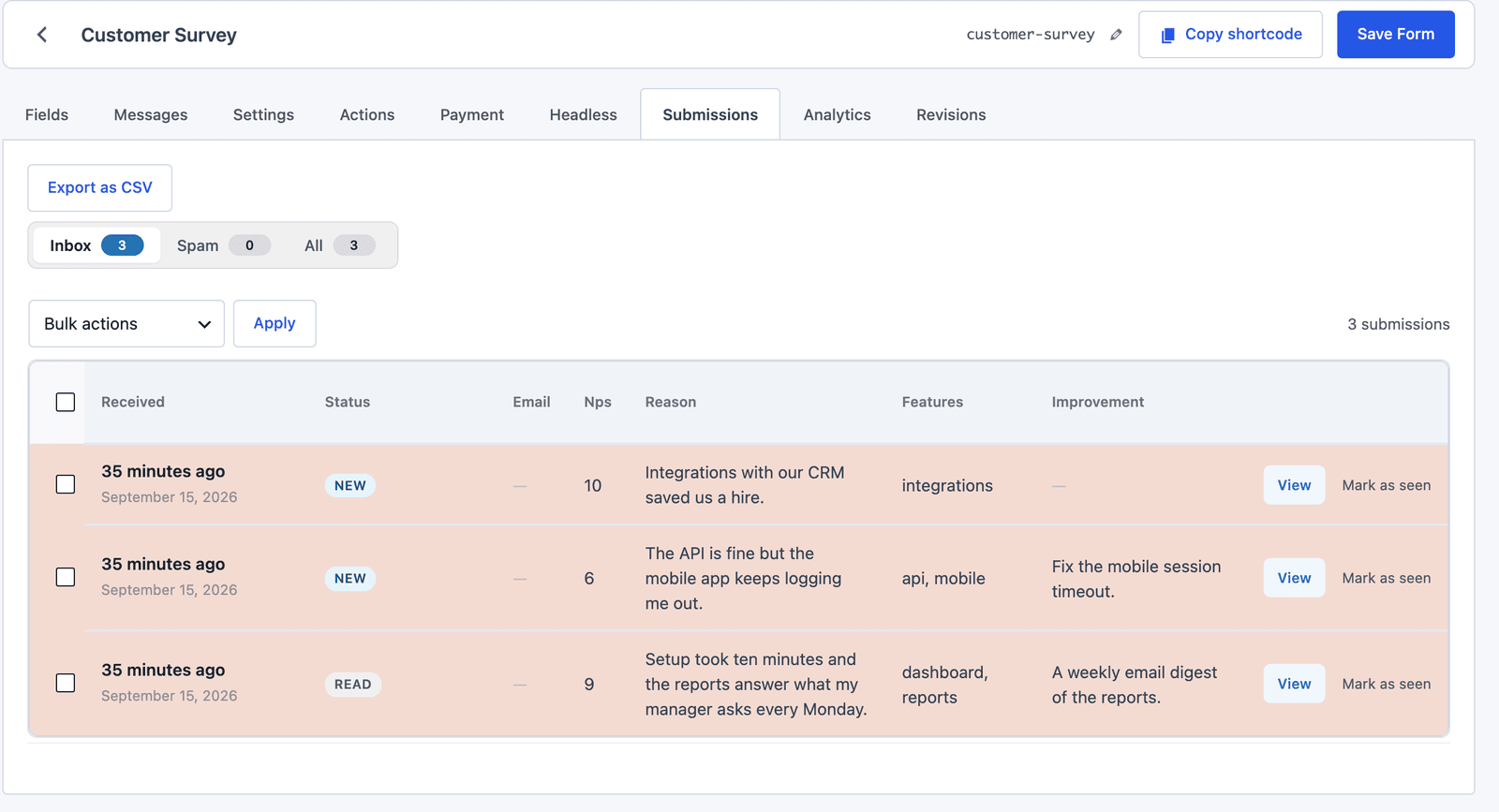 The 6 is the response to read first, and its reason and improvement answer sit right beside it.
Export as CSV downloads every answer for a spreadsheet. With the scores in a column, the NPS calculator turns them into a single number, and the survey response rate calculator tells you how many of the people you asked actually replied.
The Analytics tab reports how people move through the form: views, starts, submissions and which fields they interacted with. That is how you spot a question people abandon. The guide to WordPress form analytics explains how to read each number.
The Limits
Core Forms stores, filters and exports every answer, but it does not chart them. There is no built-in bar chart of how many people picked each feature, so a survey with hundreds of responses still ends up in a spreadsheet or a BI tool for that part.
The follow-up rule depends on field names. If someone renames the NPS field in the builder, the condition’s rule still points at the old name, and the follow-up quietly stops appearing for everyone.
Each response records the visitor’s IP address, the page it came from and the browser’s user agent. That is useful for spotting spam, but it matters if you promise people an anonymous survey. The anonymous feedback form guide covers what to turn off first.
A survey on your own site also only hears from people who visit your site. It is not a research sample, and the answers lean toward whoever already cares enough to click.
What Quietly Ruins a Survey
Making every question required. It feels like it guarantees complete data, but people who hit a required question they cannot answer honestly either close the tab or type something useless.
Asking questions you have no plan for. Each extra question lowers the number of people who finish, and an answer nobody acts on costs a respondent for nothing.
Leaving the multi-step split on its defaults. A first step that only asks for an optional email reads like a sign-up form, and some people leave before they reach the actual questions.
Sharing the survey without sending a test response through the live page. The preview inside the builder and the published page can behave differently once your theme and caching are involved, and a broken survey tends to be discovered by the fifth confused customer.
Reading the average score and skipping the reasons. The number tells you whether to worry, and only the text tells you what to change.
Final Remarks
You now have a survey that lives on your own site, asks a follow-up only when a score is low and keeps every answer in your own database. If you keep one idea from this guide, keep this one: a survey is only as good as the decision it feeds, so the reason field matters more than the score.
The Customer survey template is the quickest way to start, and the question ideas in this list of survey questions help when you write your own. If something in the setup does not behave the way this guide describes, the support team can look at it with you.
I hope your first survey brings back answers you can act on.
If the survey needs a demographics section, the demographic questions guide has the wording and the privacy notes.
FAQ
Can respondents save a long survey and finish later?
They can once Save & resume is turned on in the form’s Settings tab. Visitors get a unique link that brings them back to their saved answers, and drafts expire after 30 days by default.
Can I close a survey on a specific date?
The Scheduling section in Settings handles that. It accepts an open date, a close date, allowed weekdays and a daily time window. Outside that window the form stops accepting submissions.
Can I stop people from answering twice?
Only partly without a login. Prevent duplicates blocks repeat submissions within a browser session, and Require user logged in limits the survey to signed-in accounts, which is the only strict one-person-one-response option.