
How to Send WordPress Form Submissions to Telegram
Send WordPress form notifications to Telegram with your own bot. Set the chat ID, choose fields, test the message and troubleshoot delivery errors.

WordPress form Telegram notifications are useful when the person handling a request already works in Telegram. Set up a bot, choose the destination chat and send a short message containing the fields that person needs.
I’d keep the submission saved in WordPress and use Telegram to alert the team. That gives you a record to return to when a notification is missed, a chat gets busy or somebody leaves the group.
Create a bot and connect it to your form
Use your own bot for the Core Forms Telegram integration. Start with a separate notification bot if your existing bot already serves another application.
- Open @BotFather in Telegram and send
/newbot. - Follow the prompts to choose the bot’s name and username.
- Copy the bot token into a password manager.
- In WordPress, open your Core Forms form’s Actions tab and add Send to Telegram.
- Paste the token into Bot token, then select Verify bot.
What verification tells you:
- Core Forms can authenticate the bot and display its username.
- Verify bot doesn’t send a Telegram message.
- A valid token doesn’t prove that the bot can post in your chosen chat or channel.
Treat the bot token like a password. Keep it out of page HTML, screenshots and front-end JavaScript. If it is exposed, revoke it through BotFather and replace it in the integration.
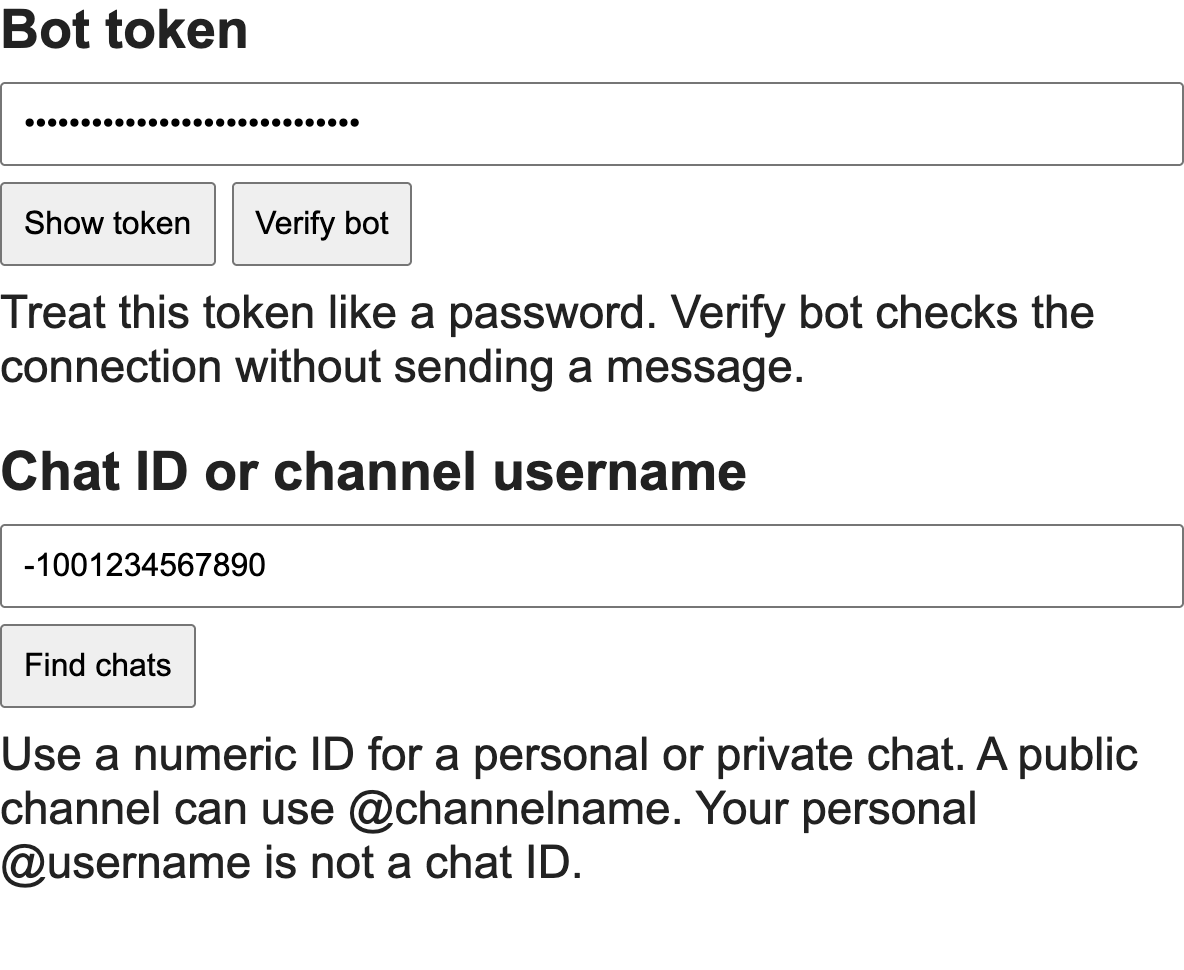 Telegram connection controls with placeholder values. The bot token stays masked.
Choose the right Telegram destination
Give the bot access to the destination before using Find chats. For a personal chat, open the bot and press Start first.
| Destination | Preparation | Value to use |
|---|---|---|
| Personal chat | Open the bot and press Start | Numeric chat ID from Find chats |
| Group | Add the bot and send /start@YourBotUsername | The group’s numeric chat ID |
| Public channel | Add the bot as an administrator with permission to post | @yourchannel or its numeric ID |
| Private channel | Add the bot as an administrator with permission to post | Numeric channel ID |
| Forum topic | Add the bot to the forum group | Group chat ID plus the topic ID |
Pay attention to these details:
- Your personal
@usernameis not a substitute for a personal chat ID. - Group and channel IDs can be negative numbers. Keep the minus sign when copying them.
- Topic ID is optional; use it when notifications belong in a specific forum topic.
- Chat discovery uses Telegram’s updates API. If the bot has an active webhook, Core Forms won’t remove that webhook to discover chats. Use a known chat ID or a separate bot instead.
Run Find chats, select the intended destination and check the resulting value in Chat ID or channel username. Don’t choose a similar-looking group just because it appears first.
Write a short notification using form variables
Start with Plain text and include only the fields the recipient needs to act on the request. A name, reply address and short message are usually enough for a contact form.
For fields named NAME, EMAIL and MESSAGE, use:
New website request
Name: [NAME]
Email: [EMAIL]
Message: [MESSAGE]
Use the field picker to insert variables from your own form. [EMAIL] only helps if the form has a field with that name; a field named work_email needs its matching variable.
Current formatting behavior:
- Plain text sends the message without Telegram HTML formatting.
- HTML supports Telegram’s allowed formatting tags, including
<b>,<i>and<code>. - Submitted values are treated as text in either mode.
- Telegram’s sendMessage API accepts up to 4,096 characters after entity parsing.
Don’t copy a long application, medical history or staff record into a group notification. Keep the full record in the appropriate system and send the minimum information needed for the next action. Check the group’s membership before putting customer details into it.
Test the destination, then submit the actual form
Send a deliberate test message after reviewing its destination and content. Then submit the website form as a visitor to test the complete route.
- Save the configured action.
- Open Test Telegram message, review the preview and use Send test message.
- Confirm that the message arrives in the correct chat or topic.
- Open the public form page and submit obviously fictitious details.
- Check that the saved WordPress submission and the Telegram notification contain the expected values.
- Remove the test submission and test messages when you’re done.
The two tests answer different questions. The action test checks your bot, destination and message configuration. A visitor submission also checks the form’s field names, action trigger and normal processing path.
Keep submission storage enabled if you need a durable inbox. Telegram’s acceptance of a message doesn’t establish that a team member read it.
Fix common Telegram notification errors
Start with the error reported by the action or test controls. Re-entering every setting at once makes it harder to find the actual cause.
| Error or symptom | What to check |
|---|---|
| 401 or bot verification fails | Incorrect or revoked bot token |
| 403 Forbidden | Bot blocked by the recipient, removed from the group or missing channel permissions |
| 400 chat not found | Wrong destination ID, personal username used instead of a numeric ID, or chat not initialized |
| 400 formatting error | Unsupported or malformed HTML; try Plain text |
| 429 Too Many Requests | Telegram rate limiting; wait for the indicated retry interval and review notification volume |
| Message appears in the wrong topic | Chat ID and Topic ID combination |
| Literal or missing field values | Variables don’t match the form’s field names |
For a saved submission with no notification, inspect the configured action and its delivery record before changing the form fields. If both the notification and saved record are missing, investigate form submission first.
The Telegram integration documentation covers the controls in more detail. If your team works in Slack, use the Slack form inbox guide for that destination instead.
FAQ
Does this create a form inside Telegram?
- This setup sends notifications from a WordPress form to a Telegram chat, channel or topic. The visitor fills out the form on your website.
Can a Telegram bot message someone who hasn’t started it?
- As Telegram’s bot introduction explains, a bot can’t initiate a normal personal conversation with an arbitrary user. Open the bot and press Start before discovering and using that personal chat.
Do I need to disable the webhook on my existing bot?
I’d use a separate notification bot if another application owns the webhook. Alternatively, enter a known destination ID directly. Don’t disrupt a working application merely to run chat discovery.
Is bot verification enough to prove notifications work?
- Verification checks the bot token. Send a test to the chosen destination, then submit the actual form to verify its variables and processing path.