
How to Add reCAPTCHA v3 to a WordPress Form
Configure reCAPTCHA v3 in Core Forms with matching keys, understand the 0.5 score threshold and troubleshoot missing tokens or rejected submissions.

To add reCAPTCHA v3 to WordPress forms, register your domain for v3, copy the matching site and secret keys into Core Forms, then test submissions as a visitor. Start with the default score threshold and review what it rejects before tightening it.
I’d keep a working contact route available while testing spam protection. A filter that blocks real customers can make a quiet inbox look like success when the form has simply become harder to use.
Understand what reCAPTCHA v3 checks
Treat the reCAPTCHA score as one signal when deciding whether to accept a submission. Use Google’s v3 documentation to understand the token and score lifecycle.
The relevant behavior is:
- v3 produces a score from 0.0 to 1.0 instead of asking every visitor to solve an image challenge.
- A higher score indicates an interaction Google considers more likely to be legitimate. It doesn’t prove identity or permission.
- The browser obtains a token; your WordPress server must verify it with Google.
- Tokens expire after two minutes, so request one when the visitor submits rather than when they first open a long form.
- Google recommends using action names and checking that the returned action matches the expected one. Its verification response also includes the hostname.
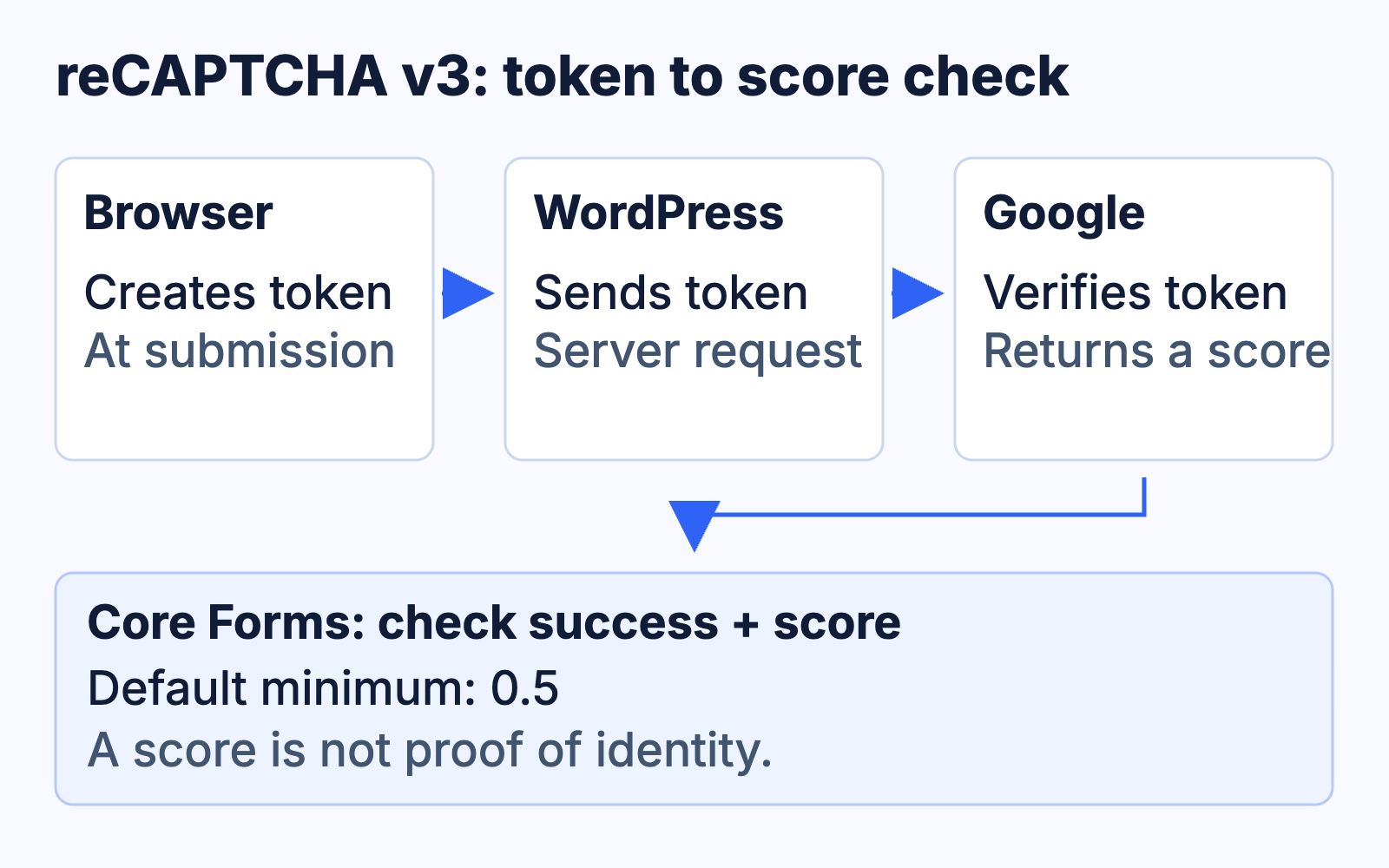 The token reaches WordPress; Google returns a verification result and score. Core Forms then applies its score threshold.
For the broader tradeoff between invisible scores and interactive challenges, read the CAPTCHA comparison.
Get the correct v3 keys for your domain
Create a v3 registration for the domain that serves your form. Keep the site key and secret key from the same registration together.
- Open Google’s reCAPTCHA administration console.
- Create a registration and select reCAPTCHA v3 for the classic site-key and secret-key integration.
- Add the domain used by your WordPress form. Follow the console’s domain format rather than pasting an entire page URL.
- Review the applicable Google terms and account settings, then complete the registration.
- Copy both keys and store the secret securely.
Key distinctions:
- Site key: used by the browser to request a token.
- Secret key: used by the server to verify that token; keep it out of published HTML and screenshots.
- v2 keys: don’t belong in this v3 setup.
- Enterprise credentials: use a different integration path; don’t assume they are interchangeable with the classic key pair.
- Google account usage and billing: separate from your WordPress plugin license. Check the current terms and usage limits in your Google account.
If you’re testing on a staging hostname, authorize that hostname for your test registration. Avoid weakening production checks just to make a staging test pass.
Add the keys to Core Forms
Enter the two keys in Core Forms’ global settings. The current integration applies to all Core Forms forms once it is configured.
- Open Core Forms > Settings in WordPress.
- Find Google reCAPTCHA v3.
- Paste the public key into Site Key and the matching private key into Secret Key.
- Save the settings.
- Open a form and review its reCAPTCHA failure and low-score messages.
The Core Forms reCAPTCHA integration applies these checks:
- The verification response must indicate success.
- The default minimum score is 0.5.
- A token that fails verification or a score below the threshold rejects the submission.
For a custom server integration, also validate the expected action and hostname. Those checks are part of Google’s recommended verification approach; the current Core Forms handler doesn’t enforce them itself.
Don’t stack several CAPTCHA providers onto the same form before you’ve established which one solves your problem. Use the spam protection documentation to review the available controls.
Test both acceptance and rejection
Check the form in a normal visitor session and confirm that an accepted submission is saved. Seeing the reCAPTCHA badge or loading its script isn’t enough to establish that server verification works.
Check these cases:
- A normal submission from the authorized domain saves successfully.
- A page with the reCAPTCHA script blocked produces a recoverable error rather than silently losing the visitor’s work.
- A verification failure shows the message you configured.
- A low-score rejection shows a clear next step or an alternative contact route.
- A longer form obtains its token at submission time rather than reusing an expired page-load token.
- Your optimization or consent configuration doesn’t permanently prevent the script from running.
You can’t force Google’s live service to give a specific visitor a chosen score. Use a staging test harness if you need deterministic low-score checks, and keep those overrides out of production.
I would start by checking accepted entries and real reports of failed submissions. If you raise the minimum score without observing your own traffic, you may trade visible spam for less visible lost inquiries.
Adjust the threshold only when you have a reason
Keep 0.5 as your starting point. Core Forms exposes the cf_recaptcha_min_score filter for developers; the current settings screen doesn’t provide a per-form score slider.
For example, this PHP filter changes the minimum to 0.7:
add_filter( 'cf_recaptcha_min_score', function ( $minimum ) {
    return 0.7;
} );
Put this in a site-specific plugin or a managed PHP snippet, not in the form’s HTML. Test the change on staging, then monitor rejected submissions and legitimate-user complaints. Remove the filter to restore the default.
At a minimum of 0.5:
- A verified score of 0.1 fails the score check.
- A verified score of 0.9 passes the score check, though other validation can still reject the form.
- A missing or invalid token doesn’t become acceptable just because the threshold is low.
If you prefer another provider, compare the Cloudflare Turnstile setup before changing a working form.
FAQ
Is reCAPTCHA v3 completely invisible?
- It usually avoids an interactive puzzle, but Google’s branding, disclosure requirements and browser behavior still matter. Follow the current Google requirements for your implementation.
Can I put the secret key in the form markup?
- The secret belongs in server-side settings. Only the site key is intended for browser use. Replace an exposed secret before relying on the integration.
Will reCAPTCHA v3 stop all spam?
- No score-based filter guarantees zero spam. Keep server validation and the form’s other appropriate protections in place, and review both accepted and rejected submissions.
Why does a real person receive a low-score error?
- The score is a risk estimate, not proof that someone is a bot. Review your threshold, script loading and visitor reports, then provide a usable way to retry or contact you.