
Cloudflare Turnstile for WordPress Forms
Add Cloudflare Turnstile to a WordPress form in 3 steps: register the widget, paste the site and secret keys, and switch it on per form, with the failure message, the test keys and the cases where the honeypot alone is enough.

Cloudflare Turnstile on WordPress is a form check that usually passes without a puzzle. Adding Turnstile to a WordPress form takes 2 keys and a checkbox.
I build Core Forms, which includes Turnstile without an add-on, and every screen here comes from it running on a test site.
One guide cannot settle the Turnstile versus reCAPTCHA question, and there is a separate piece on this site for that. This one covers the setup, the per-form switch, what the visitor sees, the message when a check fails, Cloudflare’s test keys for a staging site, and when the honeypot is enough on its own.
There is nothing to download. Or, if you get stuck halfway, support is a message away.
What Turnstile Does on a Form
Turnstile runs a check in the visitor’s browser and gives the form a token, and the server sends that token to Cloudflare to confirm it before the submission is accepted. Four things follow:
- Most visitors see a small widget that passes on its own, with no puzzle. Cloudflare calls it managed mode, and it shows a checkbox only when the browser looks suspicious.
- The check is on the server. A bot that skips the widget and posts the form directly fails, because the token is missing.
- It is free at any traffic level, and it does not profile visitors the way reCAPTCHA does.
- It stacks with the honeypot. A submission has to pass every check that is on, and a spam submission is stored as spam with no actions run and a success message shown, so the bot learns nothing.
Keys are set once for the site, and Turnstile is switched on per form, so a logged-in members’ form can leave it off.
Register a Widget in Cloudflare
- Sign in to the Cloudflare dashboard and open Turnstile in the left menu.
- Click Add widget, name it after the site and add your domain under hostnames.
- Leave the widget mode on Managed.
- Click Create and copy the Site key and the Secret key.
The site does not have to be on Cloudflare’s DNS or proxy. Turnstile works for any domain you add to the widget.
Paste the Keys
- In WordPress, go to Core Forms > Settings.
- Find the Cloudflare Turnstile section.
- Paste the Site Key and the Secret Key and save.
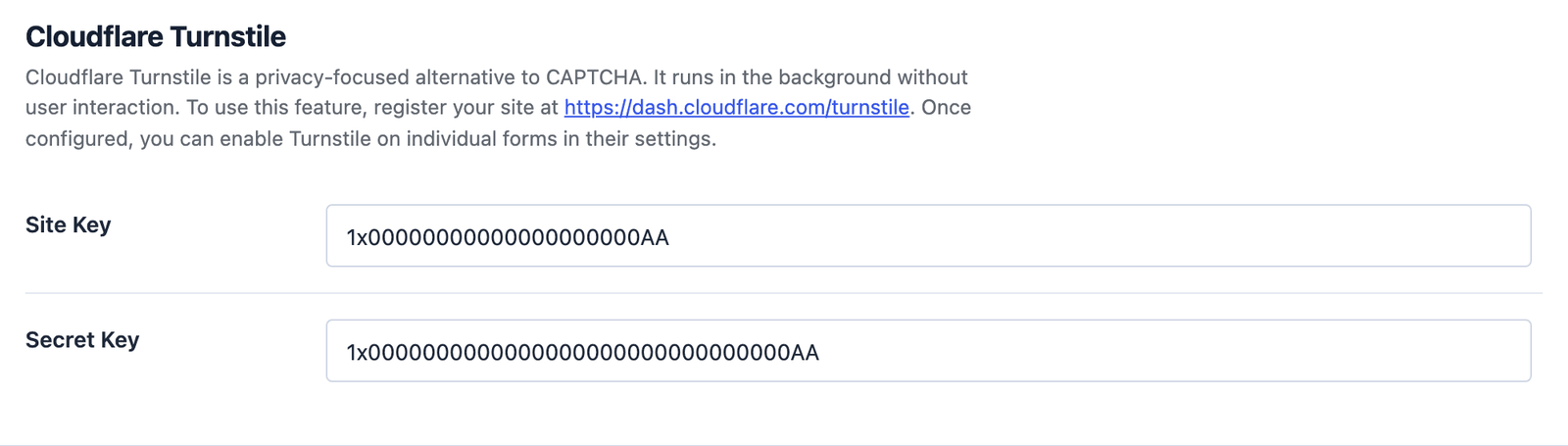 The keys shown are Cloudflare’s public test keys, which always pass. Real keys look the same and come from your widget.
The keys are site-wide. Every form that switches Turnstile on uses them, and there is no per-form key.
Switch It On for a Form
- Open the form and click the Settings tab.
- Expand Anti-spam.
- Under Cloudflare Turnstile, tick Enable Cloudflare Turnstile on this form.
- Click Save Changes.
 Per form, so the public contact form gets it and the logged-in feedback form does not.
The honeypot stays on alongside it. Turnstile catches the bots that fill the form through a real browser, and the honeypot catches the ones that post every field blind.
What the Visitor Sees
The widget appears above the submit button, runs its check while the visitor is still typing, and shows a tick when it passes.
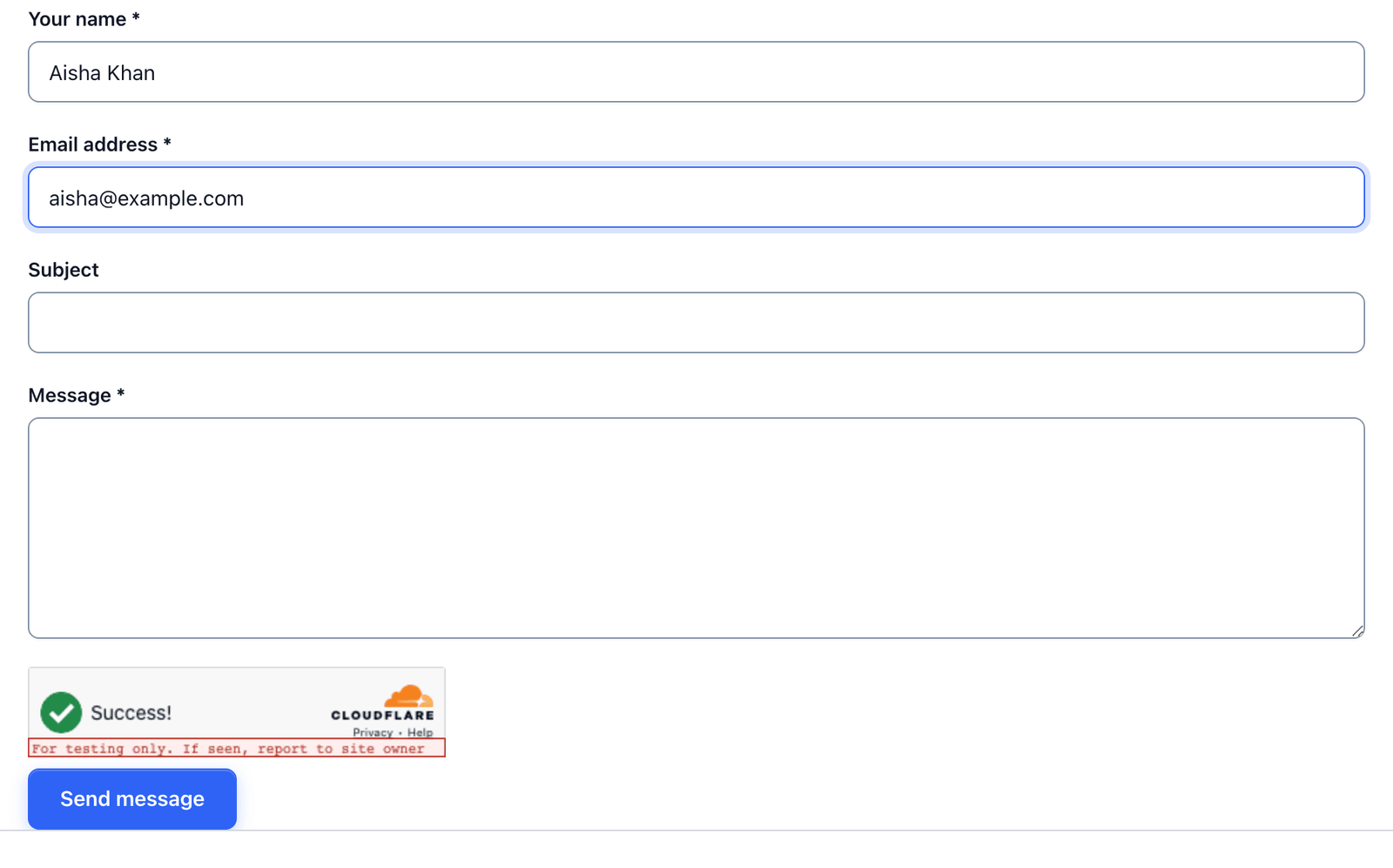 The widget here is Cloudflare’s test widget, marked as such. A real one shows the same tick without the notice.
On a suspicious browser the widget shows a checkbox to click, and a visitor almost never sees more than that. The form’s submit is not blocked while the widget runs, and a submission sent before the token arrives fails with the message below rather than hanging.
The Failure Message
When a check fails, the visitor sees a message next to the form, and it is editable:
- Open the form’s Messages tab.
- Find Turnstile Failed, which reads “Verification failed. Please try again.”
- Change it if you want, and save.
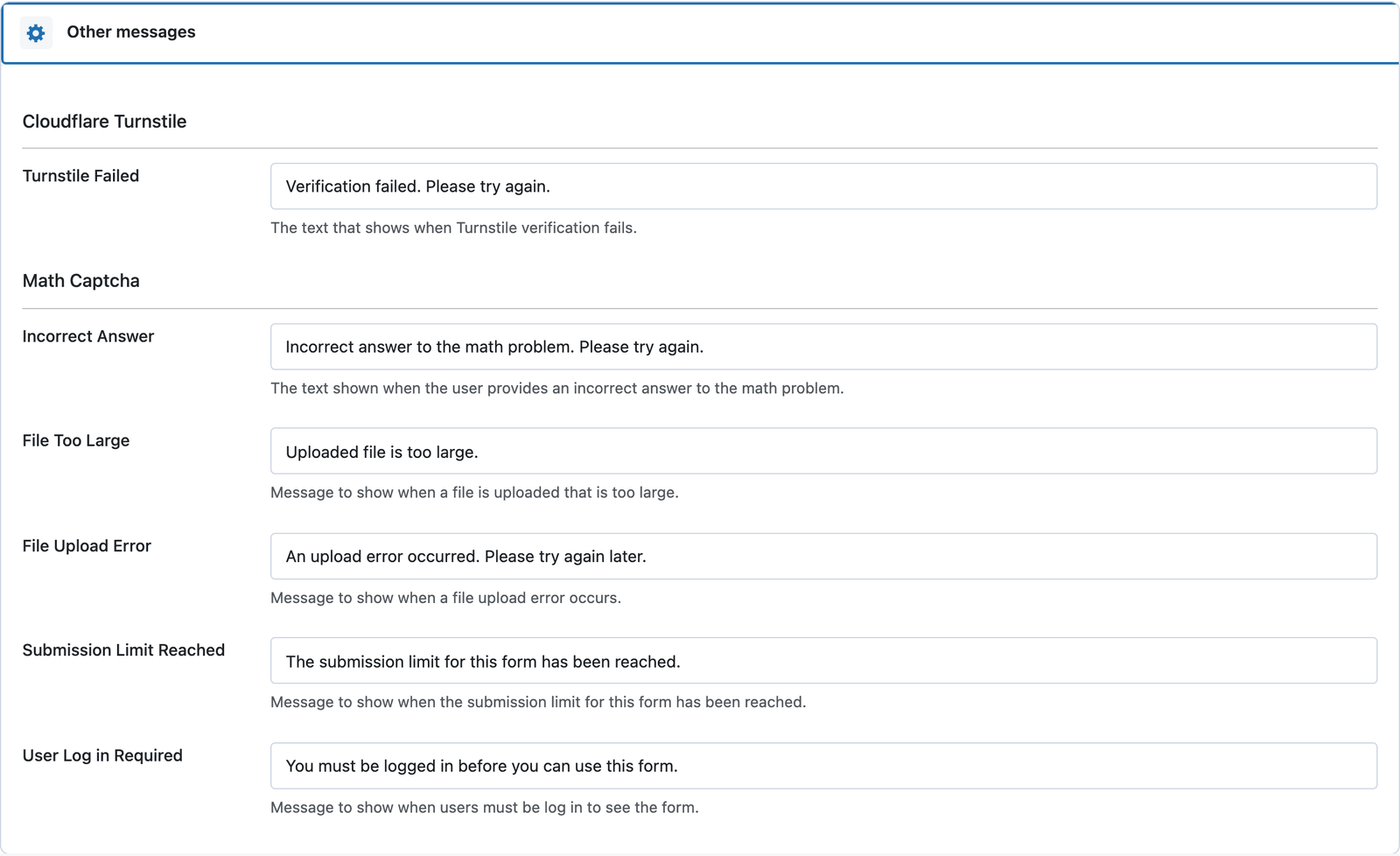 One message, on the form’s Messages tab, shown next to the form when a check fails.
Keep it short and keep “try again” in it. A real visitor whose check failed, usually because of a privacy extension, needs to know a second attempt will work.
Test Keys for a Staging Site
Cloudflare publishes test keys that always pass, always fail or always show the checkbox, and they are what to use on a staging site so the real widget is not counting test traffic.
Swap them for the real keys on the live site. A test key on a live form shows a “for testing only” notice to every visitor and stops nothing.
When the Honeypot Is Enough
Turnstile is worth adding when spam is getting through, and not before.
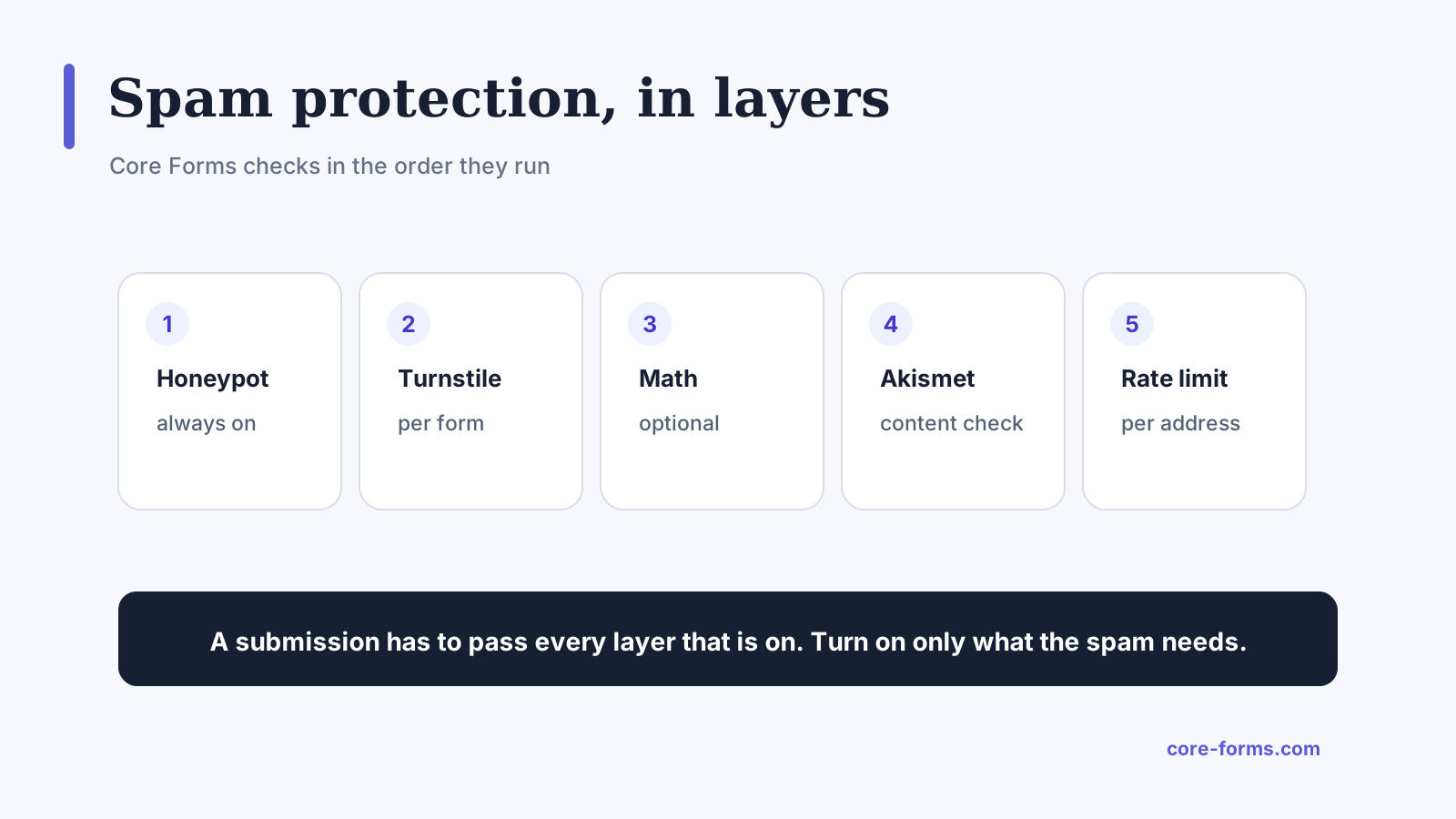 The layers in the order they run. A submission has to pass every one that is on.
The plugin’s own recommendation, and mine:
- A low-traffic contact form: honeypot and, if needed, the math question.
- A high-traffic contact form: honeypot and Turnstile.
- A public form that takes uploads or payments: honeypot, Turnstile and Akismet.
- A form behind a login: honeypot only.
The honeypot piece explains the first layer, and the reCAPTCHA, Turnstile and hCaptcha comparison covers the choice between them.
The Limits
Turnstile is per form, and the keys are per site. A network of sites needs the keys in each site’s settings.
The widget needs JavaScript. A visitor with scripts off sees no widget and fails the check, which is the trade every CAPTCHA makes.
A page cache can serve a stale token. If real visitors start failing after you turn on full-page caching, exclude pages with forms from the cache, and the settings docs cover the same problem for the nonce.
Turnstile stops bots, not people. A person pasting spam by hand passes, and the rate limit and Akismet are the layers for that.
What Quietly Ruins a Turnstile Setup
Test keys on the live site. The widget passes everything and shows a notice saying so.
Turning it on for every form. The logged-in members’ form does not need it, and a widget on a form that had no spam is friction for nothing.
Deleting the failure message. A blank message on a failed check is a form that appears to do nothing, and the visitor leaves.
Adding Turnstile and turning the honeypot off. They catch different bots, and the honeypot costs the visitor nothing.
Final Remarks
You now have Cloudflare Turnstile on the forms that need it, with the keys set once, the check verified on the server, a failure message a real visitor can act on and the honeypot still doing its quiet work underneath. If you keep one idea from this guide, keep this one: switch Turnstile on where spam is getting through and leave it off everywhere else.
The Turnstile integration page has the reference, and the spam protection feature lists all 5 layers and the order they run in. If something here does not behave the way this guide describes, the support team can help.
I hope the next thing in your inbox is a person.
The math question is the lighter option for a quiet form, and the math CAPTCHA piece covers where it works and where it excludes people.
FAQ
Is Cloudflare Turnstile free for WordPress forms?
Yes. Cloudflare provides Turnstile free at any traffic level, and the Core Forms integration is included in the license without an add-on.
Does my site have to be on Cloudflare?
No. You need a free Cloudflare account to create the widget and get the keys, and the site’s DNS and hosting can be anywhere.
Can I use Turnstile and reCAPTCHA together?
Both can be configured, and a form has to pass every check that is on. In practice pick one, because 2 widgets on a form is friction with no extra protection.