
How to Create a Volunteer Application Form in WordPress
Build a WordPress volunteer application form that asks for the area of interest, availability and location, acknowledges every applicant automatically and keeps the sign-ups in one inbox.

A volunteer application form has to do 2 things a job application does not: make signing up feel easy, and tell a coordinator where and when a person can help before anyone picks up the phone.
I build Core Forms, and every screen here comes from its Volunteer application template running on a test site.
Every organization has its own roles and its own vetting, so one guide cannot cover background checks or training. But almost every first application needs the same things, what the person wants to do, when they can do it and where they are, and in this one I will try my best to cover those properly, in the 3-step layout the template ships with and on a single page.
The template ships with the plugin, so you can follow along click for click. Or, if you get stuck halfway, support is a message away.
What a Volunteer Application Form Asks
The Volunteer application template collects 8 things across 3 steps:
- Your name and Email address are required, and Phone is optional.
- Area of interest is a required select: Events, Community outreach, Administration, Fundraising or Other.
- Availability is a required select: Weekdays, Weekends, Occasional events or Flexible.
- City or area is required, because most volunteering happens somewhere.
- Anything else we should know? is an optional text area with a 2,000 character limit.
- You may contact me about this request is a required consent checkbox on the last step.
Availability is the field that saves the coordinator’s time. A person who can only do weekends should never be called about a Tuesday shift, and the select answers that before the call.
Create the Volunteer Application Form
The industry templates ship in the multi-step layout only, so the search shows one card:
- Go to Core Forms > Add New.
- Type
volunteerin the template search. - Click Use this template on the Volunteer application card.
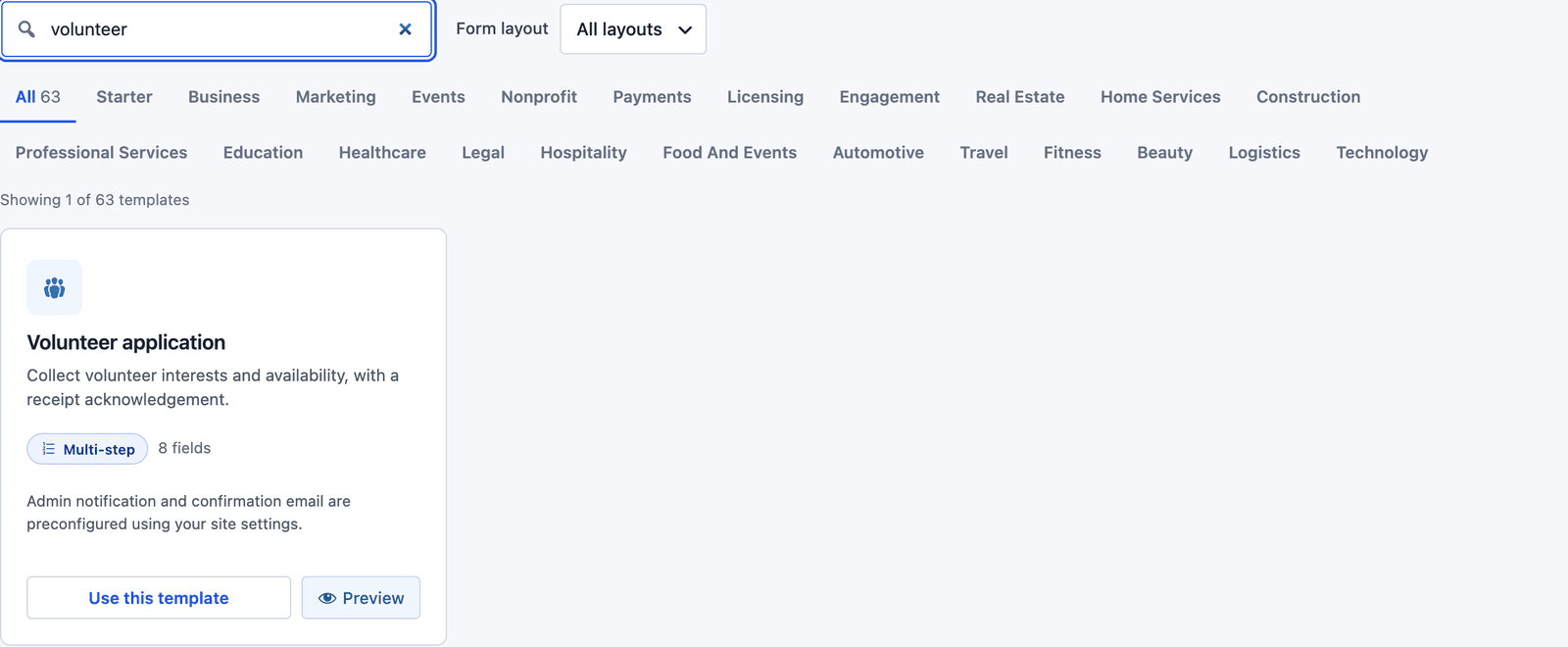 The card notes that the admin notification and the confirmation email are already set up.
The builder opens with 3 steps: “Your details” holds name, email and phone, “Your request” holds the 3 volunteering questions and the message, and “Confirm” holds the consent checkbox and the button.
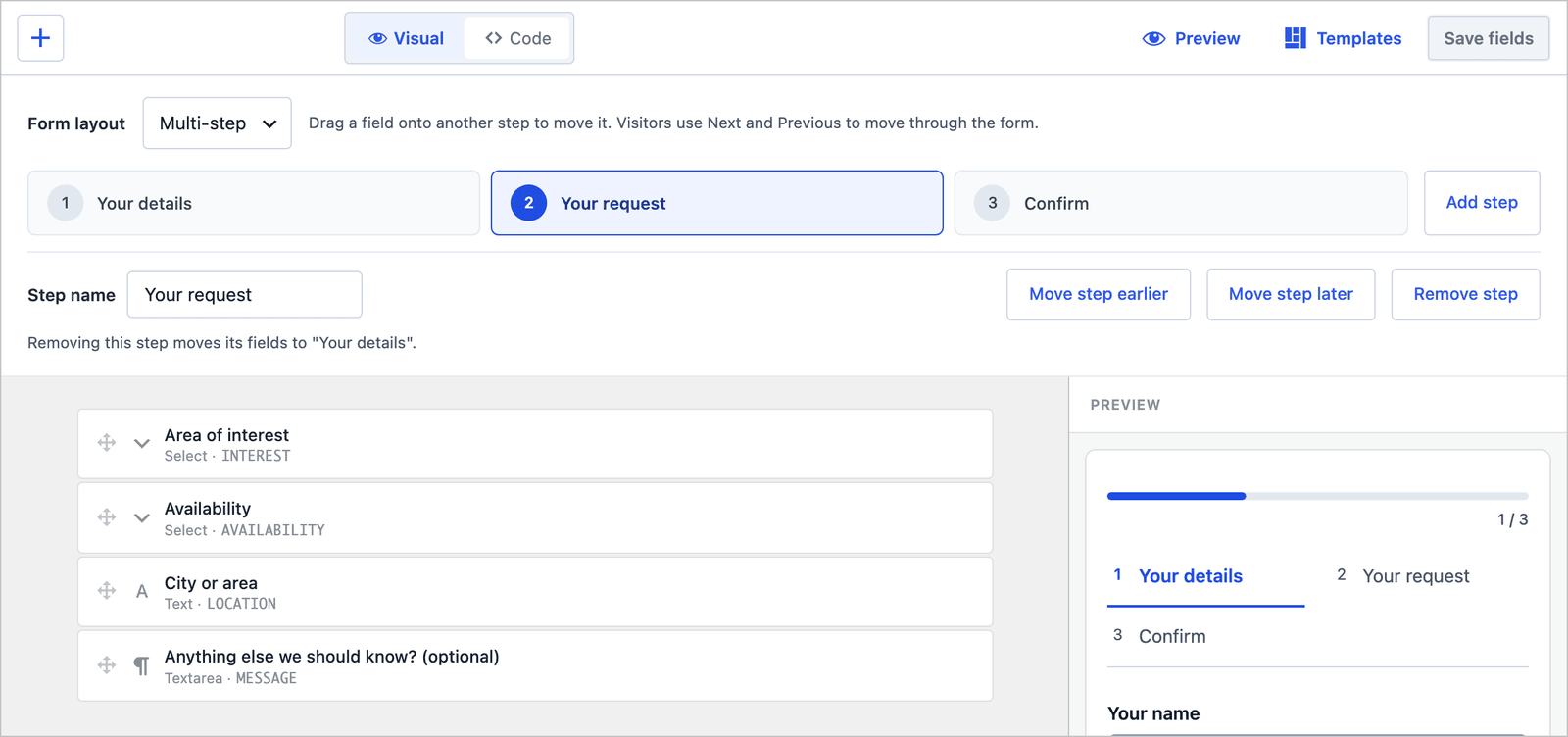 Rename the options in the Area of interest select to match your real roles before publishing.
The one field worth adding is a Skills checkbox group on the “Your request” step: driving, first aid, languages, a trade. It is optional, it is quick to tick and it is what a coordinator searches for when a specific need comes up.
The 3-Step Layout
On the front end the applicant sees one step at a time, with a progress bar and the step names above the fields.
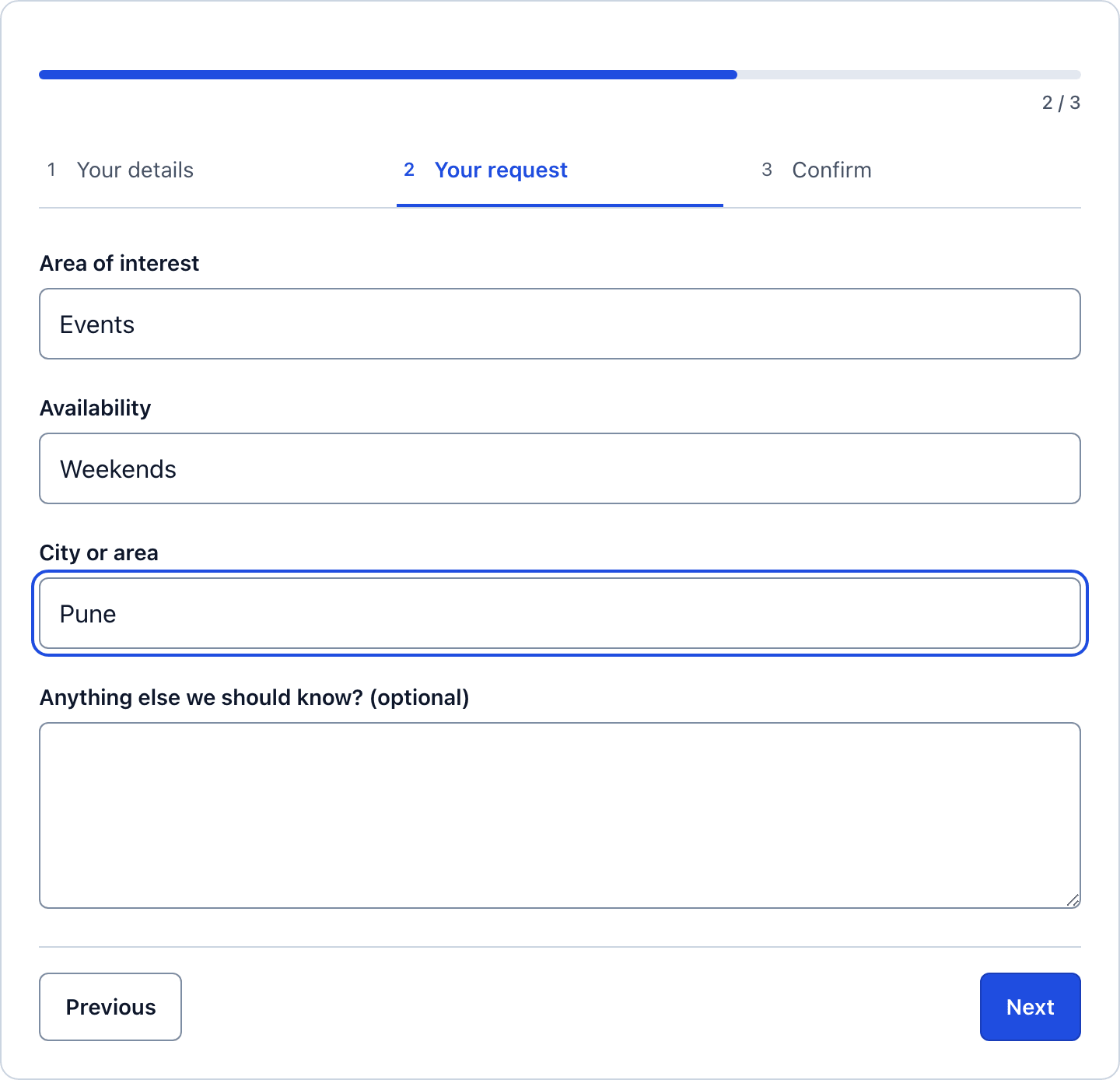 The 3 volunteering questions get a screen of their own.
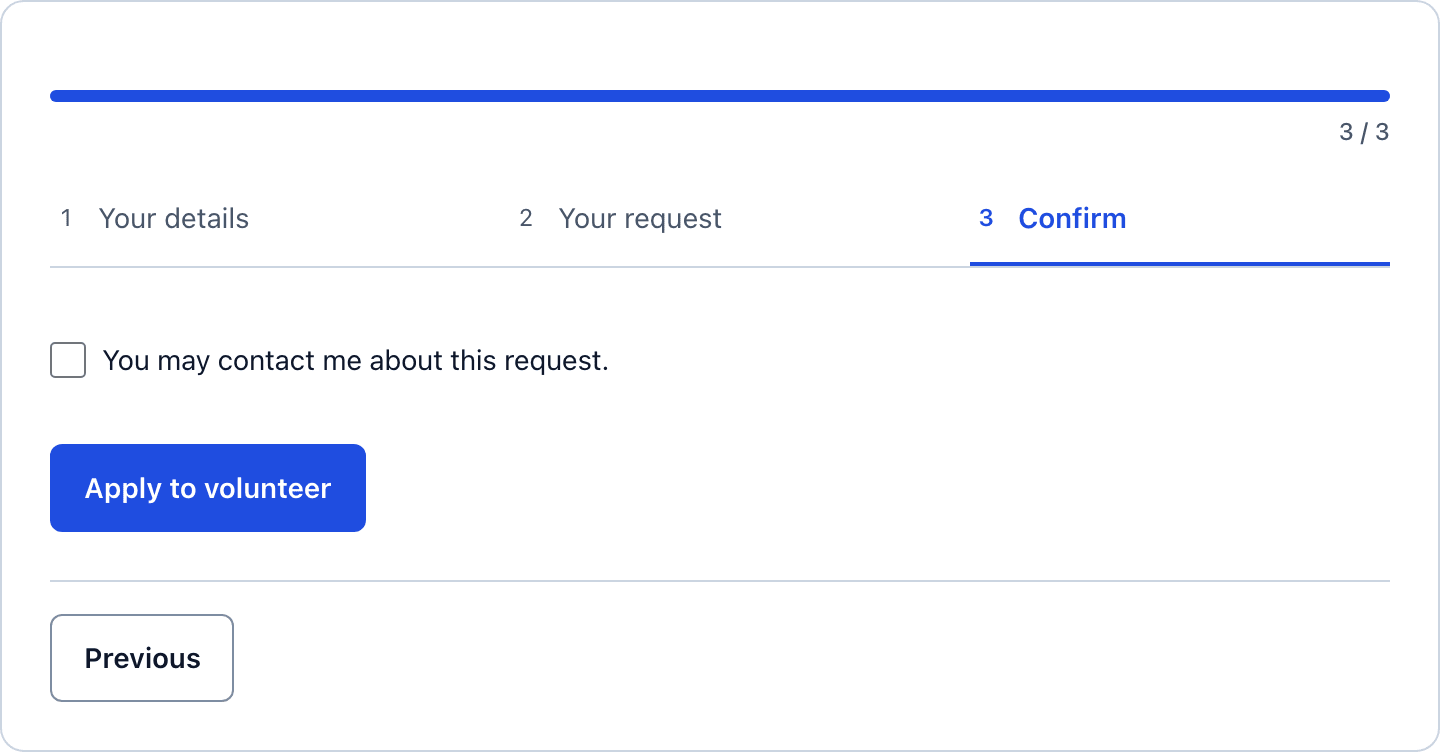 Consent to be contacted is separate from any newsletter, and the template never subscribes anyone.
Collapse It to One Page
For a form on a page that already explains the roles, a single page can work better. In the builder, change Form layout from Multi-step to Single page and click Save fields. The step assignments are kept, so you can switch back.
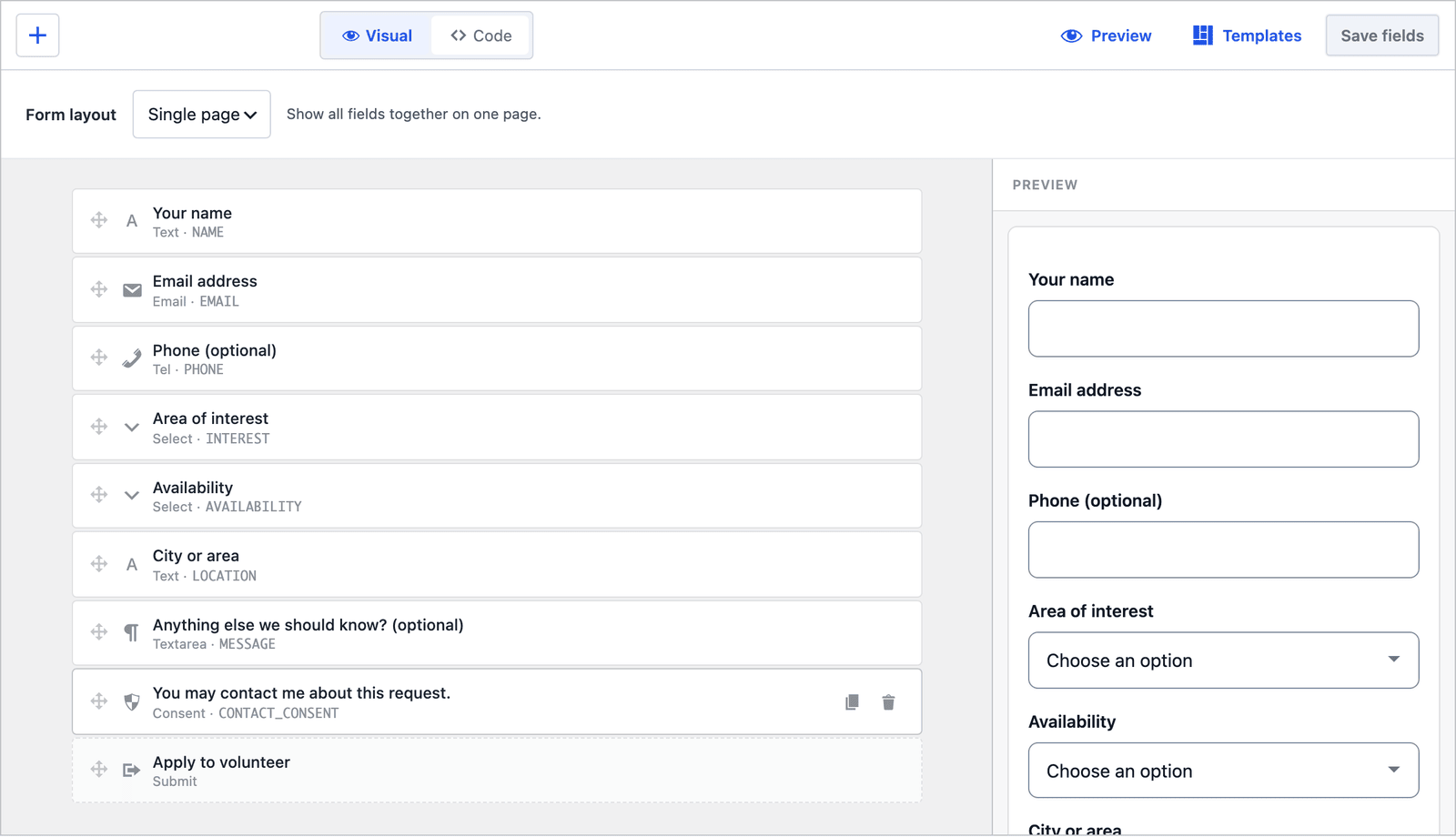 Same fields, same order, no steps.
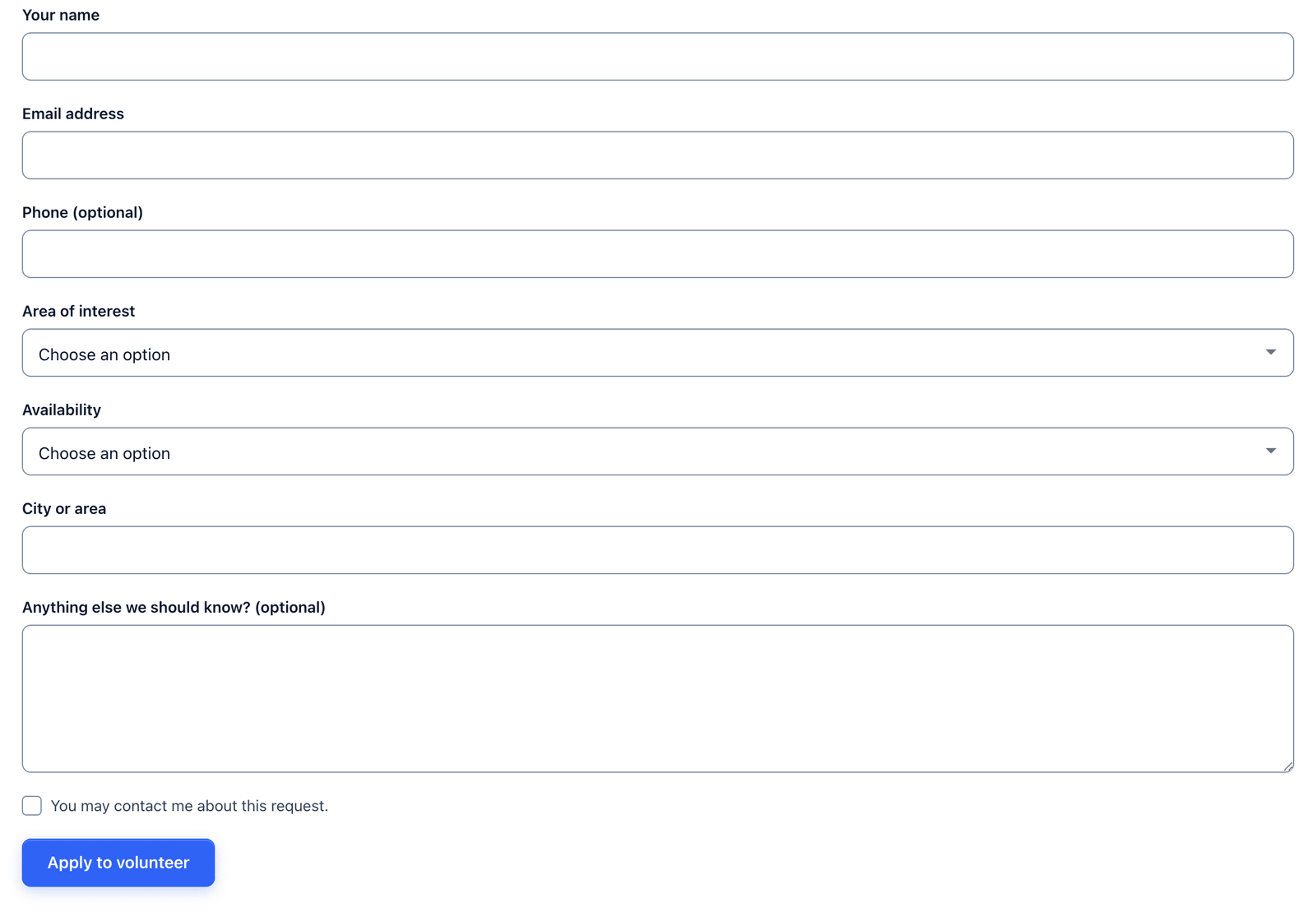 8 fields on one page is still short enough to finish on a phone.
For volunteers I would keep the 3 steps. Most sign-ups come from a phone, from a link in a newsletter or a post, and 3 short screens finish more often than 1 long scroll there.
Two Emails Out of the Box
The template ships with 2 actions already configured:
- Send Email notifies the admin address with the subject “Volunteer application: [NAME]” and a Reply-To header set to the applicant.
- Auto-Responder sends the applicant “Volunteer application - Request received,” with the same success text they saw on screen and an invitation to reply with more details.
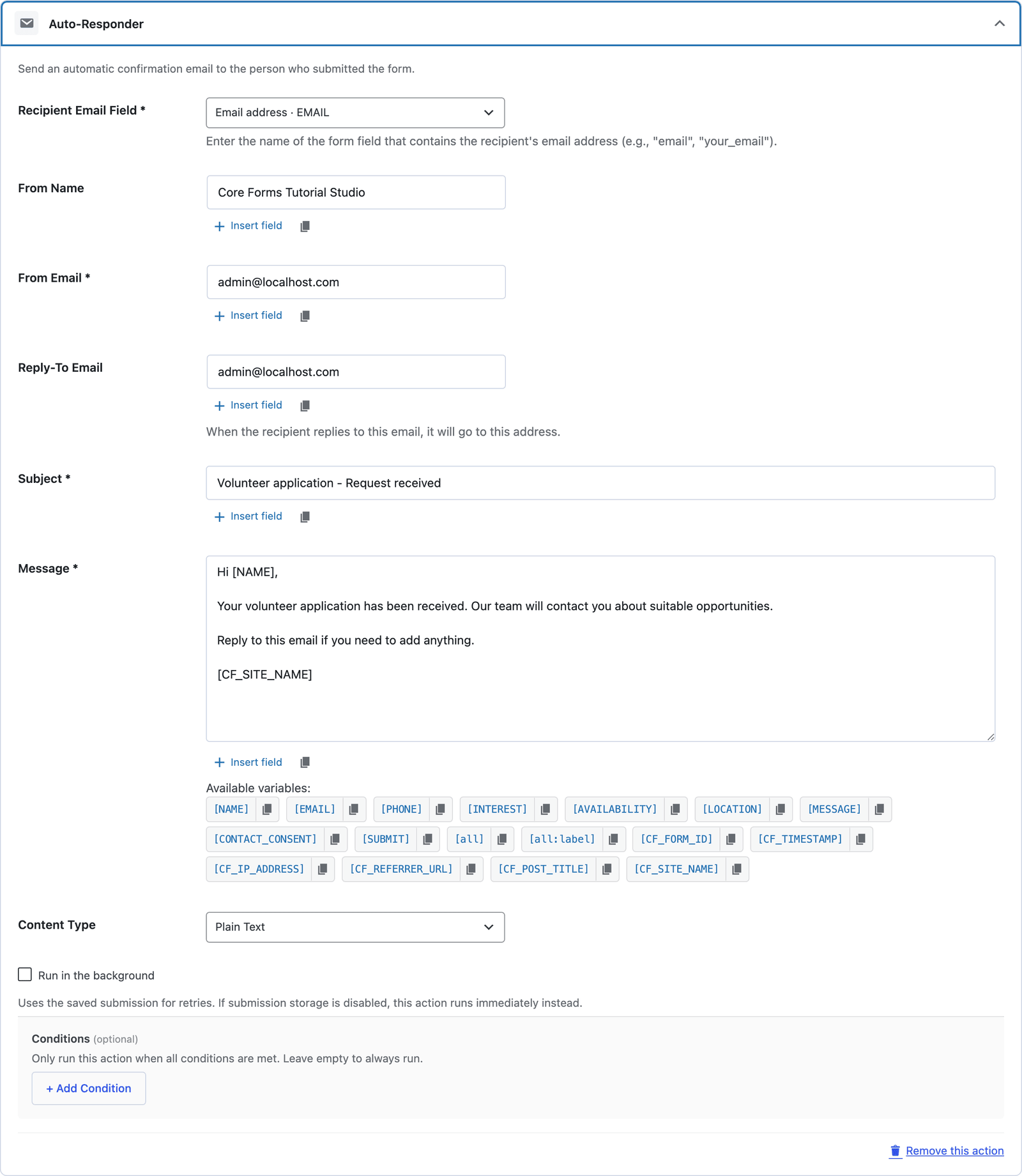 Change the From name to the organization’s name before publishing, and add a line about what happens next. The auto-reply email guide covers the wording.
The acknowledgement matters more for volunteers than for customers. A person offering their time for free who hears nothing back for a week assumes they were not wanted, and the automatic email is the difference.
Route by Area of Interest
If different people run events and fundraising, recipient routes in the Send Email action send each application to the right coordinator:
- Open the Actions tab and expand Send Email.
- Under Recipient routes, click + Add route.
- Set When field to Area of interest, Operator to equals and the value to
events. - Enter the events coordinator’s address in Send to, add a second route for
fundraisingand click Save Changes.
The value is the stored option, events, not the label. The first matching route wins and replaces the default recipient, and the feedback form guide shows the routes screen.
The Settings the Template Turns On
The Settings tab for an industry template arrives with more switched on than a basic starter:
- Save submissions is on, so every application is stored even if the email fails.
- Prevent duplicates is on.
- Rate limit is set to 10 submissions per IP per hour.
- Anti-spam shows the honeypot on.
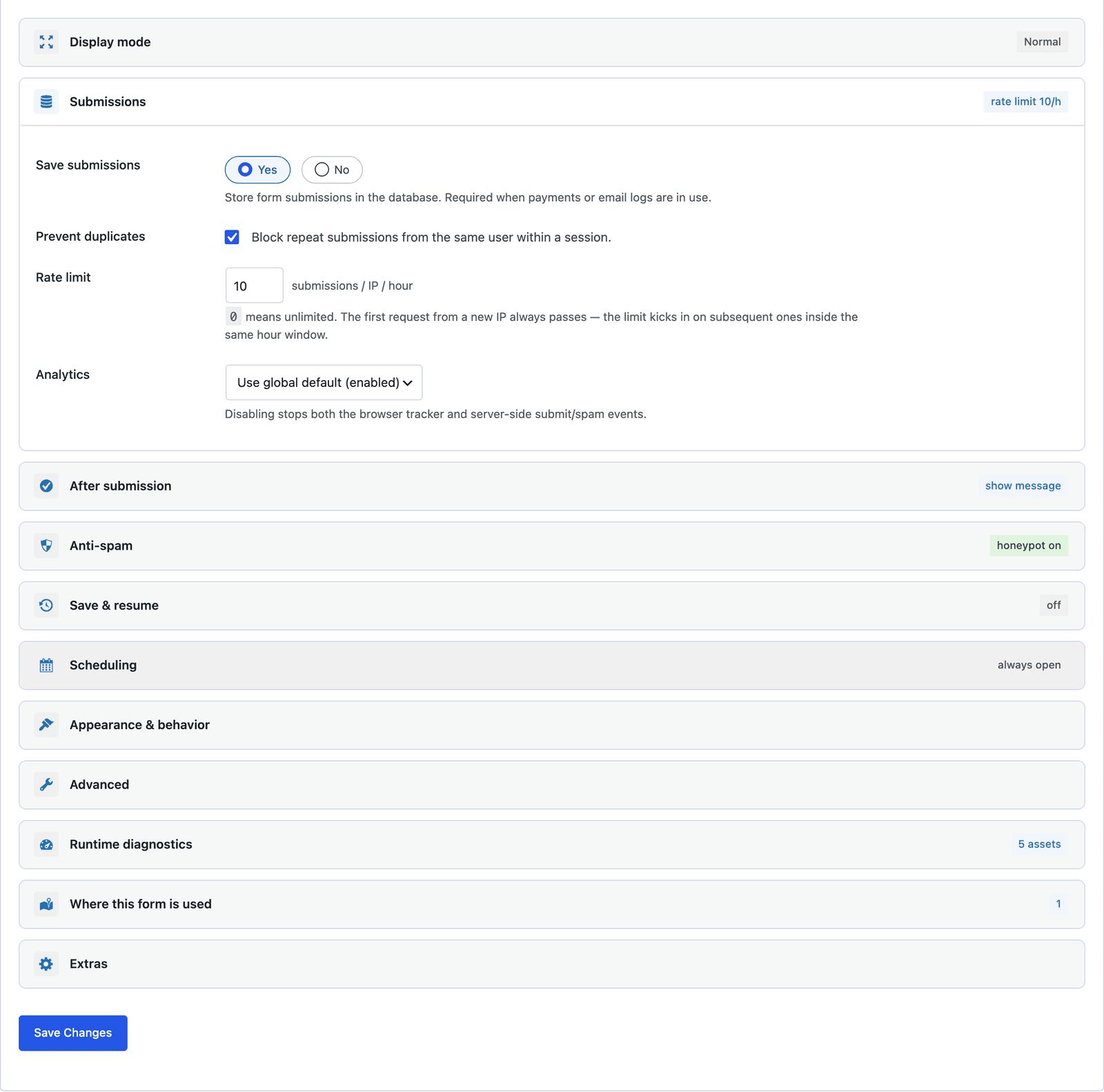 Payment, save and resume and the standalone page stay off.
Publish the Volunteer Application Form
The shortcode is shown next to the form’s name in the editor:
[cf_form slug="volunteer-application"]
Paste it into your Volunteer page, or use the Core Forms block. Put the roles and a typical time commitment above the form, because “2 hours a month” is the number that turns a reader into an applicant.
Read the Applications
Every application lands in the form’s Submissions tab, with the area of interest, availability and city in their own columns.
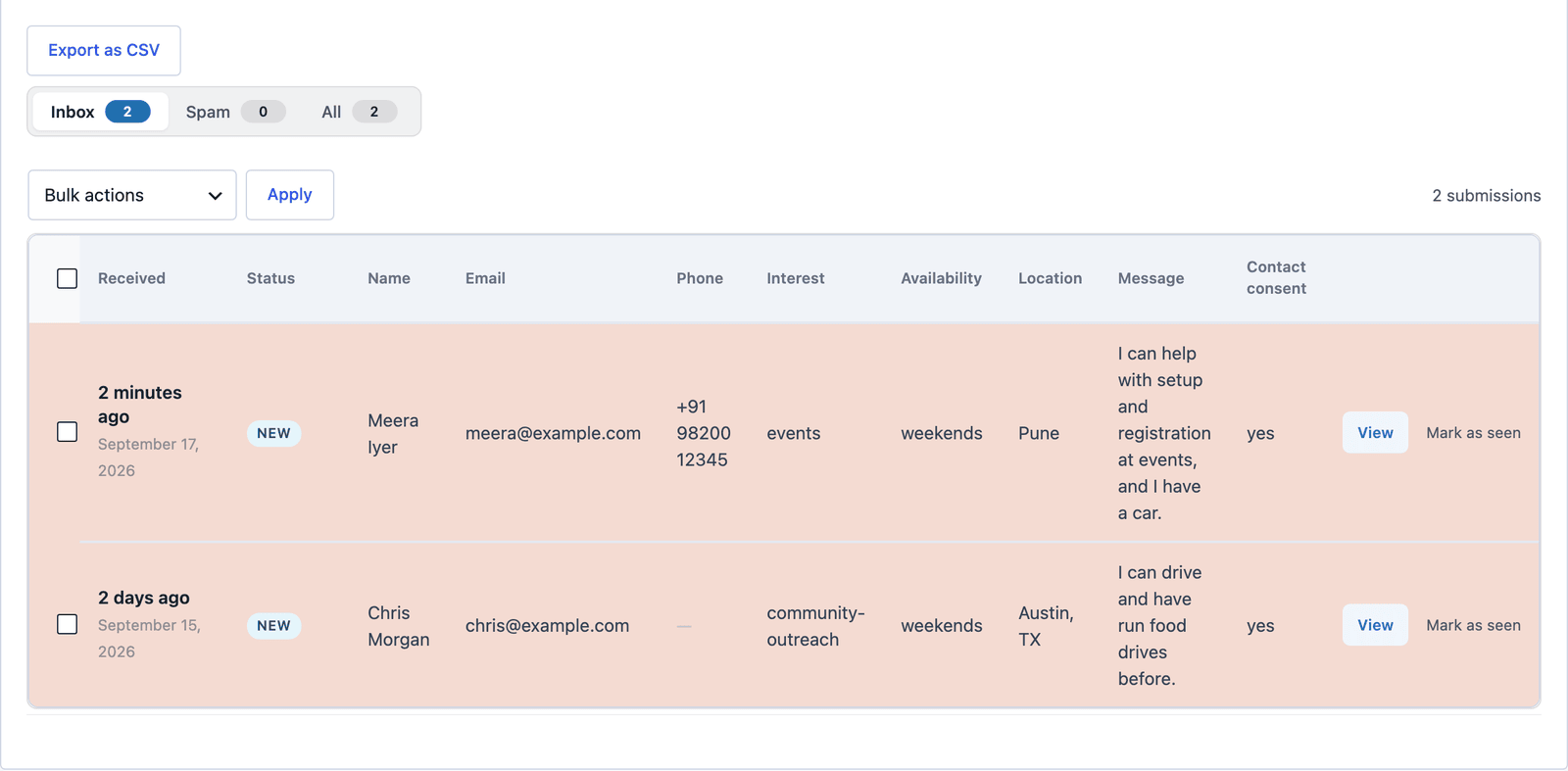 Sort by Availability and the weekend people are together.
Click View to read the message and answer from the Send Reply box on the same screen.
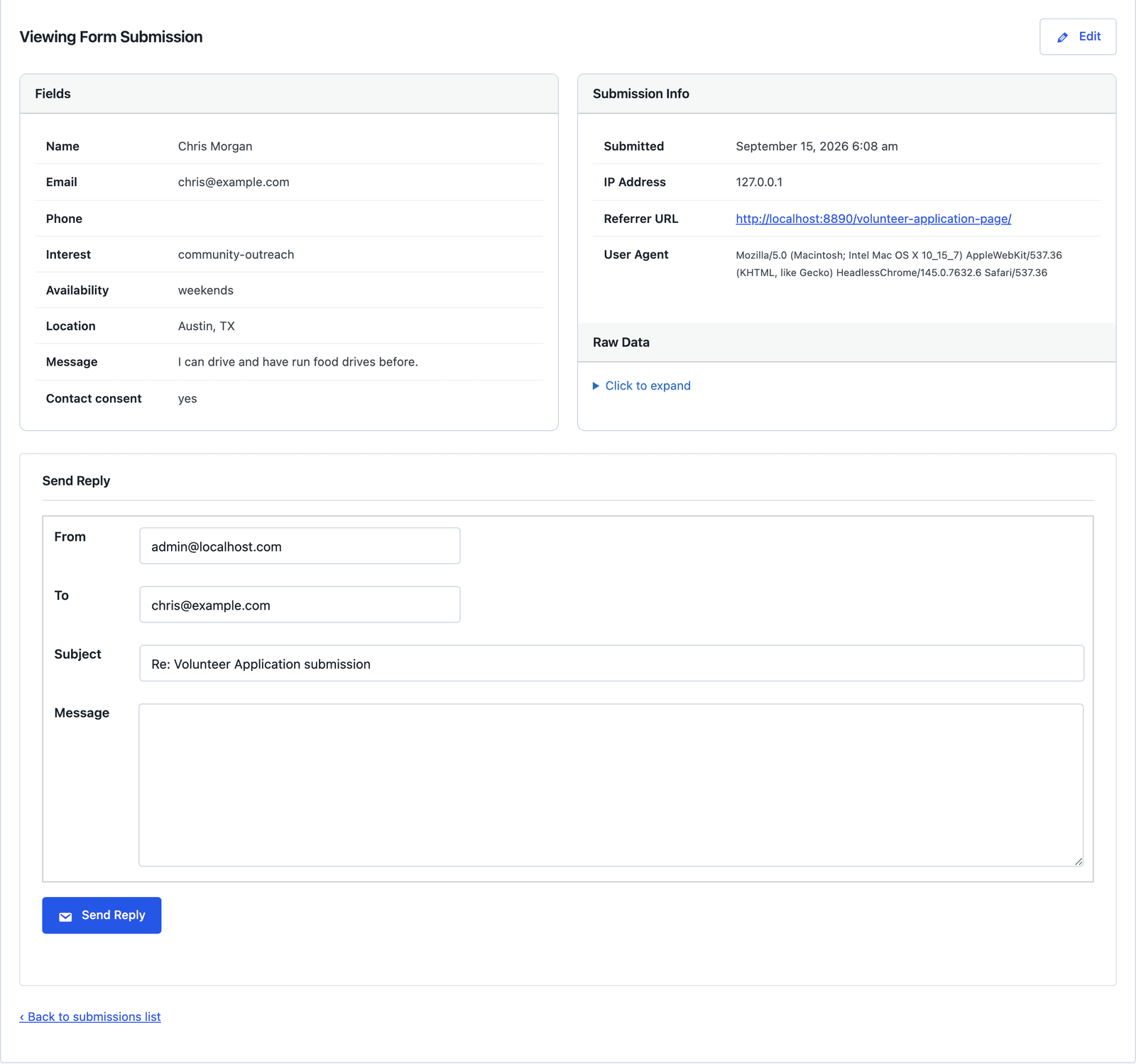 “We have a registration desk on the 4th, are you free?” is a 10-second reply from here.
A group that plans in a spreadsheet can send each application to a Google Sheets row, and one that runs on FluentCRM can create the contact with a FluentCRM action tagged by area of interest.
The Limits
The form does not schedule shifts. It records who can help and when, and the rota is a spreadsheet or a calendar you keep.
There is no background check, emergency contact or ID in the template, on purpose. Those belong in onboarding, after the first conversation, not on a public sign-up form.
Consent to be contacted is not newsletter consent. The checkbox lets you reply about volunteering, and a mailing list needs its own opt-in field and an email marketing action.
Skills are not in the template. A checkbox group is a 1-minute addition, and it is the first field most groups add.
What Quietly Ruins a Volunteer Application Form
Asking for the emergency contact on the sign-up. It is needed for a shift and not for an application, and a stranger asked for it on a first form closes the tab.
Making the phone number required. Plenty of people volunteer their time and would rather not volunteer their number until they have met you.
A long list of roles nobody has heard of. Five areas, plainly named, get more applications than 20 internal team names, and the message box catches the rest.
Replying by hand a week later. The auto-responder is on by default, and the second email, the human one, should follow within a few days or the volunteer has found somewhere else.
Final Remarks
You now have a volunteer application form that asks what, when and where, walks the applicant through it in 3 short steps, acknowledges every sign-up automatically and puts the weekend people and the events people where the right coordinator can find them. If you keep one idea from this guide, keep this one: availability is the question that saves the coordinator’s time, so keep it required and keep the options honest.
The volunteer application form template page has the fields and a live demo, and the industry form templates guide lists the other 15 forms built the same way. If something here does not behave the way this guide describes, the support team can help.
I hope the next application through it is someone who stays for years.
Charities that also ask companies for support will want the donation request form guide.
FAQ
Can volunteers pick more than one area of interest?
Yes. Replace the select with a checkbox group in the builder, with the same options. The selected areas arrive as a list, and recipient routes match on any of them.
Can I add the applicant to a mailing list?
Not through the consent checkbox, which covers contact about the application only. Add a separate newsletter opt-in field and an email marketing action that runs only when it is ticked.
Does the form work for event-specific volunteering?
Yes. Add a select of upcoming events on the “Your request” step, or make one copy of the form per event with the event named on the page. The event RSVP form guide covers the attendee side.