
How to Create a Feedback Form in WordPress
Build a WordPress feedback form from a template, send low ratings straight to the person who can fix them and keep every response in your own database.

A feedback form is the quickest way to hear what customers think while the experience is still fresh, and on a WordPress site it can sit right on the page where that experience happened.
I build Core Forms, and the form in this guide is its Feedback form template, set up and tested on a working site.
Every business asks for feedback about different things, so one guide cannot write your questions. But the parts that decide whether feedback gets acted on are the same everywhere: a short form, a required reason and a route that puts bad ratings in front of the right person. In this one I will try my best to cover those properly.
Everything below uses the template that ships with the plugin, so you can follow along click for click. Or, if you get stuck halfway, support is a message away.
What a Good Feedback Form Asks
A good feedback form asks two things: how the experience was and why. Everything else is optional, and the Feedback form template is built exactly that way:
- Your name is optional, so people who want to stay unnamed still answer.
- Email address is optional too. It is only useful when you want to reply.
- How would you rate your experience? is a required 5-point scale, from 5 (Excellent) down to 1 (Terrible), stored under the name
RATING. - What could we do better? is a required text answer, stored as
FEEDBACK.
Two required questions is the right size for feedback. The rating tells you how many people are unhappy, and the reason tells you what to fix.
If you need more than that, such as a 0 to 10 recommendation score and a feature checklist, the guide to creating a survey in WordPress covers the longer form. And if the feedback is meant to be published on a product page, the product review form guide covers the public version.
Create the Feedback Form
The template is the fastest start, because the rating scale and the required reason are already in place:
- Go to Core Forms > Add New.
- Type
feedbackin the template search. - Click Use this template on Feedback form.
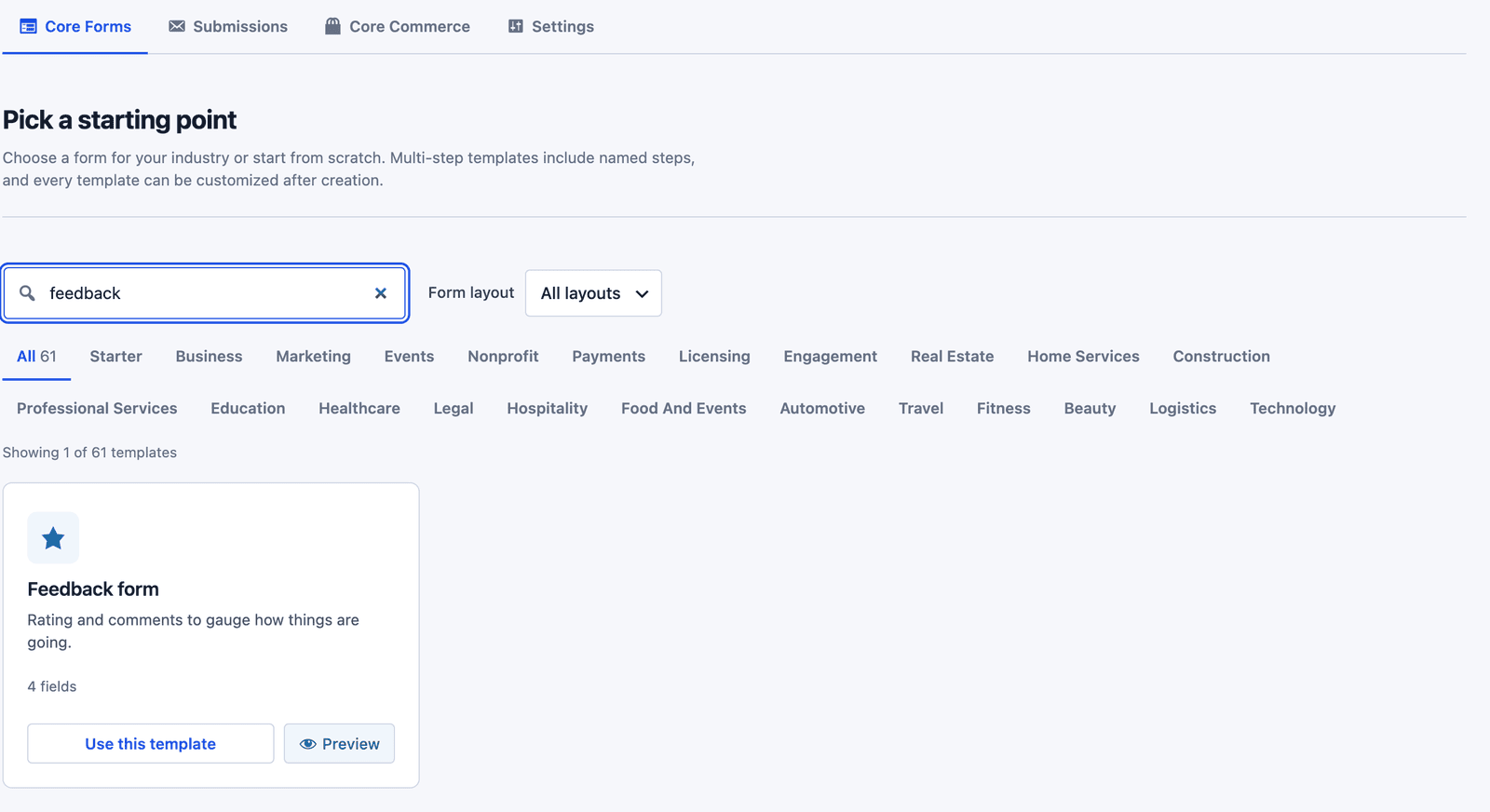 One template matches, with 4 fields, and that short length is deliberate.
The builder opens with the four questions and a live preview beside them.
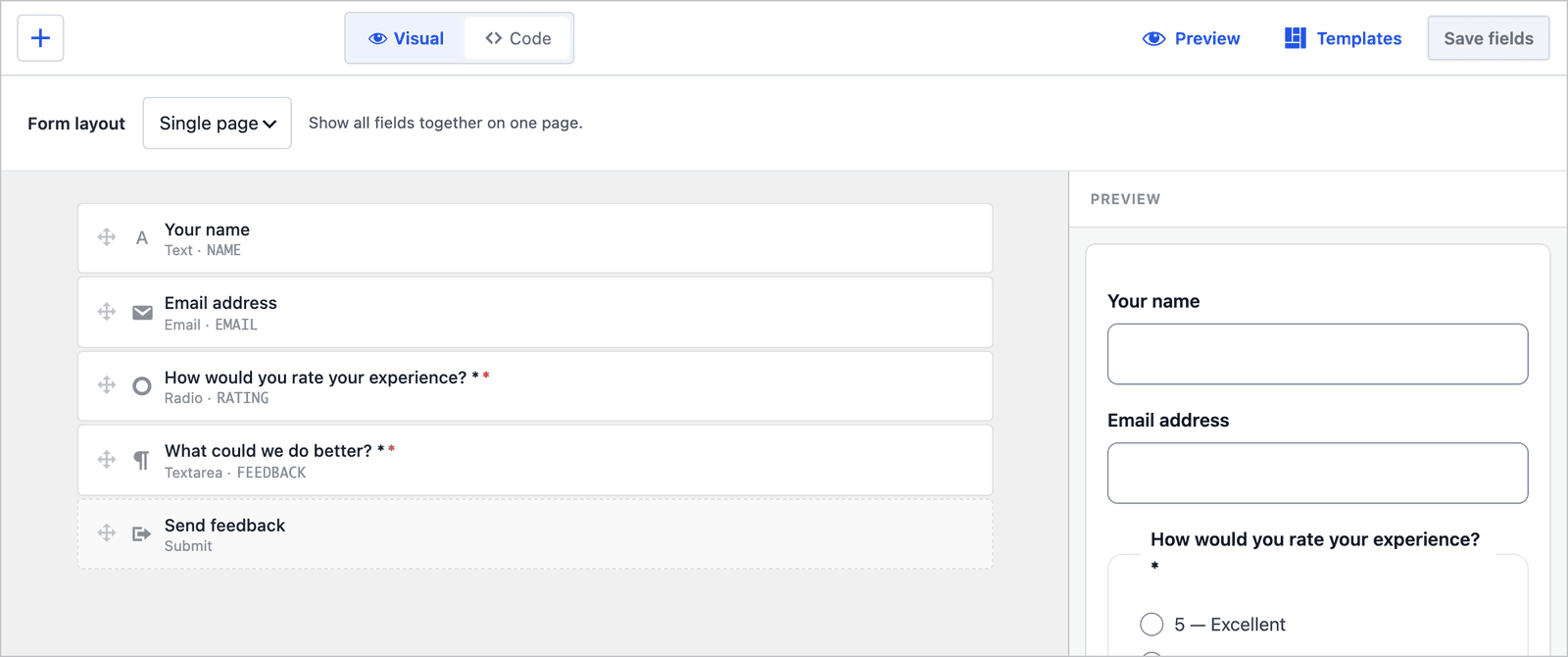 The two required questions carry a red marker, so you can see at a glance what nobody can skip.
The Feedback form ships as a single page. The Form layout control can switch it to multi-step, but a 4-question form gains nothing from extra clicks, and splitting it would only add a Next button between people and the Send button.
Edit the Questions
Click any field in the builder to open its settings, which are split into General, Validation, Conditions and Advanced sections. The label and the stored name sit under General.
The reason question is the one worth rewording for your business. Compare two versions of it.
What many feedback forms ask:
Any other comments?
What works better:
What could we do better?
Both are open questions. The second one asks for something specific, so people write a fix you can make instead of “no” or “all good.”
Send Low Ratings to the Right Person
The template comes with one action: a Send Email notification to the site’s admin address, with the subject “New submission on” followed by your site name and every answer in the body. That is fine for a handful of responses a week. It stops working when a 1-star rating sits in a general inbox for two days before anyone who can fix the problem sees it.
Recipient routes solve this inside the same email action. Here is the setup:
- Open the form’s Actions tab and expand Send Email.
- Under Recipient routes, set When field to
RATING, Operator toequals, the value to1and Send to to the person who handles complaints. - Click Add route and create the same route for the value
2. - Click Save Changes.
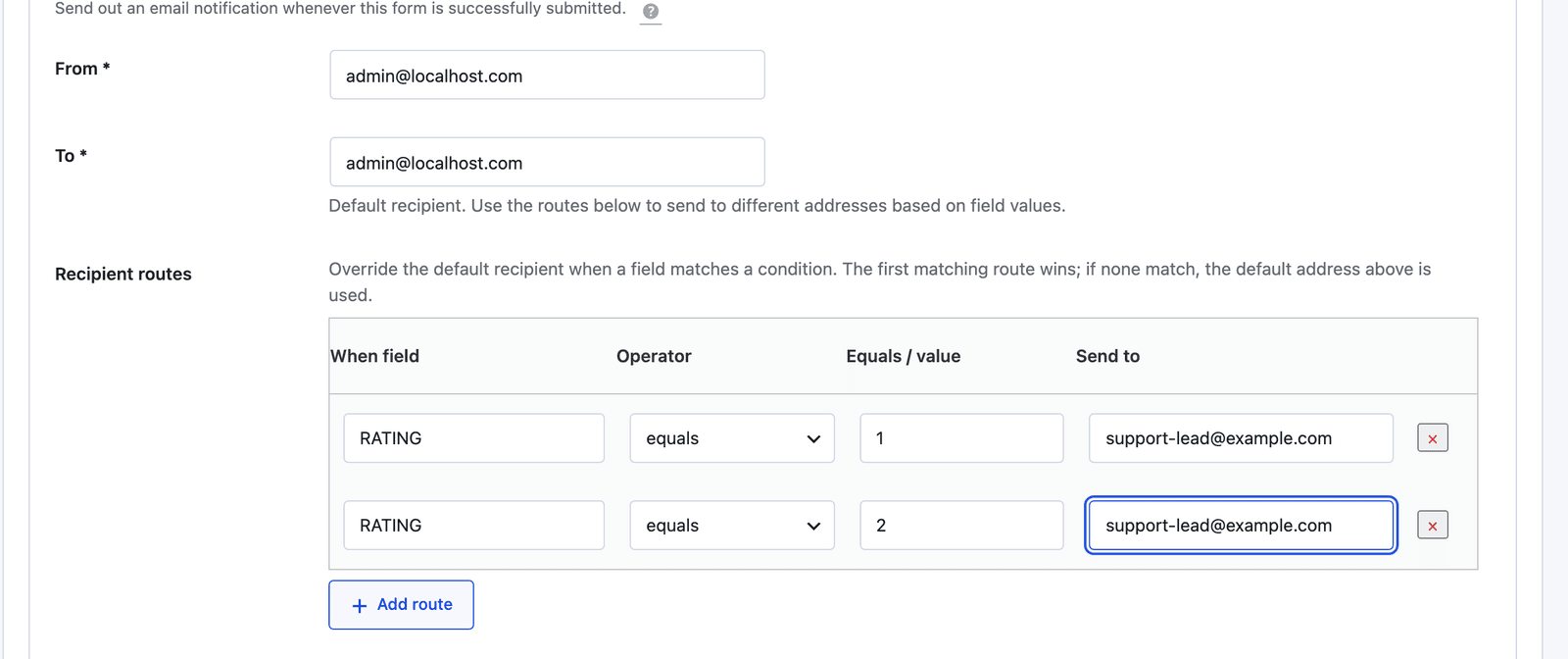 Two routes cover the two lowest ratings, and every other response keeps going to the default address.
The routes are checked in order, and the first one that matches wins. When none match, the email goes to the default To address. The operators available are:
equalsanddoes not equalfor exact values, such as a ratingcontainsanddoes not containfor text, such as a word in the feedbackis emptyandis not emptyfor optional fields, such as an email address someone left blank
To test it, I sent a 2-star response through the form. The Email Logs page, under Core Forms > Email Logs, shows where that notification went:
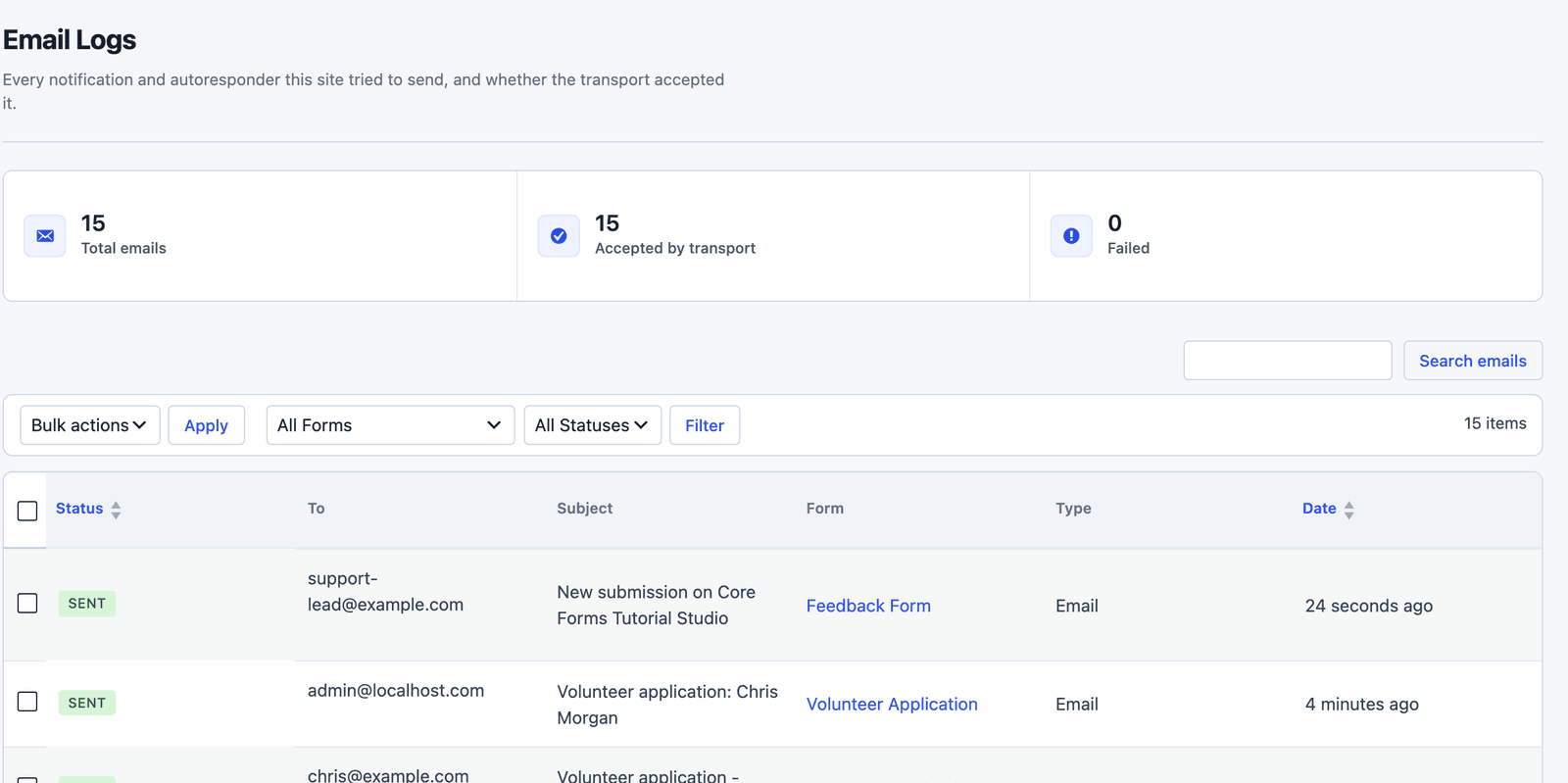 The 2-star response went straight to the support lead, and the earlier responses went to the admin address as usual.
A route replaces the default recipient for that submission instead of adding one. If the site admin should see low ratings too, add a second Send Email action. Every action has an optional Conditions section that runs it only when all its conditions are met, so the second email can fire on the same low ratings.
The subject line can use the answers as well. The available variables include [NAME], [EMAIL], [RATING] and [FEEDBACK], so a subject like Feedback: [RATING] stars from [NAME] tells the reader how urgent it is before they open it.
Publish the Feedback Form
The shortcode for this form is shown next to its name at the top of the editor:
[cf_form slug="feedback-form"]
Paste it into any page or post, or use the Core Forms block in the block editor. Placement matters more than design here. The best spots are the ones right after an experience: the order confirmation page, the end of a support article or the account area.
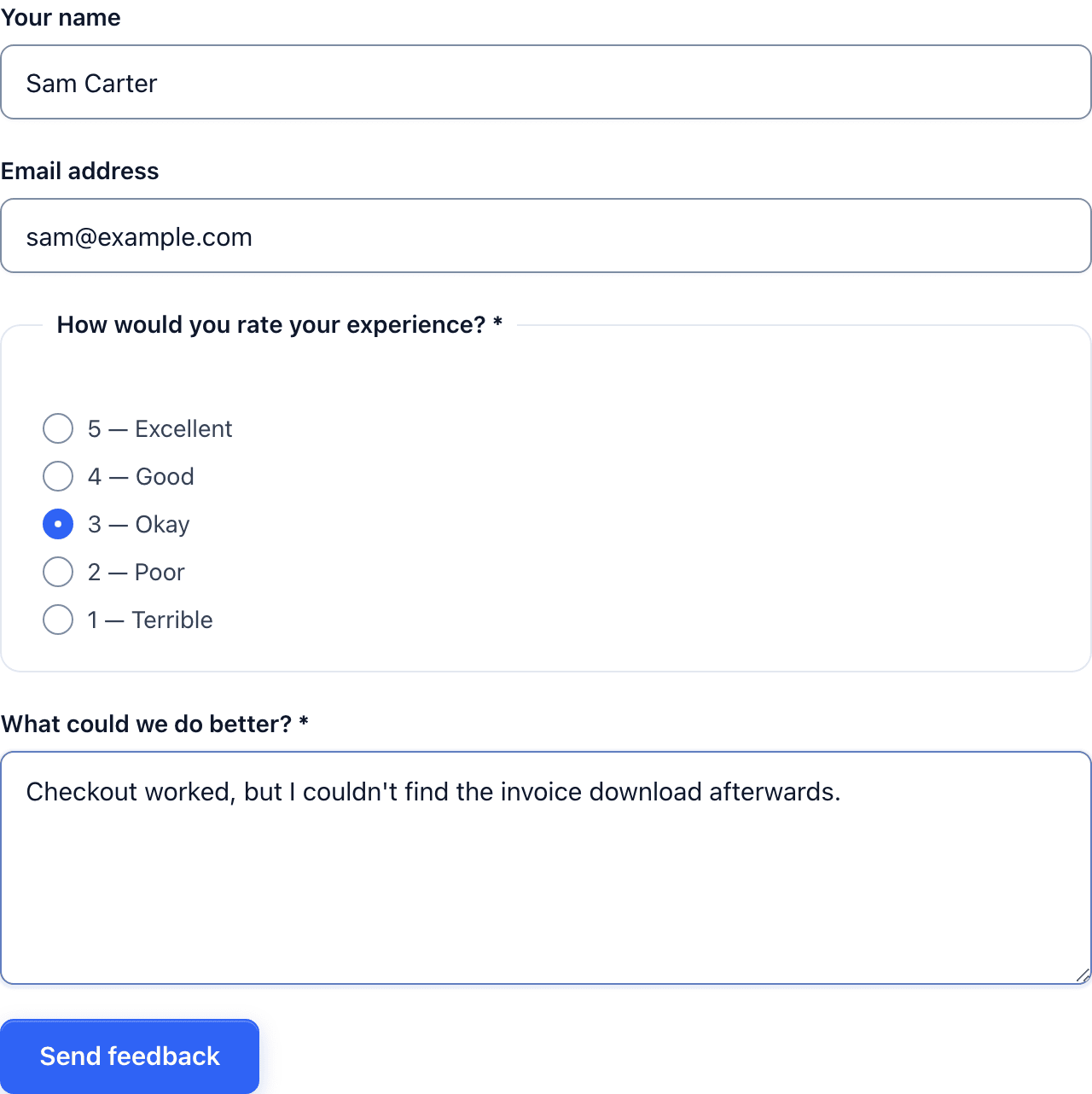 A 3-star rating with a specific reason is worth more than ten 5-star ratings with nothing written.
Read the Responses
Every response lands in the form’s Submissions tab, with the name, email, rating and feedback in their own columns.
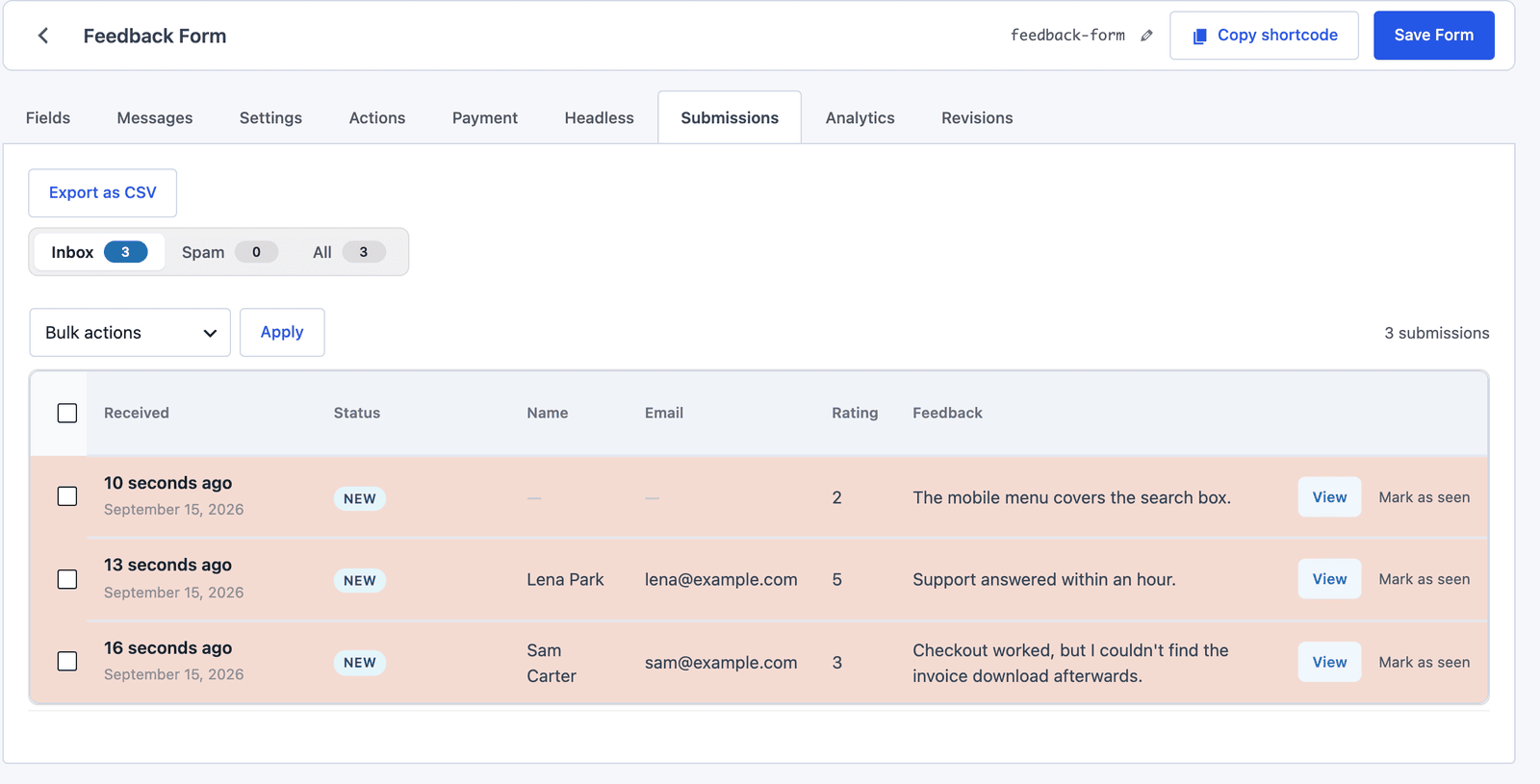 The anonymous 2-star reply at the top is the one to read first, even without a name attached.
Export as CSV downloads every answer for a spreadsheet. With the ratings in a column, the CSAT calculator turns them into a satisfaction score, which is the share of people who picked 4 or 5.
The Limits
Recipient routes match exact values. There is no “less than” operator, so each low rating needs its own route. For a 5-point scale that is two routes, which is manageable, but for a 0 to 10 scale it gets long.
A “SENT” status in Email Logs means your mail transport accepted the message. It does not prove the message reached an inbox. If notifications go missing, the post on why form emails land in spam covers the usual causes.
Optional name and email fields do not make the form anonymous. Each response still records the visitor’s IP address, browser and the page it came from. The anonymous feedback form guide explains what that means for what you can promise people.
The template uses a numbered radio scale rather than stars. Core Forms also has a star Rating field if you prefer stars, but the numbers are clearer on a phone and for screen reader users.
What Quietly Ruins a Feedback Form
Asking for feedback on every page. People learn to ignore a form that follows them around, and the responses you do get come from whoever was annoyed enough to click.
Making the email address required. It feels like it guarantees a way to follow up, but it mostly filters out the people with honest criticism.
Sending every response to a shared inbox. When everyone can see the 1-star rating, nobody owns it, and the customer waits.
Never replying when someone leaves an email with a low rating. They told you what went wrong and how to reach them, and silence tells them the form was for show.
Reading only the average rating. The average moves slowly and hides the one response that describes a broken checkout.
Final Remarks
You now have a feedback form that asks the two questions that matter and sends the worst ratings straight to someone who can act on them. If you keep one idea from this guide, keep this one: feedback is only as useful as the speed at which the right person sees it.
The Feedback form template page has the fields and a live demo, and the support team can help if a route does not behave the way this guide describes. For requests that need an answer rather than a rating, the support request form guide is the next one to read.
I hope the next piece of feedback you get is the one you needed to hear.
For the plan around the form, when to ask, how often and what to do with the answers, the how to collect customer feedback guide covers it, and the how to ask for reviews piece covers what to do with the 9s and 10s.
FAQ
Can I make the feedback form anonymous?
You can remove or keep the name and email fields optional, but each response still records an IP address and browser details. Call it confidential rather than anonymous unless you have removed those too.
Can low ratings go to Slack instead of email?
The Actions tab includes a Send to Slack action. Give it a condition on the RATING field so it only runs for low scores, and keep the email action for everything else.
Should I use stars or numbers for the rating?
Numbers are clearer for most people, especially on small screens and with screen readers. Stars work when the scale is obvious from context, such as rating a product.