
How to Create a Product Review Form in WordPress
Build a WordPress product review form with a star rating that saves each review as a pending comment on the product page, so nothing goes live before you approve it.

A product review form has one job that a contact form does not: the review has to end up on the product page, with a star rating, and only after you have read it.
I build Core Forms, and every screen here comes from its Product review template running on a test site.
Every store has its own idea of what a review should contain, so one guide cannot cover every extra field. But almost every review form needs the same 3 things, a rating, a headline and the review itself, and in this one I will try my best to cover those properly, along with the part most tutorials skip: where the review goes after submit.
The template ships with the plugin, so you can follow along click for click. Or, if you get stuck halfway, support is a message away.
What a Product Review Form Asks
The Product review template collects 5 things, and each one earns its place:
- Your name is required, because it is the name shown with the published review.
- Email is required for follow-up and is never published.
- Your rating is a required choice of 1 to 5 stars, stored as a number.
- Review headline is an optional one-line summary, such as “Setup took ten minutes.”
- Your review is the required text.
The email field stays required for a reason. A review with no way to contact the writer cannot be verified, and it cannot be answered when it raises a problem you would rather fix than publish.
Create the Product Review Form
Two templates match a review search, one on a single page and one split into steps:
- Go to Core Forms > Add New.
- Type
reviewin the template search. - Click Use this template on the first Product review card for a single page.
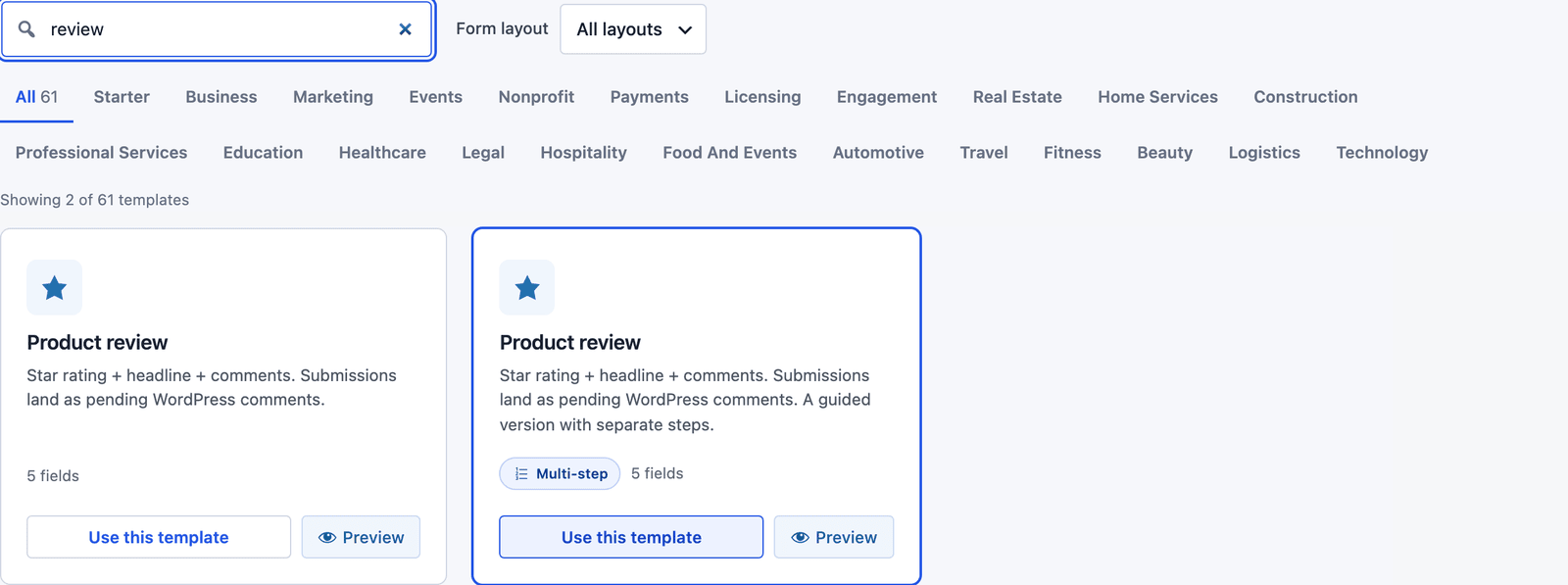 Both versions have the same 5 fields, and only the layout differs.
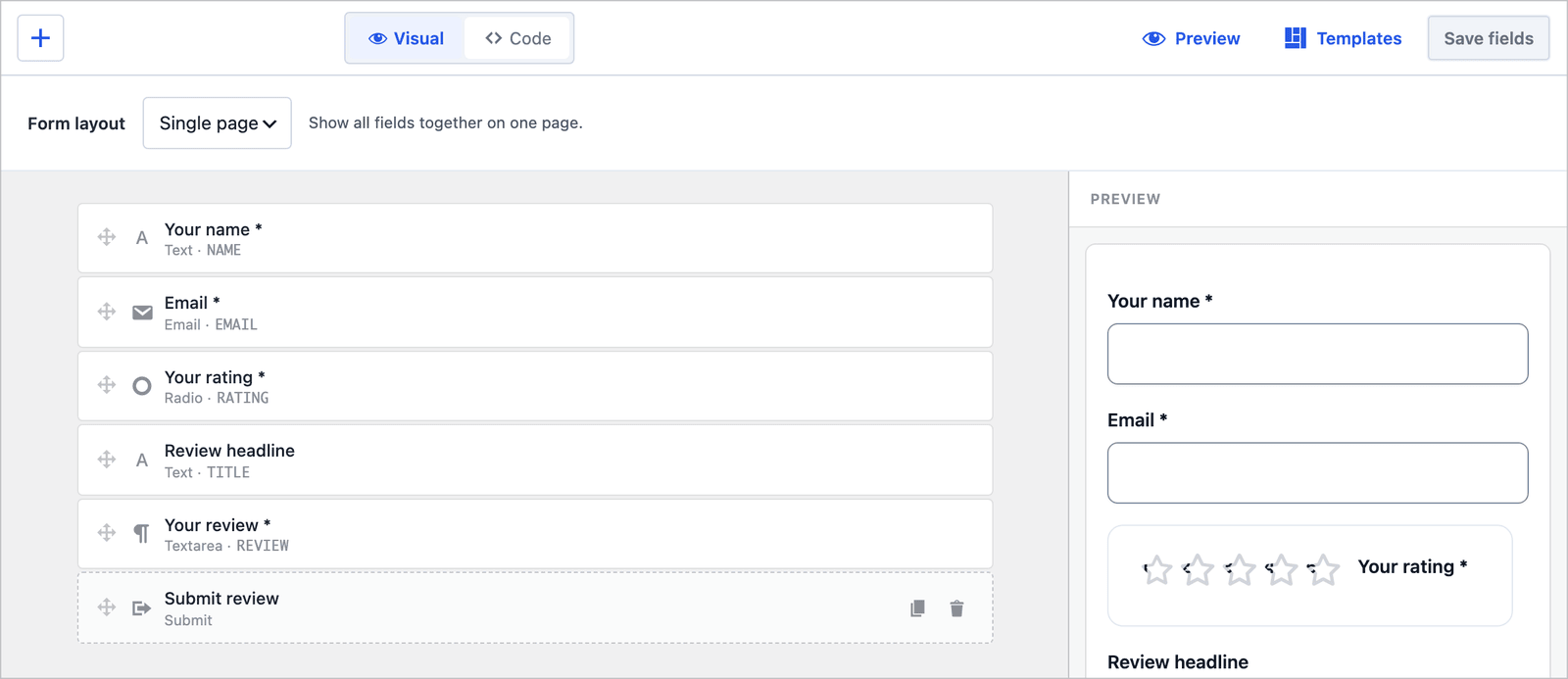 The rating is a group of 5 radio buttons styled as stars, so it works without any script.
Where the Reviews Go
This is the part that makes the template different from a feedback form. The Product review template ships with a Create Comment / Review action already configured, so every submission becomes a WordPress comment:
- Target post is blank, which means the page or post the form is on. A form on the Blue Mug product page creates comments on the Blue Mug page.
- Author name field and Author email field map to NAME and EMAIL.
- Comment body field is REVIEW, and Rating field is RATING.
- Default status is pending moderation, so nothing appears on the site until you approve it.
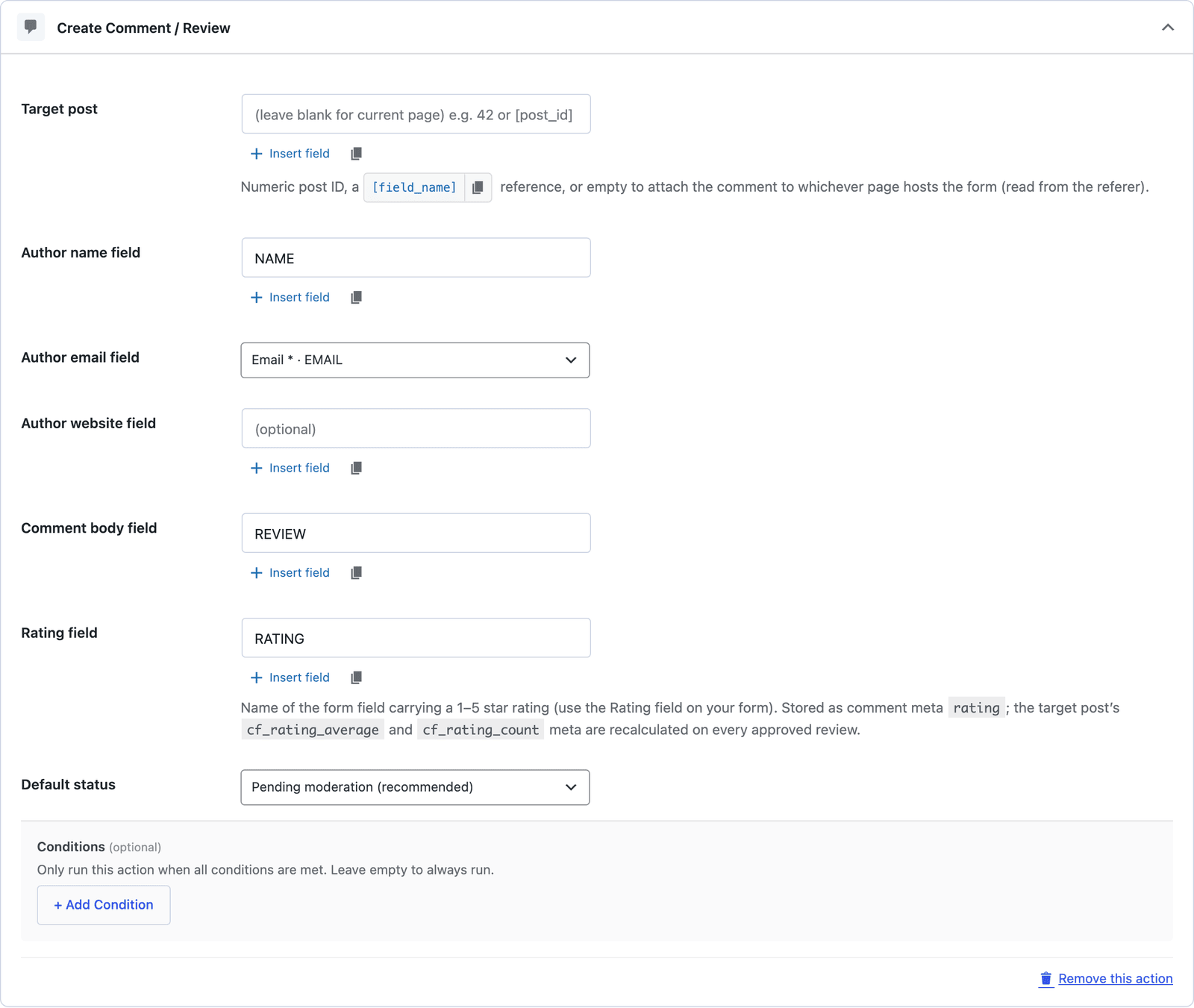 Leave the target post blank and one form works on every product page.
The rating is saved as comment meta named rating, and after each approved review the target post’s cf_rating_average and cf_rating_count meta are recalculated. That is what a theme reads to show “4.7 out of 5 from 12 reviews” at the top of the page. A second action, Send Email, tells you a new review is waiting.
Put the Form on the Product Page
The shortcode is shown next to the form’s name in the editor:
[cf_form slug="product-review"]
Paste it under the product description on each product page, or add it to the product template once if your theme supports template parts. Because the target post is blank, the same form attaches its reviews to whichever page it sits on.
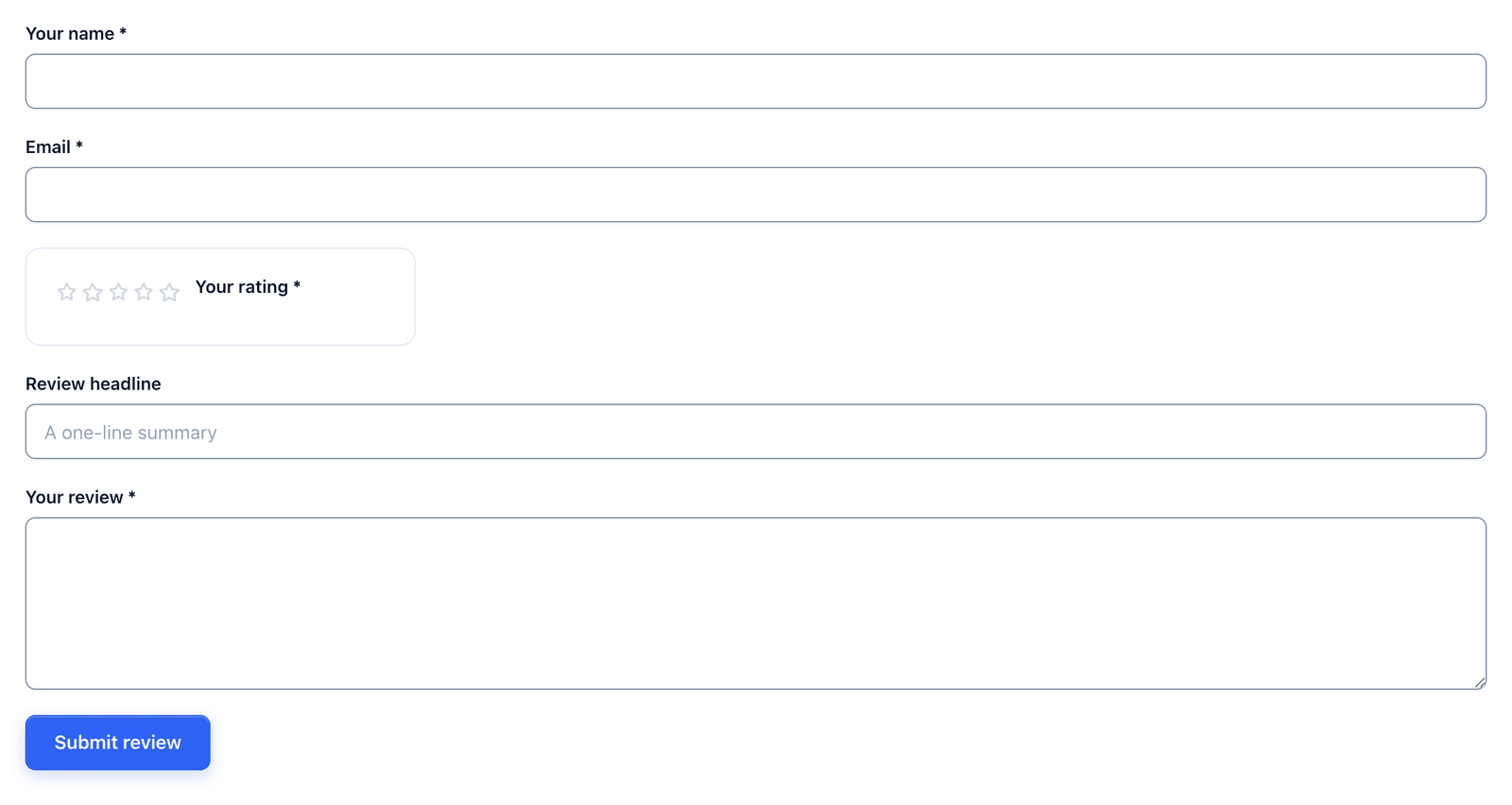 The stars fill from the left as the visitor hovers, and keyboard users can pick a star with the arrow keys.
If you want reviews from a standalone page instead, such as a Write a review page linked from an order email, set Target post to the product’s post ID or to a field such as [PRODUCT_ID] carried in a hidden field.
Moderate Before Publishing
Each review appears in two places. The Submissions tab of the form keeps the full entry, including the email address and the headline.
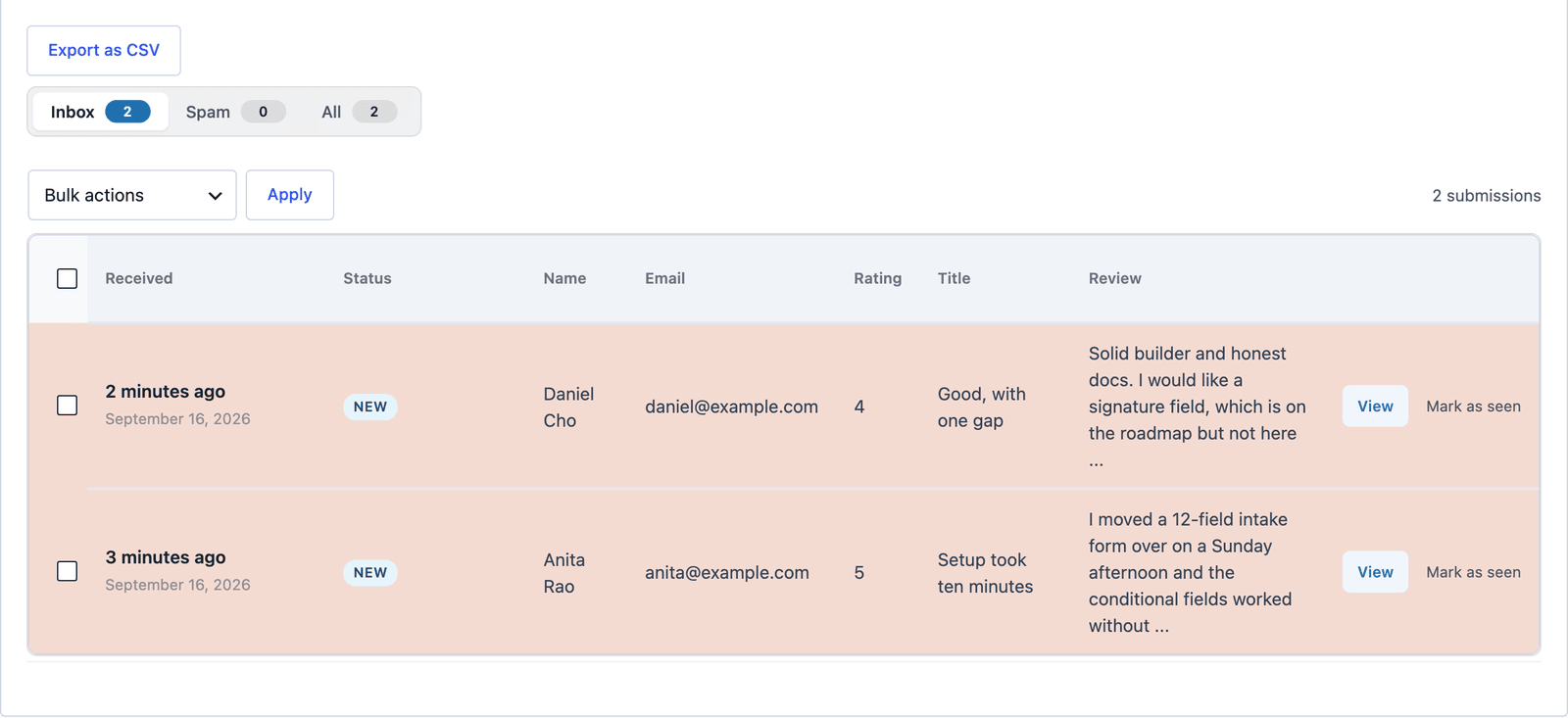 The rating column shows the number, which is what the average is calculated from.
The review itself waits under Comments > Pending in WordPress, attached to the product page, with the same Approve, Reply and Spam controls as any other comment.
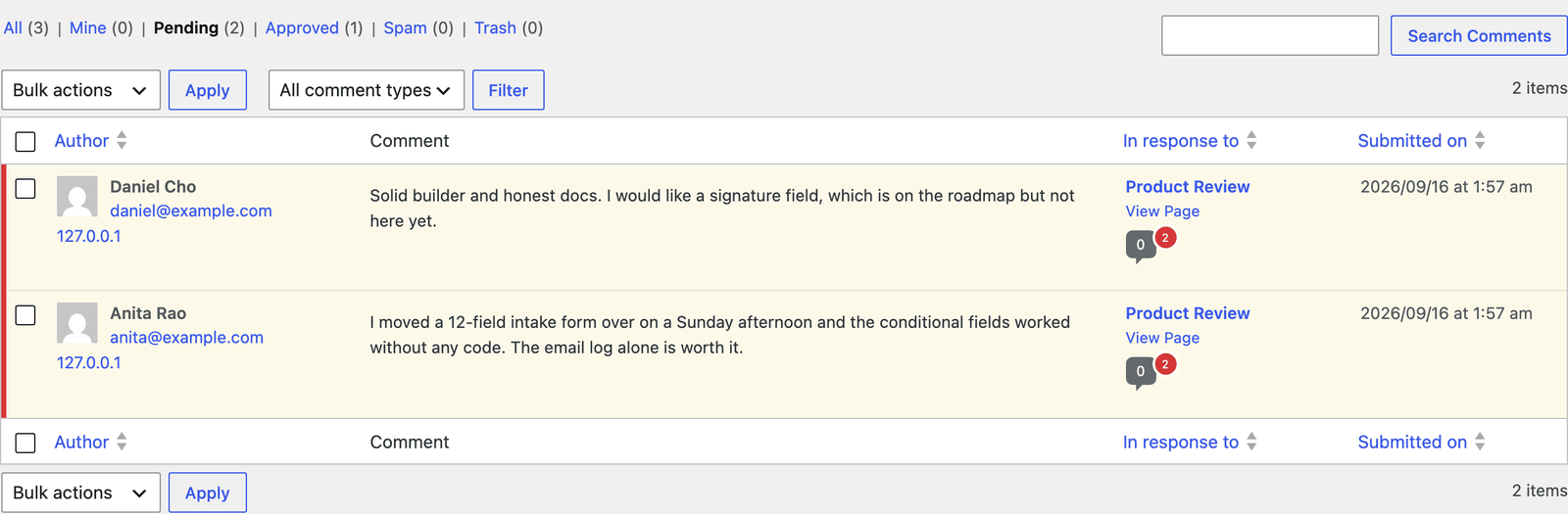 Approving a review here is what publishes it and updates the average rating.
Approve, and the review shows on the page through your theme’s normal comment template. A theme that prints comment meta can show the stars next to each review, and the Create Post integration page covers the related action for turning submissions into posts rather than comments.
Single Page or Multi-Step
The multi-step version splits the form into “Your details” (name and email) and “Request details” (rating, headline and review).
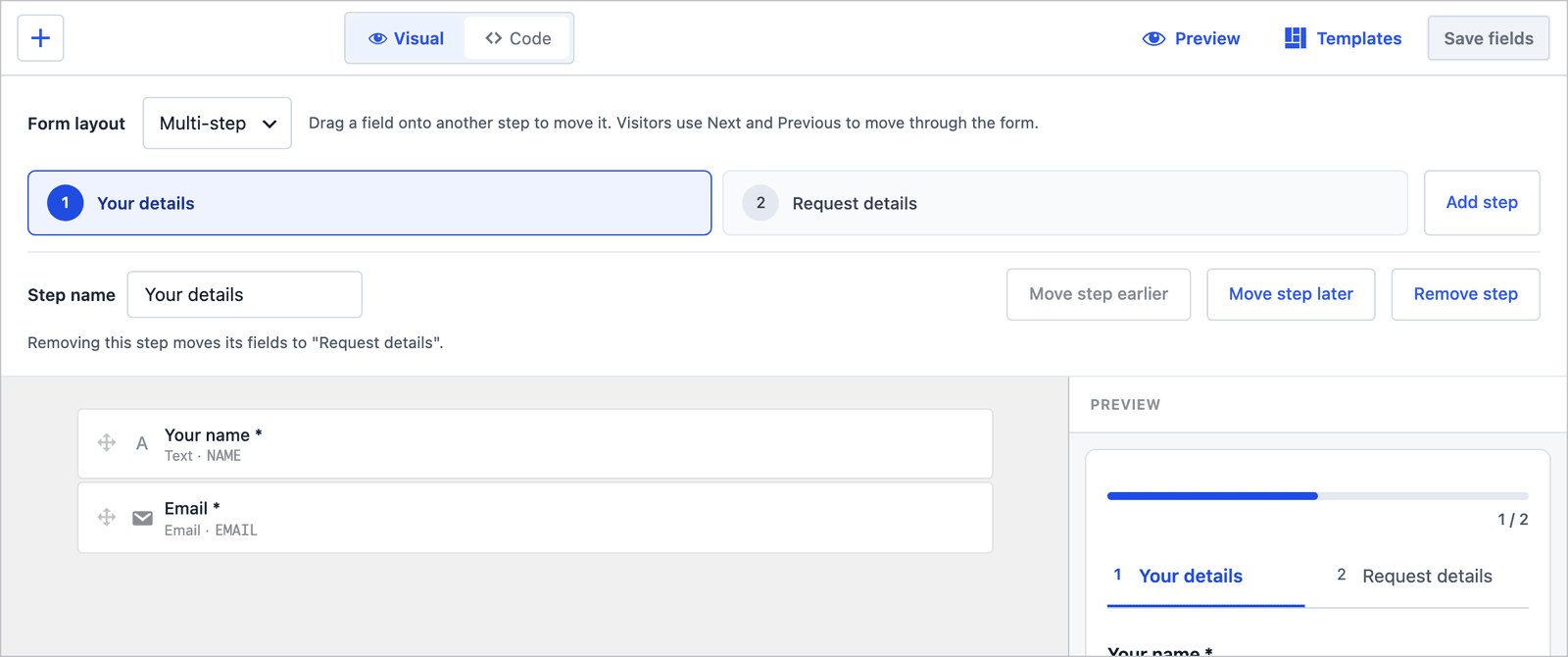 The Create Comment action and its field mapping carry over to the multi-step version.
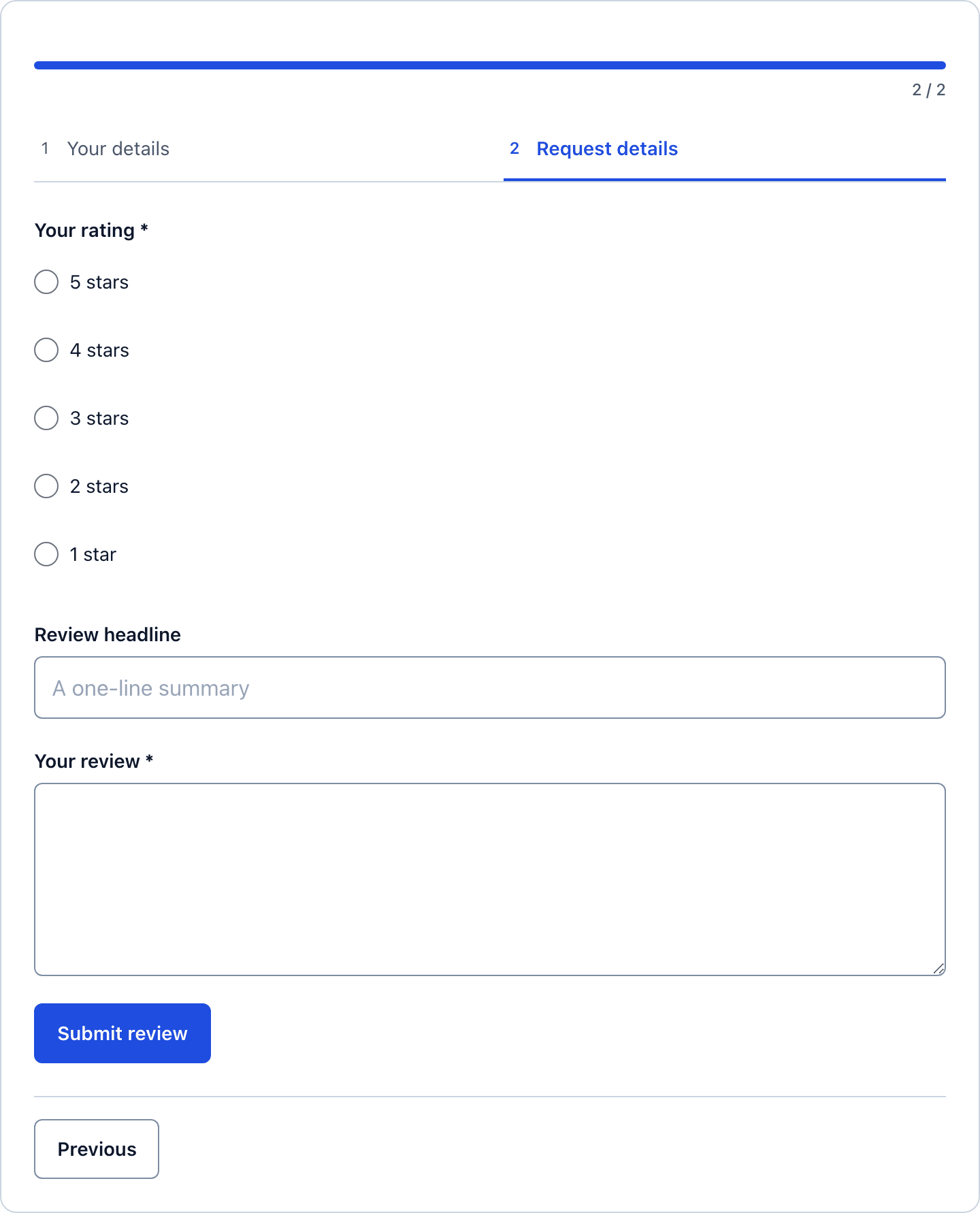 Asking for the name and email first is the usual order, and it is the order most review sites use.
For 5 fields the single page is the better choice, because the visitor can see the stars and the text box at once and the whole thing takes a minute. The multi-step version starts to make sense once you add photos, a “would you recommend” question and pros and cons, which is a longer form than most shoppers will finish on one screen.
The Limits
The form does not check that the reviewer bought the product. A verified purchase badge needs an order lookup, which a form on its own cannot do. If you sell through WooCommerce or FluentCart, their own review systems carry that check.
Reviews go to the page the form is on. If the form lives inside a sidebar or a footer that appears on every page, every review attaches to whichever page the visitor happened to be reading, so keep it on product pages or set the target post explicitly.
The star display in the published comment depends on your theme. WordPress stores the rating with the comment, and the average on the post, but the default comment template does not print either. A few lines in the theme, or a block that reads the meta, puts the stars on the page.
There is no photo field in the template. A file upload can be added, and the file is stored with the submission, but it is not attached to the comment automatically.
What Quietly Ruins a Product Review Form
Setting the default status to approved. It saves a click per review and costs you the first spam review that goes live at midnight, along with every reader who sees it before you do.
Making the headline required. People who have plenty to say about a product often cannot think of a title for it, and a required headline is where they give up.
Offering a reward for a review that is only paid out for 5 stars. It breaks trust with every reader who notices, and the average it produces is worthless to you as well.
Asking for the review before the rating. The rating is the easy part, and putting it first gets the visitor past the first click, which is where most forms are abandoned.
Final Remarks
You now have a product review form that saves each review as a pending comment on the product page, keeps the rating as a number you can average and lets you read every review before anyone else does. If you keep one idea from this guide, keep this one: leave the target post blank and put one form on every product page, rather than making a form per product.
The product review template page has the fields and a live demo, and the feedback form guide covers the private kind of feedback that should not become a public review. If something here does not behave the way this guide describes, the support team can help.
I hope the reviews that come in are the kind you are happy to approve.
The how to ask customers for reviews guide covers who to ask, when and the email that gets a yes.
FAQ
Can reviewers get an email when their review is approved?
WordPress does not send one by default. An Auto-Responder action on the form can confirm receipt right away, with a line saying the review will appear once it is checked.
Can I show the average rating on the product page?
Yes. After each approved review the post meta cf_rating_average and cf_rating_count are updated, so a theme or a block can print them with get_post_meta().
Do comment spam plugins check the reviews?
No. The review is written straight into the comments table, so Akismet and other comment filters do not see it on the way in. The form’s honeypot, the rate limit in its Settings tab and the pending status are what keep junk off the page.