
How to Create an RSVP Form in WordPress
Build a WordPress RSVP form that asks for a guest count only from people who are coming, closes on your deadline and turns replies into a headcount.

An RSVP form has one job: tell you how many people are coming, and what you need to know about them, before the venue or the caterer asks for final numbers.
I build Core Forms, and every screen here comes from its Event RSVP template running on a test site.
Every event is different, so one guide cannot plan yours. But almost every RSVP form needs the same three things, a clear yes or no, a guest count and a deadline, and in this one I will try my best to cover those properly.
The template used here ships with the plugin, so you can follow along click for click. Or, if you get stuck halfway, support is a message away.
What the RSVP Template Asks
The Event RSVP template collects five things, and each one earns its place:
- Full name is required, so every reply has a person attached.
- Email address is required, because you will need to send venue changes or reminders.
- Will you be attending? is a required choice between “Yes, I’ll be there,” “No, can’t make it” and “Maybe.”
- Number of guests (including yourself) accepts 1 to 10 and starts at 1.
- Dietary requirements or allergies is an optional note for the caterer.
The attending question is required for a reason. A recorded “no” is as useful as a “yes,” because it stops you chasing that guest and firms up the headcount sooner.
Create the RSVP Form
Two templates match an RSVP search, one on a single page and one split into steps:
- Go to Core Forms > Add New.
- Type
rsvpin the template search. - Click Use this template on the first Event RSVP card for a single page.
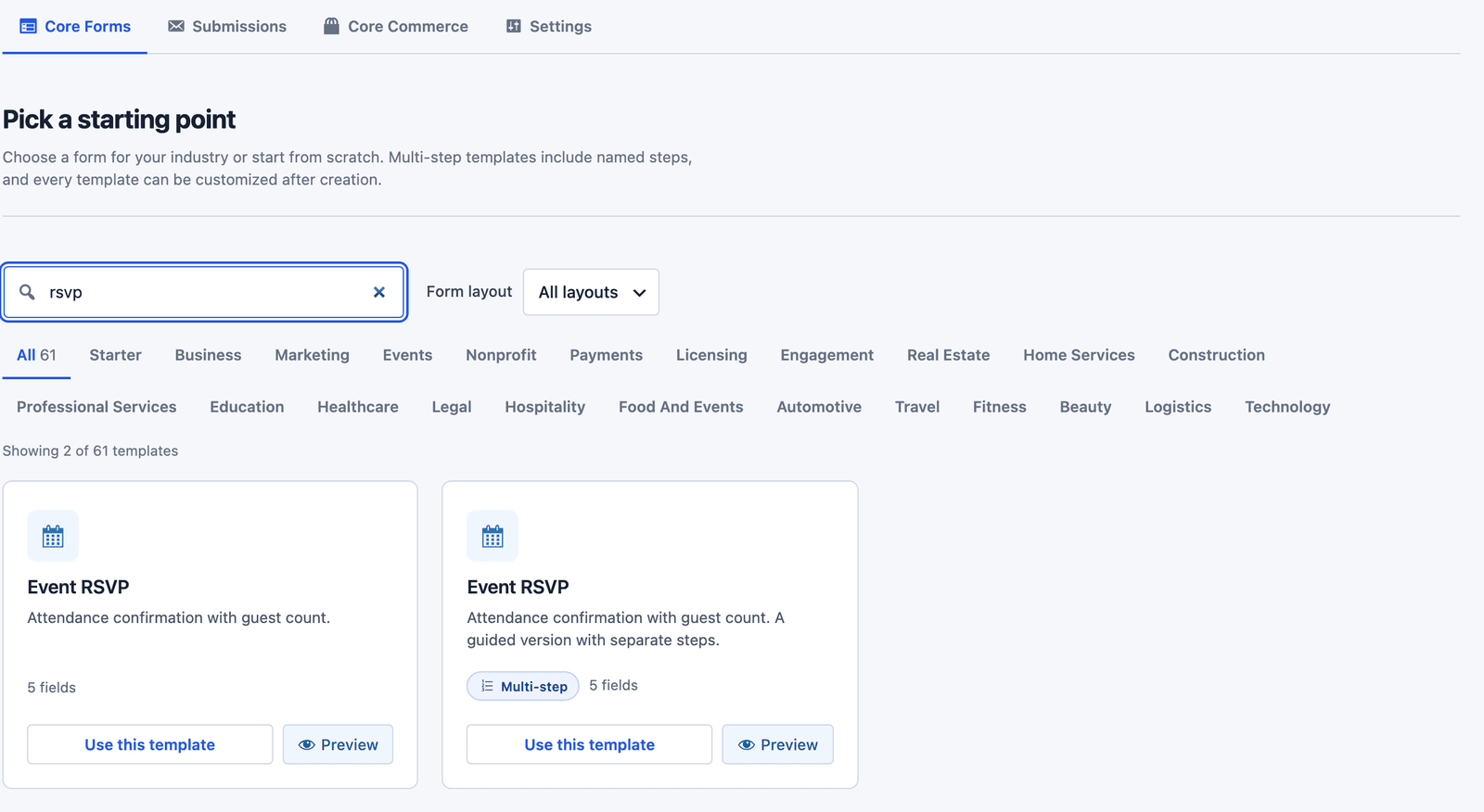 Both versions have the same 5 fields, and only the layout differs.
Ask for Guest Details Only From People Who Are Coming
Out of the box, the template shows every field to everyone. That means a guest who is not coming still sees a guest count and a dietary box, which is noise for them and bad data for you. A condition on those two fields fixes it:
- In the builder, click Number of guests (including yourself).
- Expand Conditions in the field panel and click + Add Condition.
- Set Action to Show if.
- Type this rule into Rule:
ATTENDING:yes|maybe
- Repeat the same steps for Dietary requirements or allergies.
- Click Save fields.
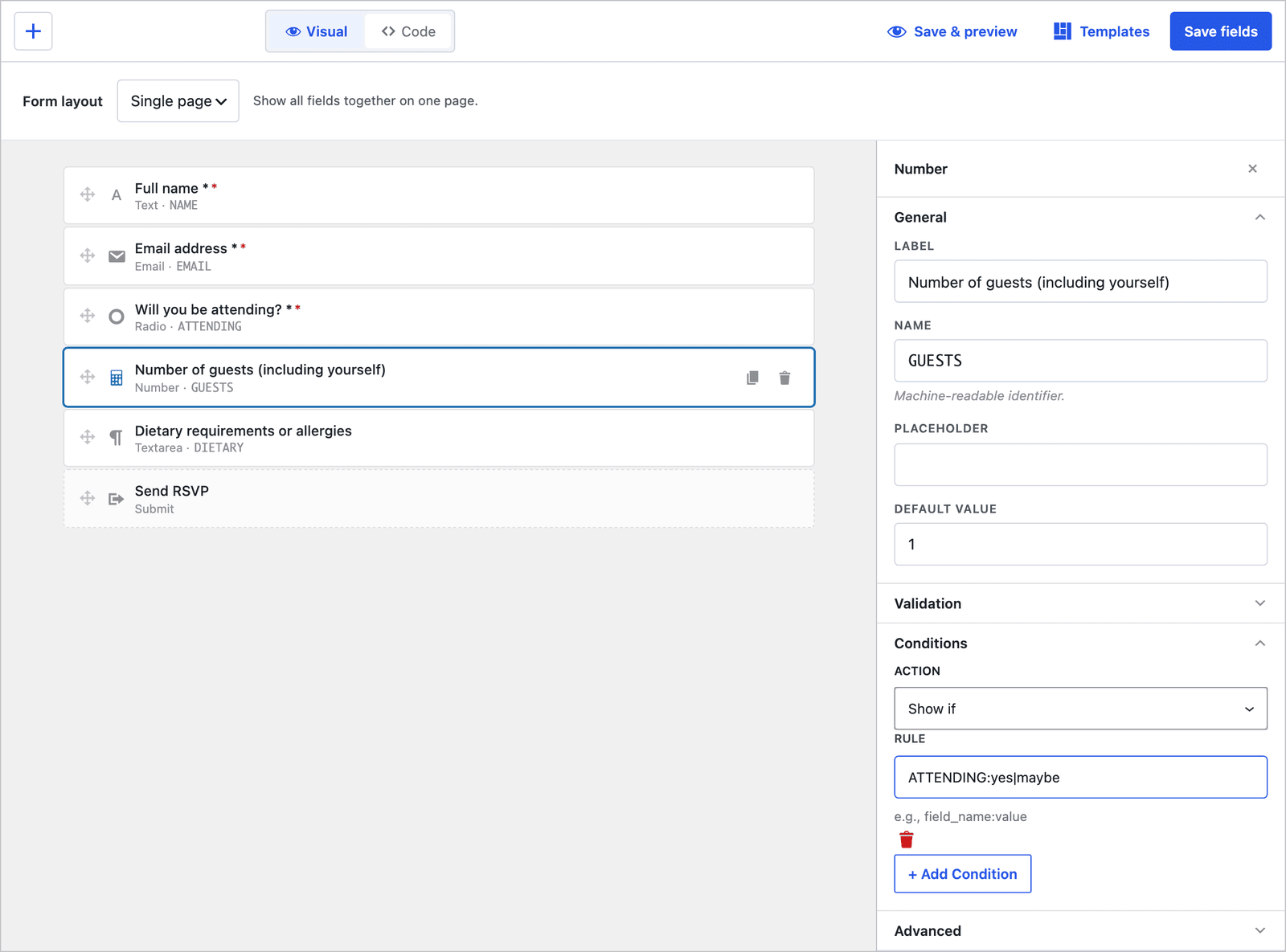 The rule uses the stored values, yes and maybe, not the longer labels people see.
That detail matters. The answers show “Yes, I’ll be there,” but the form stores yes, no and maybe, so the rule has to use those short values. Here is the result for a guest who cannot come:
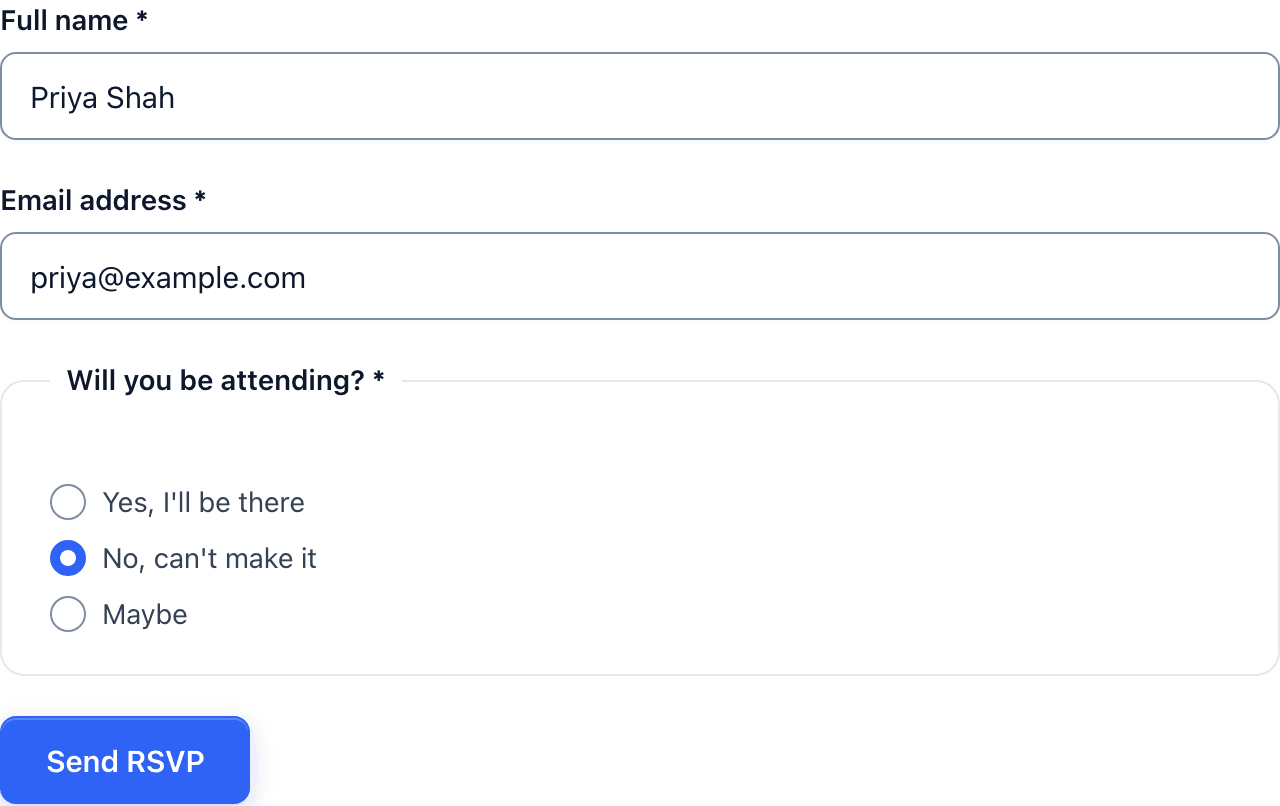 A “no” reply is three questions long and done.
And for a guest who is coming:
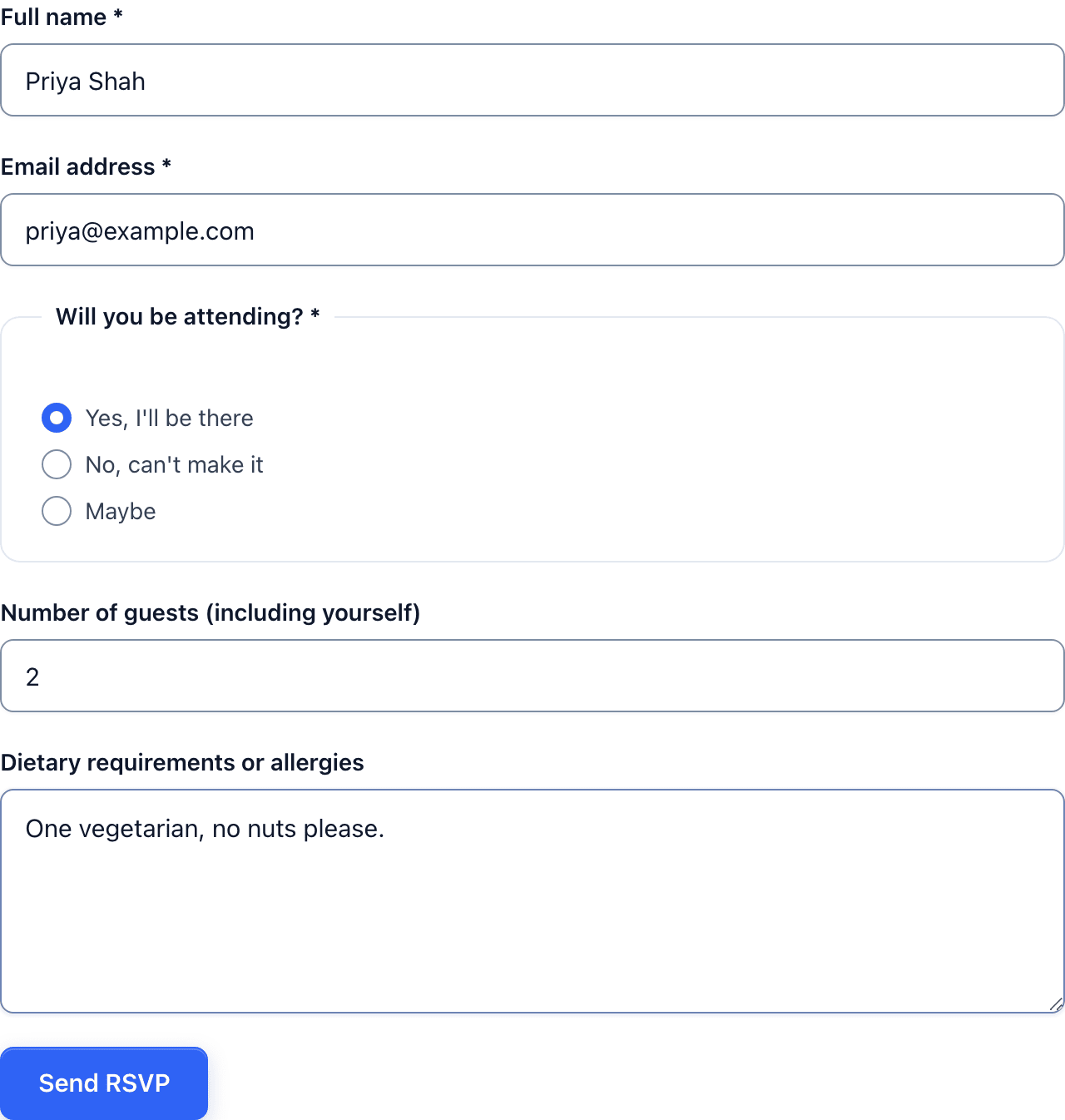 Picking yes or maybe brings the guest count and dietary note back.
Hidden fields are left out of validation and out of the submitted data, so a “no” reply does not arrive with a stray guest count of 1 that would inflate your total. The conditional logic feature covers the other rule formats.
Single Page or Multi-Step
The multi-step version of the template splits the form into “Your details” (name and email) and “Request details” (attending, guests and dietary).
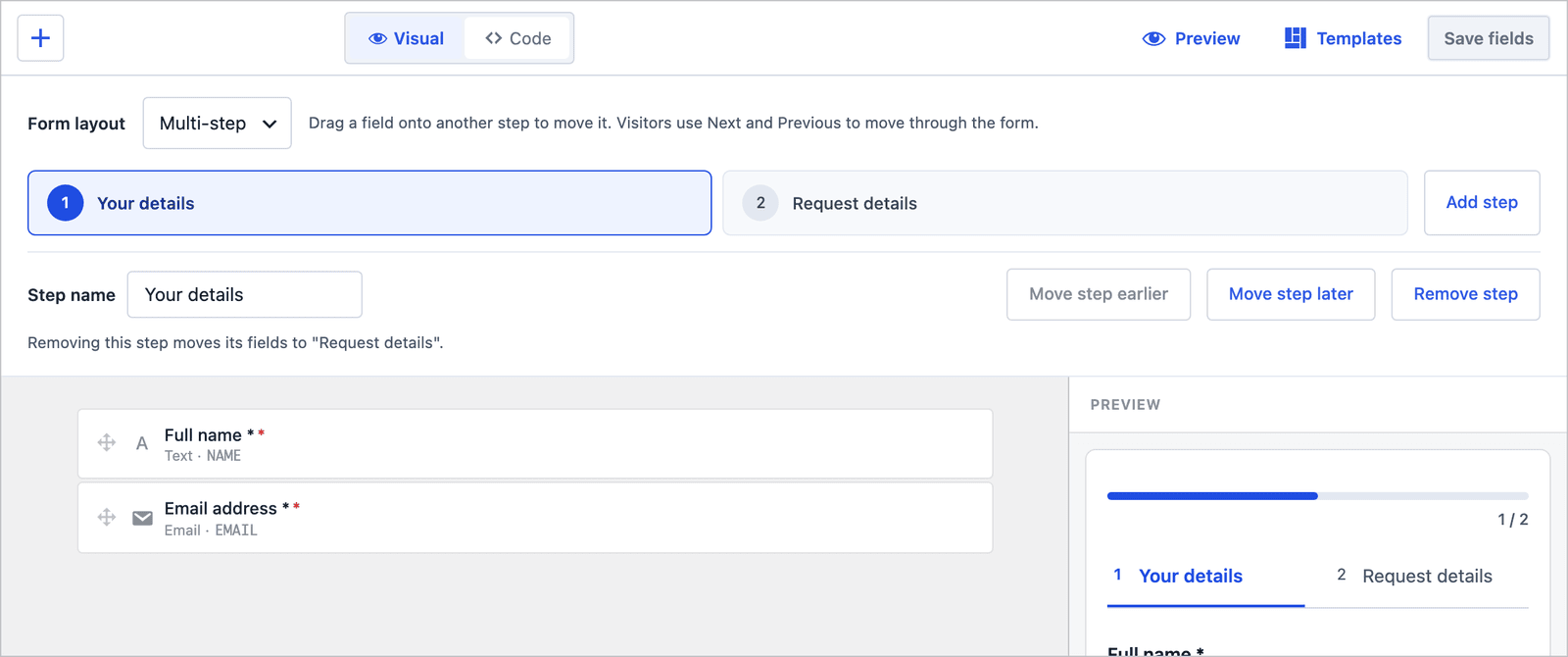 The step names and order can be changed in the builder, the same way as any multi-step form.
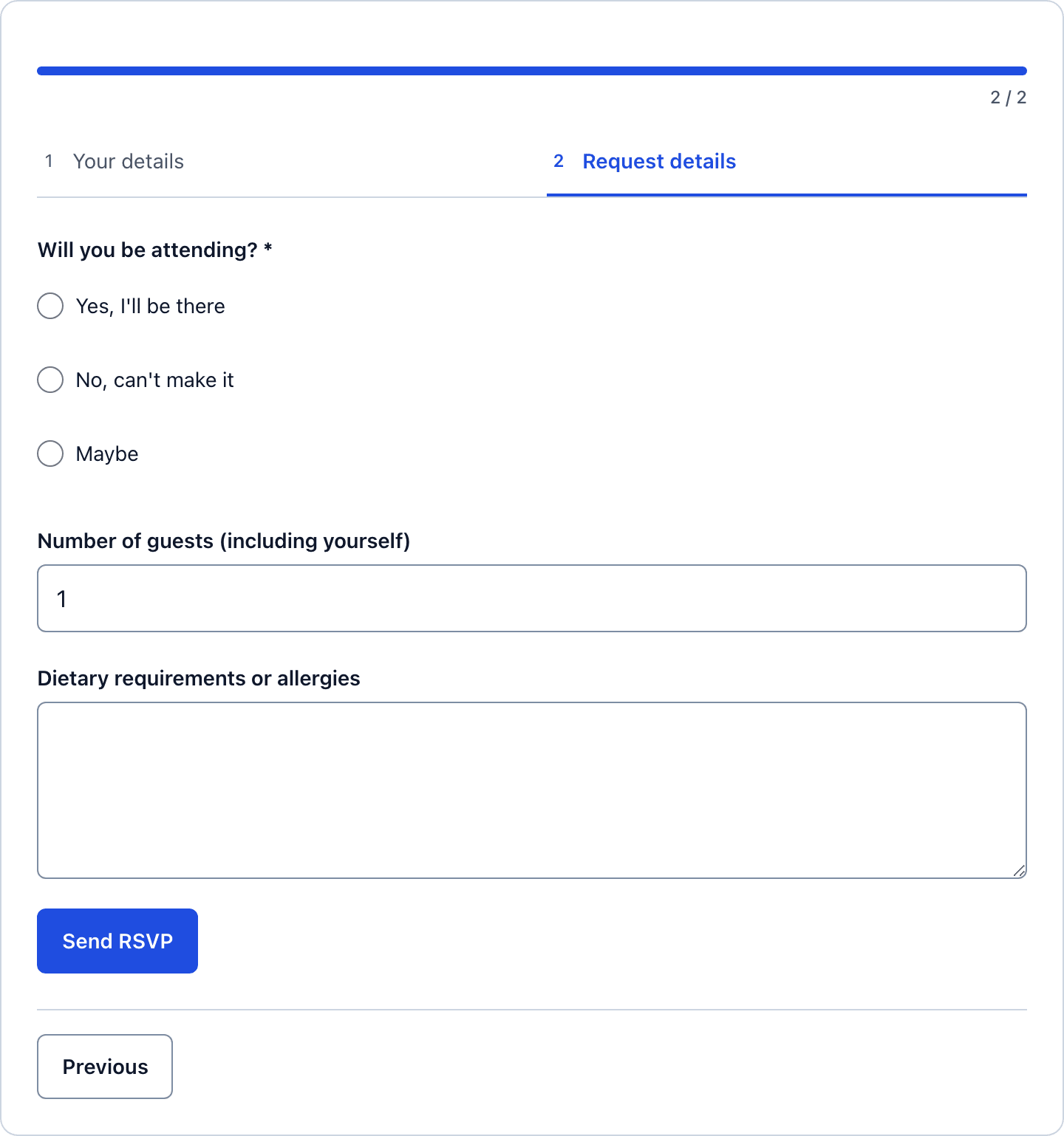 Conditions belong to each form, so the multi-step version needs its own rules if you use it. The conditional logic guide covers the rule syntax and the action-level conditions.
For a 5-field RSVP, the single page is the better choice. Guests can see the whole form at once and finish it in seconds. The multi-step version makes more sense once you add sessions, meal choices or plus-one names, and the form stops fitting on one screen.
Close RSVPs on Your Deadline
Every event has a date after which a new “yes” causes more trouble than it solves. The form’s Settings tab has a Scheduling section that closes it automatically:
- Restrict by date / time turns the schedule on.
- Date range sets an opening date, a closing date or both.
- Days of the week limits replies to certain days, which suits recurring events.
- Time window limits replies to certain hours, including overnight windows such as 22:00 to 06:00.
- Closed message is what people see once the form stops accepting replies.
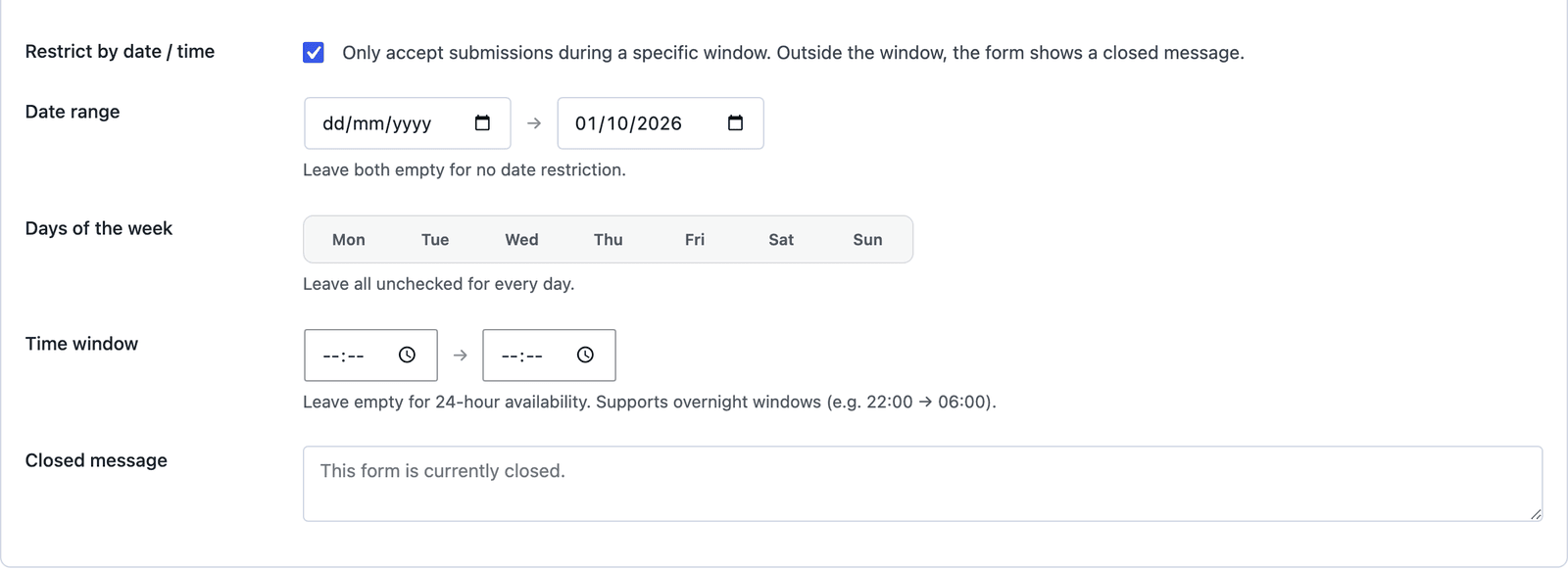 A closing date the day before the caterer’s deadline gives you a night to count.
Publish the RSVP Form
The shortcode is shown next to the form’s name in the editor:
[cf_form slug="event-rsvp"]
Paste it into your event page, or use the Core Forms block. Put it right under the date and venue, because the fewer scrolls between “sounds fun” and “sent,” the more replies you get.
Turn Replies Into a Headcount
Every reply lands in the form’s Submissions tab, with the attending answer, guest count and dietary notes in their own columns.
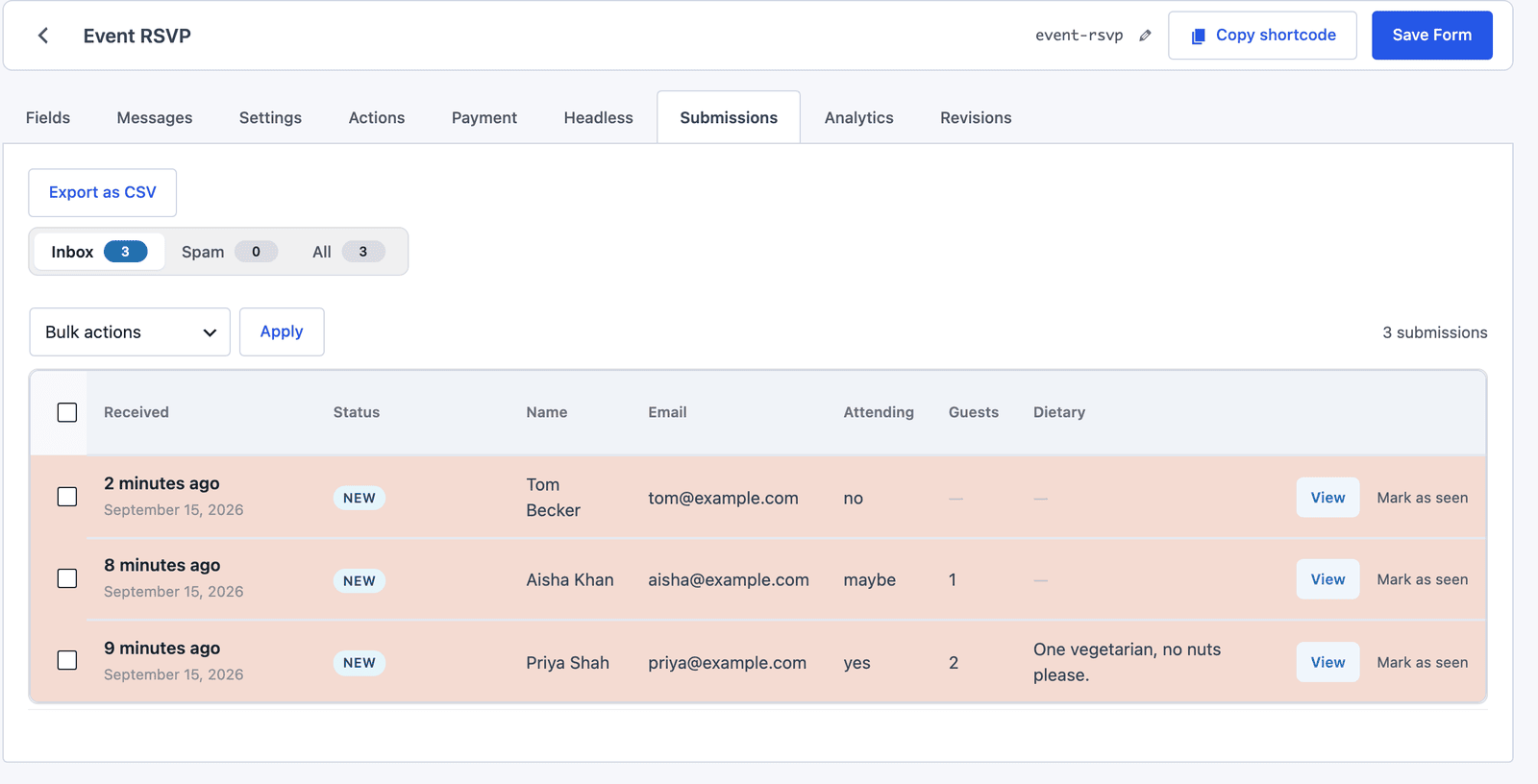 The “no” reply has no guest count at all, which is exactly what the condition is for.
For the final number, Export as CSV and add up the guest column for the “yes” rows. Keep the “maybe” rows as a separate number, because a caterer will want to know about them too. If you would rather have a running total, a Google Sheets action can add each reply as a new row the moment it arrives.
The Limits
The form closes by date and time, not by headcount. It does not count seats, so if the venue holds 80 people, you watch the total and close the form yourself when it gets close. For ticketed or capacity-limited events, the guide to event registration forms covers paid tickets and the extra checks they need.
Guests cannot edit a reply after sending it. If plans change, they send a new one and you keep both, so sort by date and treat the newest reply from each email as the current one.
The guest count accepts up to 10 people per reply. That suits most personal and community events, and the limit can be changed on the field if a whole family or team replies at once.
Prevent duplicates in the Settings tab blocks repeat submissions from the same visitor within one browser session. It will not stop someone replying again the next day, which is usually what you want when plans change.
What Quietly Ruins an RSVP
Asking every guest for dietary details. People who are not coming skip it, people who are coming skim it, and the one allergy that matters gets lost among “none” answers.
Leaving out the “Maybe” option. It feels tidier, but undecided guests either pick “yes” and do not show up, or pick “no” and turn up anyway.
Setting the deadline on the event date itself. A form that accepts replies until the morning of the event gives you no time to act on the final number.
Counting rows instead of guests. Ten replies can mean 10 people or 40, and the guest column is the number the venue actually needs.
Final Remarks
You now have an RSVP form that only asks guest questions of people who are coming, stops on your deadline and gives you a headcount you can trust. If you keep one idea from this guide, keep this one: the guest column is your real number, so make sure a “no” never adds to it.
The Event RSVP template page has the fields and a live demo, and the guest list form template is a close cousin with dietary checkboxes. For one-to-one bookings rather than events, the appointment booking form guide covers the date and time version. And for the food side of an event, the catering order form guide covers the form a caterer needs. For the people who run the event, the volunteer application form guide covers the sign-up. If something here does not behave the way this guide describes, the support team can help.
I hope your event gets the turnout you are planning for.
FAQ
Can guests get a confirmation email?
Yes, with an Auto-Responder action in the form’s Actions tab. Point it at the EMAIL field and include the event date, venue and a way to change the reply.
Can the form stop accepting replies at a set number of guests?
Not automatically. Scheduling closes the form by date and time. For a strict capacity, watch the guest total and close the form yourself when you reach it.
Can guests change their RSVP?
They can send a new reply, and both replies are kept. Treat the newest reply from each email address as the current one.