
Conditional Logic in WordPress Forms: Show, Hide and Route Without an Add-On
Set up conditional logic in a WordPress form from the builder: show or hide a field on an earlier answer, run an email or integration only when a condition matches, and route to a recipient by field value, with the server checking every rule.

Conditional logic in a WordPress form does 3 jobs: it shows a field only when an earlier answer makes it relevant, it runs an action only when the submission fits, and it sends the email to the person who should get it.
I build Core Forms, and every screen here comes from its builder running on a test site.
One guide cannot cover every branching form, and a form with 40 rules is a form that should probably be 3 forms. This one covers the 3 places a condition lives, the field panel, the action card and the recipient routes, the rule syntax each one uses, and the check that runs on the server so a hidden field cannot be smuggled in.
There is nothing to download. Or, if you get stuck halfway, support is a message away.
The 3 Places a Condition Lives
Before the clicks, the map, because the 3 kinds of condition are set in 3 different places and people look for them in the wrong one:
- A field condition lives in the field’s inspector under Conditions, and it shows or hides that field based on another field’s value.
- An action condition lives at the bottom of an action card in the Actions tab, and it decides whether that email, webhook or integration runs at all.
- A recipient route lives inside the Send Email action, and it changes who receives the email based on a field value.
All 3 are included in the plugin. There is no conditional logic add-on and no tier that unlocks it.
Show a Field on an Earlier Answer
The RSVP form is the plain case: the guest count should appear only when the person is coming.
- Open the form’s Fields tab and click the field to show or hide, here the guest count.
- In the inspector, expand Conditions.
- Set Action to Show if.
- In Rule, type the controlling field’s name, a colon and the values that should show it:
ATTENDING:yes|maybe. - Click Save fields.
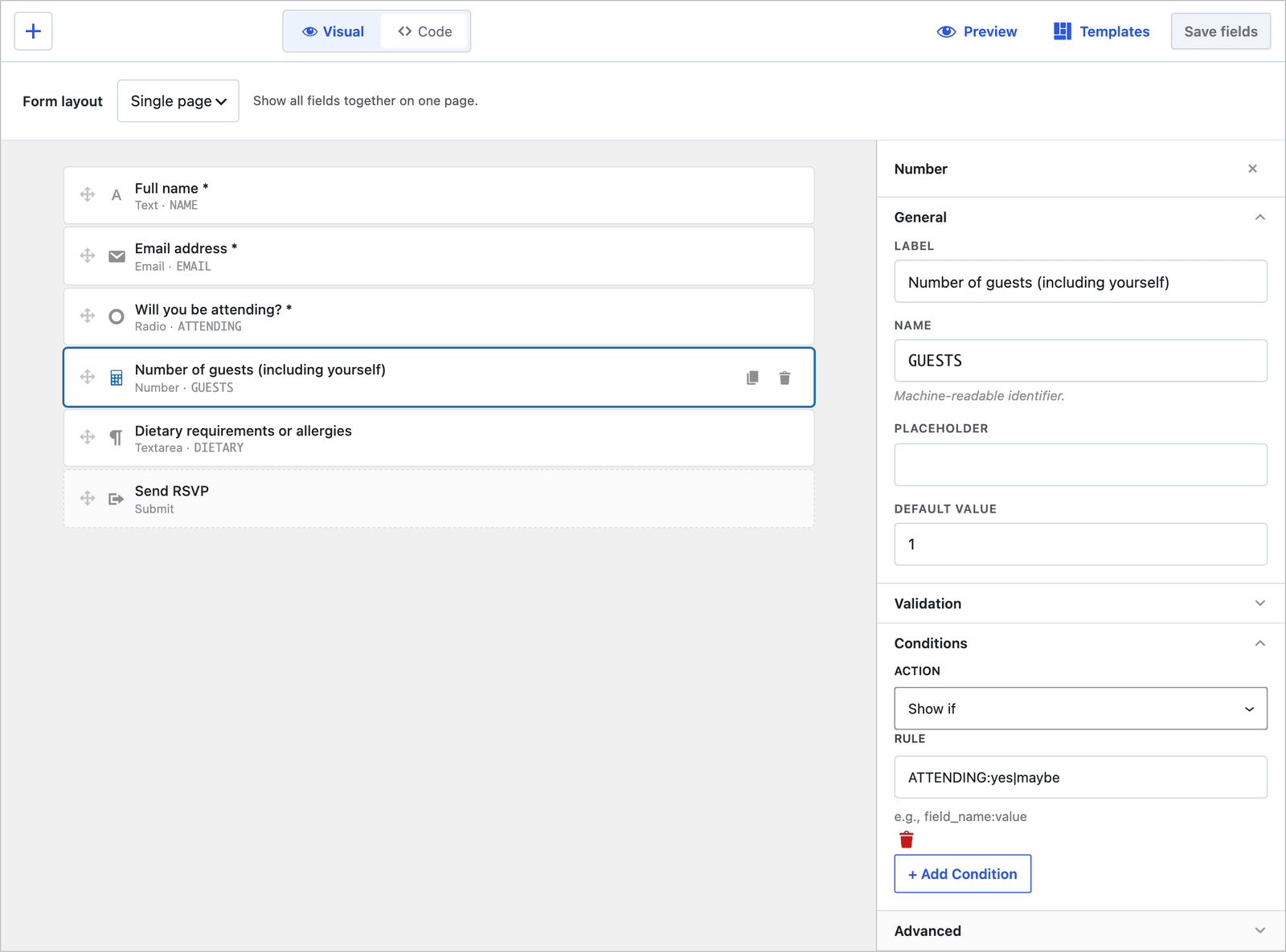 The rule refers to the field name and the stored option values, not the label and the option text.
Three rule shapes cover almost everything:
FIELD=valueshows the field when the other field equals that value.FIELD:one|two|threeshows it when the other field matches any of the listed values.FIELD=*shows it when the other field has any value at all.
Hide if is the same panel with the logic reversed, for the discount code box that should disappear when the free plan is picked. + Add Condition stacks a second rule, and all of them have to match.
What the Visitor Sees
On the front end the field appears and disappears as the answer changes, with no page reload.
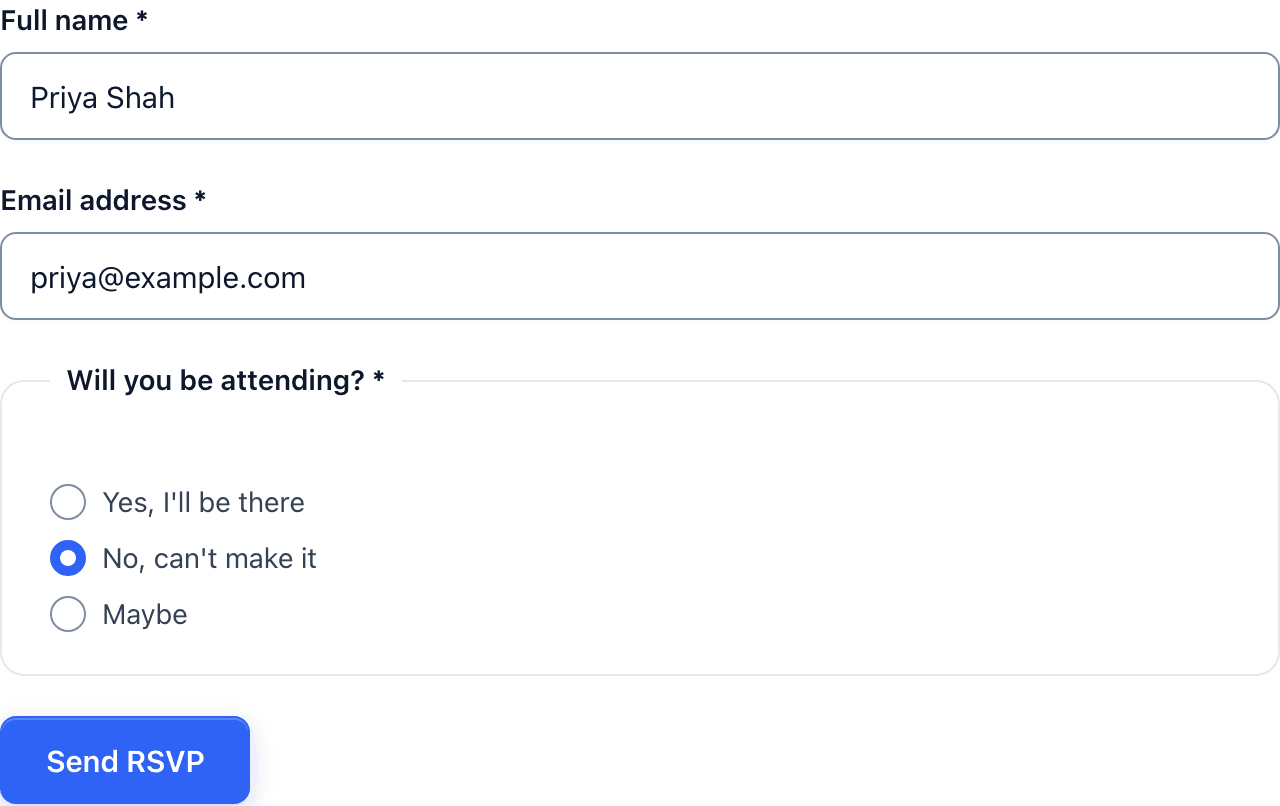 “No” leaves a 3-field form.
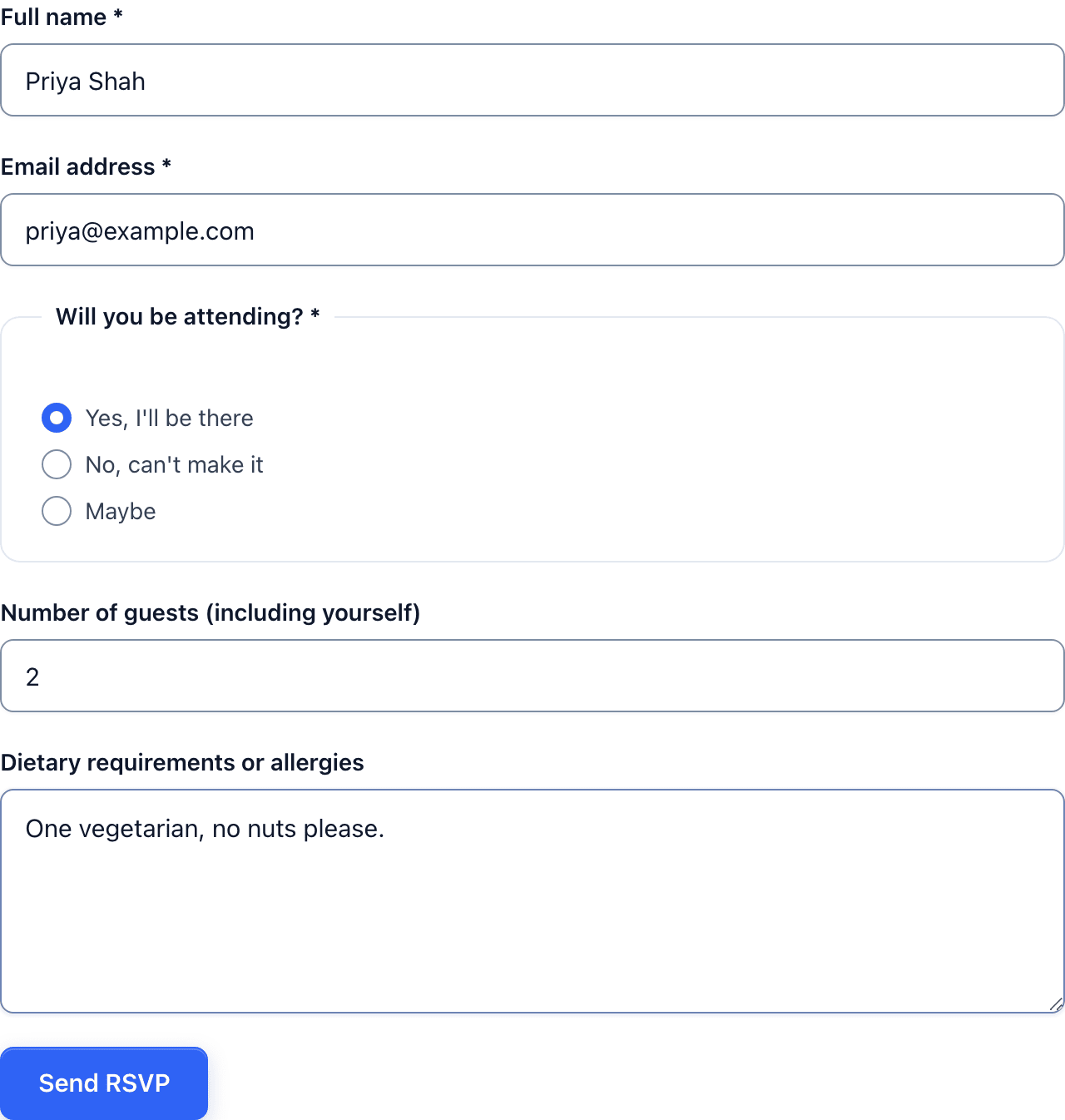 “Yes” opens the 2 fields that only matter for a guest who is coming.
A hidden field is dropped from the submission and its required flag is lifted while it is hidden, so a required guest count never blocks someone who said no. The server evaluates the same rule again when the form is submitted, so a visitor who edits the page to reveal the field and sends a value gets the value discarded.
Run an Action Only When It Matters
A bug report form sends every report to the team inbox. A critical one should also page whoever is on call, and that is an action condition:
- Open the Actions tab and add the action, here a second Send Email to the on-call address.
- Scroll to Conditions at the bottom of the card and click + Add Condition.
- Enter the field name,
SEVERITY, choose equals and enter the value,critical. - Click Save Changes.
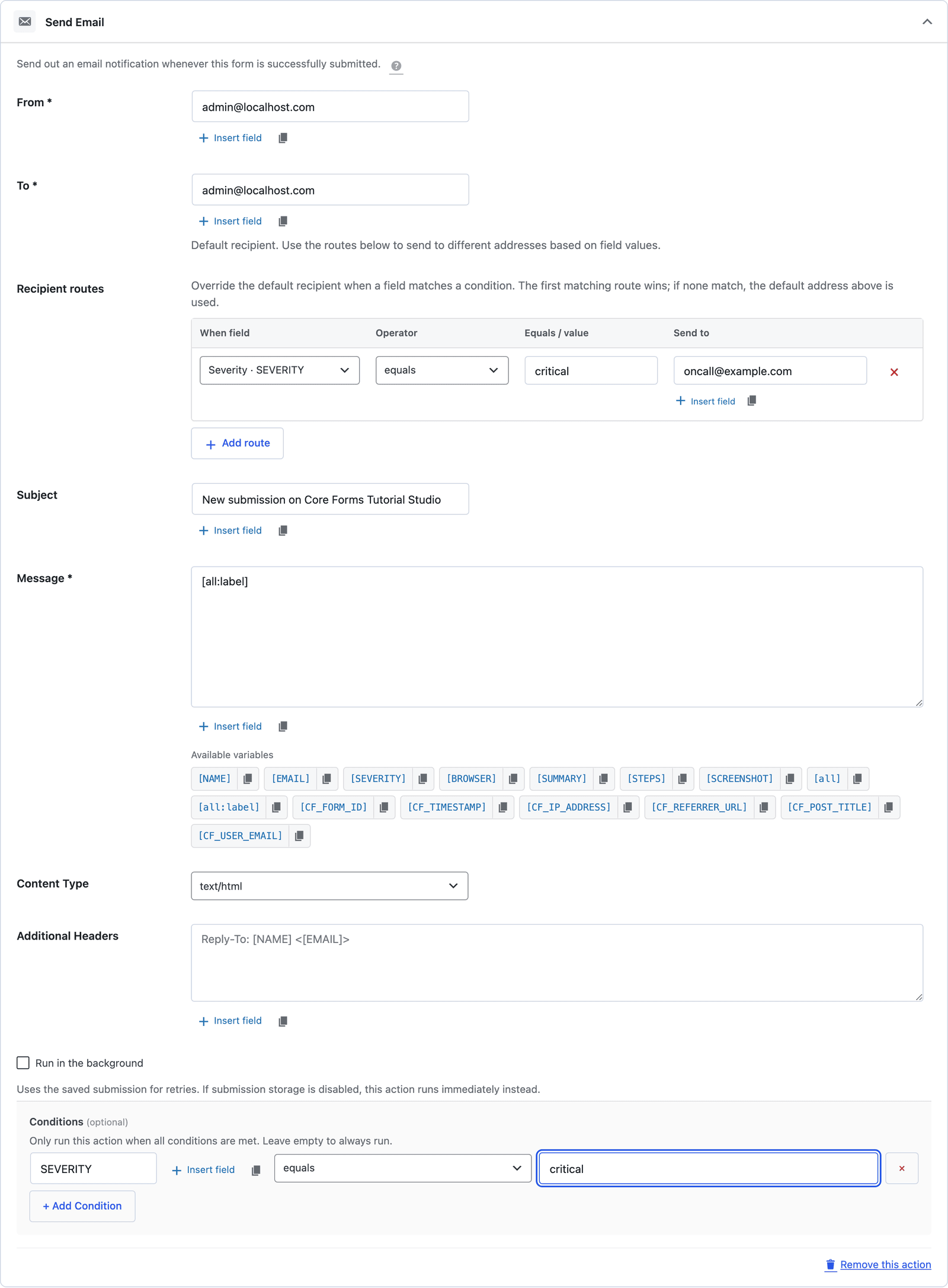 An action with no conditions always runs. With one or more, all of them have to match.
The operators are equals, does not equal, contains, does not contain, is empty and is not empty. The same panel sits at the bottom of every action, so a HubSpot action can run only for business emails and a Slack post only when the message is not empty.
Send the Email to the Right Person
The third place is inside the Send Email action, and it is a routing rule rather than an on-off switch:
- Expand the Send Email action and find Recipient routes.
- Click + Add route, choose the field, the operator and the value, and enter the address for that case.
- Add a route per case and click Save Changes.
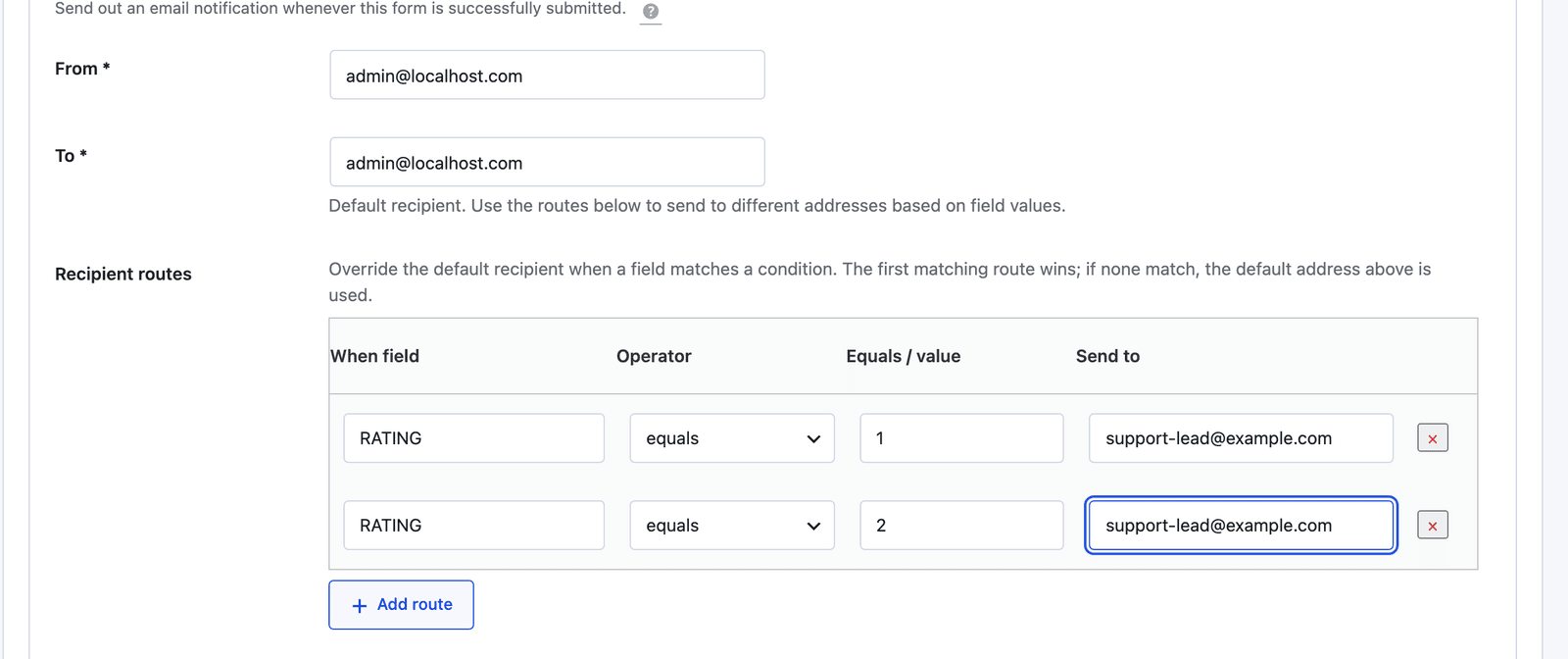 The first matching route wins and replaces the default recipient. No match, and the default address gets it.
One email action with 4 routes replaces 4 email actions with 4 conditions, and it is easier to read 6 months later.
The Same Logic in Code
The builder writes the rules for you, and the Code tab shows what it wrote, which matters when you copy a form between sites or want a rule the panel does not offer.
A field condition is a data attribute on the field’s wrapper:
<div data-show-if="ATTENDING:yes|maybe">
  <label for="GUESTS">Number of guests</label>
  <input type="number" name="GUESTS" id="GUESTS">
</div>
For rules the panel cannot express, the schema takes a structured form with 14 operators, including greater than, starts with and in a list, and AND or OR groups that nest:
{
  "conditions": {
    "action": "show",
    "match": "any",
    "rules": [
      { "field": "TEAM_SIZE", "operator": ">", "value": 50 },
      { "field": "PLAN", "operator": "in", "value": ["business", "enterprise"] }
    ]
  }
}
The conditional fields without a builder piece covers the attribute format in full, and the same evaluator runs on the server for both formats.
Where Conditions Pay for Themselves
Four patterns, each one rule:
- The “Other” text box. A select with an Other option and a text field that shows only for it,
TOPIC=other. It keeps the select short and the answers complete. - The follow-up on a yes. “Do you have an existing site?” then a URL field on
HAS_SITE=yes. Nobody types “n/a” into a required URL field again. - The escalation email. A second notification on
SEVERITY=criticalorBUDGET=over-50k, to the person who should see those in real time. - The CRM gate. A HubSpot or Pipedrive action on
EMAILdoes not containgmail.com, so personal addresses stay out of the sales pipeline.
Each is a 30-second addition, and each one removes a question someone answers by hand today.
The Limits
The field panel offers Show if and Hide if with the equals, any-of and non-empty shapes. Greater than, contains and OR groups live in the Code tab’s structured format, not the panel.
Conditions hide fields, not steps. In a multi-step form, a step whose fields are all hidden still shows as an empty screen, and a form that needs to skip whole sections is better as the conversational layout.
Action conditions use all-match logic. A “run if A or B” action is 2 actions with 1 condition each, or a structured group in the Code tab.
The visitor’s browser evaluates rules for the display, and the server evaluates them again for the data. The server is the one that counts, and a hidden field’s value never reaches your inbox or your integrations.
What Quietly Ruins Conditional Logic
Writing the label instead of the value. The rule is ATTENDING:yes, and ATTENDING:Yes, I will be there matches nothing because the stored value is yes.
Making the hidden field required and expecting it to block. A hidden field’s required flag is lifted, which is right, and a form that must have the guest count when attending is yes needs the field visible in that case, which it is.
Ten rules on one field. Each one is a reason the field is missing when someone expects it, and a form that needs 10 is 2 forms.
Testing only in the browser. Submit the form with the field hidden and check the submission, because the server’s copy of the rule is the one that decides what is stored.
Final Remarks
You now have conditional logic in 3 places, a field that appears on the right answer, an action that runs only when the submission fits and an email that goes to the person who should read it, with the server checking every rule behind the browser. If you keep one idea from this guide, keep this one: rules match stored values, so look at the option’s value in the inspector before you write one.
The conditional logic feature page has the operator reference, and the RSVP form guide builds the guest count example from the template. If something here does not behave the way this guide describes, the support team can help.
I hope the first rule you write is the one that ends a question you keep answering by hand.
FAQ
Does conditional logic work with checkboxes and radio buttons?
Yes. A radio group matches the selected option’s value, and a checkbox group matches when any checked value is in the rule. INTERESTS:events|fundraising shows a field when either box is ticked.
Can a condition depend on a field on a different step?
Yes. Rules refer to field names, and a field on step 3 can show based on an answer on step 1. The rule is evaluated whenever the controlling field changes and again when the step opens.
Is conditional logic included in the free tier?
Core Forms has no free tier and no feature tiers. Field conditions, action conditions and recipient routes are all in the one license, and the pricing page has the terms.