
How to Create an Appointment Booking Form in WordPress
Build a WordPress appointment booking form that collects a preferred date, time and reason for the visit, blocks past dates and lets you confirm each request from one screen.

An appointment booking form collects a preferred date and time and enough context for you to confirm the visit, and that is a different job from a calendar that books the slot on its own.
I build Core Forms, and every screen here comes from its Appointment booking template running on a test site.
Every practice confirms appointments its own way, so one guide cannot cover every rule. But almost every booking request needs the same things, a date, a time, a phone number and a reason, and in this one I will try my best to cover those properly, including the one thing the template does not do, which is reserve the slot.
The template ships with the plugin, so you can follow along click for click. Or, if you get stuck halfway, support is a message away.
What an Appointment Booking Form Asks
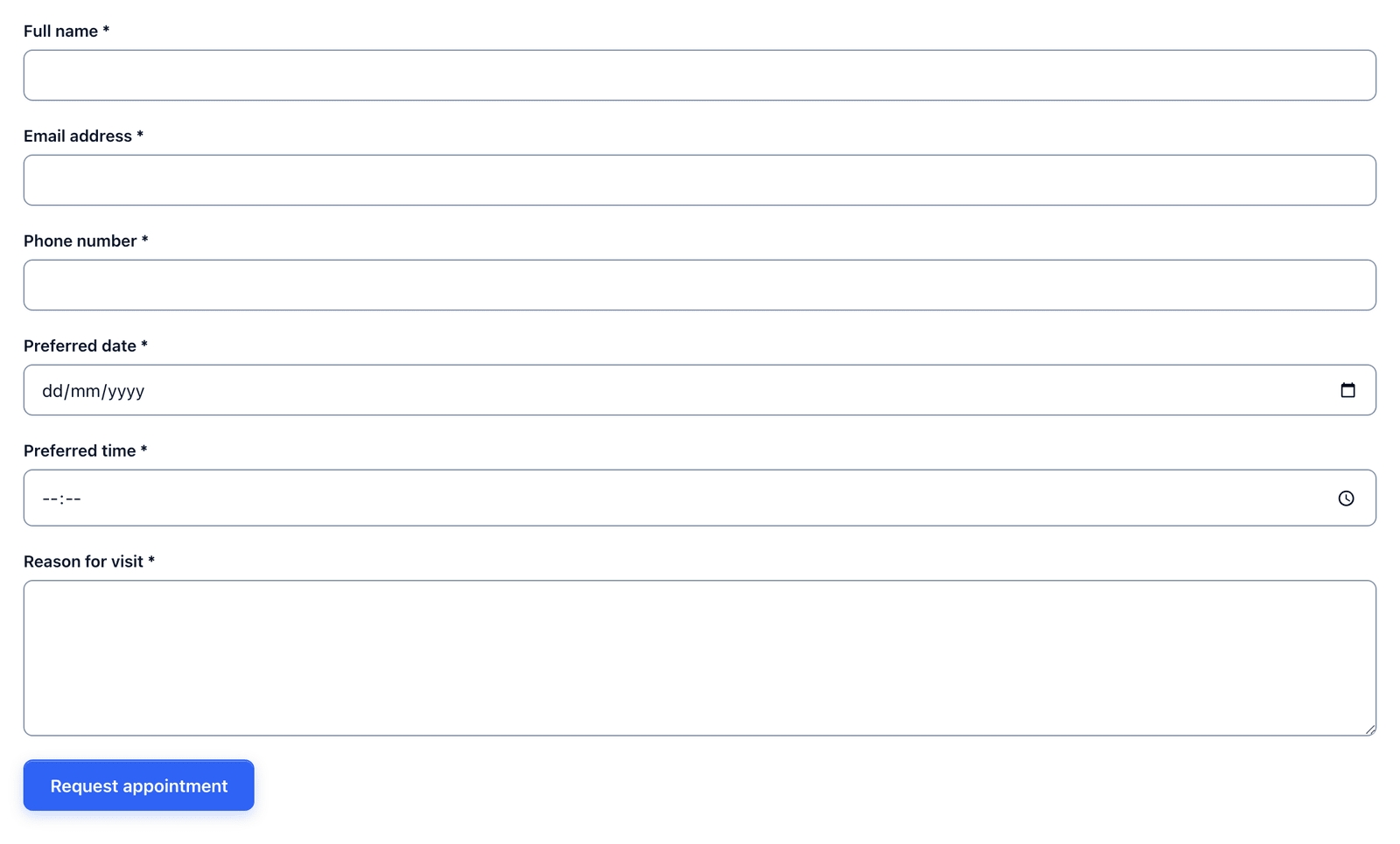
The Appointment booking template collects 6 things, and every one is required:
- Full name identifies the person booking.
- Email address is where the confirmation or a counter-offer goes.
- Phone number is required here, unlike most templates, because appointment changes are often urgent.
- Preferred date is a native date picker.
- Preferred time is a native time picker.
- Reason for visit is a text area that lets you prepare, or suggest a different appointment type.
The word preferred in the two labels is deliberate. It tells the visitor they are asking, not booking, which is exactly what the form does, and it stops the complaint that starts “but I booked 10:30.”
Create the Appointment Booking Form
Two templates match a booking search, one on a single page and one split into steps:
- Go to Core Forms > Add New.
- Type
bookingin the template search. - Click Use this template on the first Appointment booking card for a single page.
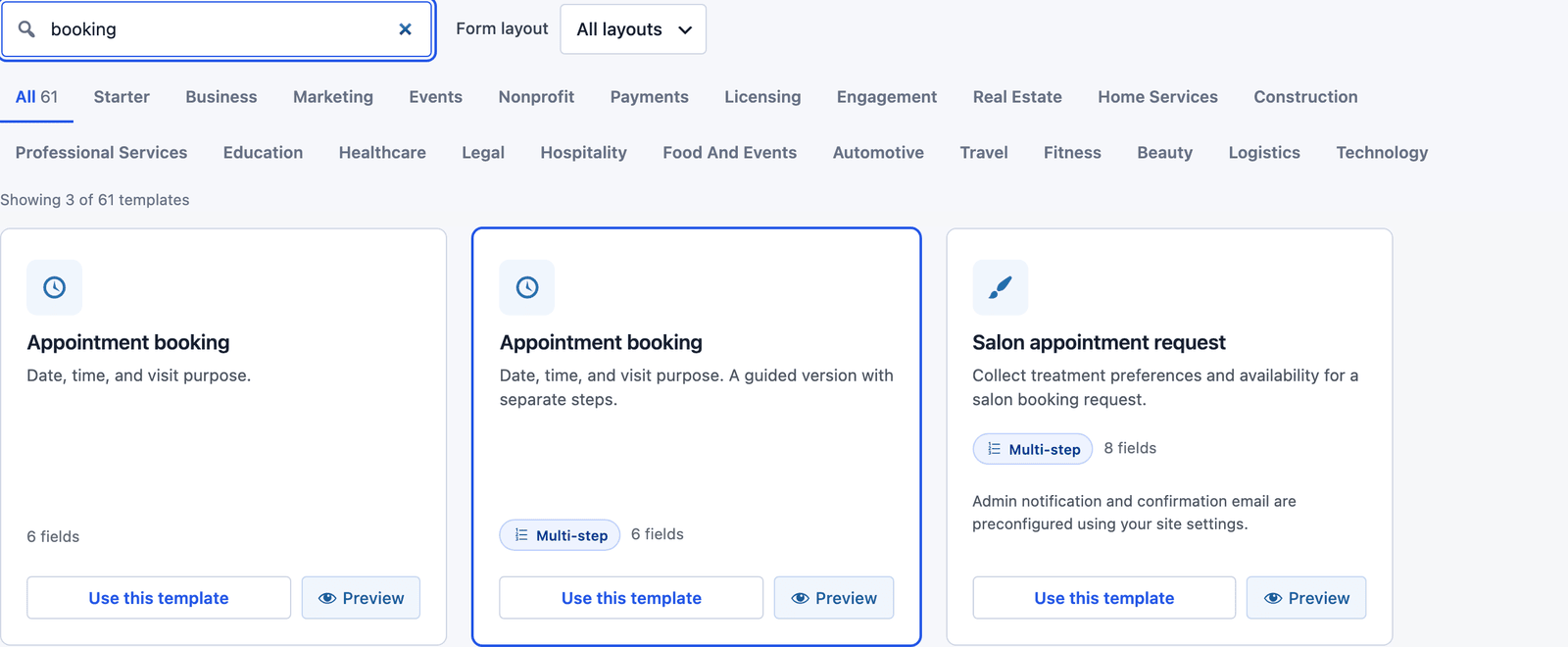 Both versions have the same 6 fields, and only the layout differs.
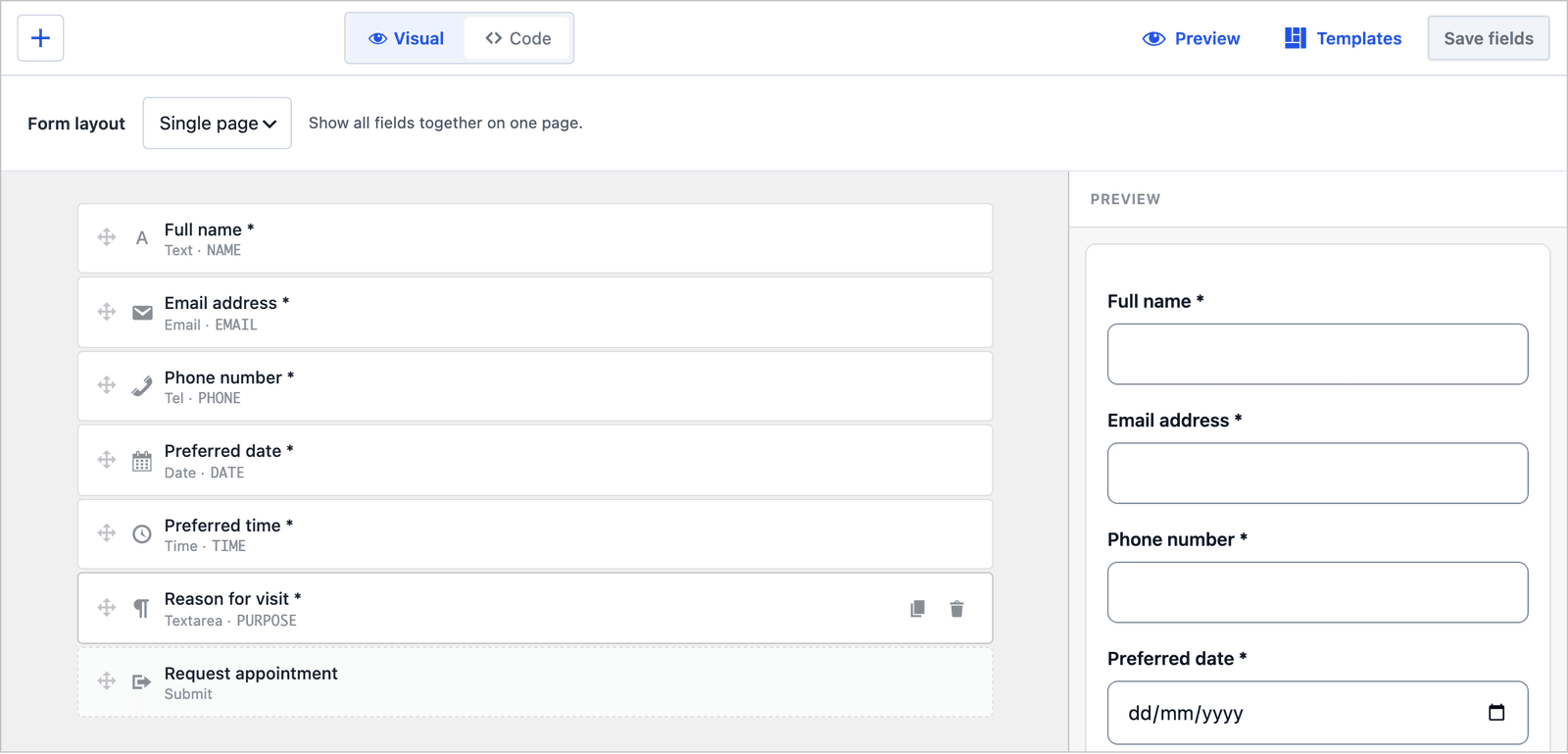 The date and time fields use the browser’s own pickers, which work on phones without any extra script.
Block Past Dates
A booking request for last Tuesday is the most common junk entry on this kind of form, and the date field can refuse it. Click Preferred date in the builder to open its panel.
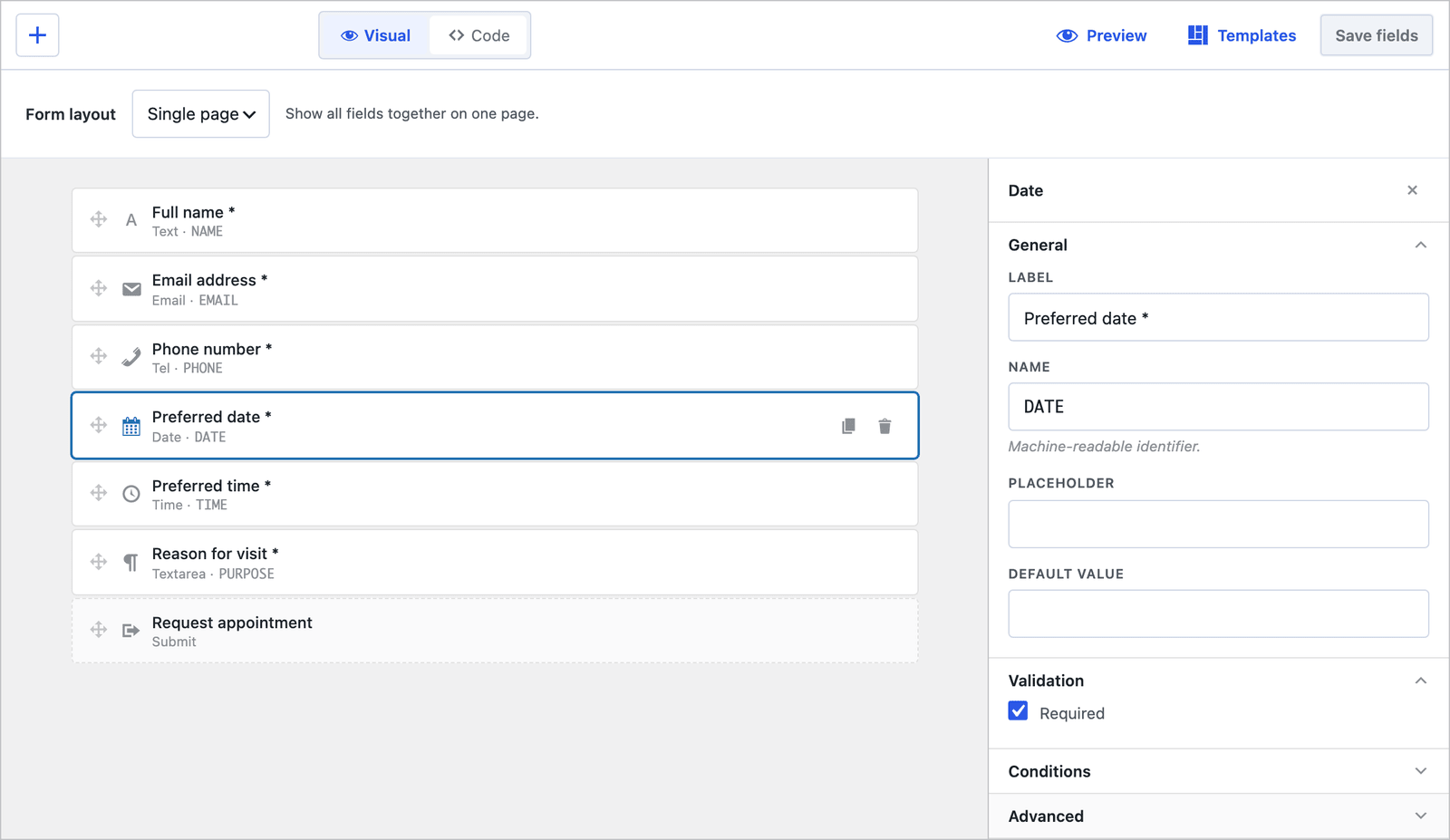 The Validation panel of a date field carries the required setting. The earliest date is set in the markup.
The earliest and latest dates are HTML attributes on the field, so switch to the Code tab and add them to the input:
<input type="date" id="cf-booking-date" name="DATE" min="2026-09-17" max="2026-12-31" required />
Then click Save fields. The browser’s picker greys out dates outside the range, and the server rejects a date outside it as well, so a visitor cannot get around the picker by typing. The field types reference lists the other attributes date and time fields accept.
A fixed min date goes stale, so for a form that stays up for months, set the value with a small filter or a snippet that writes today’s date. The date range is a rule about the request, not a calendar, which is the limit covered further down.
Single Page or Multi-Step
The multi-step version splits the form into “Your details” (name, email and phone) and “Request details” (date, time and reason).
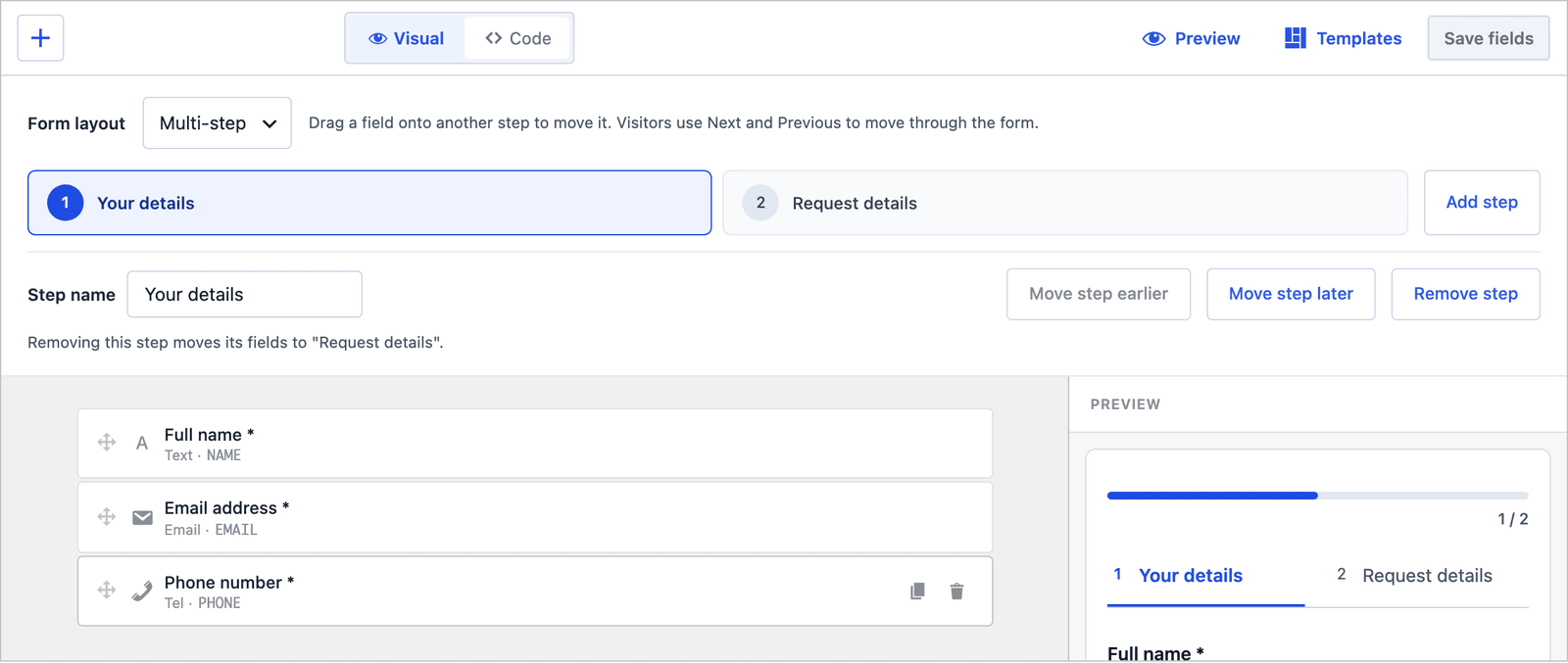 The 3 contact fields go on the first step, so a request never arrives without a phone number.
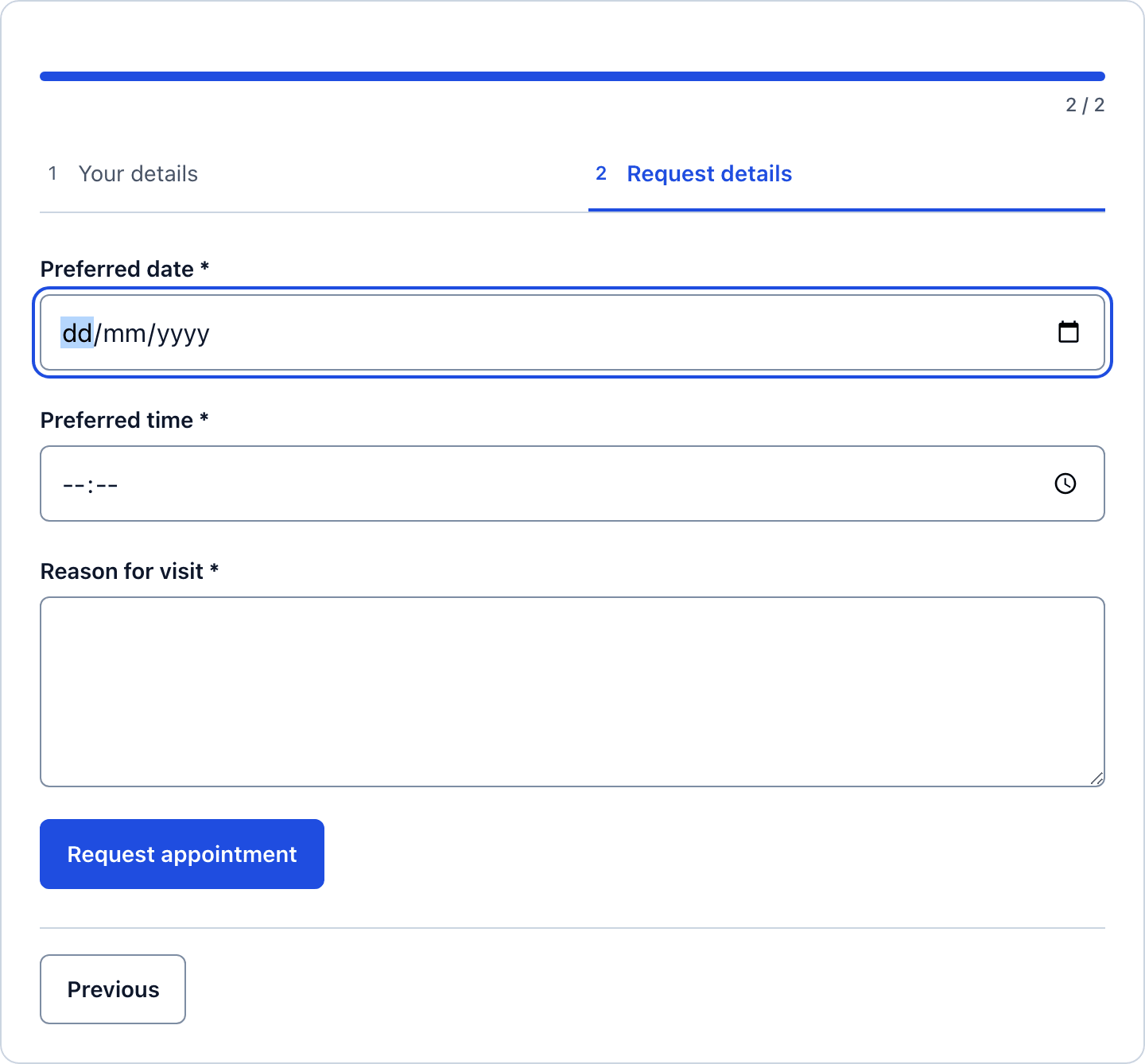 The date and time pickers get a screen of their own on a phone, which is where most booking requests come from.
For a 6-field booking form the two layouts are closer than usual. The single page suits a desktop-heavy audience and a form embedded in a services page. The multi-step version suits a phone audience, because the date and time pickers are easier to use when they are not sharing a screen with 4 other fields.
Publish the Appointment Booking Form
The shortcode is shown next to the form’s name in the editor:
[cf_form slug="appointment-booking"]
Paste it into your booking page, or use the Core Forms block. Put your opening hours right above the form, because a time picker accepts any time of day and the hours line is what stops a request for 6 a.m.
 The success message says “We will contact you to confirm availability,” which sets the expectation the form can keep.
Confirm Each Request
Every request lands in the form’s Submissions tab, with the date, time and reason in their own columns.
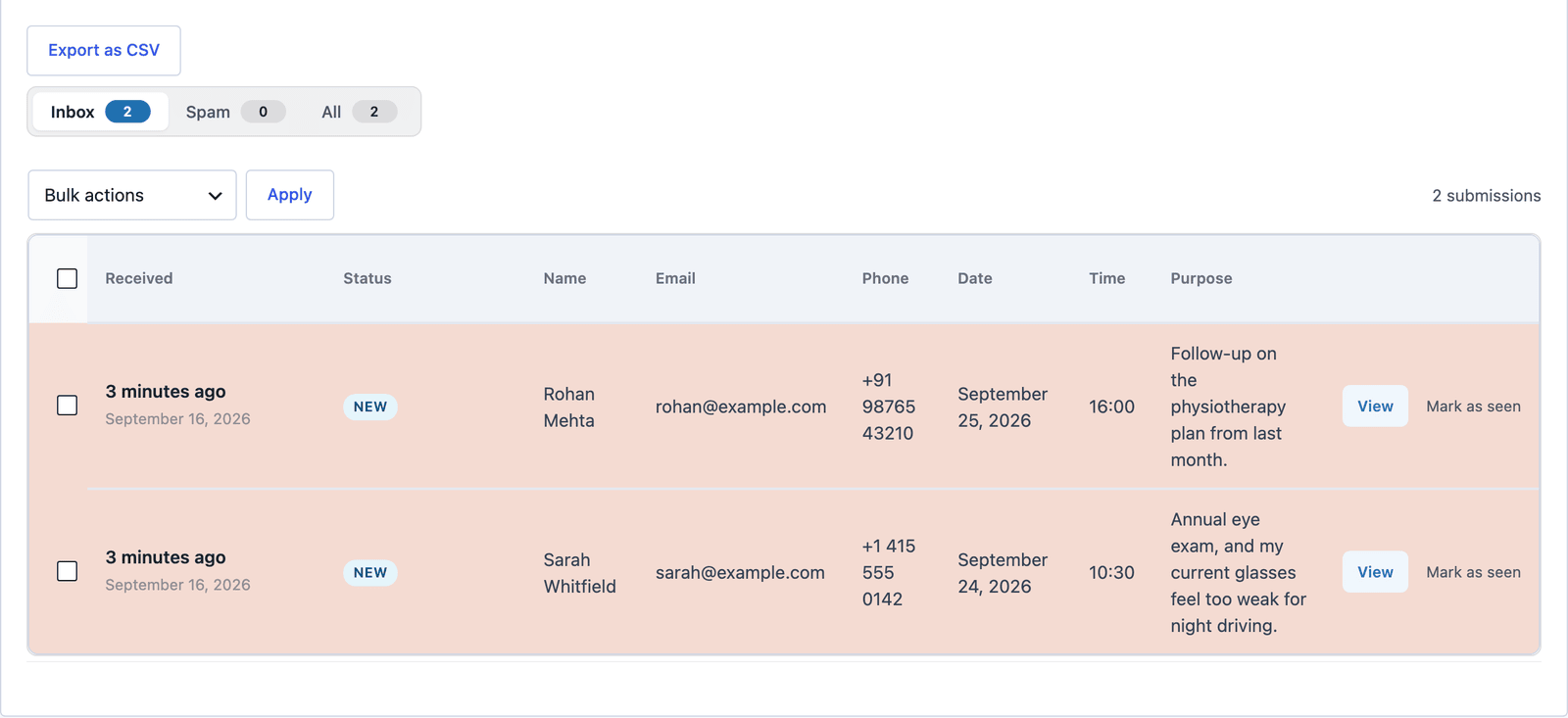 Sort by the Date column and the requests fall into the order you need to check them against the calendar.
Click View on a request to see the full entry, then answer from the Send Reply box on the same screen. That reply is the confirmation, and the request stays in the inbox with its status, so anyone on the team can see which ones are still new.
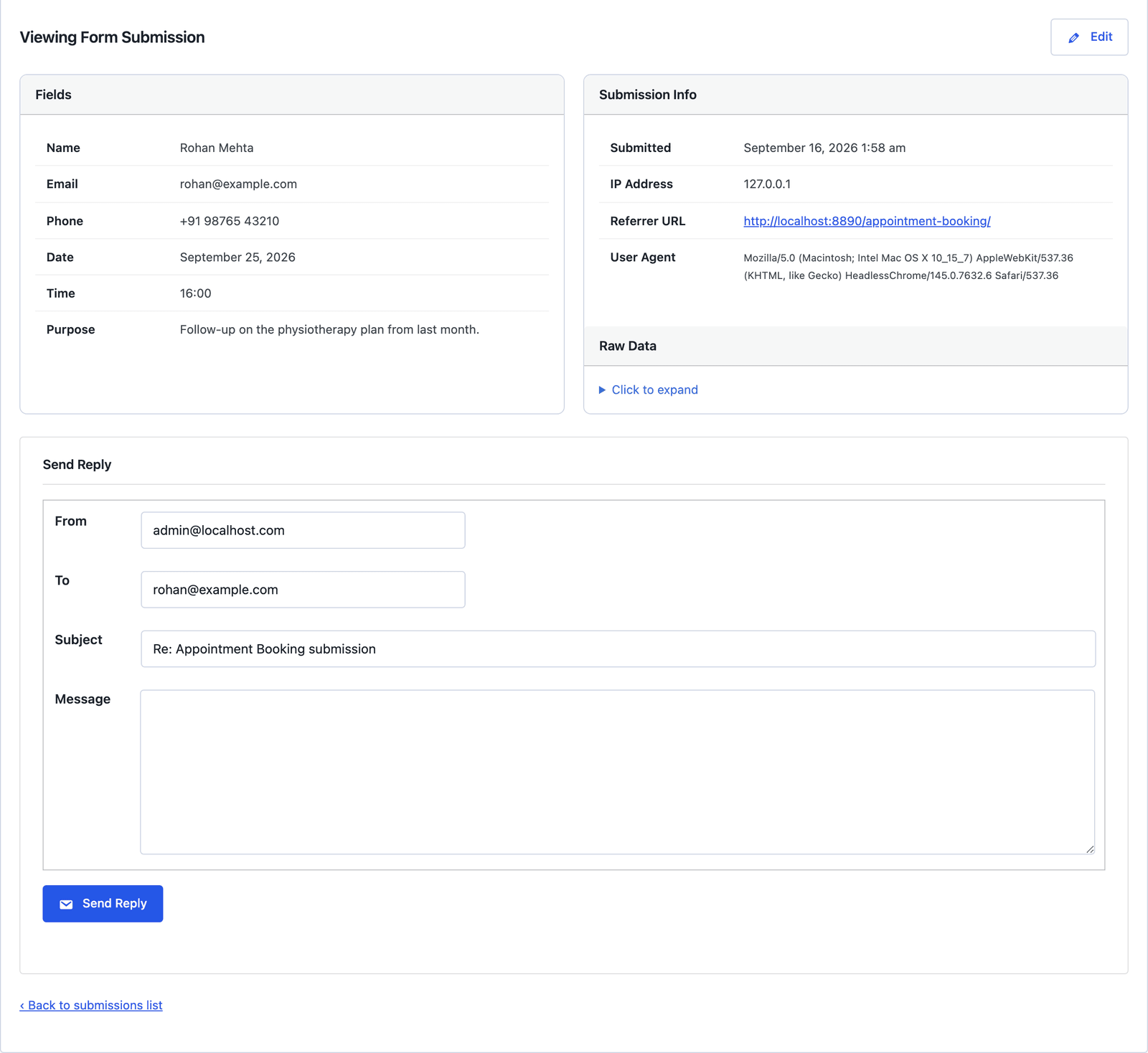 “Confirmed for Thursday 24 September at 10:30, see you then” is a 10-second reply from here.
An Auto-Responder action can send an automatic “we received your request” email as well, and the emails and auto-responders feature covers how to include the date and time the visitor chose. Keep that email clearly worded as a receipt, not a confirmation. If your calendar lives in Google, a Google Sheets action can add each request as a row your front desk works from.
The Limits
The form does not reserve the slot. Two people can request Thursday at 10:30 and both requests arrive, so you confirm each one against your calendar by hand. That is fine for a practice that confirms by phone or email anyway, and it is the wrong tool for a business that needs the slot taken the moment someone picks it.
The time picker does not know your opening hours. It accepts any time, so the hours belong in the text above the form, and a request outside them is something you answer with a counter-offer.
The date range is fixed in the markup. A min of 17 September is right today and wrong in a month, so either update it or generate it.
There is no reminder. The form records the request, and reminders the day before come from your calendar or a separate tool.
What Quietly Ruins an Appointment Booking Form
Calling it Book an appointment when it does not book anything. Visitors read the success message as a confirmation, turn up and find nobody expecting them. The template’s wording, request and confirm, is there for that reason.
Making the phone number optional. The one time you need to move an appointment at short notice is the one time an email goes unread.
Asking for a second and third preferred time on the same form. It sounds helpful, and it triples the fields for a visitor who mostly has one time in mind. Ask for one, and counter-offer when it is taken.
Leaving the reason field out. Without it, every confirmation call starts with “so what is this about?”, and the form has saved nobody any time.
Final Remarks
You now have an appointment booking form that asks for the right 6 things, refuses past dates and puts every request on one screen where you can confirm it. If you keep one idea from this guide, keep this one: the form takes the request and you make the booking, and the wording on the page should say so.
The appointment booking template page has the fields and a live demo, and the clinic appointment request template is the multi-step starting point built for a medical practice. The patient appointment request form guide, the hotel booking form guide and the auto repair form guide cover the 3-step versions for a clinic, a property and a workshop. If something here does not behave the way this guide describes, the support team can help.
I hope the requests that come in are easy ones to confirm.
If you are unsure whether the slot should be a date, a time or both, the datepicker versus timepicker explainer settles it field by field.
For a business that confirms bookings on WhatsApp, the WhatsApp from a form guide sends the message automatically.
FAQ
Can the form show only my available slots?
No. The form has no calendar behind it, so it cannot know which slots are taken. Opening hours in the text above the form and a quick confirmation reply are the honest version of that.
Can I limit requests to weekdays?
The date picker cannot skip days of the week on its own. The form’s Scheduling settings can close the whole form on certain days, which is a different thing, and a weekend request is otherwise something you answer with a weekday offer.
Can the request go to a shared calendar automatically?
Not directly. A webhook sends the request as JSON to Zapier, Make or n8n, and each of those can create a calendar event from it.