
How to Create a Hotel Booking Form in WordPress
Build a WordPress hotel booking form that collects arrival date, nights and guests as an availability request, with an automatic acknowledgement that never reads as a confirmed booking.

A hotel booking form on a small property’s website usually does one thing: it asks for the dates and the party size so someone can check the calendar and reply.
I build Core Forms, and every screen here comes from its Accommodation inquiry template running on a test site.
Every property has its own rules about minimum stays and room types, so one guide cannot cover every field you might want. But almost every stay inquiry needs the same 3 things, an arrival date, a number of nights and a number of guests, and in this one I will try my best to cover those properly, along with the wording that stops a request from being read as a confirmed booking.
The template ships with the plugin, so you can follow along click for click. Or, if you get stuck halfway, support is a message away.
What a Hotel Booking Form Asks
The Accommodation inquiry template collects 8 things across 3 steps:
- Your name and Email address are required, and Phone is optional.
- Preferred arrival is a required date field.
- Number of nights is a required number, with a minimum of 1.
- Number of guests is a required number, with a minimum of 1.
- Anything else we should know? is an optional text area with a 2,000 character limit.
- You may contact me about this request is a required consent checkbox on the last step.
Nights rather than a departure date is a deliberate choice. A guest can type 3 without thinking, while a second date picker invites the arrival-after-departure mistake that every hotel form on the internet has seen.
Create the Hotel Booking Form
The industry templates ship in the multi-step layout only, so the search shows one card:
- Go to Core Forms > Add New.
- Type
accommodationin the template search. - Click Use this template on the Accommodation inquiry card.
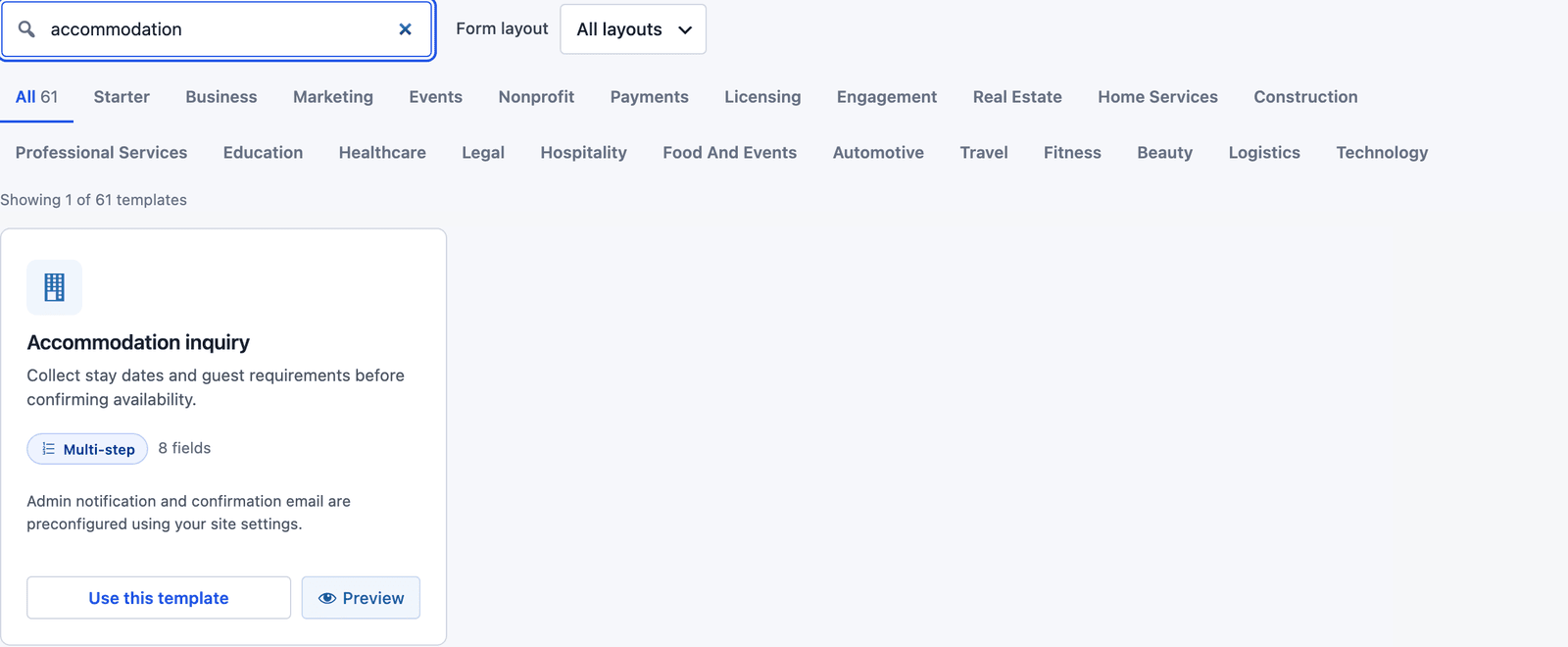 The card notes that the admin notification and the confirmation email are already set up.
The builder opens with 3 steps: “Your details,” “Your request” and “Confirm.”
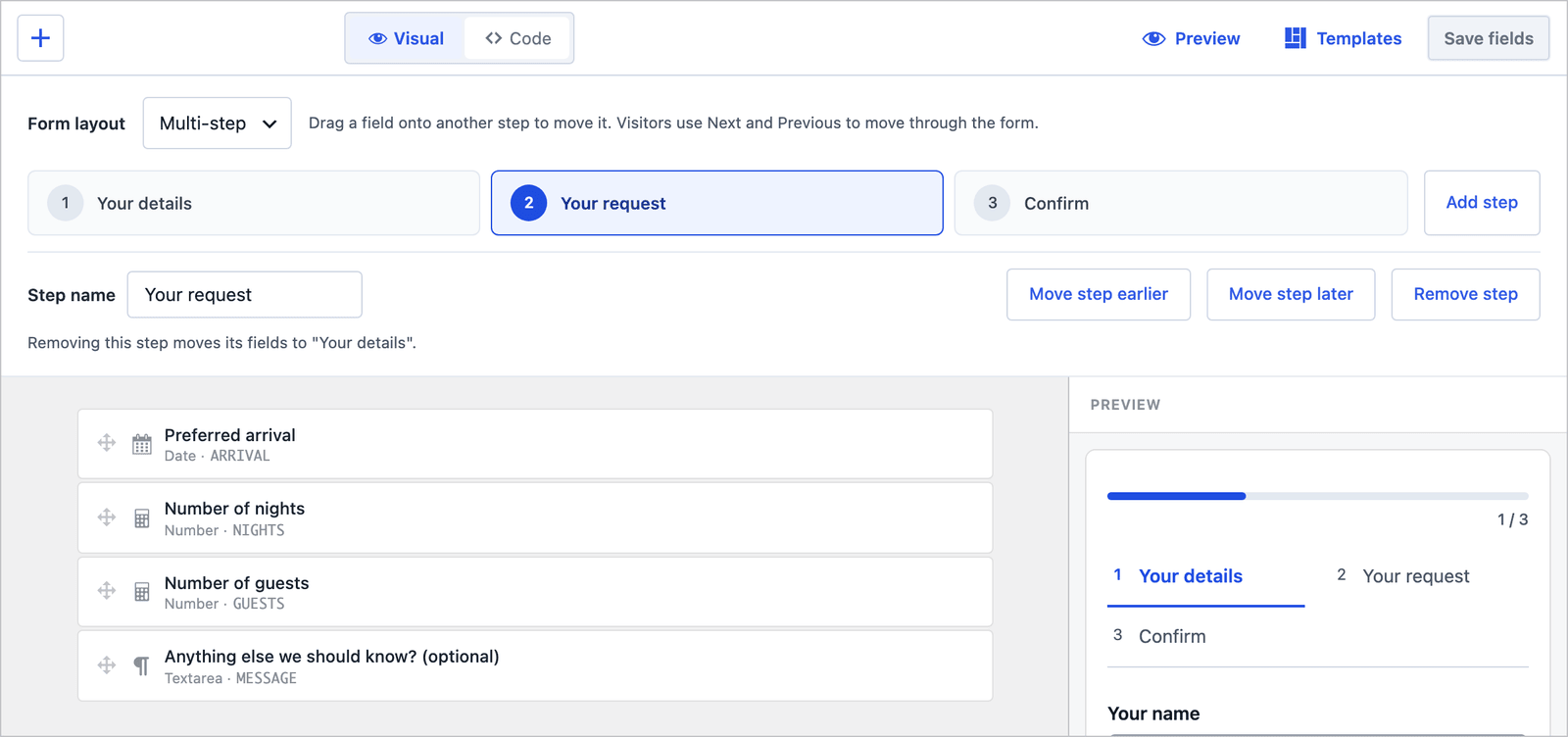 Arrival, nights and guests sit together on the second step.
The field most properties add is a Room type select on the “Your request” step, with the names guests see on the rooms page. Keep “No preference” as an option, for the same reason a catering form keeps “Not decided.”
The 3-Step Layout
On the front end the guest fills one step at a time, with a progress bar and the step names above the fields.
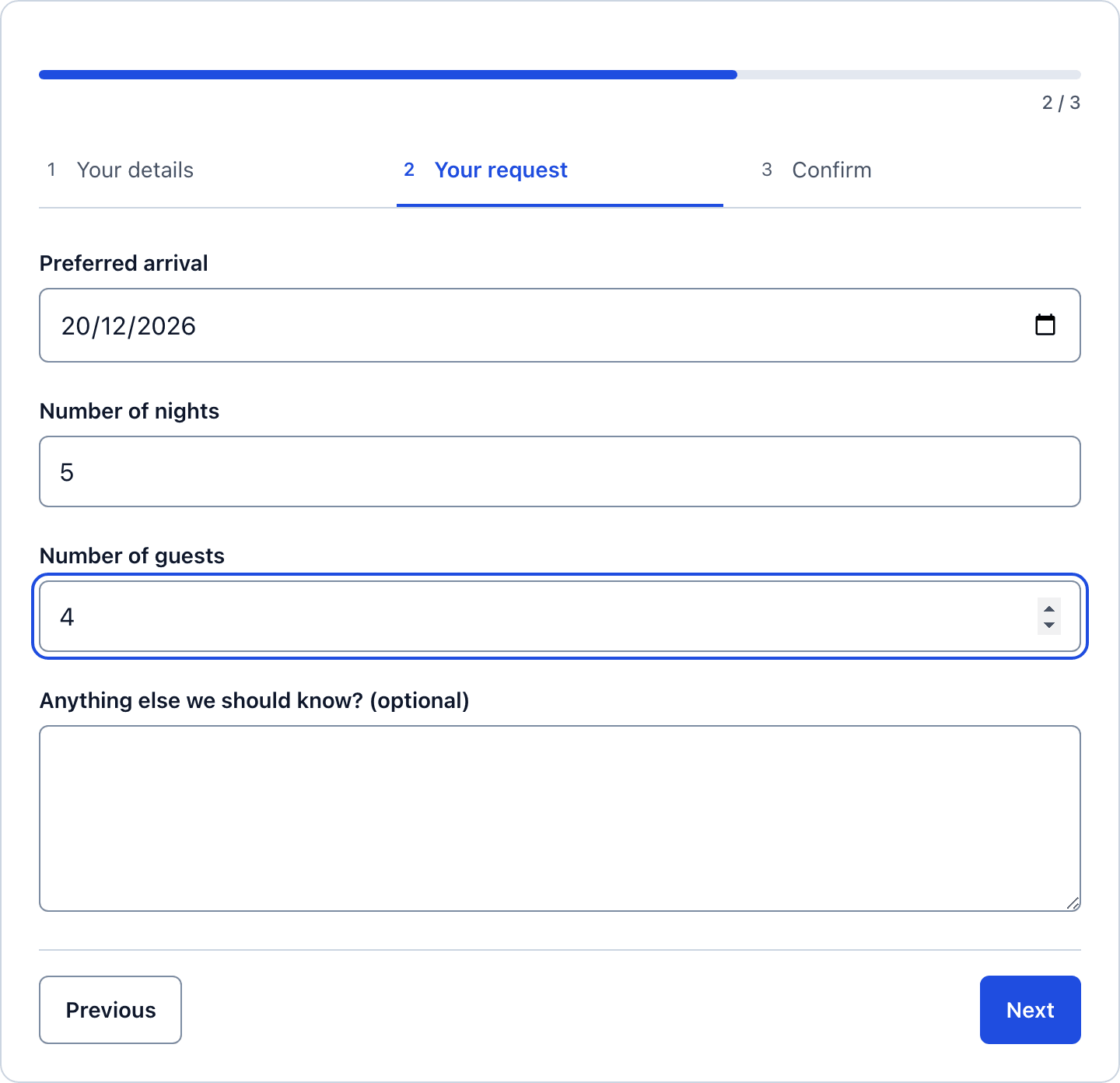 Three short fields on one screen, which is the whole request on a phone.
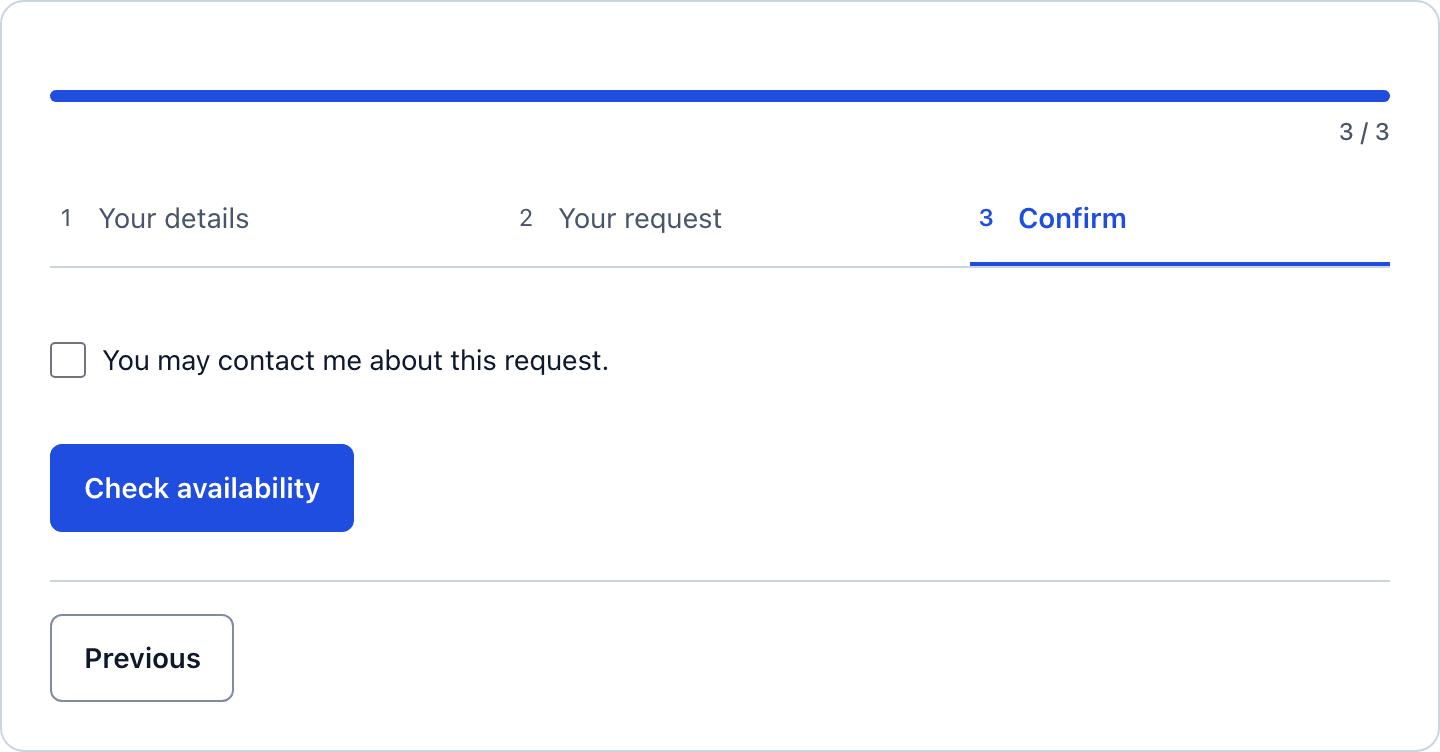 The button says Check availability, not Book now, and that wording is doing real work.
Collapse It to One Page
A property with one or two rooms and a simple page may prefer the whole form in view. In the builder, change Form layout to Single page and click Save fields. The step assignments are kept for later.
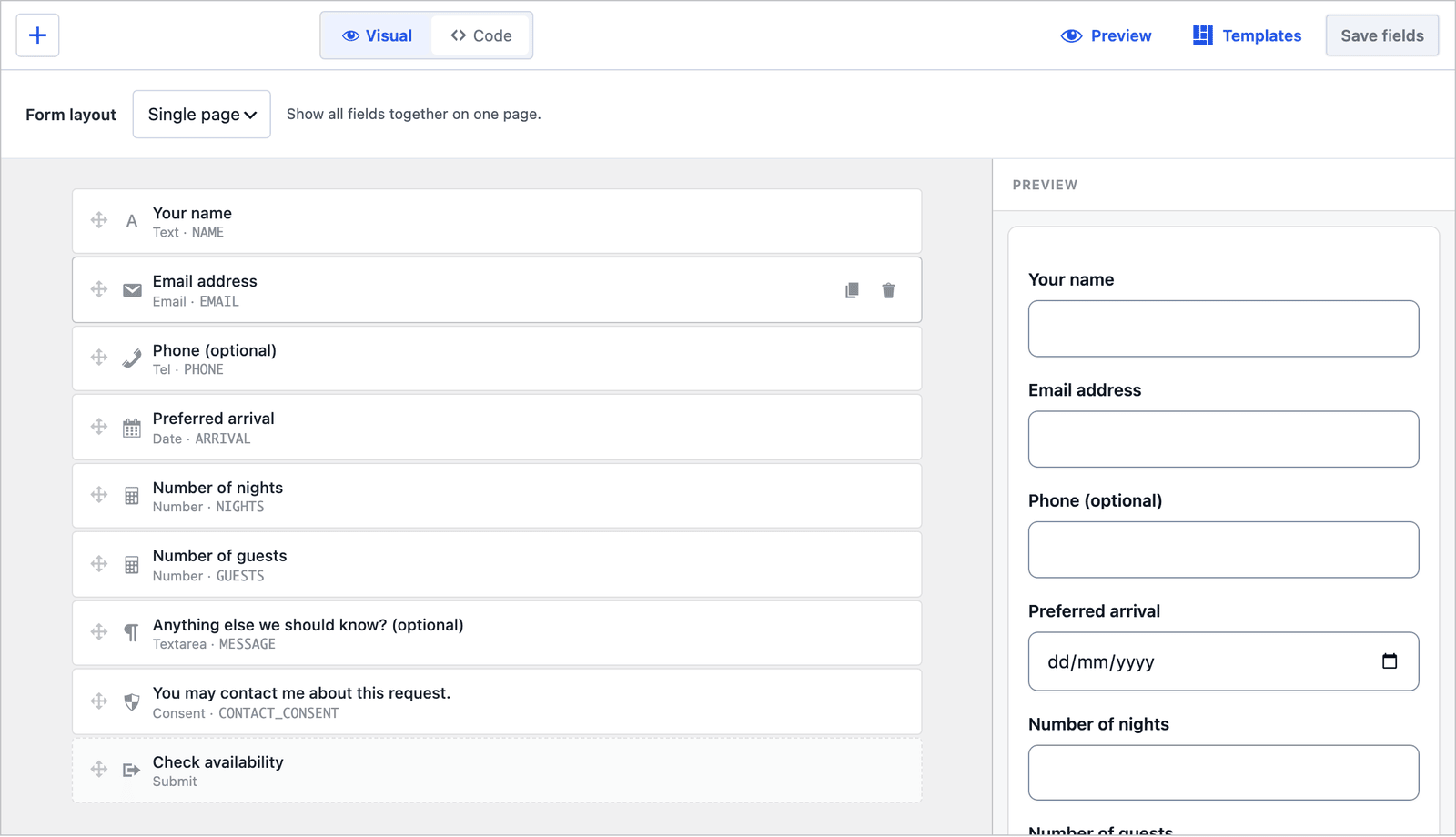 The same fields in the same order, without the steps.
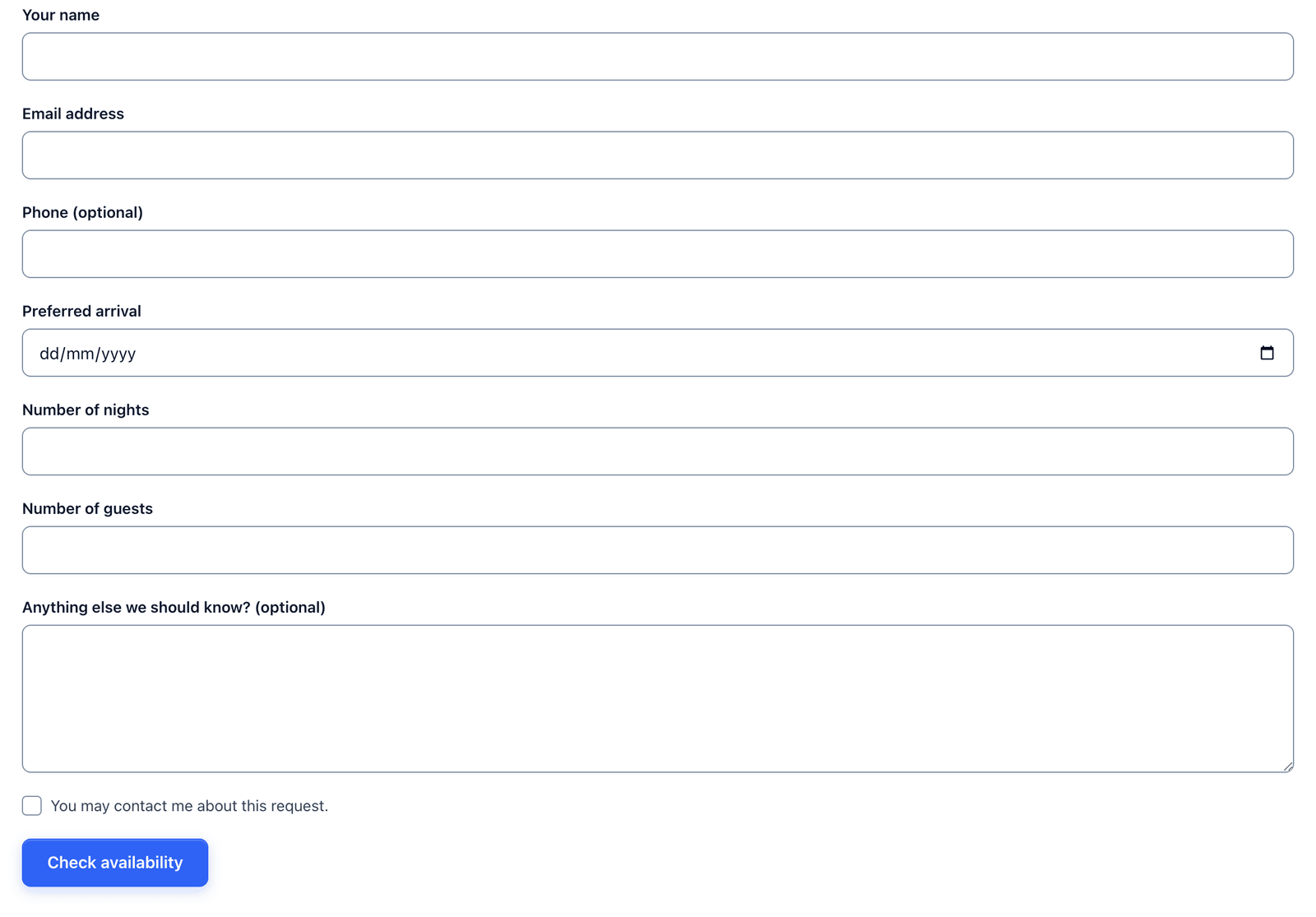 For 8 fields, both layouts are short. The steps win on phones, the single page wins on a desktop rooms page.
Two Emails Out of the Box
The template ships with 2 actions already configured:
- Send Email notifies the admin address with the subject “Accommodation inquiry: [NAME]” and a Reply-To header set to the guest.
- Auto-Responder sends the guest “Accommodation inquiry - Request received,” with the same text they saw on screen: the inquiry was received, this is not a confirmed booking, and you will reply with availability.
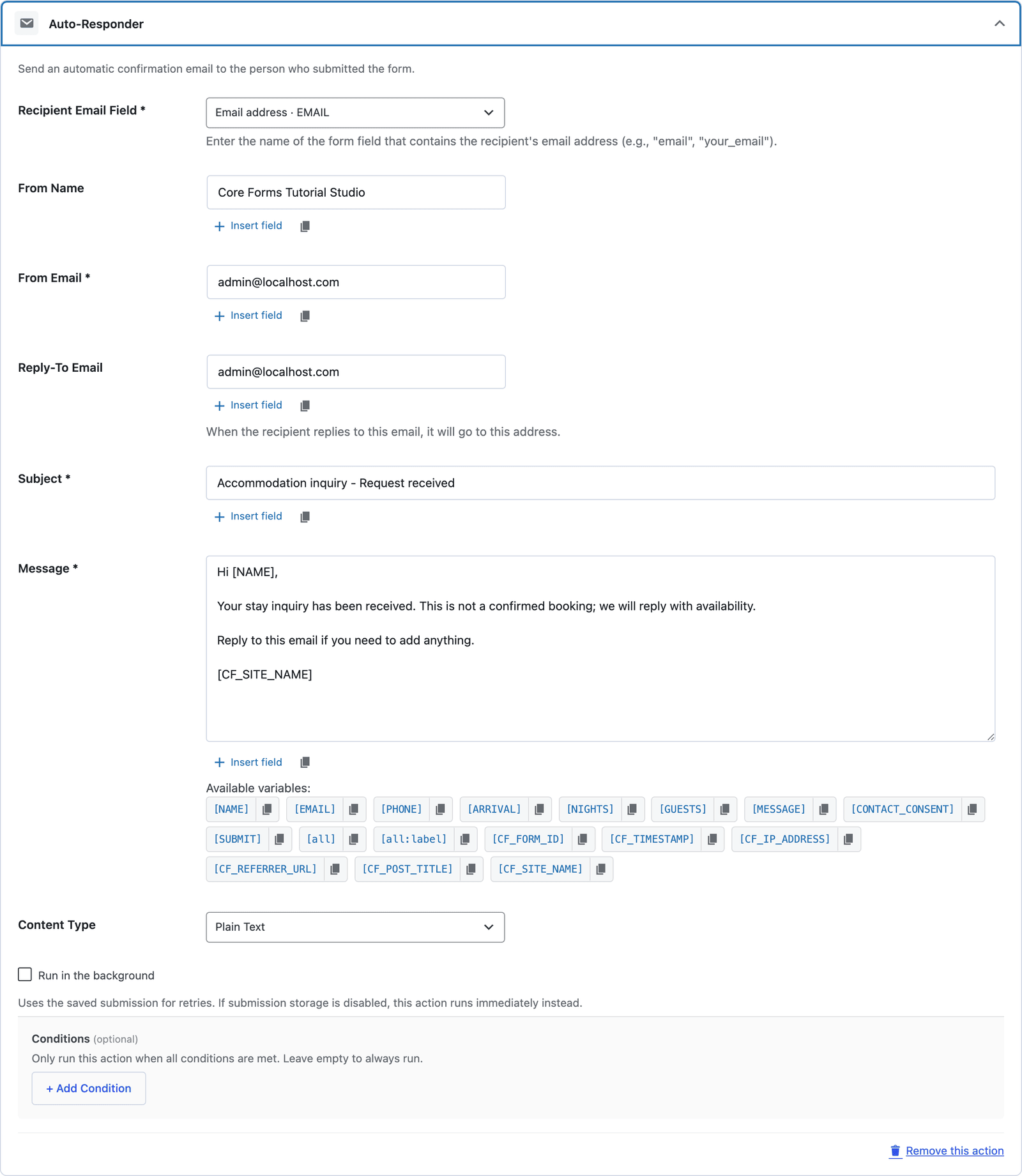 The line “This is not a confirmed booking” is in the template on purpose. Keep it.
That sentence is the most important one on the form. A guest who reads “received” as “booked” turns up at the door, and the email is the record of what they were told.
Block Dates Before Today
The arrival date field accepts any date until you give it an earliest one. Open the Code tab and add a min attribute to the arrival input:
<input type="date" name="ARRIVAL" min="2026-09-17" required />
Then click Save fields. The browser’s date picker greys out earlier dates and the server rejects them as well. A fixed date goes stale, so for a form that stays up all year, generate the value with a small snippet. The appointment booking form guide covers the same edit in more detail.
The Settings the Template Turns On
The Settings tab arrives with the sensible defaults for a public inquiry form:
- Save submissions is on, so every request is stored even if the email fails.
- Prevent duplicates is on.
- Rate limit is set to 10 submissions per IP per hour.
- Anti-spam shows the honeypot on.
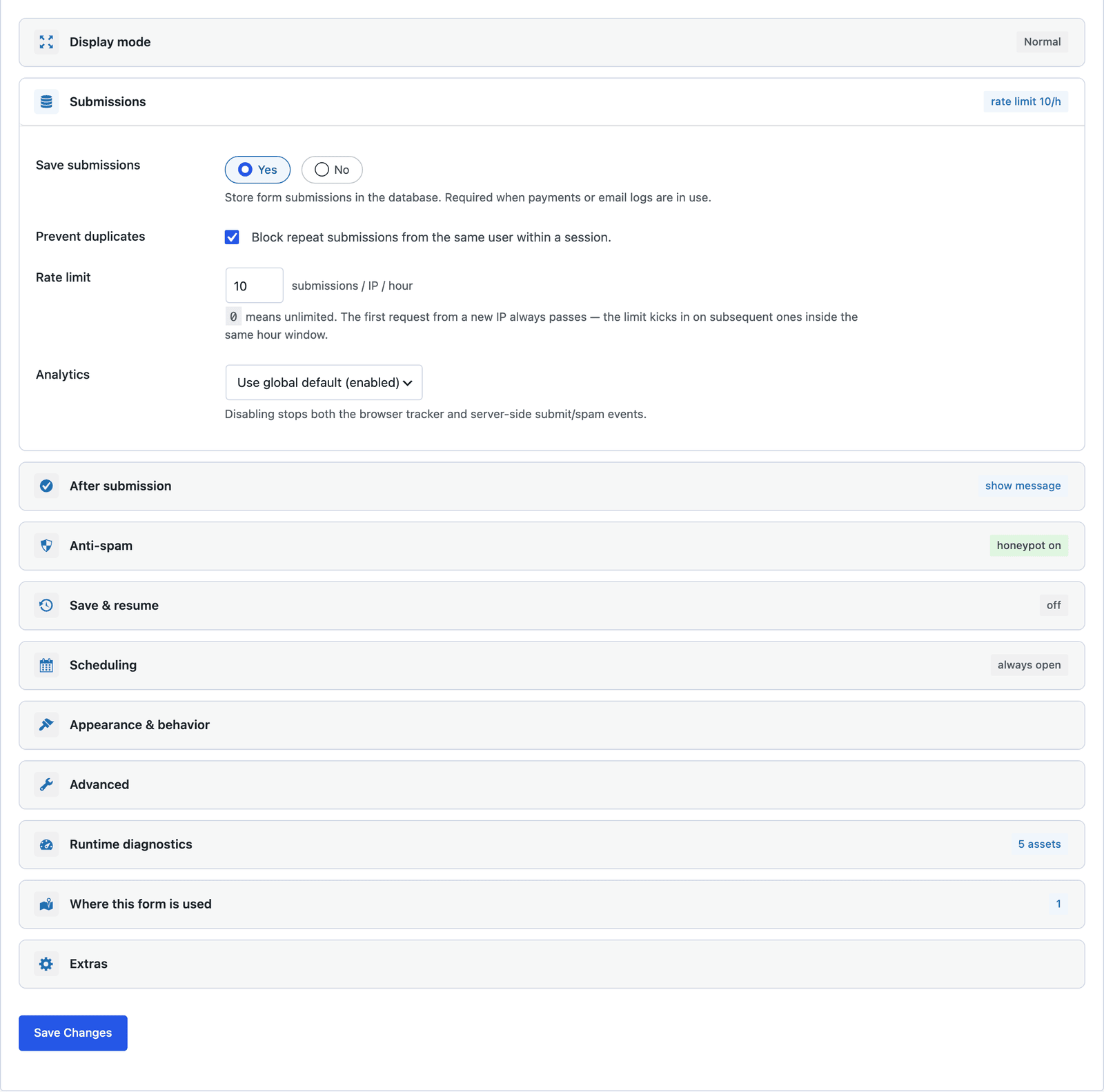 Payment is off. A deposit is a separate step after you confirm the dates.
Publish the Hotel Booking Form
The shortcode is shown next to the form’s name in the editor:
[cf_form slug="accommodation-inquiry"]
Paste it into your Rooms or Book page, or use the Core Forms block. Put your check-in time, minimum stay and cancellation terms above the form, because guests read those before they type, and the form cannot enforce any of them.
Read the Requests
Every request lands in the form’s Submissions tab, with arrival, nights and guests in their own columns.
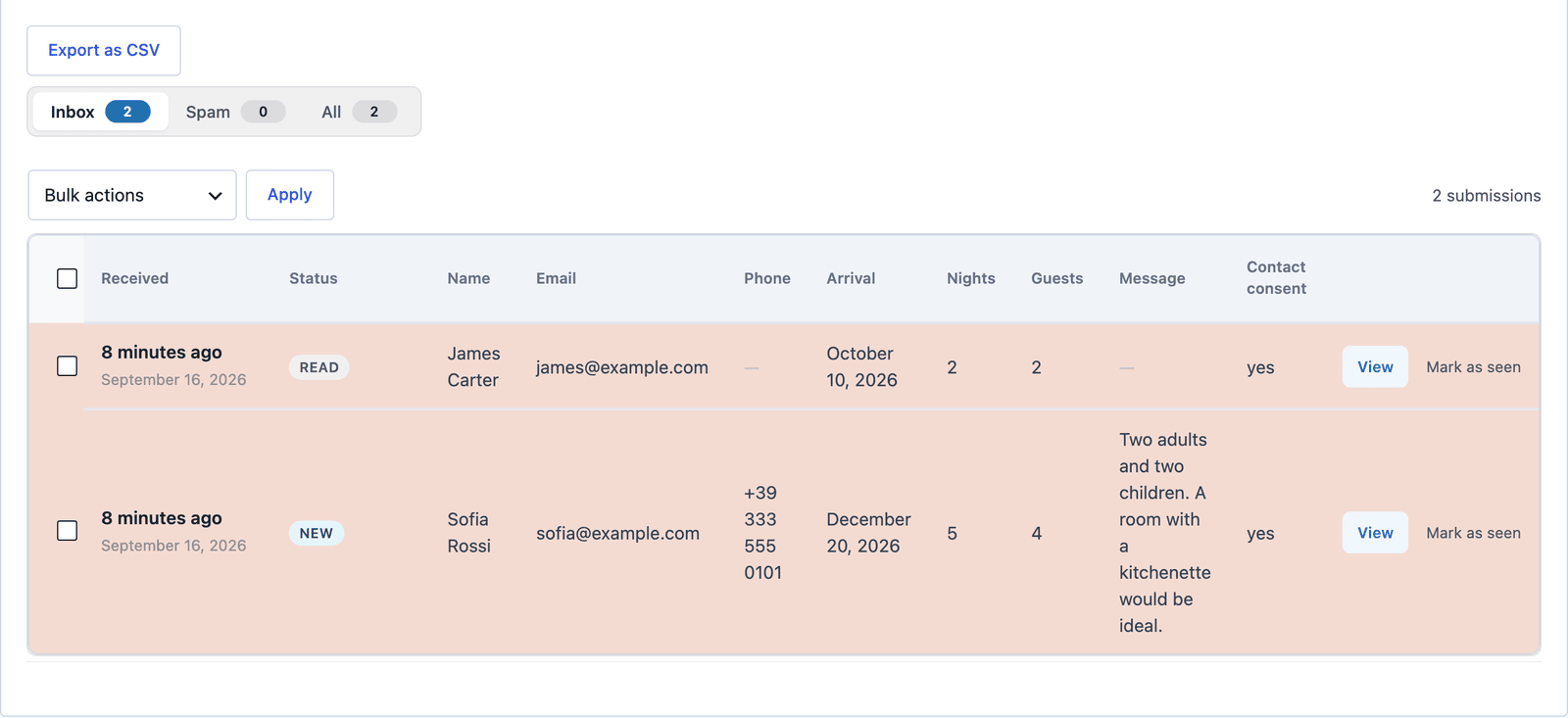 Sort by the Arrival column and the nearest stays come first.
Click View to read the whole request and answer from the Send Reply box on the same screen.
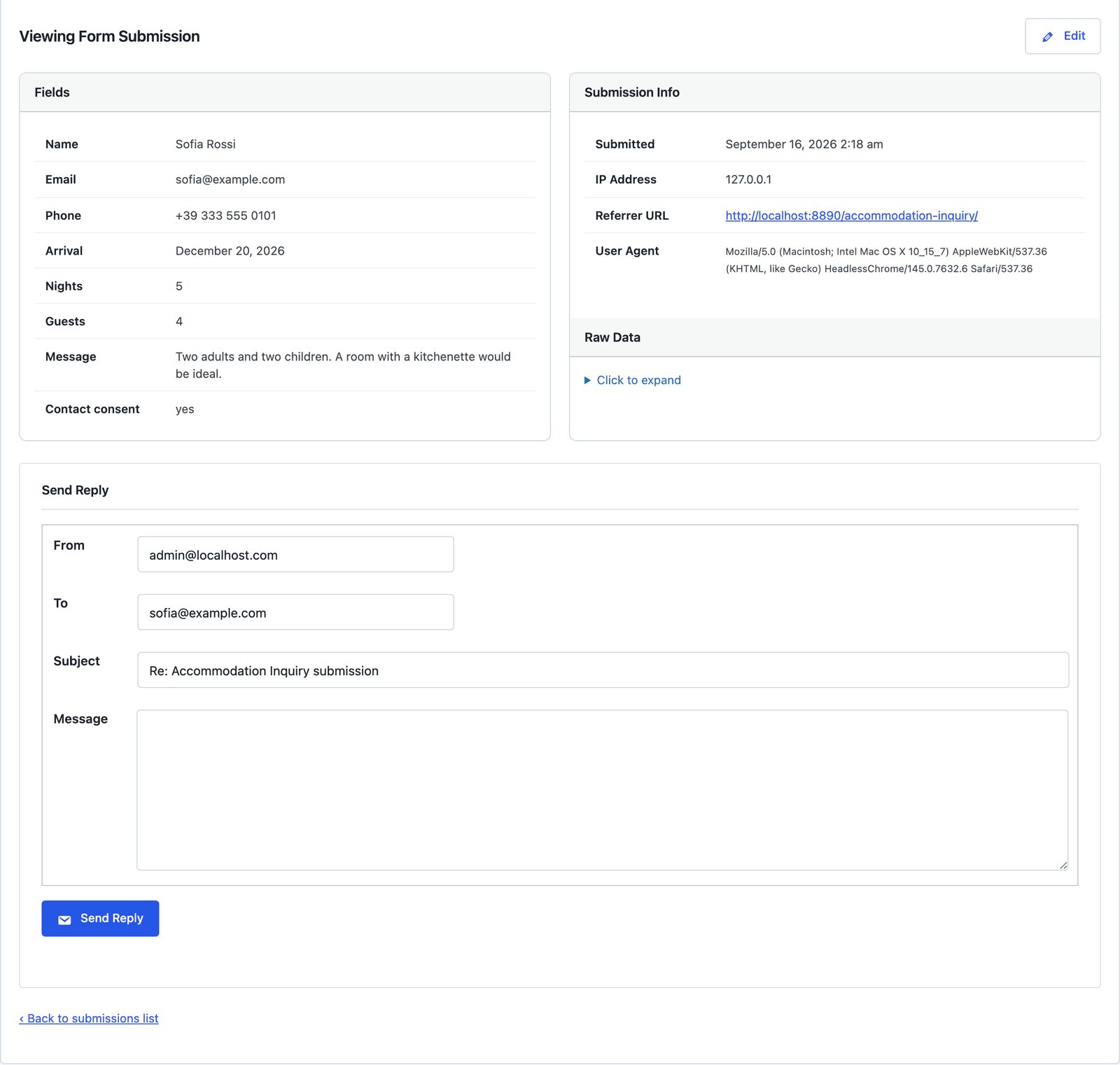 “Available, and the family room has a kitchenette” is a 10-second reply from here.
A property that works from a shared calendar can send each request to a Google Sheets row or a Slack channel the moment it arrives, so whoever is at the desk sees it without opening WordPress.
The Limits
The form does not check availability. Two guests can ask for the same room on the same night, and both requests arrive. You confirm against your calendar, which is what the acknowledgement promises.
There is no room type in the template. Add a select if you have more than one kind of room, and keep a no-preference option.
The form takes no deposit. Payment is off on inquiry templates, and a deposit belongs after you have confirmed the dates. The guide to payment forms covers the templates that charge.
Nights is a number, not a checkout date. If your booking system needs a departure date, add a second date field, and expect the occasional arrival-after-departure request.
What Quietly Ruins a Hotel Booking Form
Labeling the button Book now. Guests read the success message as a confirmation, and the first no-show argument is yours to lose.
Removing “This is not a confirmed booking” from the acknowledgement. It feels negative, and it is the one line that protects you when a guest turns up unannounced.
Asking for card details on the inquiry. A form that asks for a card before availability is confirmed loses most of its guests, and it puts card data in a form that was never built to hold it.
Making the phone number required. Guests abroad, and guests who would rather email, stop at that field.
Final Remarks
You now have a hotel booking form that asks for the dates and the party size, walks the guest through it in 3 short steps, acknowledges the request as a request and keeps every one in an inbox you can sort by arrival date. If you keep one idea from this guide, keep this one: the form takes the request and you make the booking, and every word on the page should say so.
The accommodation inquiry template page has the fields and a live demo, and the appointment booking form guide covers the same request-and-confirm pattern for a single visit. If something here does not behave the way this guide describes, the support team can help. The other 15 industry forms are listed in the industry form templates guide.
I hope the requests that come in are for your busiest weeks.
The datepicker versus timepicker piece covers why a stay asks for a date and nights rather than 2 dates.
FAQ
Can I show live availability on the form?
No. The form has no calendar behind it. Availability is confirmed by your reply, which is what the acknowledgement tells the guest.
Can I set a minimum stay?
Yes. In the Code tab, change min="1" on the Number of nights input to your minimum stay and click Save fields. The browser and the server both enforce it.
Can guests pick a room type?
Add a select field on the “Your request” step with your room names and a no-preference option. The choice arrives in the submission and the email like any other field.