
How to Create a Catering Order Form in WordPress
Build a WordPress catering order form that collects the event date, guest count and service style for a proposal, with an automatic acknowledgement and a 3-step layout.

A catering order form has to answer the 3 questions a kitchen asks before it can quote: when, how many and served how.
I build Core Forms, and every screen here comes from its Catering inquiry template running on a test site.
Every kitchen prices differently, so one guide cannot cover every dietary question or menu option you might want. But almost every catering inquiry needs the same things, an event date, a guest count and a service style, and in this one I will try my best to cover those properly, in the 3-step layout the template ships with and on a single page.
The template ships with the plugin, so you can follow along click for click. Or, if you get stuck halfway, support is a message away.
What a Catering Order Form Asks
The Catering inquiry template collects 8 things across 3 steps:
- Your name and Email address are required, and Phone is optional.
- Event date is a required date field.
- Expected guests is a required number, with a minimum of 1.
- Service style is a required select: Drop-off, Buffet, Seated meal or Not decided.
- Anything else we should know? is an optional text area with a 2,000 character limit.
- You may contact me about this request is a required consent checkbox on the last step.
“Not decided” is the option most templates leave out, and it is the one that saves the most inquiries. A person planning an office lunch often does not know whether they want a buffet, and a form that makes them choose sends them to a competitor whose form does not.
Create the Catering Order Form
The industry templates ship in the multi-step layout only, so the search shows one card:
- Go to Core Forms > Add New.
- Type
cateringin the template search. - Click Use this template on the Catering inquiry card.
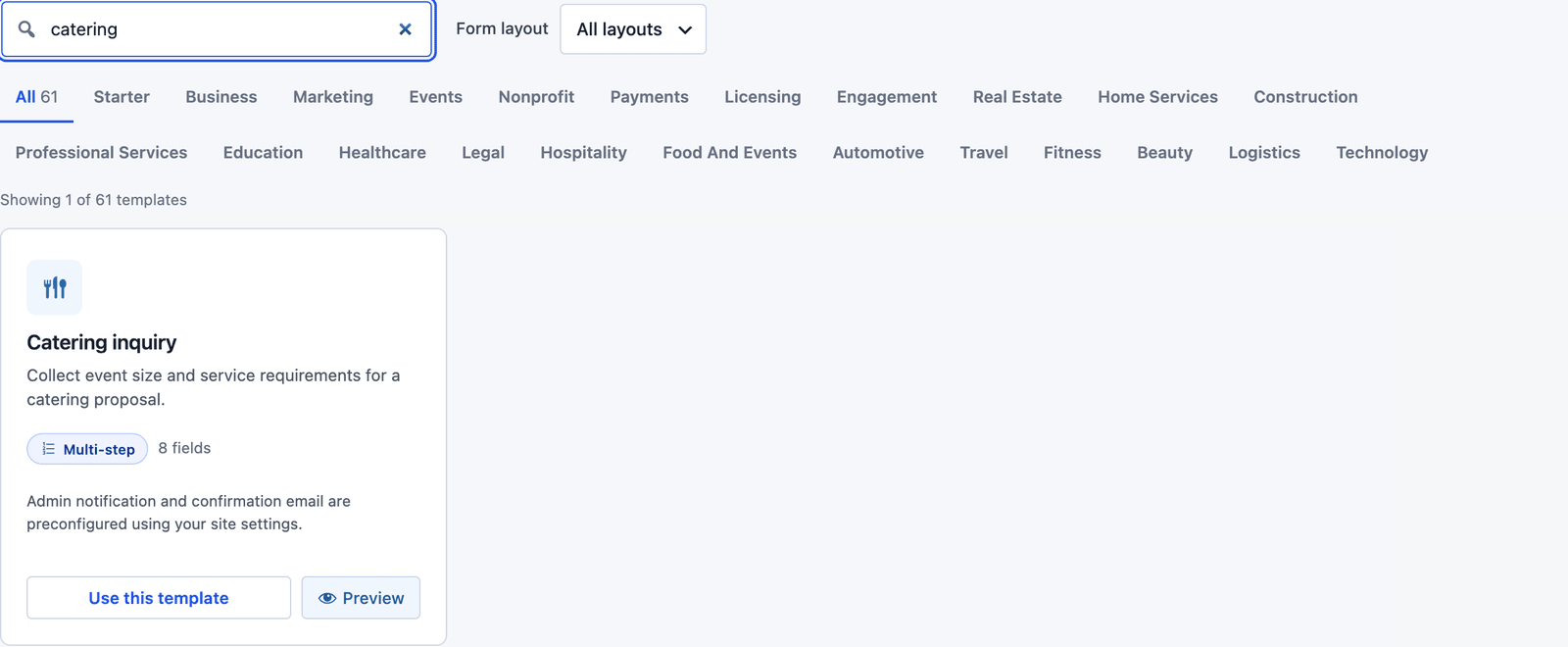 The card notes that the admin notification and the confirmation email are already set up.
The builder opens with 3 steps: “Your details,” “Your request” and “Confirm.”
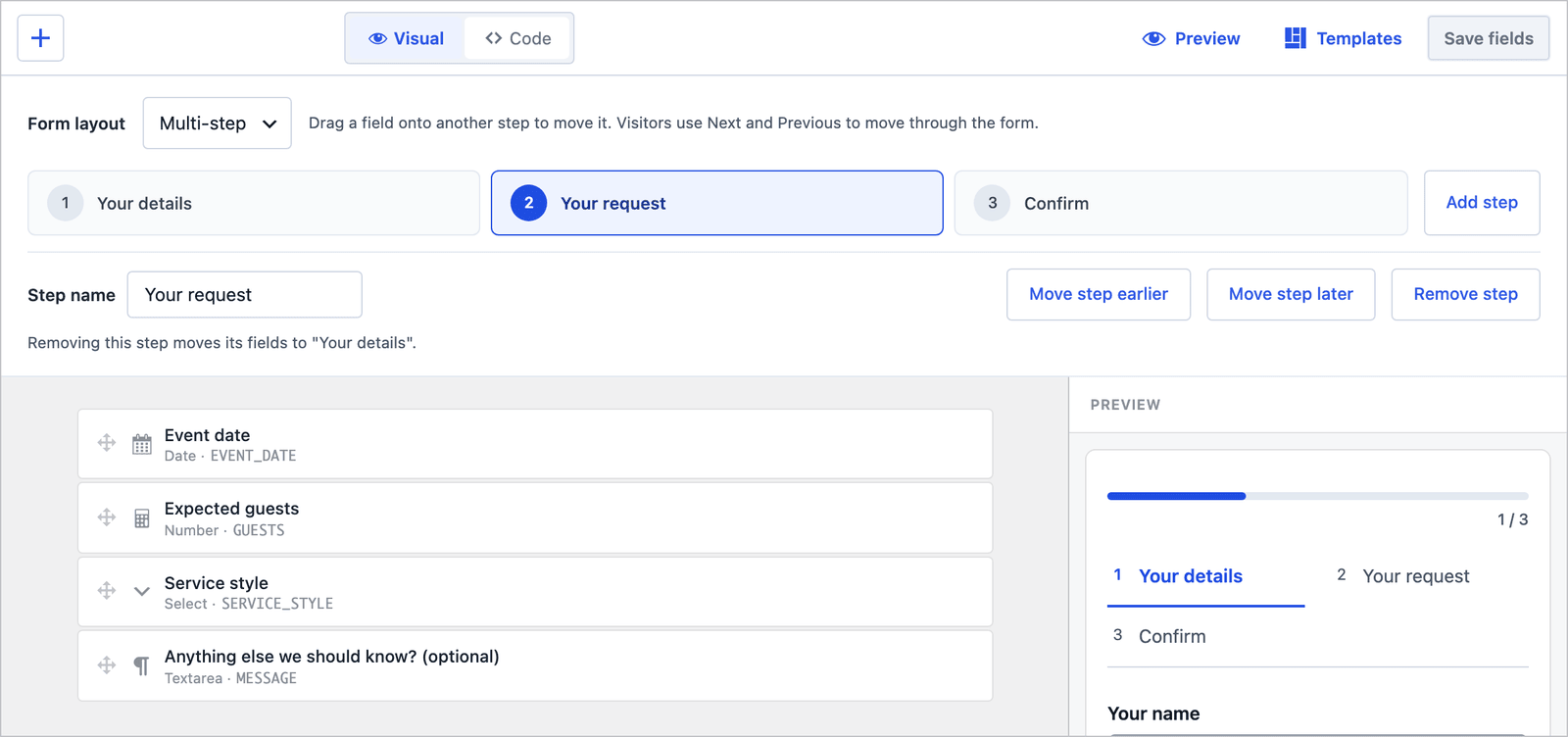 Event date, guests and service style sit together on the second step.
Two fields worth adding on the “Your request” step: a Dietary requirements checkbox group (vegetarian, vegan, gluten-free, nut allergy) and a Venue text field, because delivery distance changes the price as much as the guest count does.
The 3-Step Layout
On the front end the visitor fills one step at a time, with a progress bar and the step names above the fields.
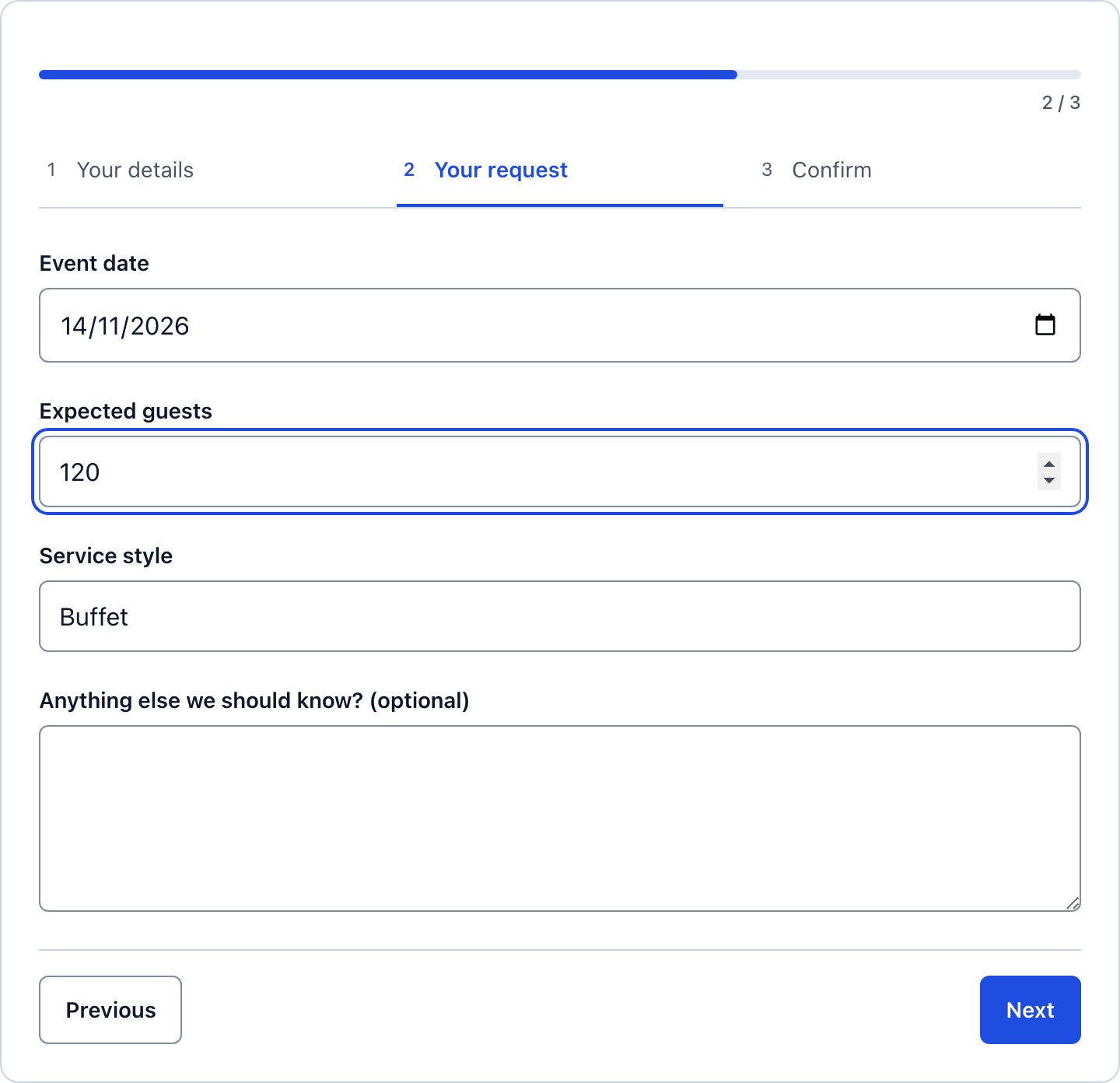 The date picker and the guest count get a screen of their own, which suits a person filling this in on a phone between meetings.
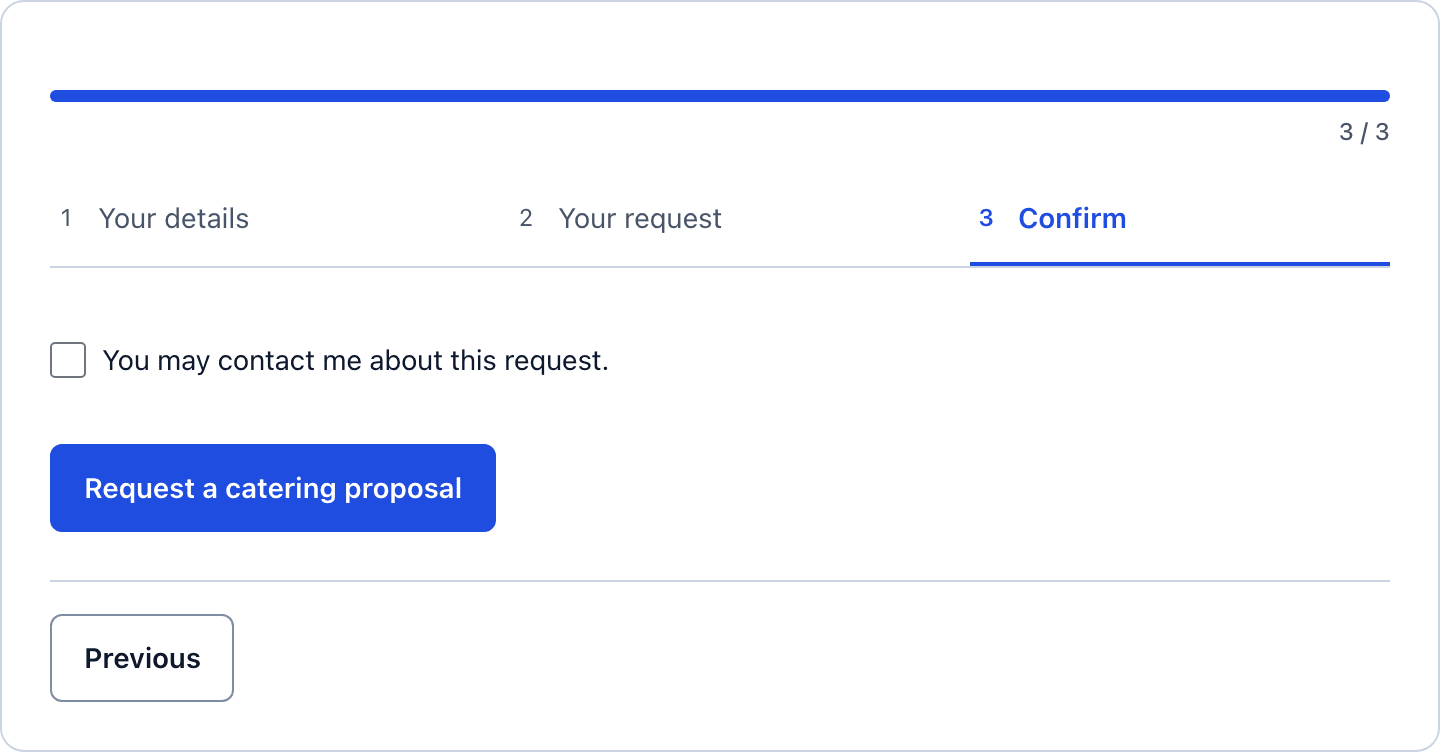 The last step asks for one click. Everything else has already been typed.
Collapse It to One Page
For a form embedded in a menu page that people read on desktop, a single page can be the better fit. In the builder, change Form layout to Single page and click Save fields. The step assignments are kept, so switching back later is one click.
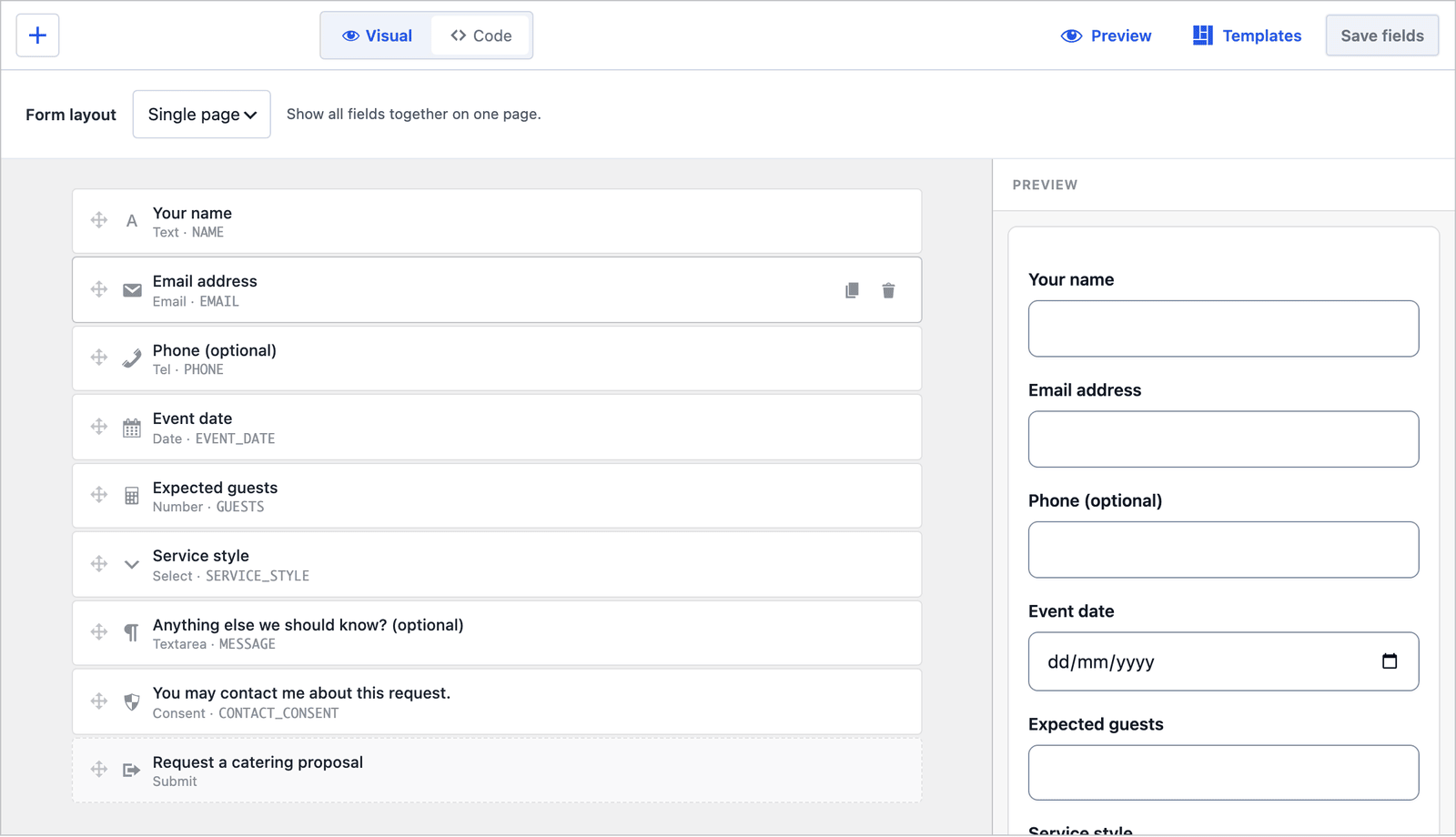 Same fields, same order, no steps.
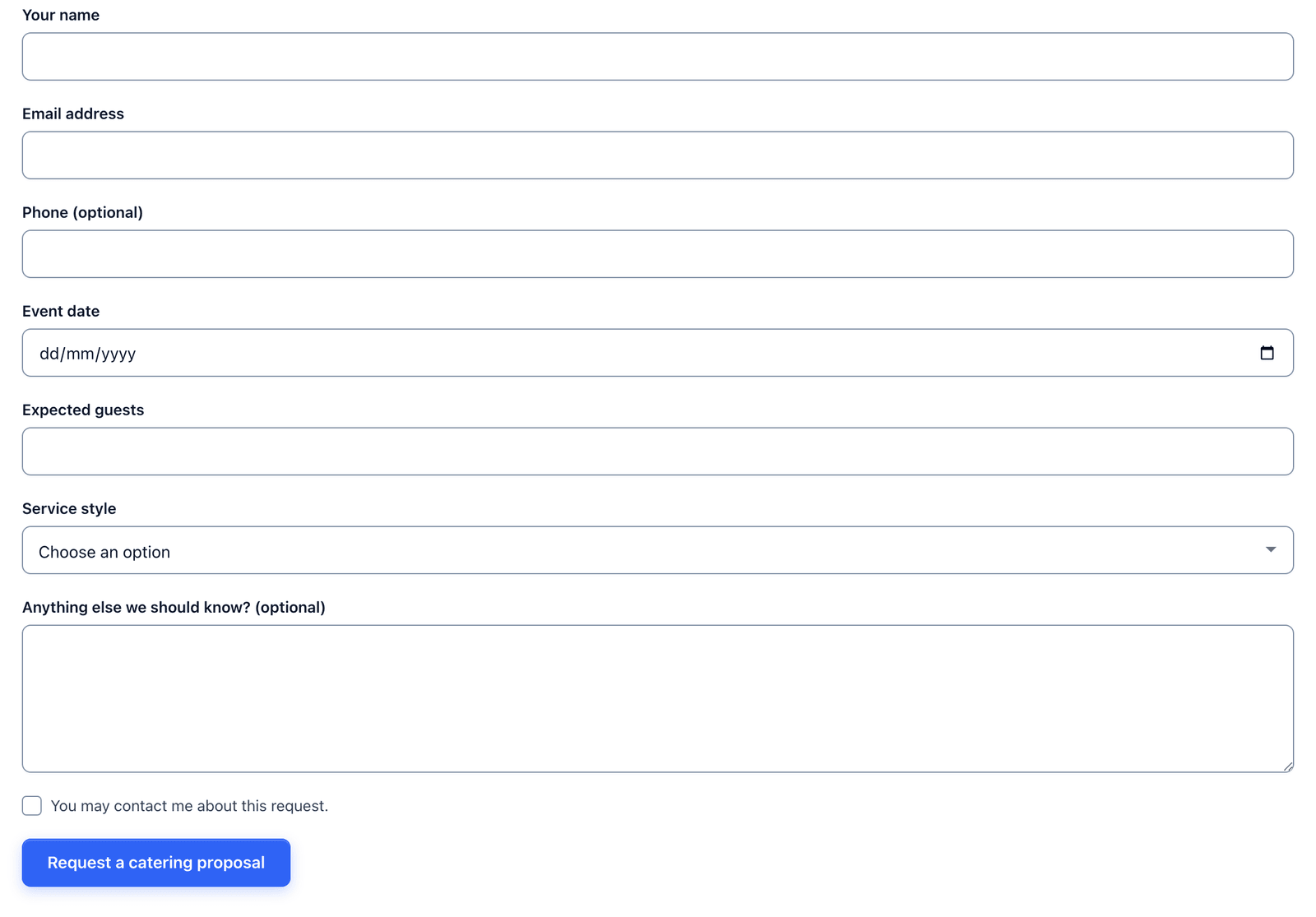 8 fields on one page is still a short form.
For catering I would keep the steps on a page aimed at event planners, who mostly arrive from a phone, and use the single page on a corporate lunch page, where the person is at a desk and wants to see the whole form before starting.
Two Emails Out of the Box
The template ships with 2 actions already configured:
- Send Email notifies the admin address with the subject “Catering inquiry: [NAME]” and a Reply-To header set to the sender.
- Auto-Responder sends the visitor “Catering inquiry - Request received,” with the same success text they saw on screen: the inquiry was received and you will contact them to discuss availability and a proposal.
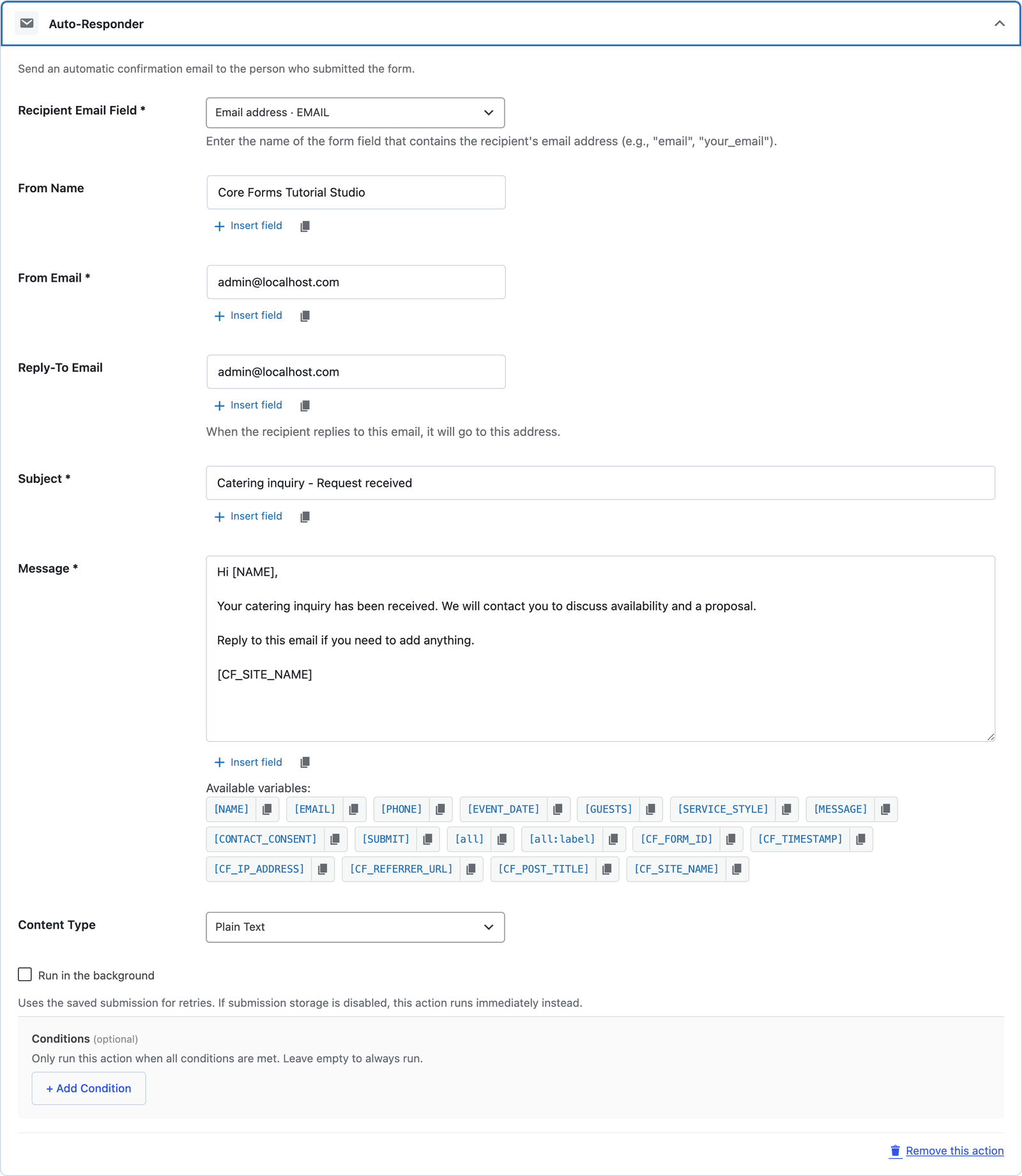 Change the From name to the business name before publishing.
The acknowledgement is worded as a receipt, not a booking. That wording is worth keeping, because an event date is the one thing a caterer cannot promise until the calendar is checked.
Route Large Events to the Right Person
Recipient routes in the Send Email action work on exact matches, so route on the service style rather than the guest count:
- Open the Actions tab and expand Send Email.
- Under Recipient routes, click + Add route.
- Set When field to Service style, Operator to equals, and the value to
seated-meal. - Enter the events manager’s address in Send to and click Save Changes.
Seated meals are the inquiries that need a site visit and a tasting, and this puts them in front of the person who runs those. Drop-off orders stay with the default address.
The Settings the Template Turns On
The Settings tab arrives with the sensible defaults for a public inquiry form:
- Save submissions is on, so every inquiry is stored even if the email fails.
- Prevent duplicates is on.
- Rate limit is set to 10 submissions per IP per hour.
- Anti-spam shows the honeypot on.
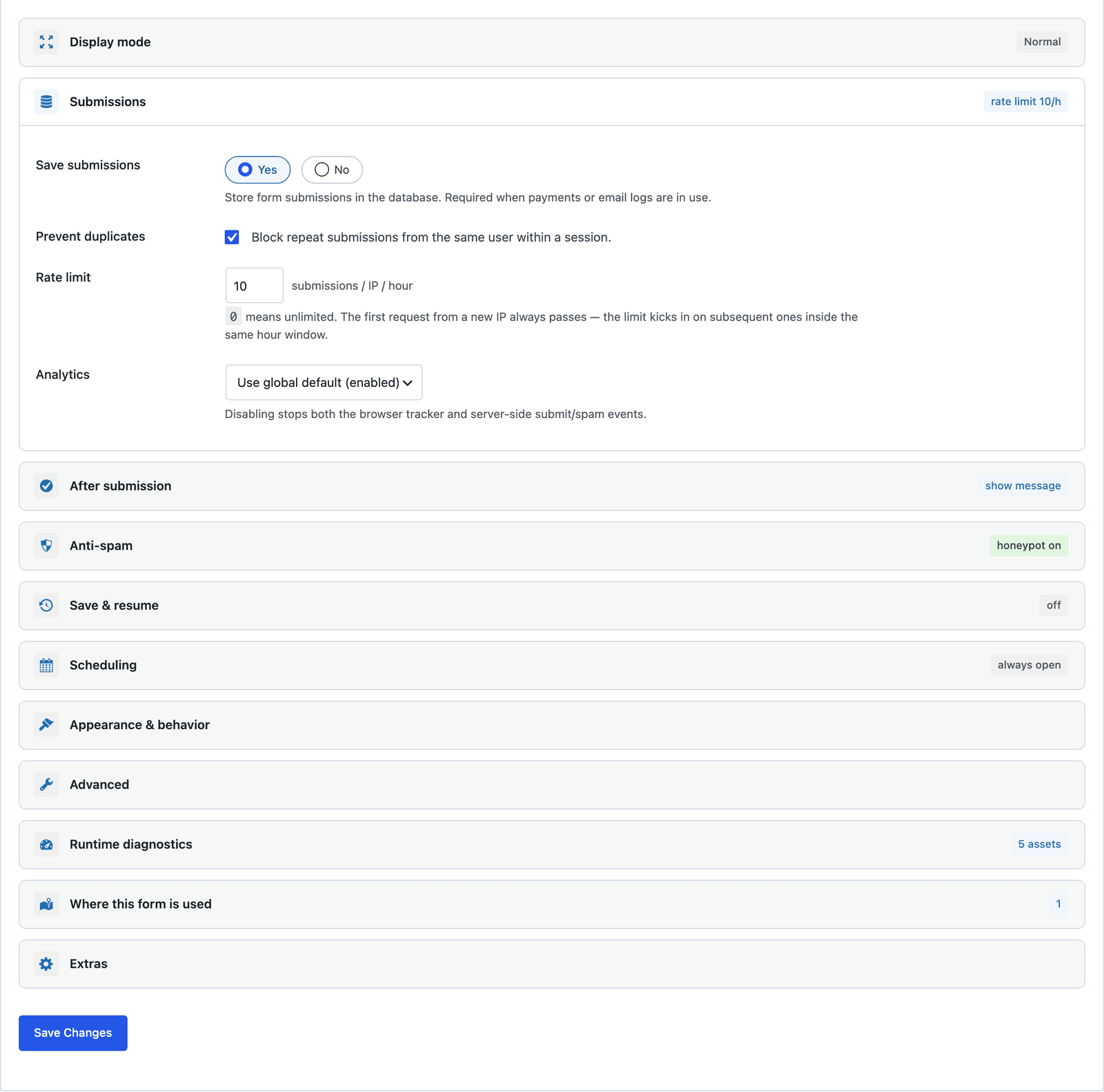 Payment and save-and-resume stay off. An inquiry form asks and acknowledges.
Publish the Catering Order Form
The shortcode is shown next to the form’s name in the editor:
[cf_form slug="catering-inquiry"]
Paste it into your Catering or Events page, or use the Core Forms block. Put your minimum order and lead time above the form, such as “minimum 20 guests, 5 days’ notice,” because the form cannot enforce either and the line stops the inquiries you cannot take.
Read the Inquiries
Every inquiry lands in the form’s Submissions tab, with the event date, guest count and service style in their own columns.
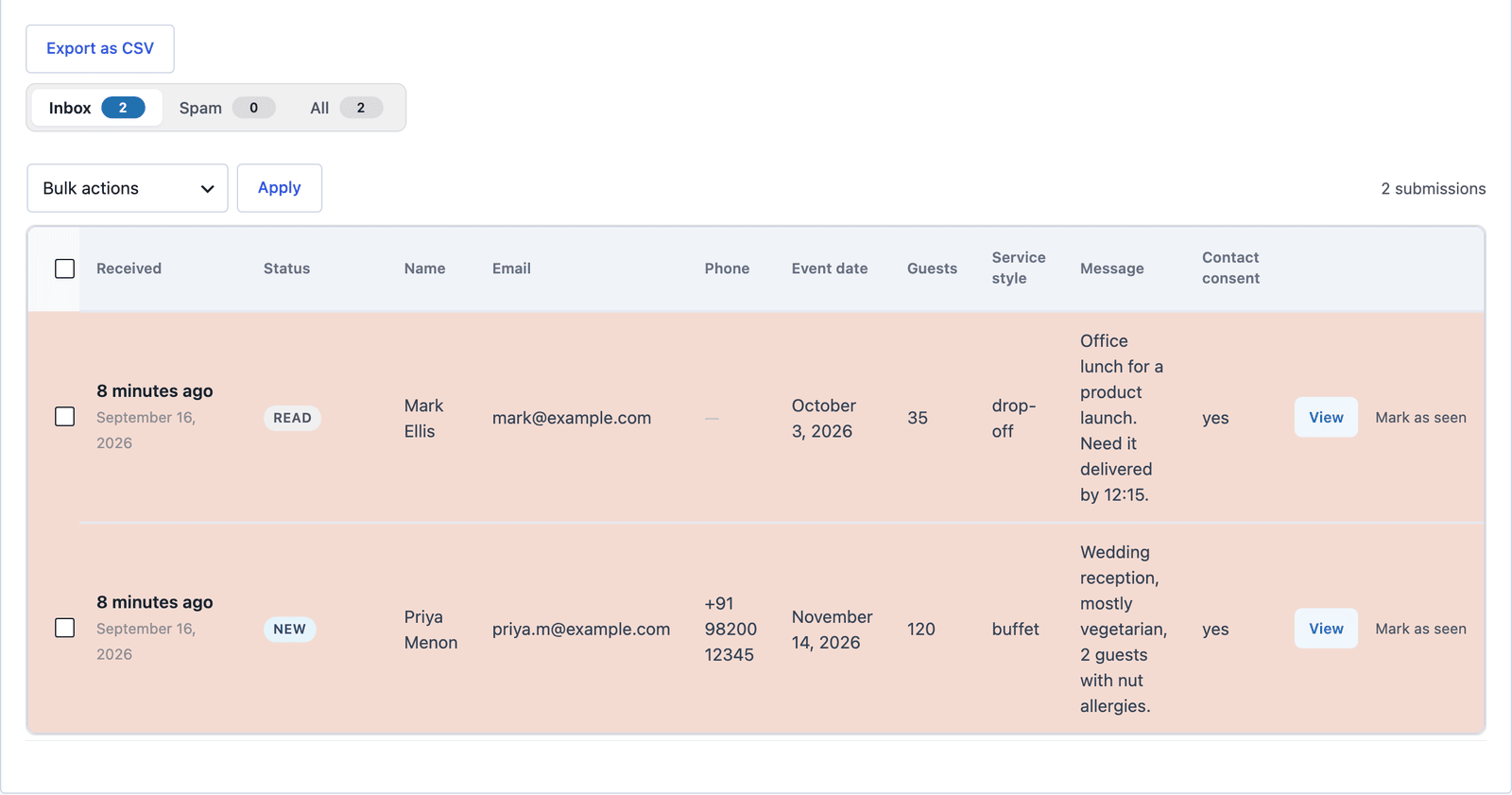 Sort by the Event date column and the nearest events come first.
Click View to read the whole inquiry, including the dietary notes in the message field, and answer from the Send Reply box on the same screen.
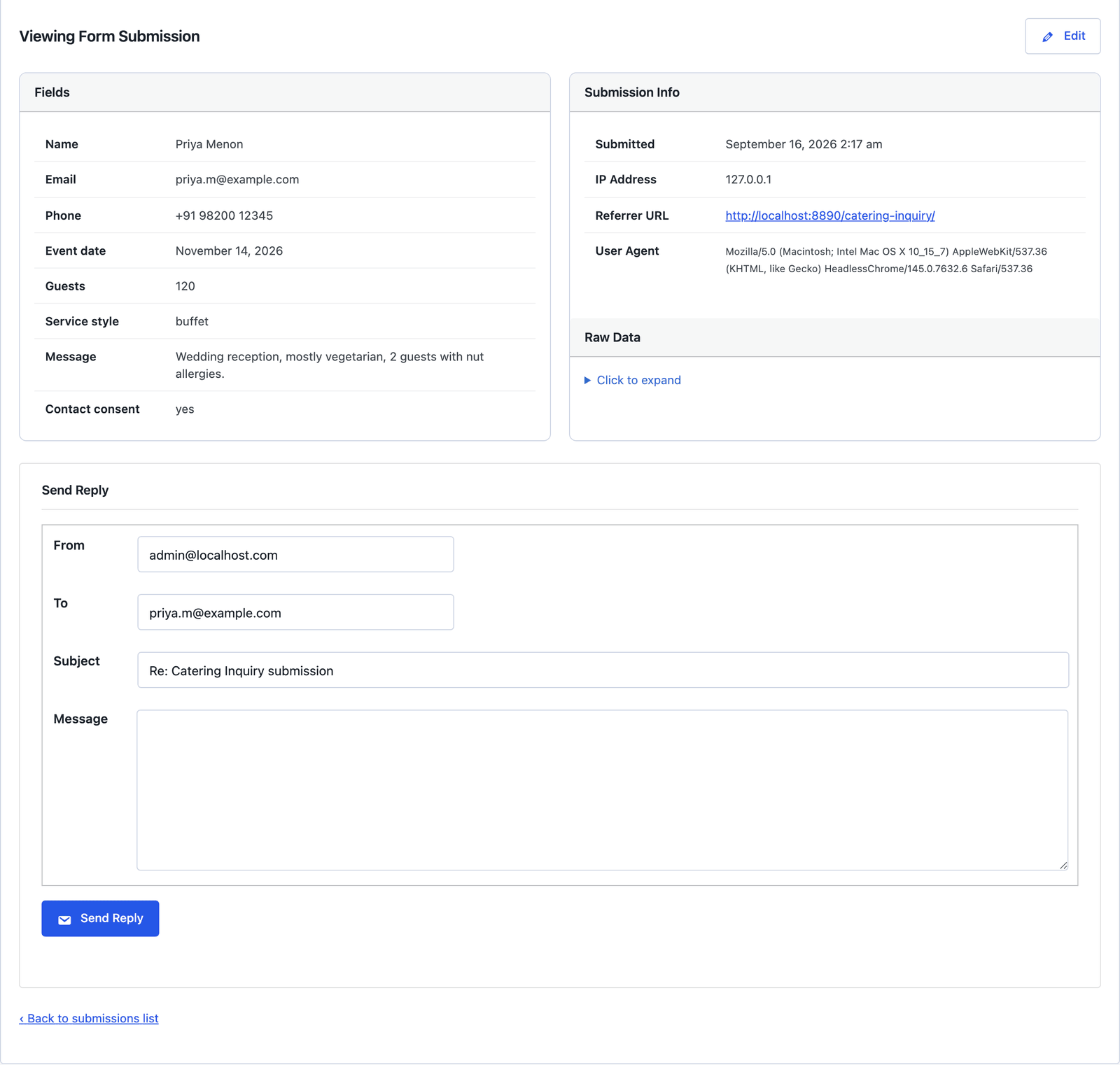 The message field is where the allergies land, so read it before the quote goes out.
For a kitchen that plans from a spreadsheet, a Google Sheets action adds each inquiry as a row the moment it arrives, with the date, guests and style in their own columns.
The Limits
The form does not check your calendar. Two inquiries can arrive for the same Saturday, and the acknowledgement says so: availability is confirmed by you, not by the form.
The guest count has a minimum of 1 and no maximum. Your minimum order belongs in the text above the form, or in the field’s own min attribute, which is a 1-line edit in the Code tab.
Dietary requirements are not in the template. They fit in the message field for a small event and need a checkbox group for a large one, so add the group if most of your work is weddings.
There is no menu or price in the form. It collects the inquiry, and the proposal is the reply.
What Quietly Ruins a Catering Order Form
Removing “Not decided” from the service style. It looks cleaner and it costs you every inquiry from someone who wanted your advice on the format.
Asking for the menu choice on the first inquiry. The menu is the proposal. A form that asks for it up front is asking the customer to do your job before you have answered them.
Making the phone number required. The office manager ordering lunch does not want a call, and a required phone field is where they stop.
Leaving the date field without an earliest date. A min attribute on the date field, set in the Code tab, keeps inquiries for last week out of the inbox, and the appointment booking form guide shows exactly how.
Final Remarks
You now have a catering order form that asks when, how many and served how, walks the customer through it in 3 short steps, acknowledges the inquiry as a receipt rather than a booking and keeps every request in an inbox you can sort by date. If you keep one idea from this guide, keep this one: the “Not decided” option is the most valuable one on the form, so leave it in.
The catering inquiry template page has the fields and a live demo, and the event RSVP form guide covers the form your customer will send to their own guests. If something here does not behave the way this guide describes, the support team can help. The other 15 industry forms are listed in the industry form templates guide.
I hope the next inquiry through it is a big one.
The event registration form guide covers the attendee side of the same event.
FAQ
Can I add dietary requirement checkboxes?
Yes. Add a checkbox group on the “Your request” step with the options you cater for. The selected options arrive as a list in the submission and in the email.
Can I set a minimum guest count?
Yes. In the Code tab, change min="1" on the Expected guests input to your minimum order and click Save fields. The browser and the server both enforce it.
Can the form take a deposit?
Not this one. Payment is switched off on inquiry templates. For a deposit at booking time, the guide to payment forms covers the templates that charge.