
Spam
What Is a Honeypot Field? Invisible Spam Protection, Explained
A honeypot field catches bots that fill an input hidden from people. Learn the HTML, accessibility checks, server validation and limits.

A honeypot field is a form field humans never see but bots fill in — and any submission with that field filled gets silently rejected. No puzzle, no checkbox, no “select all the traffic lights.” The visitor doesn’t even know it’s there.
I start with a honeypot because it adds no puzzle for a legitimate visitor. It catches bots that populate the trap, but its effectiveness depends on the traffic and how the form is built. I wouldn’t promise a fixed spam-reduction percentage or rely on it alone for a targeted form.
How a honeypot field works
A honeypot field works because bots and humans read forms differently. A spam bot fetches your page’s HTML, finds every input, fills each one with something plausible, and posts the form. A human looks at the rendered page — and a field hidden with CSS never renders, so a human never touches it.
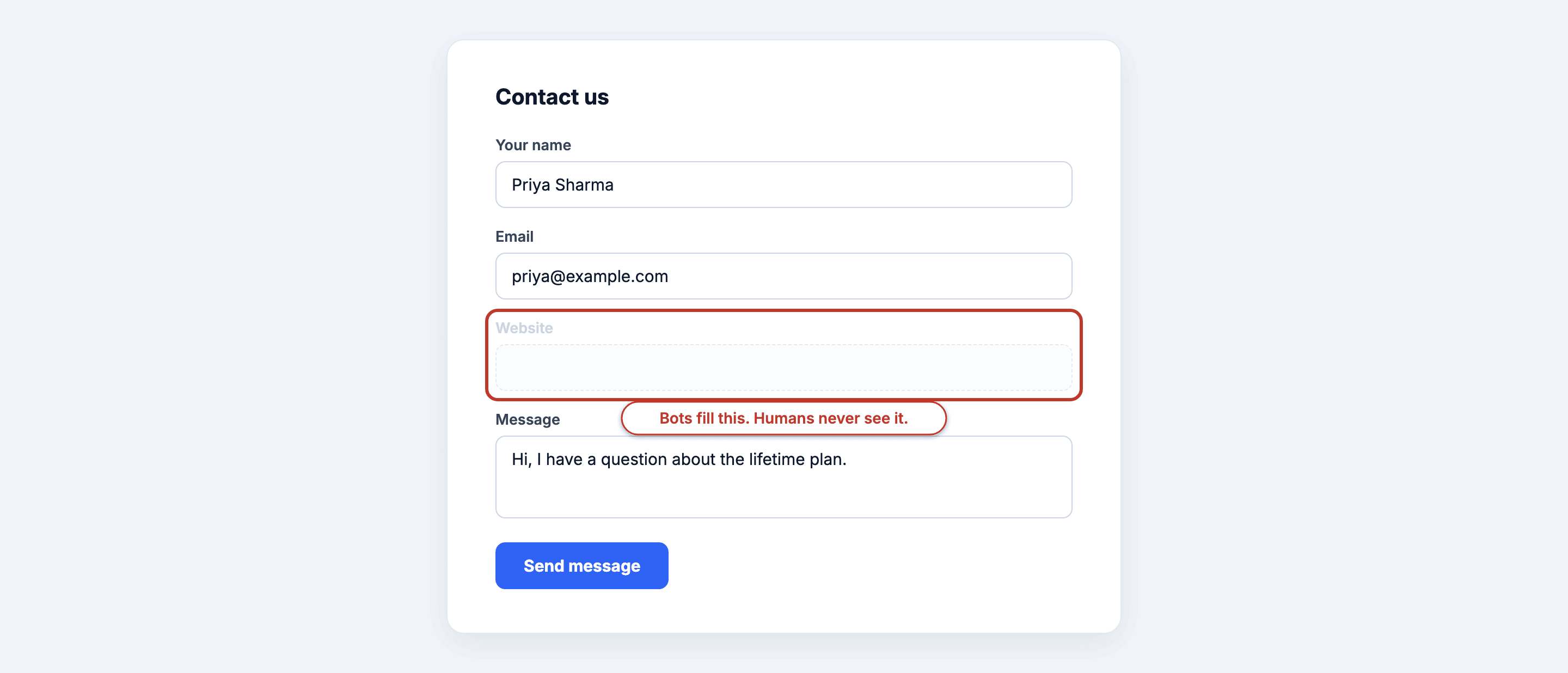 The “website” field exists in the HTML but not on screen — only a bot would fill it.
The setup has two halves:
A tempting name. The field is called something like website, url, or phone2 — names a bot’s autofill logic recognizes and happily populates. Naming it honeypot_trap defeats the purpose; well-written bots skip fields with suspicious names.
Invisible to humans. CSS moves the field off-screen. A sighted visitor can’t see it, and with the right attributes a keyboard or screen-reader user won’t land on it either.
Then the server-side check: if the honeypot field arrives with any value, the submission is spam. Reject it — silently. Don’t show an error, because an error message teaches the bot (or the spammer watching its logs) which field tripped the wire.
Adding a honeypot to any HTML form
Adding a honeypot to a plain HTML form takes one input and three lines of CSS. Here’s the pattern I use:
<div class="hp-wrap" aria-hidden="true">
  <label for="website">Website</label>
  <input type="text" id="website" name="website"
         autocomplete="off" tabindex="-1" />
</div>
.hp-wrap {
position: absolute;
left: -9999px;
}Three details matter:
The off-screen CSS above is 1 hiding method. display: none also hides the field from people; neither method makes it invisible to a bot reading the HTML. A bot can inspect the markup and skip the trap, so CSS placement isn’t a guarantee of stronger detection.
tabindex="-1" keeps keyboard users from tabbing into an invisible field and typing into the void. Pair it with aria-hidden="true" on the wrapper so screen readers skip it too.
autocomplete="off" asks the browser not to fill the trap, but browsers and password managers can behave differently. You should test the form with your usual autofill tools and review blocked attempts for false positives.
On the server, check the field before doing anything else. Filled means drop the request and return the normal success response, so the bot thinks it worked.
Check the Hidden Field and the Server
I would test 3 cases before relying on a honeypot:
- Tab through the form. Focus should never enter the hidden field.
- Inspect the accessibility tree. The trap should not appear as an input for a screen reader.
- Submit a populated trap to your own test form. The server should block normal processing even if the browser displays a generic success message.
In Core Forms, a missing honeypot can also produce that generic response. If real visitors are affected, check whether a cache or HTML optimizer removed the field. You should use the recorded blocked-attempt reason to distinguish a filled trap from missing markup.
Honeypots in the big form plugins
Most modern WordPress form plugins ship honeypot spam protection built in, but the biggest one doesn’t. Contact Form 7 has no native honeypot — you install the separate Honeypot for Contact Form 7 add-on plugin, then add a [honeypot] tag to each form. It works, but it’s one more plugin to update, and you have to remember the tag on every form.
Core Forms renders a honeypot with display: none, aria-hidden="true" and tabindex="-1". Its server checks both a populated trap and a missing trap field before normal submission processing. The spam-protection settings provide the other layers.
If you’re evaluating a form plugin, “is the honeypot built in or bolted on” is a decent proxy for how the rest of the plugin is engineered.
Honeypot vs CAPTCHA
The honest comparison: a honeypot is invisible and free but beatable; a CAPTCHA is stronger but taxes every legitimate visitor.
| Honeypot | CAPTCHA | |
|---|---|---|
| User friction | Zero — the user never sees it | Real — puzzles, checkboxes, or a score gate on every submit |
| Bot effectiveness | Stops bots that fill the trap; bots can skip it | Depends on the challenge or risk-scoring system |
| Accessibility | No impact when built correctly | Frequent problems — visual puzzles, audio fallbacks, timeouts |
| Privacy | No third parties, no cookies, no scripts | Usually loads Google or another vendor on every page with a form |
For a typical contact form, I start with the honeypot and add a CAPTCHA only if spam still gets through. I ran the numbers on the major options in the CAPTCHA comparison — the short version is that if you do need one, Cloudflare Turnstile beats reCAPTCHA on both friction and privacy.
Where honeypots fail
A honeypot field fails against any attacker that renders your page instead of just parsing it. Three cases show up in practice:
Headless browsers. Tools like Puppeteer and Playwright run a real Chrome engine. They compute CSS, know your field sits at -9999px, and skip it exactly like a human would. Spam operations increasingly run headless.
Human spam farms. Some spam is typed by actual people paid per submission. A human sees your rendered form, not your HTML. No honeypot catches a human.
Targeted attacks. If someone specifically wants to abuse your form — scraping your autoresponder, testing stolen cards through a payment form — they’ll inspect the markup once, note the trap, and script around it permanently.
None of this makes honeypots worthless. It makes them one layer.
Layer it
Spam protection works as layers, each catching what the previous one missed. My default stack, in order:
- A honeypot catches submissions that populate the trap.
2. Rate limiting catches whatever floods you, bot or human. A real visitor doesn’t submit a contact form 40 times a minute; rate limiting shuts that down regardless of how clever the sender is.
3. Content filtering catches spam that renders and submits like a human but reads like spam. Akismet scores the message body against its network-wide corpus.
4. A challenge, only if needed. When a form still leaks — usually a high-value form that’s being targeted — I add Turnstile. It’s the last layer, not the first, because it’s the only one your real users can feel.
Most sites never need layer four. But running only layer one and calling it done is how “my form gets no spam” quietly becomes “my form gets no submissions I can find in the noise.”
The next layer up is a math CAPTCHA, which has its own trade-offs.
Google Forms cannot have a honeypot, which is why the Google Form spam piece reaches for different fixes.
FAQ
Do honeypot fields hurt accessibility?
Not when built correctly. Use tabindex="-1" so keyboard users can’t focus the field and aria-hidden="true" so screen readers skip it entirely. A honeypot missing those attributes can trap assistive-technology users into filling it — which then flags real humans as spam.
Can a honeypot block real users by mistake?
Yes, in one main scenario: browser autofill. If the field lacks autocomplete="off", aggressive autofill can populate it and get a legitimate visitor silently rejected. Test your form with Chrome autofill enabled before shipping, and keep rejections silent-but-logged so you can spot false positives.
Is a honeypot enough spam protection on its own?
For a low-traffic personal site, often yes — it kills the bulk of automated spam at zero user cost. For business forms, no. Headless browsers and human spammers walk right past it. Pair it with rate limiting and content filtering, and add a challenge only if spam persists.
Does Contact Form 7 have a built-in honeypot?
Contact Form 7 doesn’t include a native honeypot field, so the Honeypot for Contact Form 7 add-on supplies that option. CF7 does support other spam-filtering integrations, including Akismet. A missing honeypot isn’t the same as no spam protection.
Why is it called a honeypot?
The name comes from security research, where a honeypot is a deliberately exposed decoy system that attracts attackers so defenders can detect them. The form-field version is the same idea in miniature: bait that only an attacker would touch, so touching it is the detection.
When the honeypot is no longer enough, the Cloudflare Turnstile guide is the next layer.