
How to Create a Donation Form in WordPress
Build a WordPress donation form two ways: a pledge form that records the gift and a PayPal form that takes it on the spot, with preset amounts, a frequency choice and the receipt handled by the webhook.

A donation form is 2 different forms depending on one question: does the money change hands on the page, or later? A pledge form records the gift and you follow up; a payment form sends the donor to PayPal or Stripe and comes back paid. So, if you are looking to add a donation form to your WordPress site, for a charity, a school, a community group or a creator, this guide can surely help with both.
I build Core Forms, and every screen here comes from its Donation form and Donation (PayPal) templates running on a test site.
Every cause asks for money differently, so one guide cannot cover tribute gifts, campaigns and matching programs. But almost every donation form needs the same things, a name and email, an amount, a frequency and a clear statement of what happens next, and in this one I will try my best to cover those properly, in both versions.
The templates ship with the plugin, so you can follow along click for click. Or, if you get stuck halfway, support is a message away. Without further ado, let’s get started.
Pledge or Payment
Before the fields, the choice, because the 2 templates do different jobs and the wrong one costs you donations.
- The Donation form template records a pledge. The donor picks an amount and a frequency, you get a submission, and the money moves later, by bank transfer, by an invoice or in person. Nothing is charged on the page.
- The Donation (PayPal) template takes the money. The donor types an amount, goes to PayPal, pays, and comes back to a paid submission. The receipt and the thank-you email go out only after PayPal confirms the payment.
A church collecting standing orders, a school fundraiser that invoices parents and a group that takes cash at the door all want the pledge form. Anyone who wants the money now wants the payment form. Both are below.
What the Pledge Form Asks
The Donation form template collects 6 things:
- Full name and Email address are required, so the pledge has a person attached and you can send the details of how to give.
- Donation amount is a required choice of $25, $50, $100, $250 or Other.
- Other amount (USD) is a number field for donors who picked Other.
- Donation frequency is a required choice of One-time, Monthly or Yearly.
- Message (optional) is a text area for a dedication or a note.
Preset amounts are the field that raises the average gift. A donor who sees $50 in the middle of the list gives $50 more often than one who faces an empty box, and the Other option keeps the door open for the $400 donor.
Create the Pledge Form
Three templates match a donation search:
- Go to Core Forms > Add New.
- Type
donationin the template search. - Click Use this template on the first Donation form card for the single-page pledge form.
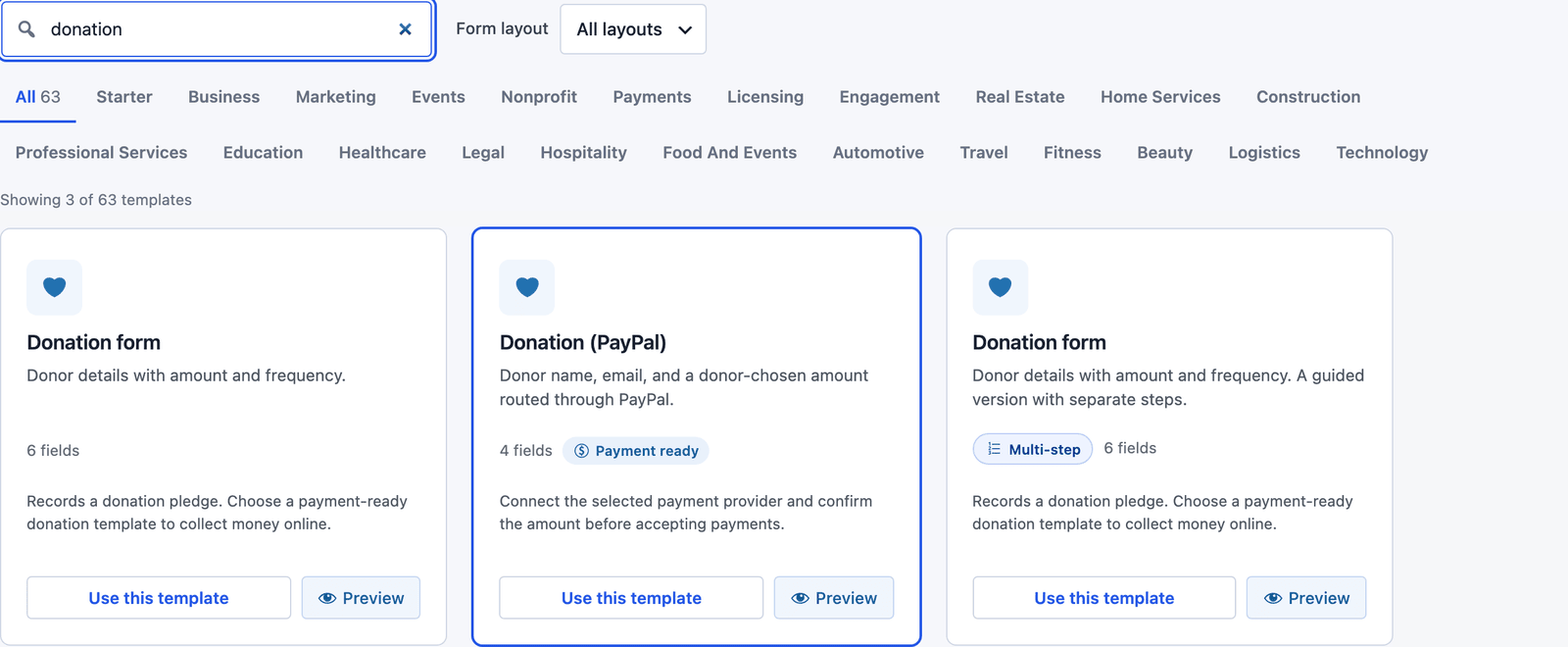 The first 2 cards record a pledge. The PayPal card takes the payment.
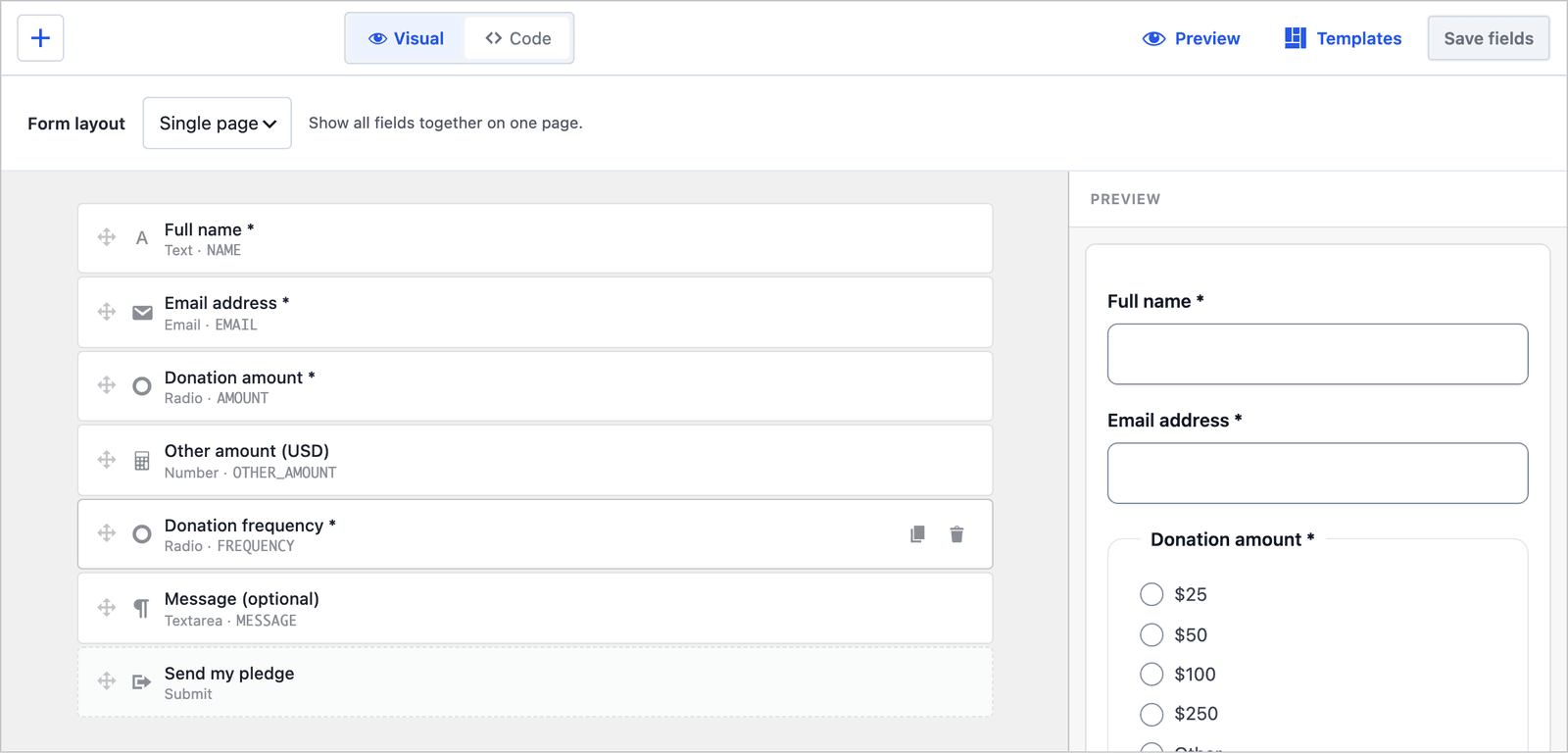 The amounts are radio buttons, so the donor picks one and the form stores a number.
Rename the Button
The pledge template’s button reads “Continue to payment,” which is wrong for a form that takes no payment, and it is the first thing to change:
- Click the submit button at the bottom of the builder.
- Change its label to “Send my pledge,” or whatever fits your cause.
- Click Save fields.
Then open the Messages tab and read the success message, which already says the right thing: the pledge was received and you will contact them about how to contribute.
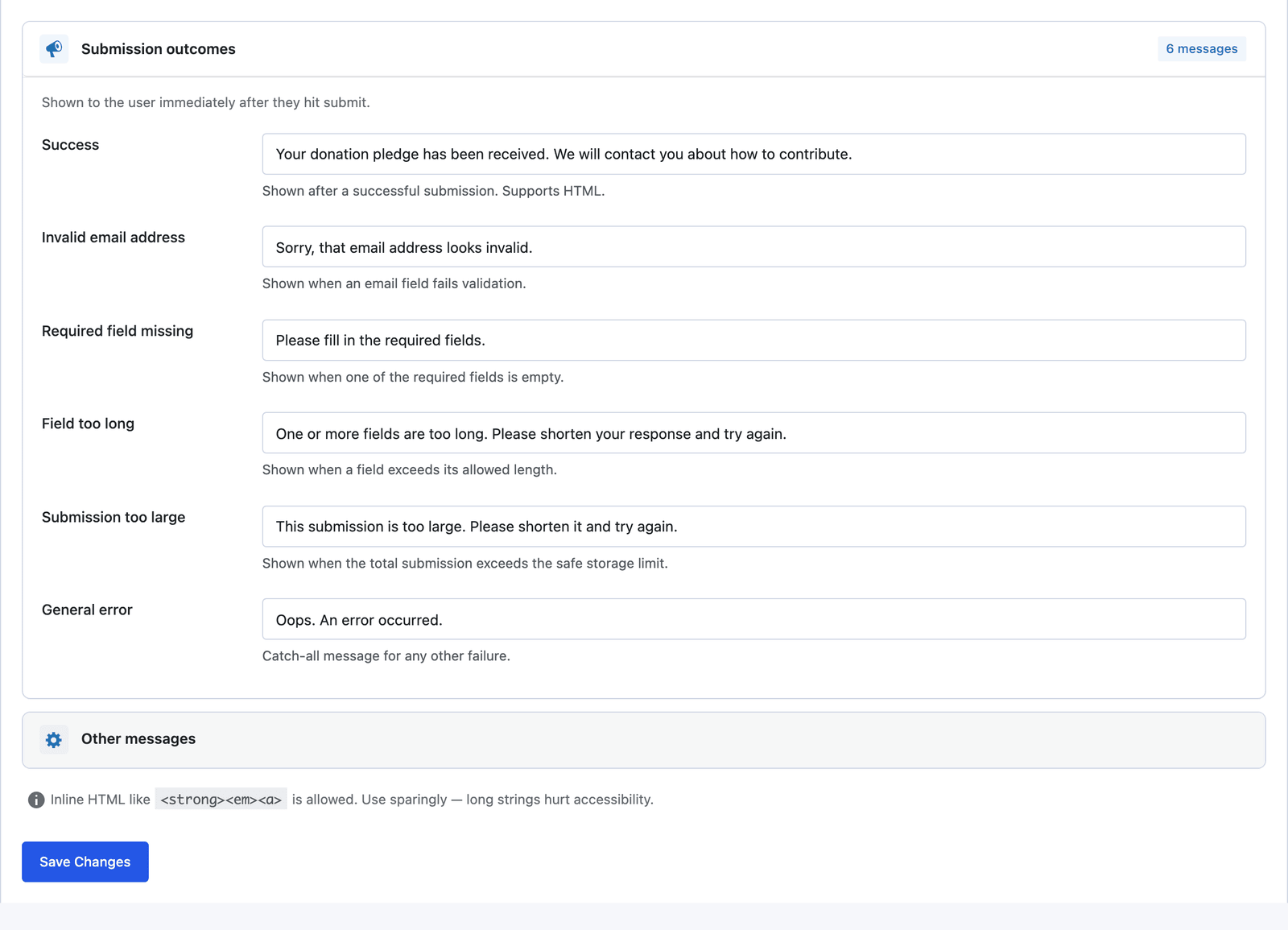 The message is a promise. Put the bank details or the next step in the Auto-Responder so the promise is kept the same minute.
That is the whole pledge form. Add an Auto-Responder action in the Actions tab with your bank details or a link, and the donor has what they need before they close the tab.
Single Page or Multi-Step
The multi-step version of the pledge form splits it into “Your details” (name and email) and “Request details” (amount, frequency and message).
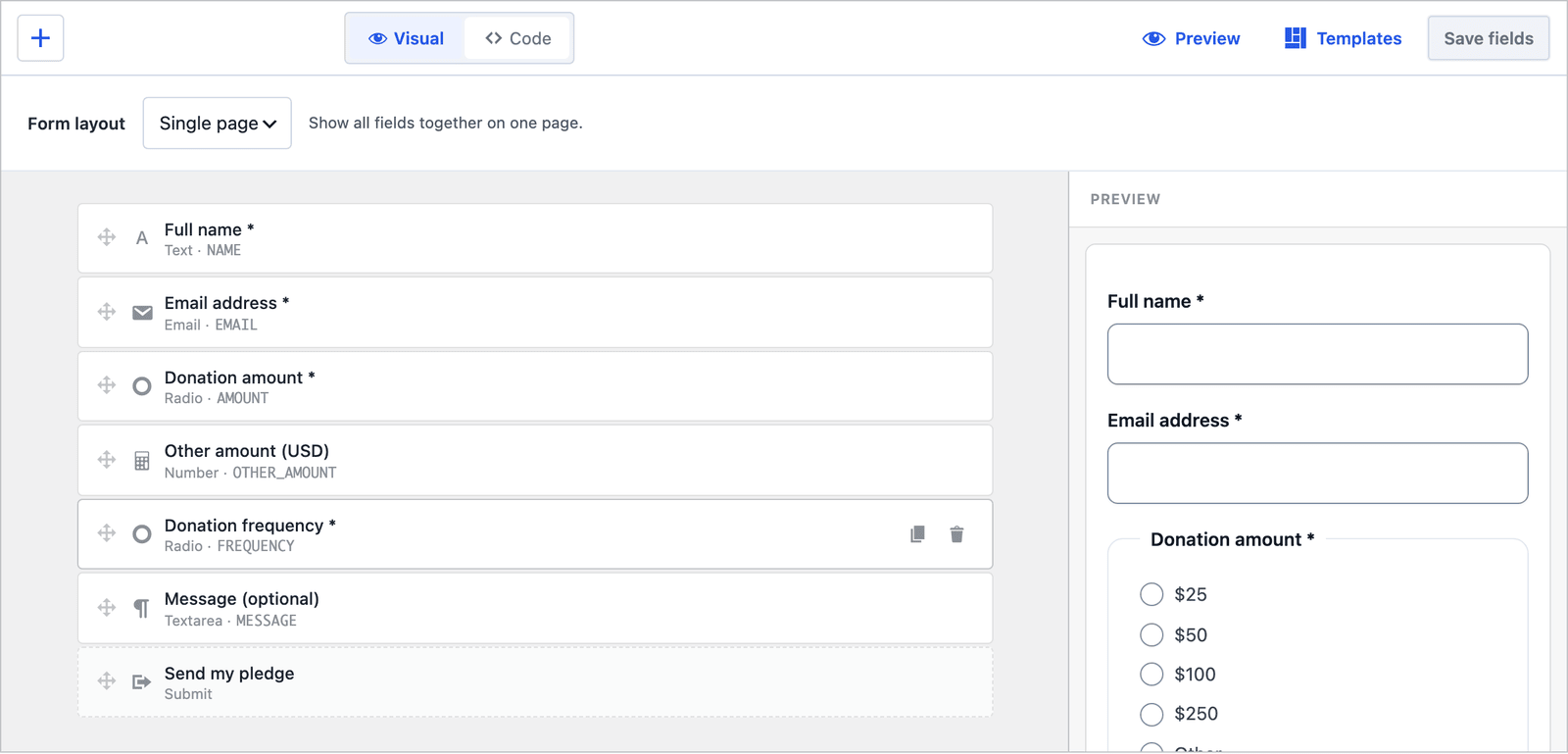 Rename the button here too. Each form has its own fields.
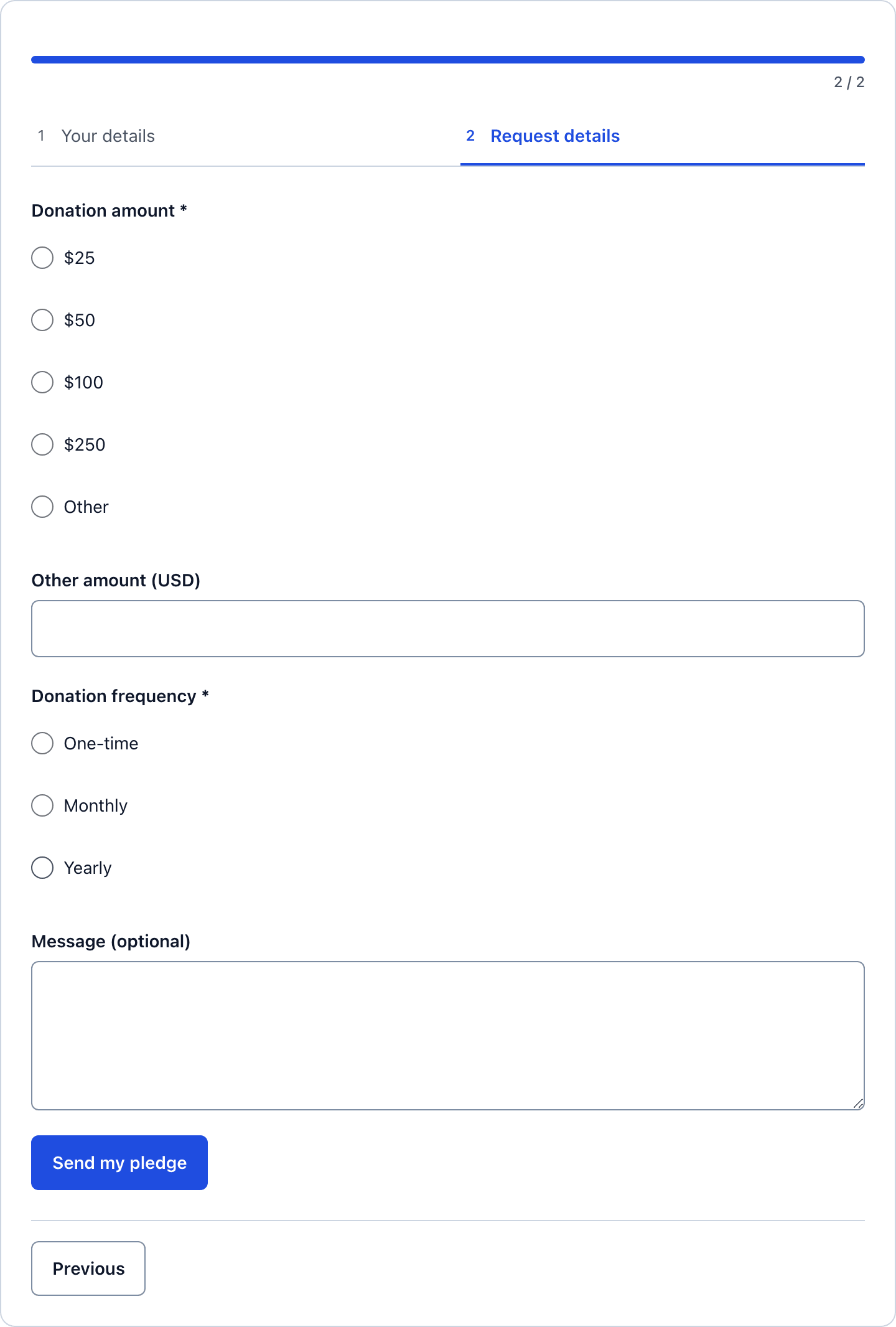 The amount screen stands alone, which is where a donor’s attention should be.
For a pledge I would keep the single page. A donor decides the amount before they type their name, and a form that shows the amounts up front lets them. The multi-step version suits a campaign page where the first screen is a short commitment and the second is the detail.
Publish the Pledge Form
The shortcode is shown next to the form’s name in the editor:
[cf_form slug="donation-form"]
Paste it into your Donate page, or use the Core Forms block.
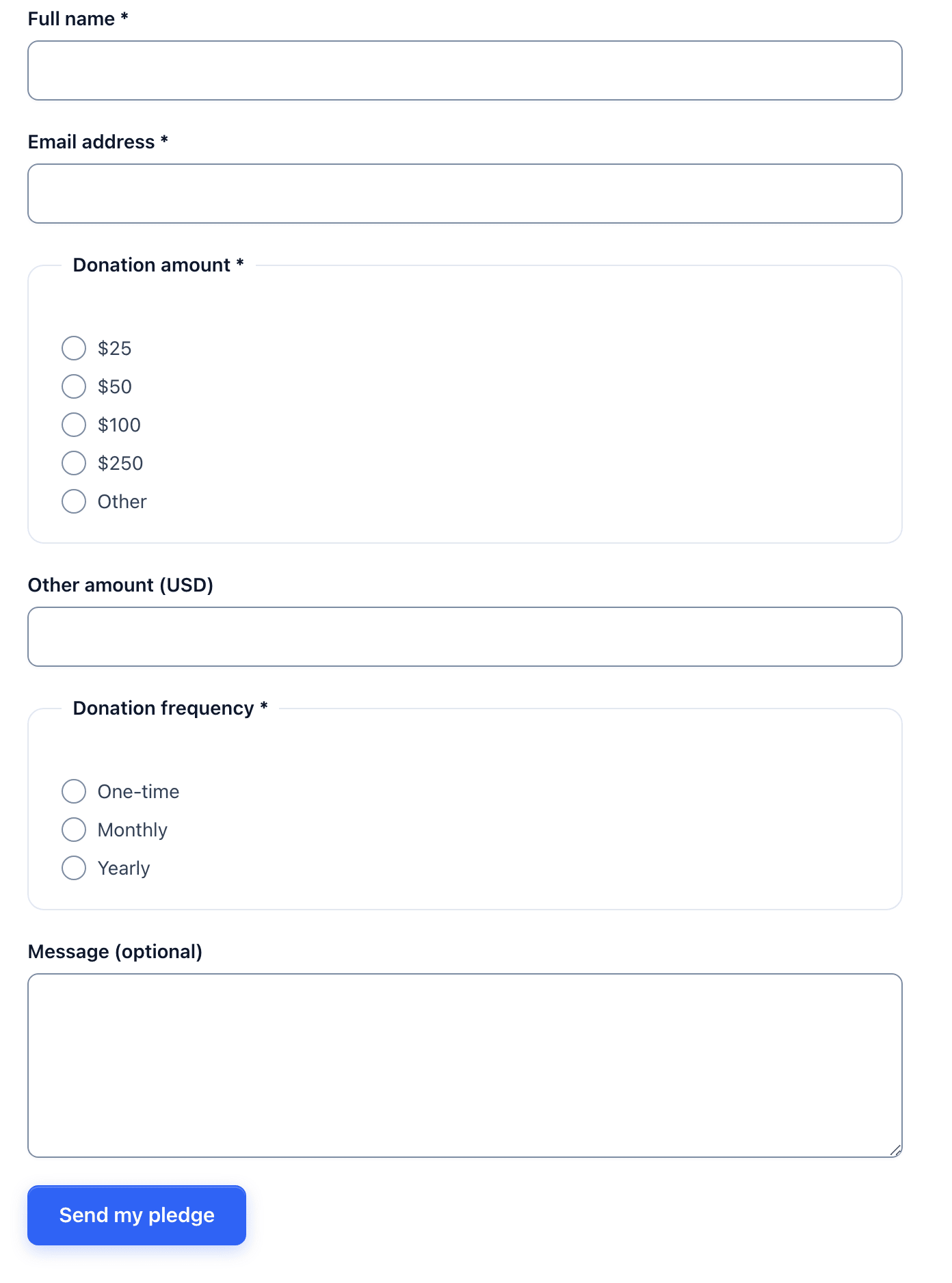 Say what the money does in the paragraph above the form. That paragraph raises more than any field.
Read the Pledges
Every pledge lands in the form’s Submissions tab, with the amount, the other amount and the frequency in their own columns.
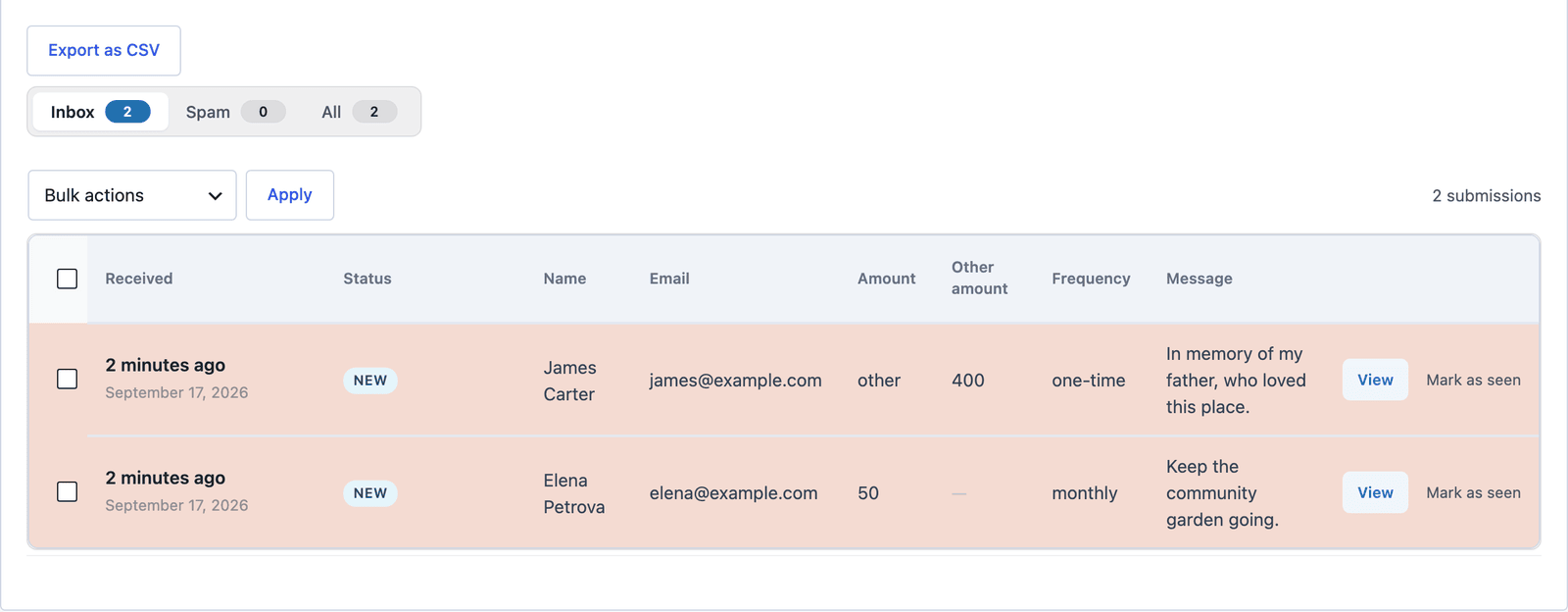 A pledge that picked Other has its number in the Other amount column, so add both columns when you total.
Click View to read the message and answer from the Send Reply box.
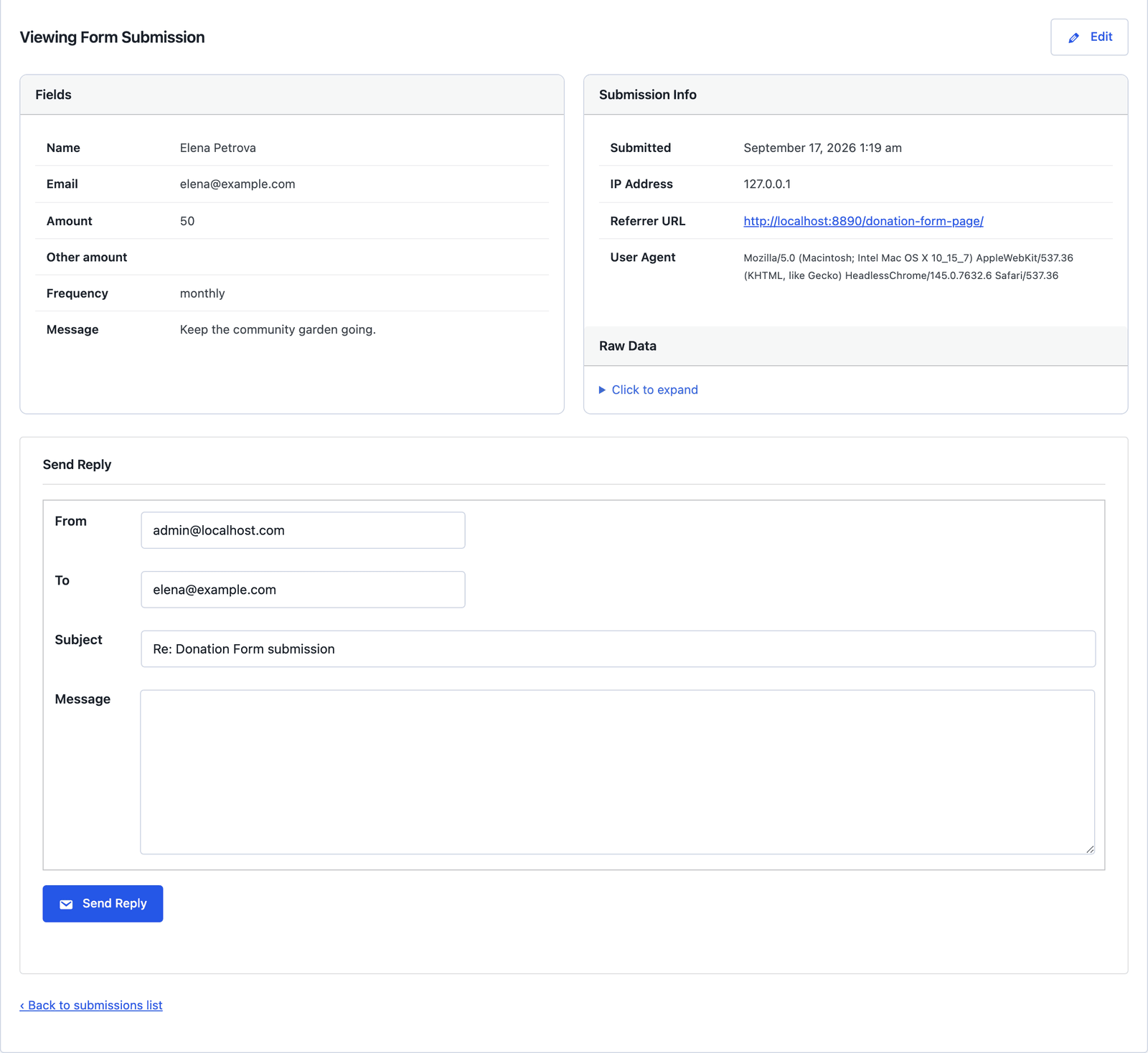 “Thank you, here is how to set up the monthly gift” is the reply, from here.
Take the Money With PayPal
The Donation (PayPal) template is the second form, and it is shorter: a name, an email, an Amount (USD) the donor types and an optional message. It ships with payment already switched on, PayPal selected and the amount set to the donor’s number.
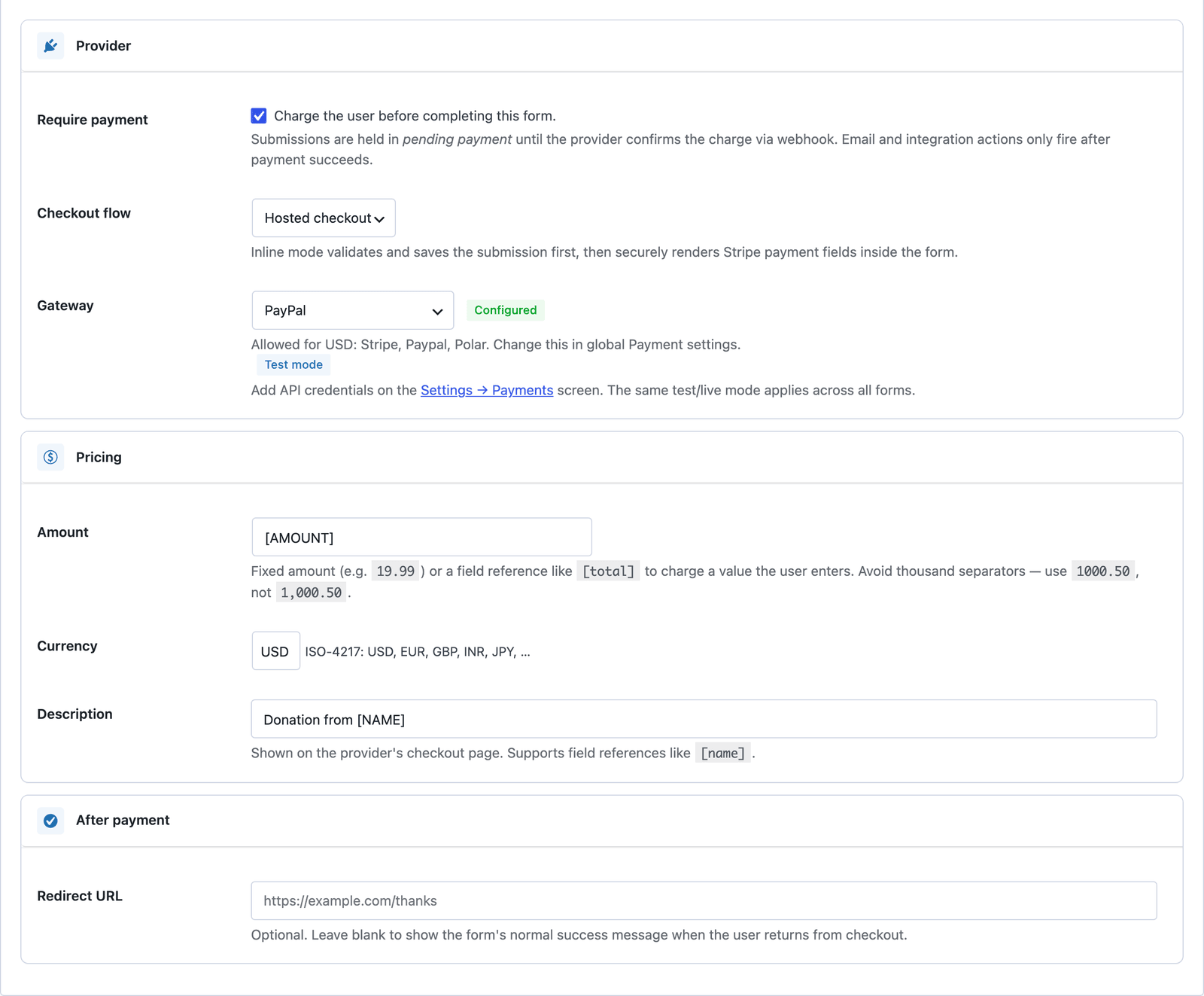 The amount is the field the donor filled in, so a $5 donor pays $5 and a $500 donor pays $500.
Two things have to exist before it works, and the PayPal integration guide covers both step by step: PayPal credentials in Settings > Payments, and a webhook in PayPal pointing at your site. The webhook is not optional. The submission stays pending until PayPal confirms the payment, and the thank-you email waits with it, so a donor who abandons checkout gets no receipt and no thank you.
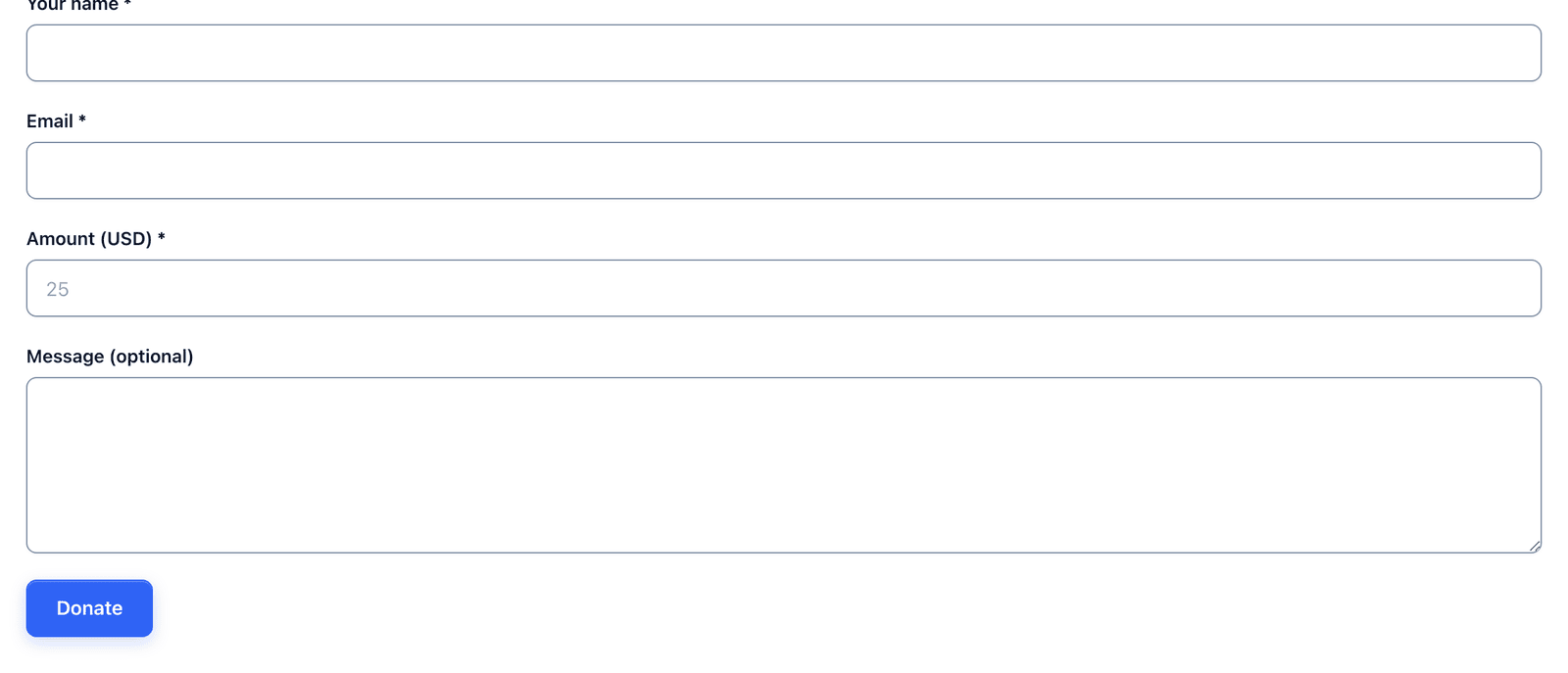 Four fields, then PayPal. The form never sees a card.
Stripe works the same way with the payment form workflow and the order form guide, and the pledge form’s preset amounts can be added to the PayPal form by replacing the number field with the radio group and setting the amount to that field.
The Limits
The pledge form takes no money. That is its job, and the button label and the success message should say so, which is why renaming the button is step 1.
The PayPal form takes one-time payments. A monthly gift needs a recurring product, which runs through FluentCart rather than the form, and the pledge form’s Monthly option is a promise you follow up on, not a charge.
Neither form issues a tax receipt. The auto-responder can carry your registration number and the amount, and for a receipt that is a document, the entry PDF on the roadmap is the feature to wait for.
The preset amounts are in USD in the template. Change the labels and the currency together, because a $25 label on a form that charges in euros is the kind of mistake a donor notices.
What Quietly Ruins a Donation Form
Leaving “Continue to payment” on the pledge form. Donors expect a checkout, get a thank-you message, and half of them assume the form broke.
Taking the amount as a required typed number with no presets. It works, and the average gift drops, because an empty box invites the smallest number the donor is comfortable with.
Sending the thank-you email from the submit, not from the webhook. On a payment form the email is the receipt, and a receipt for a payment that never completed is a support ticket.
Asking for the address on a first gift. It is needed for a tax receipt in some places and nowhere else, so ask for it in the reply when it is.
Final Remarks
You now have a donation form in the version your cause needs, a pledge form that records the gift and says so honestly, or a PayPal form that takes it and only thanks the donor once the money is confirmed. If you keep one idea from this guide, keep this one: the button label is a promise, so make it match what the form does.
The donation form template page has the fields and a live demo, the donation plugin comparison says when a fundraising suite is the better buy, and the donation request forms guide covers the other direction, asking companies for gifts in kind. If something here does not behave the way this guide describes, the support team can help.
I hope the first gift through it is a generous one.
FAQ
Can the pledge form and the PayPal form be one form?
Yes. Add the pledge form’s amount and frequency fields to the PayPal form, set the Payment tab’s amount to the amount field, and the donor pays what they picked. Monthly still needs a recurring product rather than the form.
Can donors pay with Stripe instead of PayPal?
Yes. The Product purchase (Stripe) template is the same shape with Stripe selected, and any form can switch gateways on its Payment tab once Stripe keys are in Settings.
How do I send a receipt?
Add an Auto-Responder action with [all:label] for the amount and your registration number. On the PayPal form it goes out after the webhook confirms the payment, which is what makes it a receipt.