
How to Create an Order Form in WordPress
Build a WordPress order form that takes the order and the payment on one form, with a fixed price the visitor cannot edit, Stripe or PayPal checkout, and the confirmation sent only after the gateway confirms the charge.

Some links here are affiliate links. If you buy through one, I earn a commission at no cost to you. Core Forms is mine, so weigh my bias there too.
An order form in WordPress does 2 jobs a store does with 20 screens: it takes the buyer’s details and it takes the money, on one page, for one thing.
I build Core Forms, and every screen here comes from its Product purchase template running on a test site.
Every product has its own options, so one guide cannot cover variants, shipping rates and a cart. But almost every single-product order needs the same things, a name, an email, a fixed price, a checkout and a confirmation that goes out only when the money has arrived, and in this one I will try my best to cover those properly, with Stripe first and PayPal noted where it differs.
The template ships with the plugin, so you can follow along click for click. Or, if you get stuck halfway, support is a message away.
What an Order Form Asks
The Product purchase (Stripe) template collects 3 things, and that is the point of it:
- Full name and Email are required, because the receipt and the delivery go to them.
- Notes for delivery is an optional text area for the address, the dedication or the “please invoice my company” line.
The price is not a field. It lives in the form’s Payment tab as a fixed amount the visitor never sees as an input, which is the difference between an order form and a donation form. A visitor who can edit the price on the page pays what they typed, and a form that stores the price on the server charges what you set.
Create the Order Form
Four templates match a purchase search, one per gateway:
- Go to Core Forms > Add New.
- Type
purchasein the template search. - Click Use this template on the Product purchase (Stripe) card, or the PayPal, Polar or Razorpay card for that gateway.
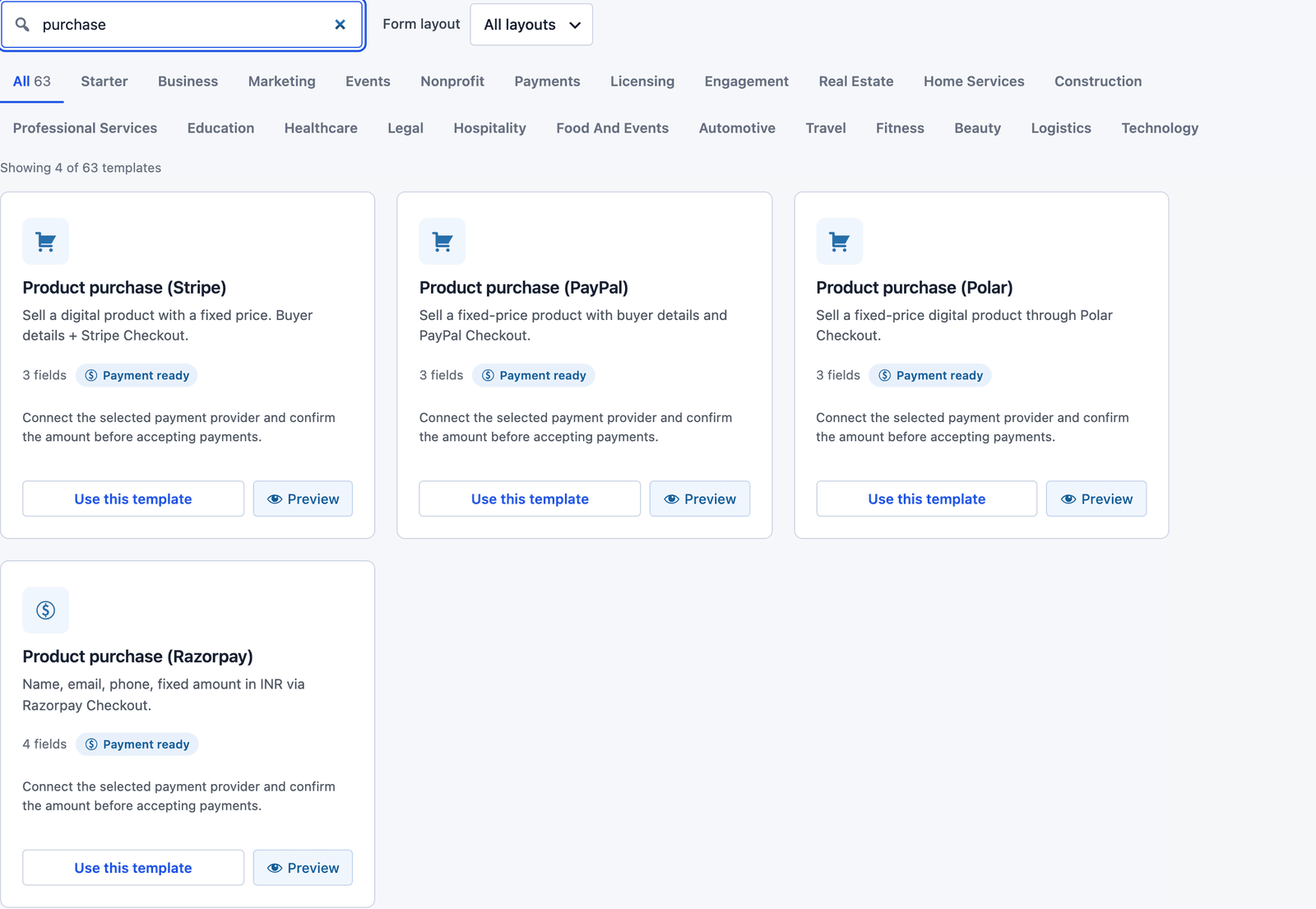 Same 3 fields on all 4. The gateway is the only difference.
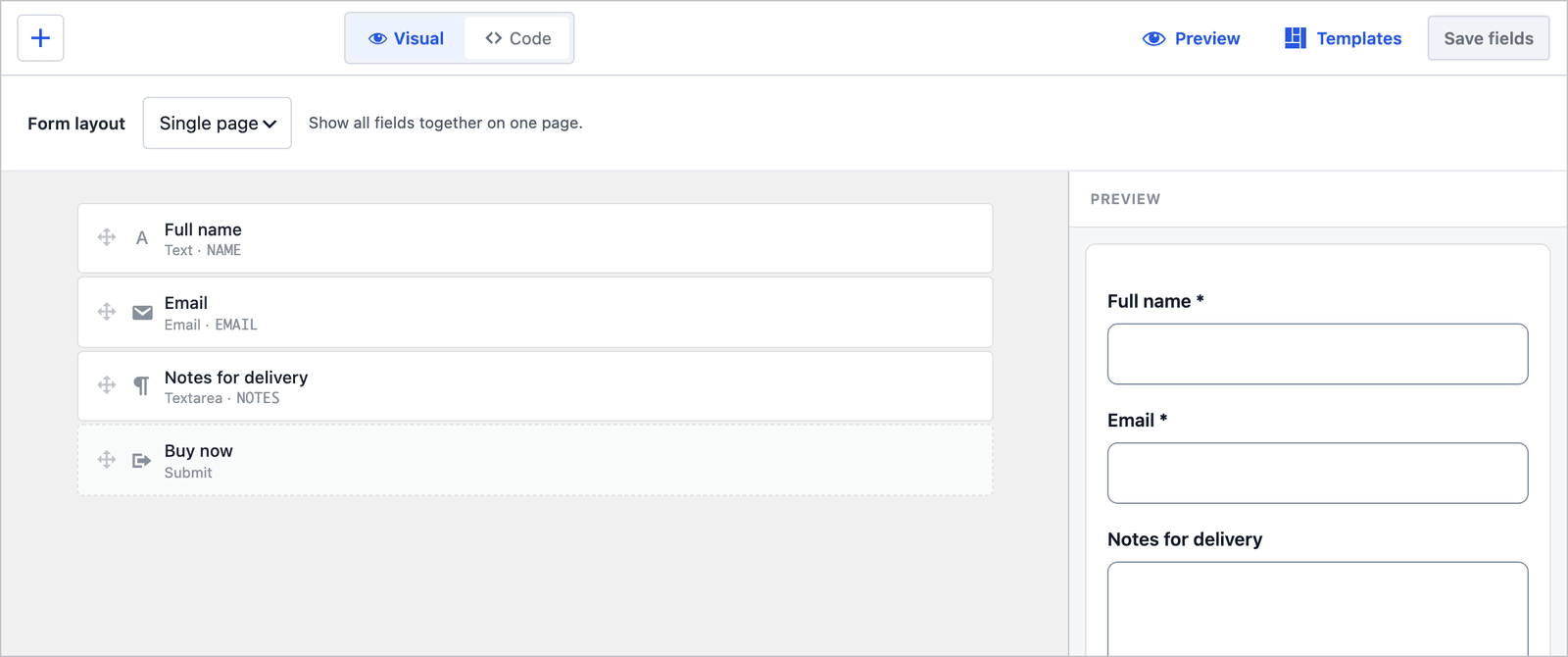 Add a quantity select or a size choice here if the product has them, and keep the price out of the fields.
Set the Price
The Payment tab is where the order form becomes an order form:
- Open the Payment tab.
- Require payment is already on, with Stripe selected and hosted checkout as the flow.
- Amount holds a fixed
19.00and Currency holds USD. Change both to your price. - Add a Description, which appears on the checkout page and the receipt.
- Click Save Changes.
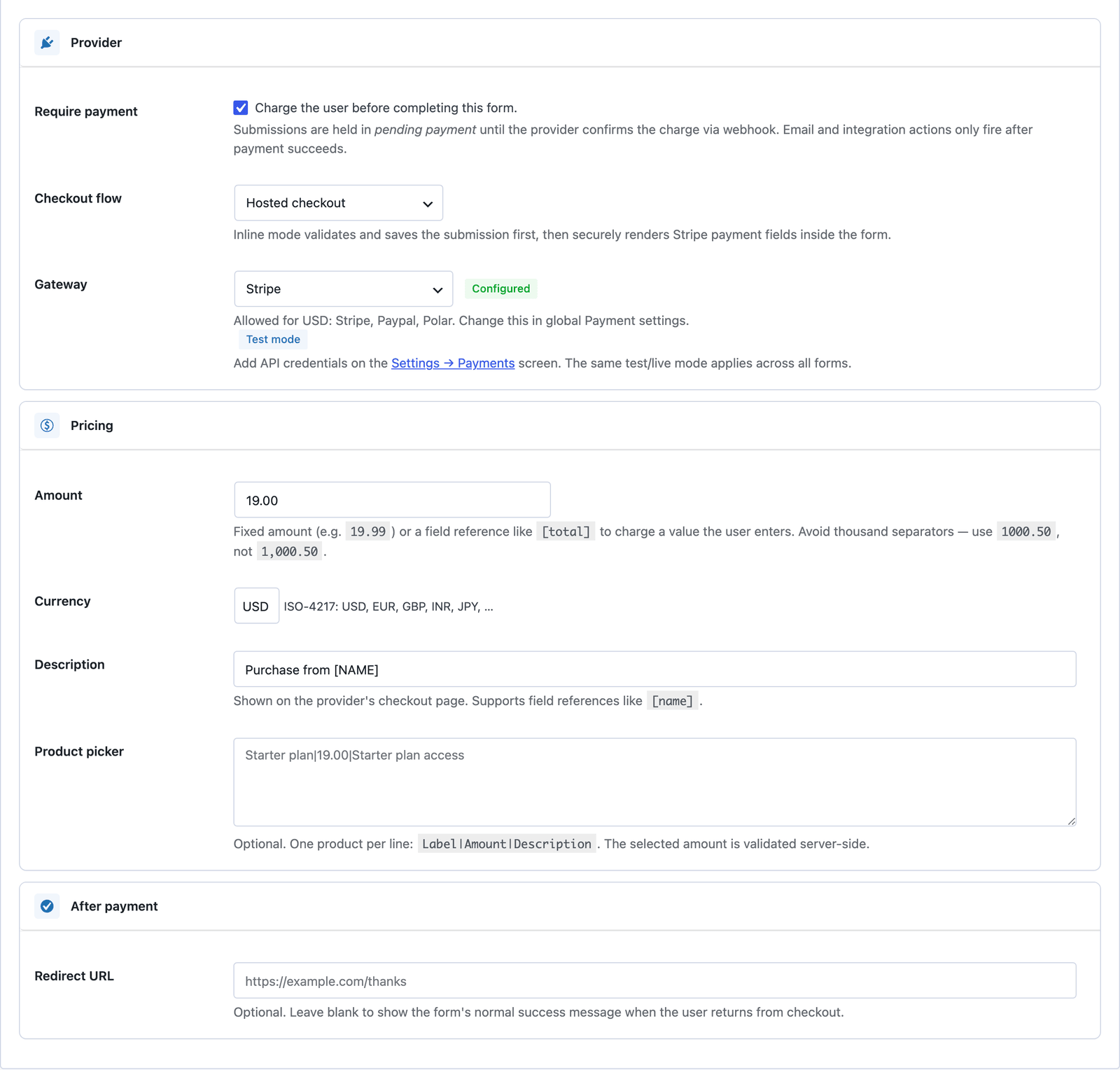 A fixed number in the Amount box is a price the page cannot change.
The tab shows the gateway as configured only once its keys are in Settings > Payments, and the payment form workflow covers the Stripe keys and the webhook. Both are needed before the form can take a real order.
Two Products on One Form
For a small and a large size, or a standard and a signed edition, the price can follow a choice:
- Add a Radio field named
EDITIONwith the options as values,standardandsigned. - Add a Number field named
PRICE, hidden, whose value is set by a calculation from the edition. - In the Payment tab, set Amount to the
PRICEfield instead of a number.
The calculation runs on the server again when the form is submitted, so the price still cannot be edited on the page. For more than 2 or 3 products, a catalog is the better tool, and the plugin selling guide shows the native checkout that handles it.
What the Buyer Sees
The buyer fills in 3 fields, clicks Buy now and is sent to the gateway’s checkout page. The form never sees a card number.
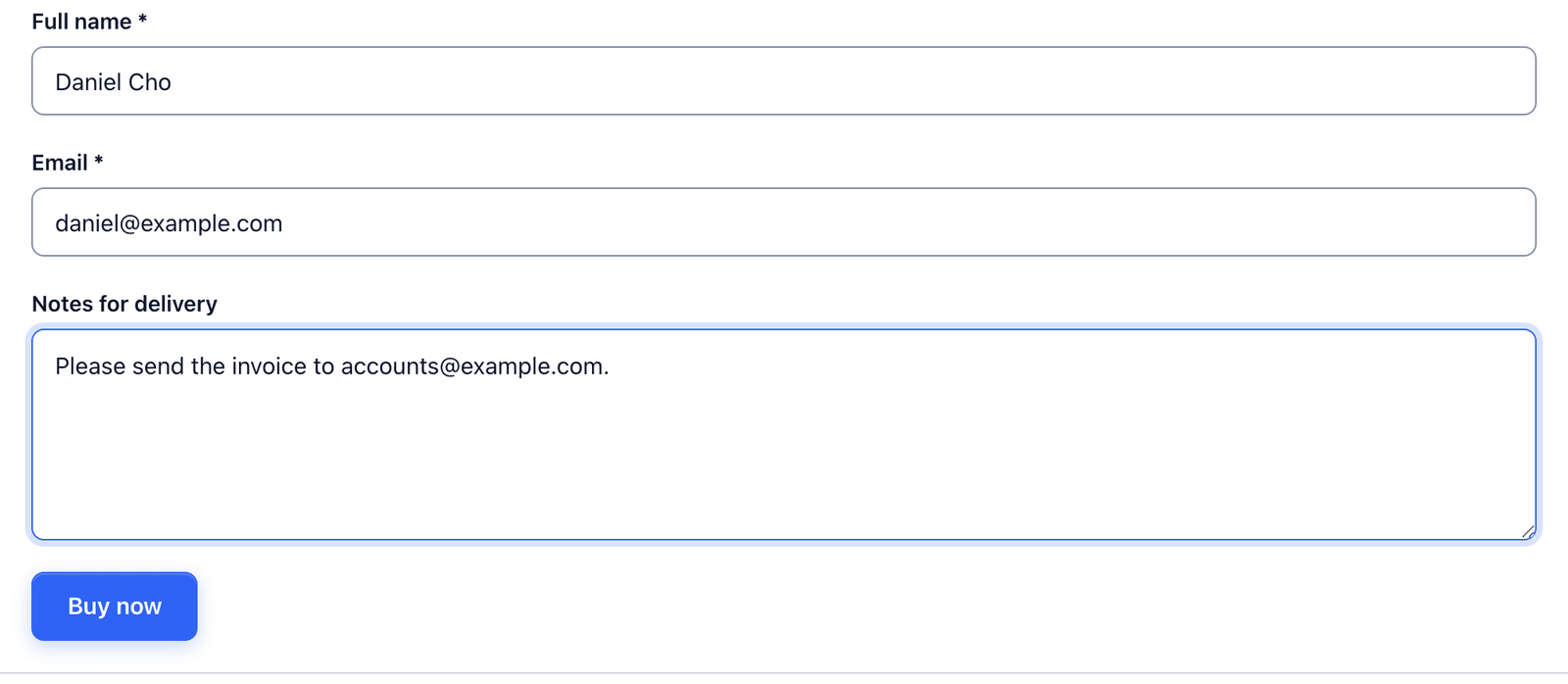 Three fields, then Stripe. The price and the product name are on the page above the form and on the checkout screen.
The success message reads “Thanks! Redirecting you to checkout to complete your purchase,” and it is right as it is.
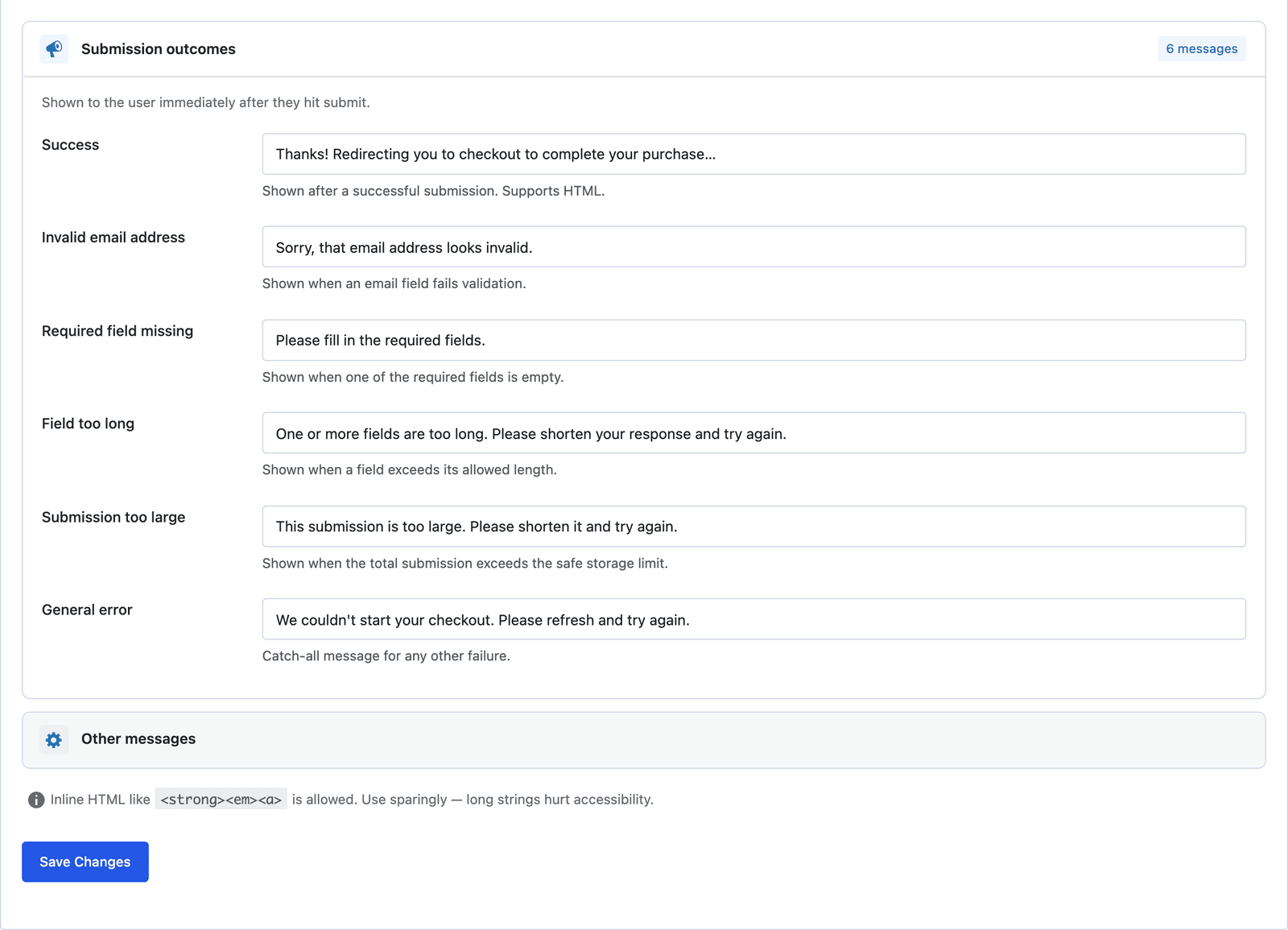 Both messages ship with the template. The error one is what a buyer sees if the gateway keys are missing. Stripe’s hosted checkout handles the card, the wallet buttons and the 3-D Secure step, and returns the buyer to your site when it is done.
The Confirmation Waits for the Money
This is the part that separates an order form from a contact form with a price on it.
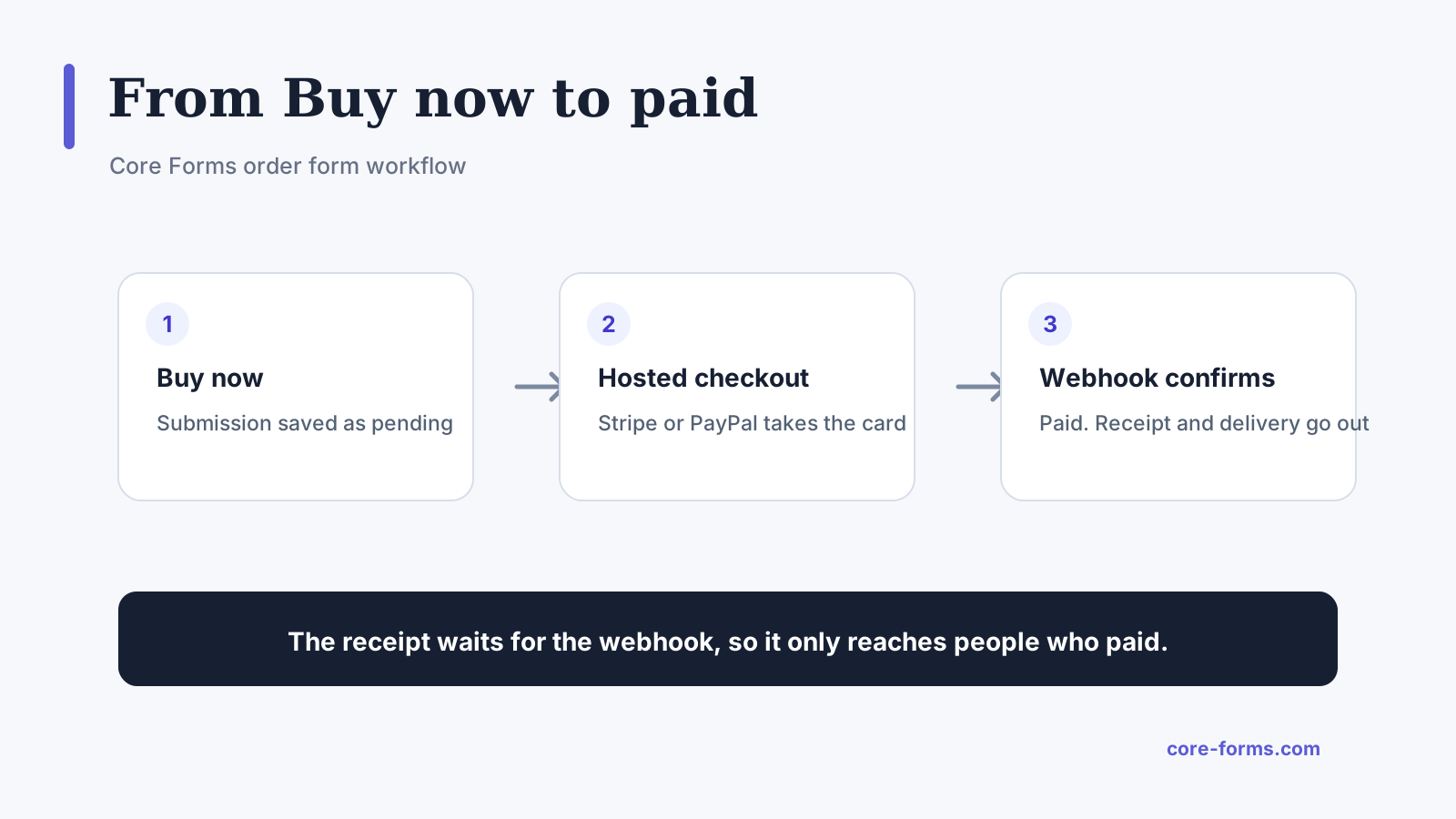 Three stops. The receipt waits at the third.
- The submission is saved as pending payment the moment the buyer clicks Buy now.
- Stripe sends a signed webhook when the charge succeeds, and only then does the submission become paid and the actions run.
- A buyer who closes the checkout tab leaves a pending submission, no email and no delivery.
So the Auto-Responder action is the receipt and the delivery email, and it goes out only to people who paid. Put the download link, the booking link or the “we ship within 2 days” line in it, with [all:label] for the order details, and it is the whole fulfillment for a digital product.
The Send Email action to you is the order notification, and it waits for the webhook too, so the inbox never shows an order that was not paid for.
What the buyer sees, step by step
- They fill in name, email and notes and click Buy now.
- The success message shows for a moment and the page moves to the gateway’s checkout.
- They pay on the gateway’s page, with cards, wallets and any 3-D Secure step handled there.
- They land back on your site. The receipt arrives once the webhook has confirmed the charge, usually within seconds.
What you see, step by step
- A submission appears in the inbox marked pending the moment Buy now is clicked.
- The webhook arrives and the status changes to paid.
- Only now do the actions run: your notification, the buyer’s receipt and any integration.
- A buyer who abandoned checkout leaves a pending row and nothing else, which you can follow up or delete.
PayPal, Polar and Razorpay
The other 3 templates work the same way with a different gateway:
- PayPal is hosted checkout only, and the PayPal integration guide covers the credentials and the webhook.
- Polar suits digital products sold internationally, because Polar acts as the merchant of record and handles the tax.
- Razorpay is the one for a business in India, with UPI and cards on the checkout page.
The Payment tab, the fixed price and the wait for the webhook are identical on all 4.
The Limits
The order form is one product. Two or 3 with a price choice work, and a catalog with variants and a cart is a store, which the plugin’s native checkout and FluentCart both provide.
There is no shipping calculation. A physical product with flat shipping puts it in the price, and one with rates by region needs a store.
Tax is not calculated by the form, except on Polar, where the merchant of record handles it. A price with tax included is the honest approach for a single product elsewhere.
Subscriptions are not on the form. A monthly product runs through a recurring product in FluentCart, and Stripe subscriptions on the form are on the roadmap.
What Quietly Ruins an Order Form
A price in an editable field. The buyer changes 19.00 to 1.00, and the form charges 1.00, because the page was trusted instead of the server.
A receipt sent on submit. The confirmation goes to a buyer who abandoned the checkout, and the download link with it.
No description on the checkout. Stripe’s page shows “Payment” and an amount, and the buyer pauses, which is where the sale is lost.
Forgetting the webhook. Orders sit pending forever, nobody gets a receipt, and the money is in Stripe with no record on the site. Test one real order in test mode before the form goes live.
Final Remarks
You now have an order form that takes the buyer’s details and a fixed price the page cannot change, sends the buyer to a hosted checkout that handles the card, and confirms the order only after the gateway says the money arrived. If you keep one idea from this guide, keep this one: the price lives on the server and the receipt waits for the webhook, and everything else on the form is detail.
The payments feature page lists the 4 gateways and their settings, and the payment form workflow explains pending, paid and one-time fulfillment in full. If something here does not behave the way this guide describes, the support team can help.
I hope the first order through it is the first of many.
A price that depends on a quantity or an option is a calculated field, and the calculator form guide builds one step by step.
The card authorization form piece explains why the card number never belongs in a form field, even for a deposit.
For the fee math beyond the estimator above, the Stripe fees for software sellers piece works through real prices.
FAQ
Can the buyer choose a quantity?
Yes. Add a number field for the quantity and a hidden price field calculated from it, and set the Payment tab’s amount to the price field. The calculation runs again on the server, so the total cannot be edited on the page.
Do I need WooCommerce to take an order on WordPress?
Not for a single product. The order form takes the details and the payment with Stripe, PayPal, Polar or Razorpay, and delivers by email. A catalog with variants, a cart and shipping rates is where a store plugin earns its place.
What happens if the buyer does not complete the checkout?
The submission stays pending, no email goes out and nothing is delivered. Pending submissions are visible in the inbox, so you can follow up or delete them.