
How to Create a Job Application Form in WordPress
Build a WordPress job application form with a resume upload, the 7 fields that make applications comparable, the file limit set correctly and every application in one inbox.

A job application form does one thing a “send your CV to jobs@” line never will: it makes every application comparable, with the same fields in the same order and the resume attached to the record.
I build Core Forms, and every screen here comes from its Job application template running on a test site.
Every role needs its own questions, so one guide cannot cover a screening quiz for a developer and a portfolio link for a designer at once. But almost every first application needs the same 7 things, contact details, the role, a resume and one written answer, and in this one I will try my best to cover those properly, along with the file limit and where the applications end up.
The template ships with the plugin, so you can follow along click for click. Or, if you get stuck halfway, support is a message away.
What a Job Application Form Asks
The Job application template collects 7 things, and each one earns its place:
- Full name and Email address are required, because that is how you reply.
- Phone number is optional. Some candidates prefer email, and a required phone field is where a few of them stop.
- Position you’re applying for is required text, so one form can serve several roles.
- LinkedIn profile URL is optional, with a placeholder that shows the format.
- Resume / CV is a required file upload that accepts PDF, DOC and DOCX.
- Why are you a good fit? is a required text area, the one written answer.
One written question is deliberate. A first application with 5 essay boxes gets fewer and worse answers than one with a single question, and the interview is where the rest of the questions belong.
Create the Job Application Form
Two templates match a job search, one on a single page and one split into steps:
- Go to Core Forms > Add New.
- Type
jobin the template search. - Click Use this template on the first Job application card for a single page.
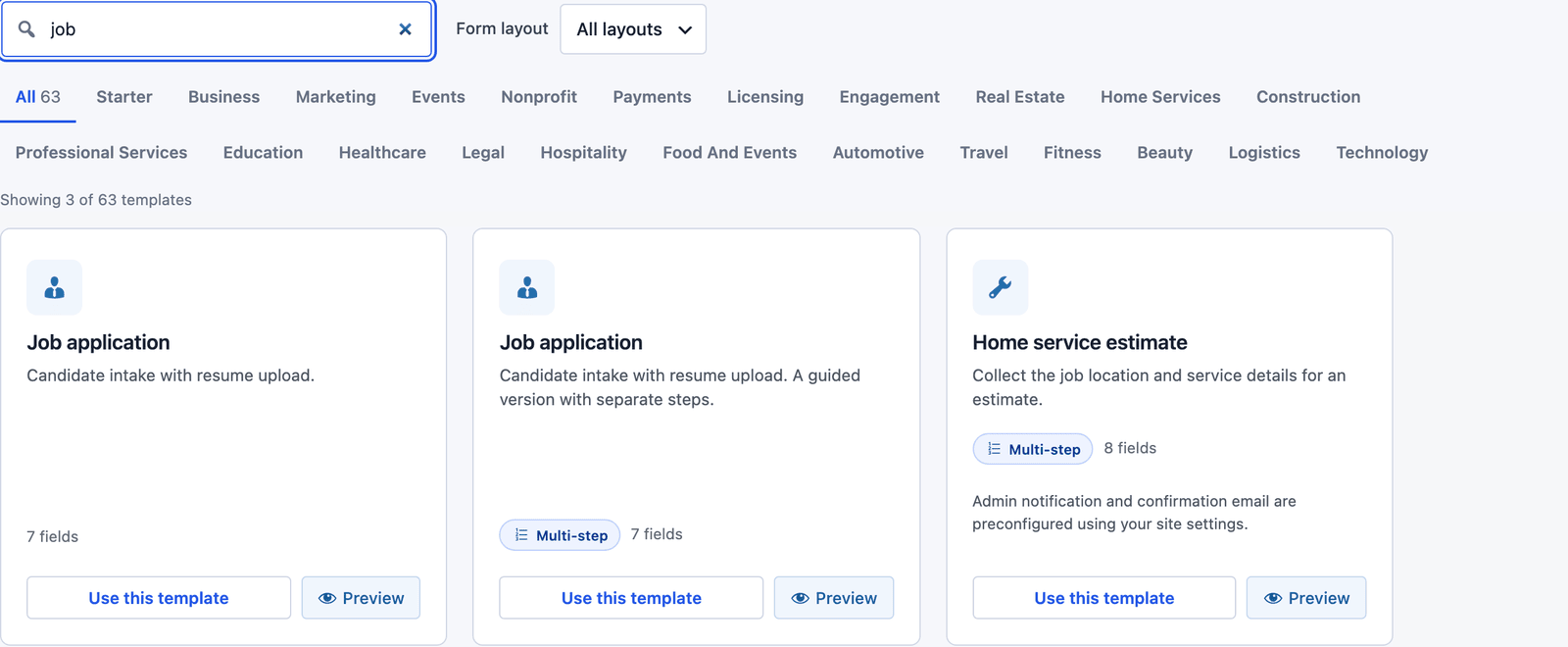 Both versions have the same 7 fields, and only the layout differs.
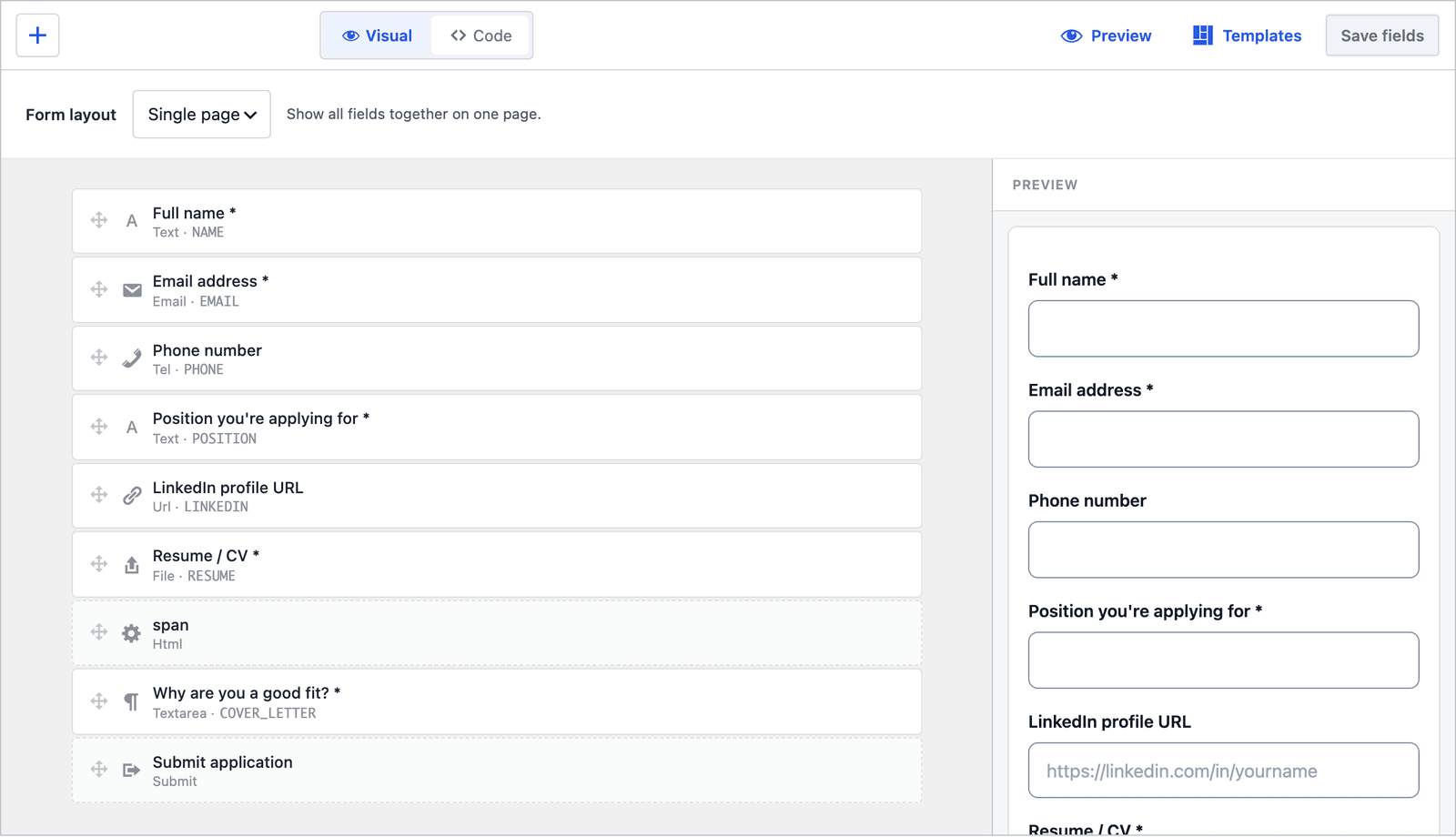 The resume field is a file upload with the accepted types already set.
If the page is for one role, delete the Position field and put the role in the page title instead. If it serves a careers page, turn Position into a select with the open roles as options, so nobody applies for a job that closed last month.
Set the File Limit and Say So
The upload field accepts up to 8 MB per file out of the box, and the help text under the field is where you tell candidates the limit. The template’s help text says “Max 5 MB,” which is lower than the real limit, so change one or the other so they match. The help text is a small HTML item under the file field in the builder, and the quickest edit is in the Code tab:
- Click Code at the top of the builder.
- Find “Max 5 MB” in the help text under the resume input and change it to “Max 8 MB.”
- Click Save fields.
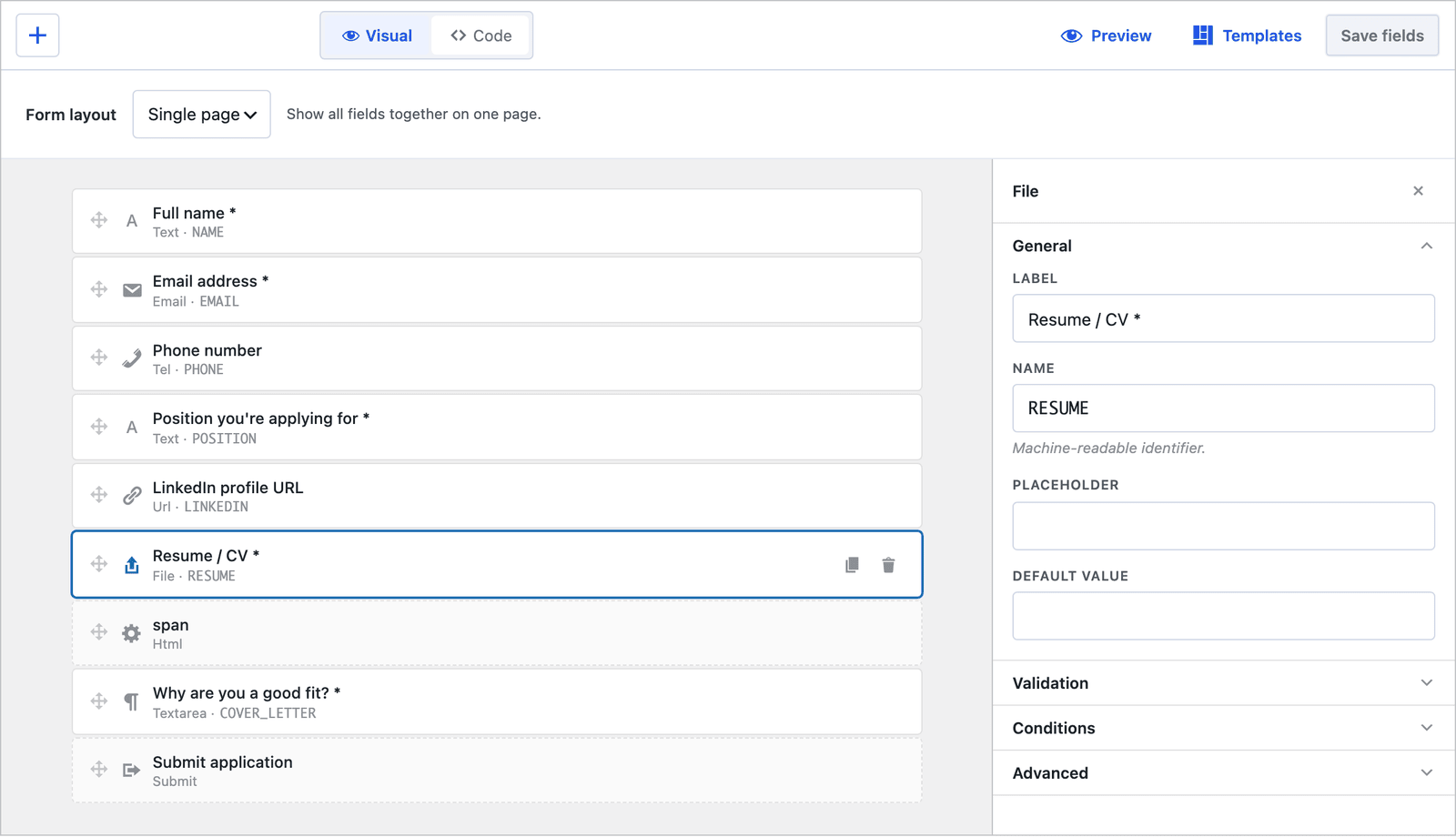 The help text is the HTML item under the file field. The file field’s accepted types are an
 accept attribute, and the server checks the real file type behind it.
If 8 MB is more than you want to store per applicant, the cf_upload_max_filesize filter lowers the limit, and the file upload form guide covers it along with the checks that run on every upload: executable extensions are rejected, the file’s real type is inspected and the filename is cleaned.
Single Page or Multi-Step
The multi-step version of the template splits the form into “Your details” (name, email and phone) and “Request details” (position, LinkedIn, resume and the written answer).
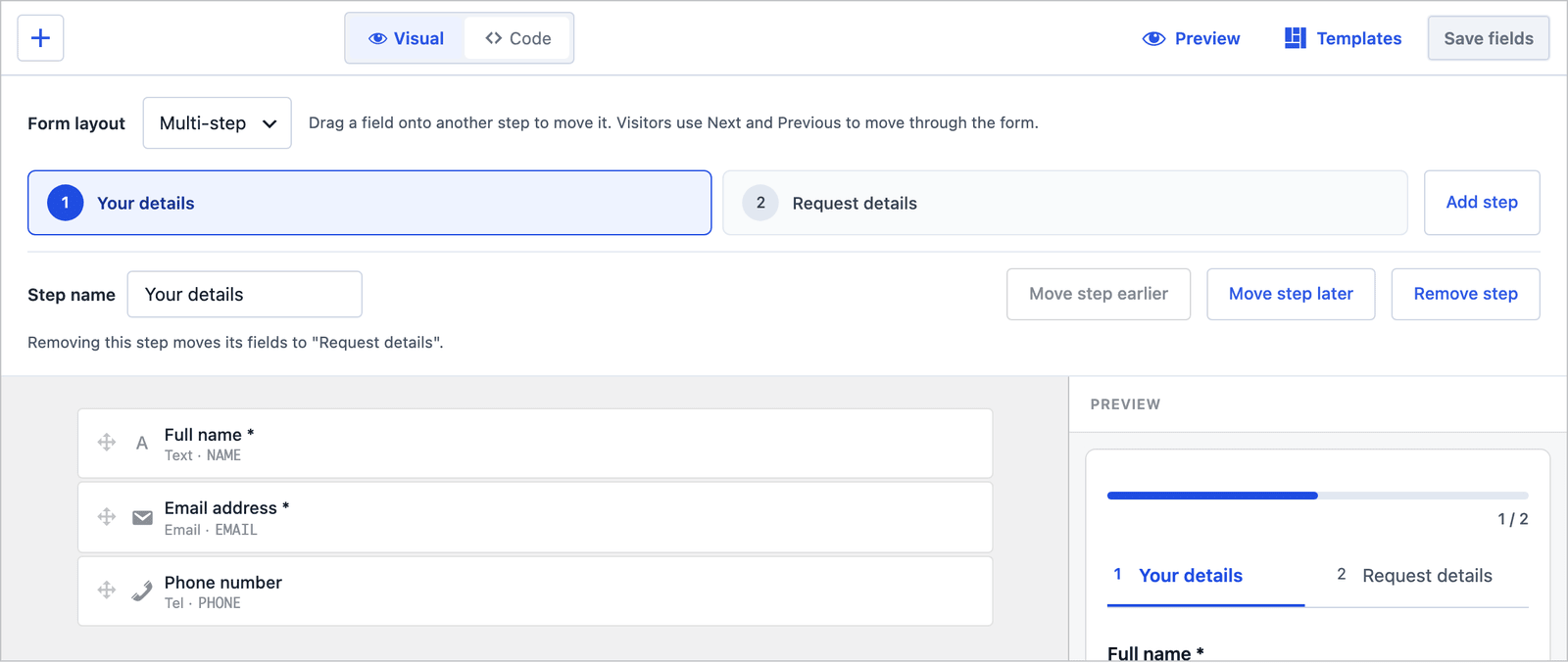 Fields can be dragged between the step tabs, and the step names can be changed. The multi-step form guide covers the steps in full.
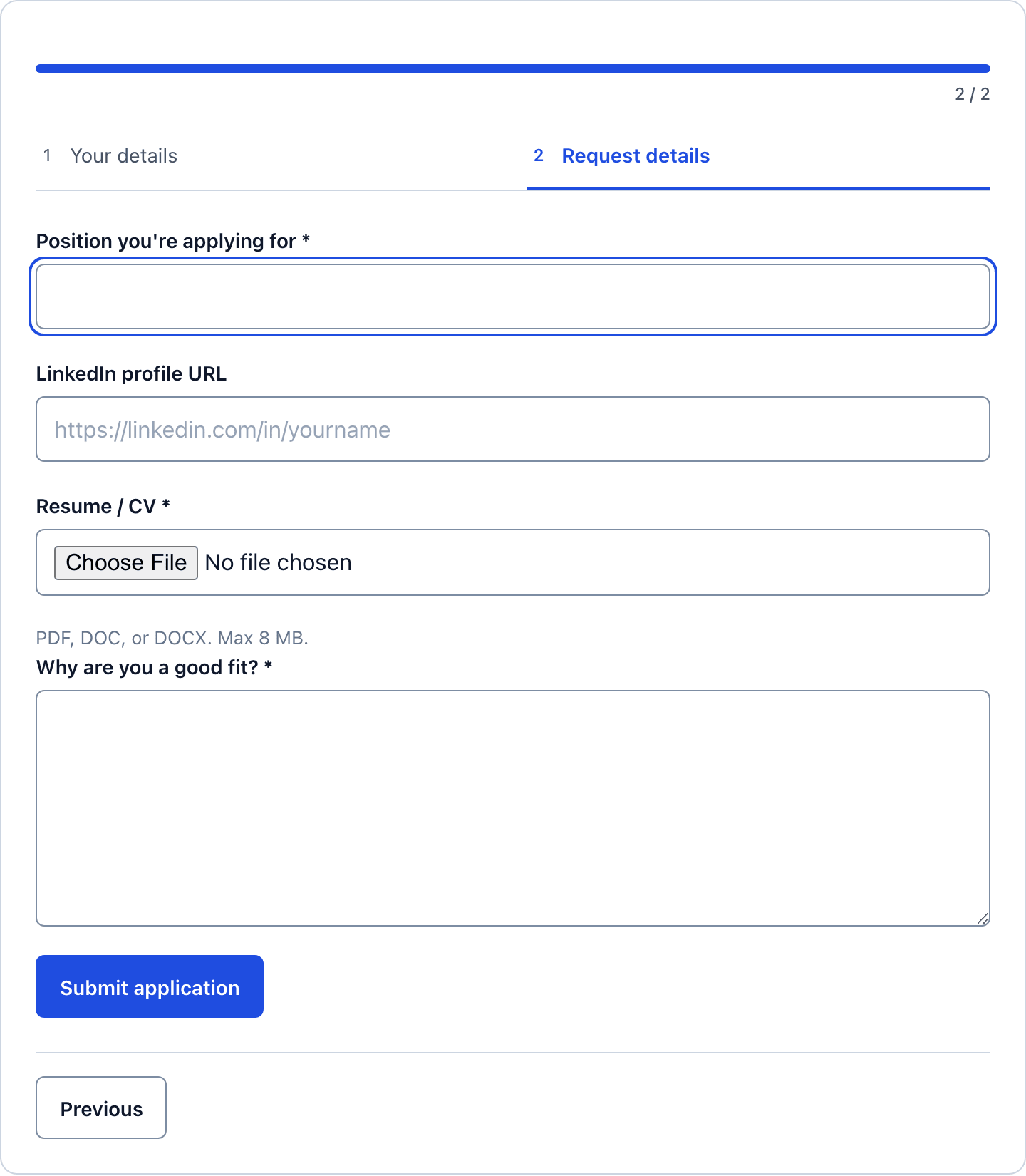 Next validates the first step, so an application never arrives without an email address.
For a job application I would use the multi-step version. A candidate is willing to give their name and email first, and the second screen then has the room the written answer and the upload need. The single page is the better fit when the form sits on a role page that already explains the job at length.
Publish the Job Application Form
The shortcode is shown next to the form’s name in the editor:
[cf_form slug="job-application"]
Paste it into the role page, or use the Core Forms block. Put the closing date and the expected reply time above the form, because “we reply to every application within 2 weeks” is the sentence candidates are looking for and the form cannot say it for you.
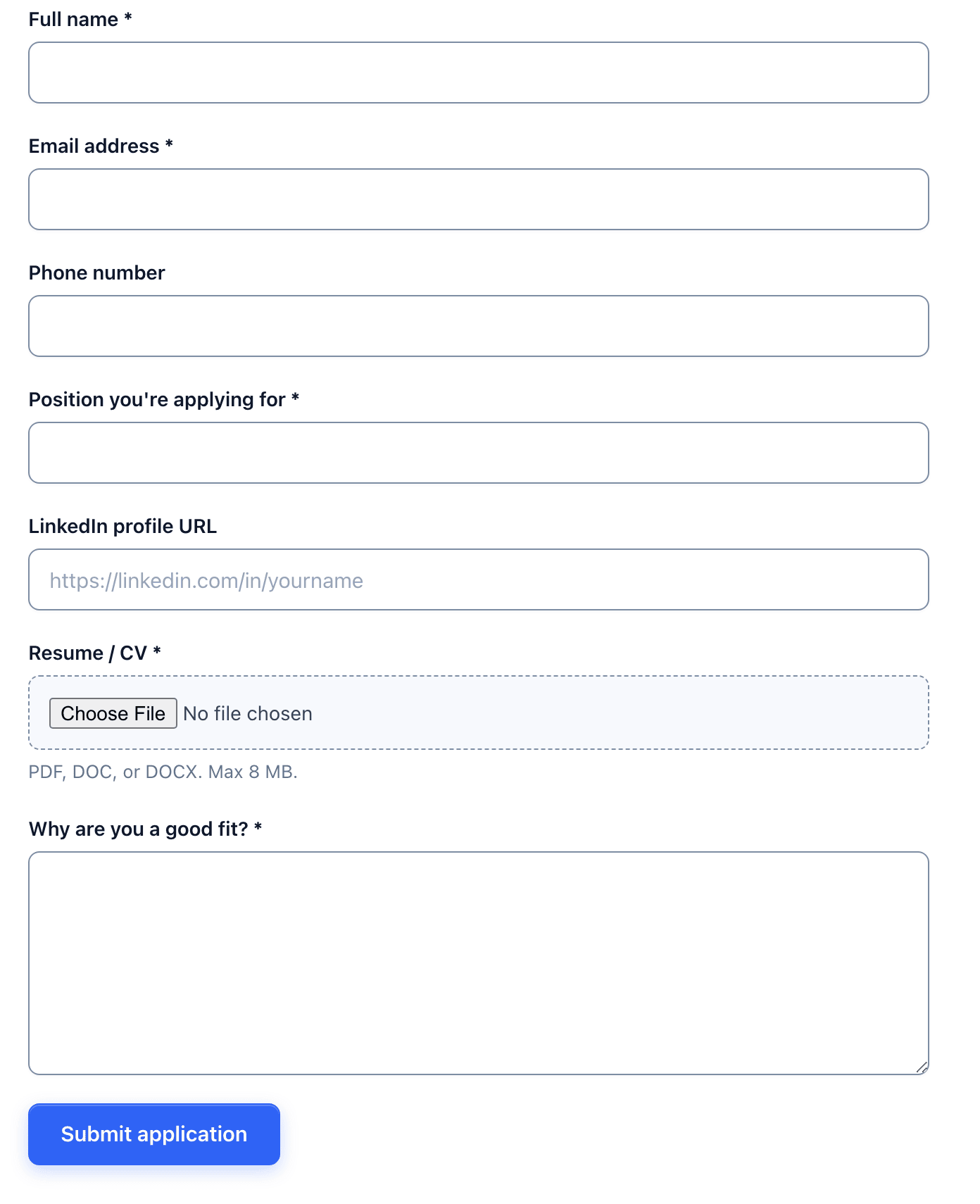 The help text under the upload is the only place the file limit is visible to the candidate.
Read the Applications
Every application lands in the form’s Submissions tab, with the position in its own column and the resume as a link.
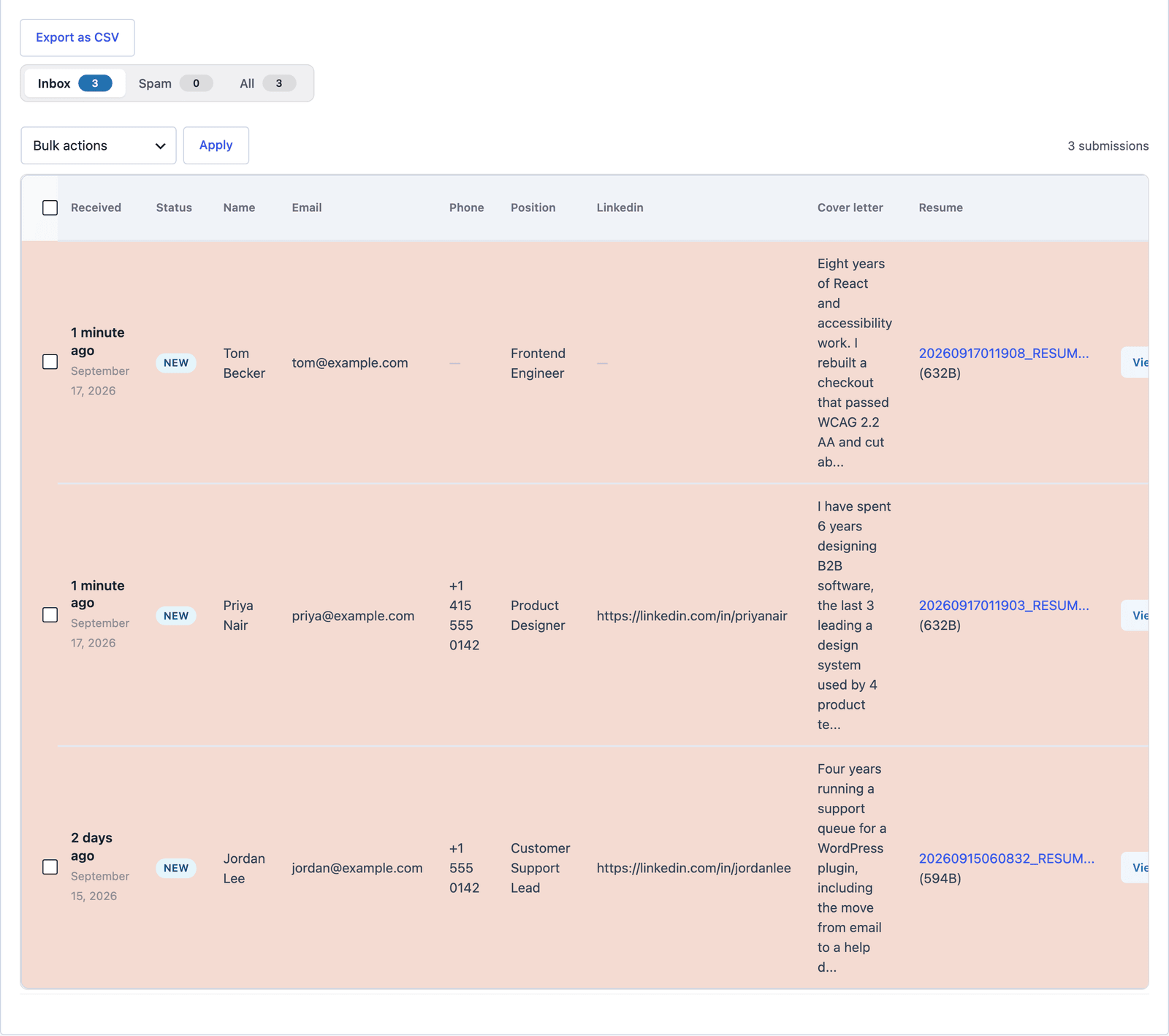 The resume column links to the uploaded file. Sort by Position when one form serves several roles.
Click View to read the written answer in full and download the resume, and answer the candidate from the Send Reply box on the same screen.
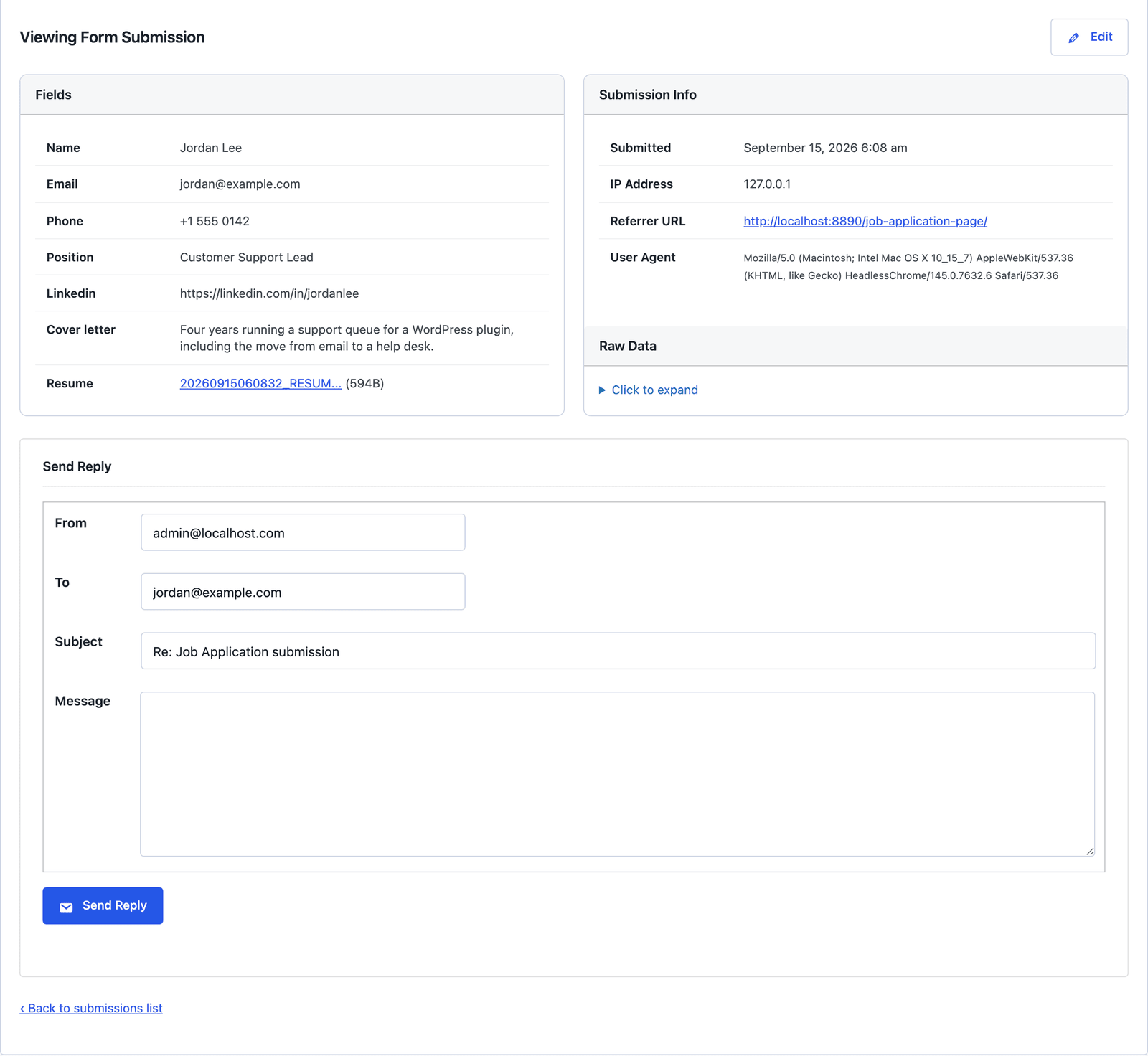 “Thanks, we would like to talk. Are you free Thursday?” is a 10-second reply from here.
For a team that screens in a spreadsheet, a Google Sheets action adds each application as a row, and a Slack action posts the name and position to a hiring channel the moment it arrives.
Keep the Data in Check
An application is personal data with a file attached, and 3 settings decide how carefully it is handled:
- Save submissions stays on, so the record and the file exist together in WordPress.
- The Auto-Responder action confirms receipt. Put the reply time in it and the “did you get my CV?” emails stop.
- Delete applications once the role is filled. The submissions inbox feature covers bulk delete, and a retention rule written above the form is the honest way to say how long you keep resumes.
Do not add date of birth, marital status, a photo or a national ID number to the first application. None of them helps you screen, and each one is a question you may not be allowed to ask where you are.
The Limits
The form does not post the job. It collects applications for a role you describe on the page, and a careers listing with several roles is a page you write, with one form under it or a form per role.
There is no applicant tracking. Statuses, stages and interview notes live in an ATS or a spreadsheet, and the form feeds it through an integration.
One file per application by default. A cover letter as a second upload is one more file field in the builder, with the same 8 MB limit per file.
The form does not check the resume. A 3-page PDF and a blank page both pass, and the written answer is the field that screens.
What Quietly Ruins a Job Application Form
A file limit the help text does not match. A candidate with a 6 MB portfolio PDF reads “Max 5 MB,” compresses it, and you never learn the real limit was 8.
Five essay questions on the first application. Strong candidates with 3 applications open answer the shortest form first.
A required phone number. It costs applications from people who prefer email, and the phone call is easy to ask for in the reply.
Leaving applications in the inbox after the hire. Resumes are personal data, and a retention rule you can act on is one bulk delete a month.
Final Remarks
You now have a job application form that collects the same 7 things from every candidate, with the resume attached, the file limit set and stated, and every application in an inbox you can sort by role. If you keep one idea from this guide, keep this one: one written question on the first application gets you better answers than five.
The job application form template page has the fields and a live demo, and the volunteer application form guide covers the unpaid version of the same form. If something here does not behave the way this guide describes, the support team can help.
I hope the next application through it is the one you hire.
FAQ
Can candidates upload more than one file?
Yes. Add a second file field, such as a cover letter or a portfolio, or turn on multiple files on the resume field. Each file has to pass the 8 MB limit and the type checks on its own.
Can applications go to a different email per role?
Yes. If Position is a select, recipient routes in the Send Email action send each role’s applications to its hiring manager, and the feedback form guide shows the routes screen.
Where are the resumes stored?
In the uploads folder under a core-forms directory on your own site, with execution blocked at the server level. The Submissions tab links to each file, and deleting a submission removes its record.