
How to Create a File Upload Form in WordPress
Build a WordPress file upload form that accepts the right file types, states the size limit, checks the real file behind the extension, blocks scripts at the server and links each file from the submission.

A file upload form in WordPress is a form with one more field and 4 more things that can go wrong: the wrong file type gets through, the size limit is not what the help text says, a script arrives dressed as an image, or the file lands somewhere it can run.
I build Core Forms, which includes file uploads without an add-on, and every screen here comes from it running on a test site.
One guide cannot cover every kind of upload, and a form that takes 2 GB videos is a different problem from one that takes a PDF. This one covers the upload field itself, the types and the size limit, the checks that run on every file whether you asked for them or not, where the files live and how they show up in the inbox, and the mistakes that turn an upload form into a security incident.
There is nothing to download. Or, if you get stuck halfway, support is a message away.
Start From a Template or Add the Field
The Job application template ships with a resume upload already configured, and it is the fastest way to see a working upload form:
- Go to Core Forms > Add New.
- Type
jobin the template search and click Use this template.
For a form you already have, add the field instead:
- Open the form’s Fields tab and click + to open the field list.
- Choose File upload.
- Set the label, the name and whether it is required, then click Save fields.
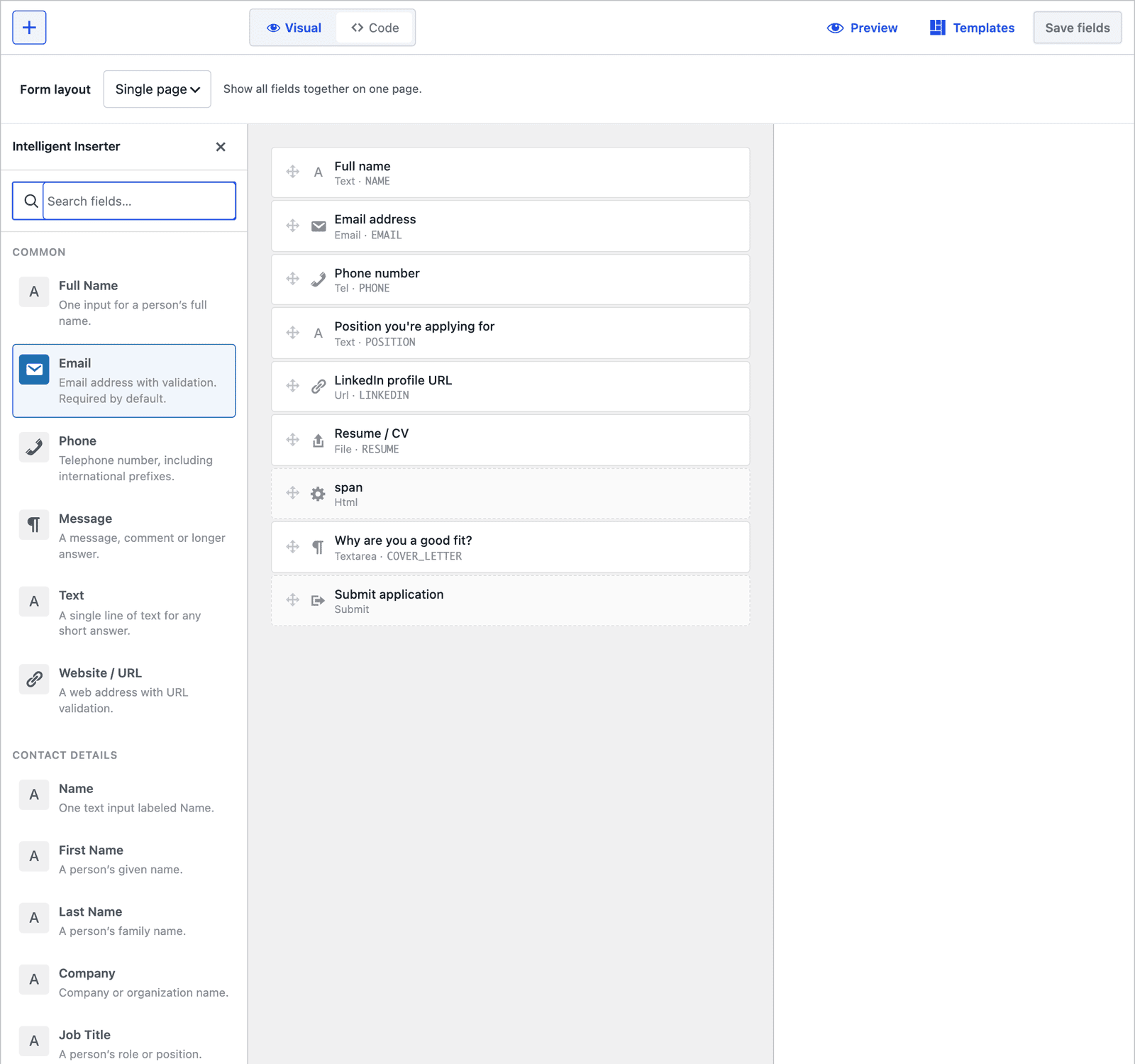 The inserter lists every field type. File upload is a plain field with no add-on behind it.
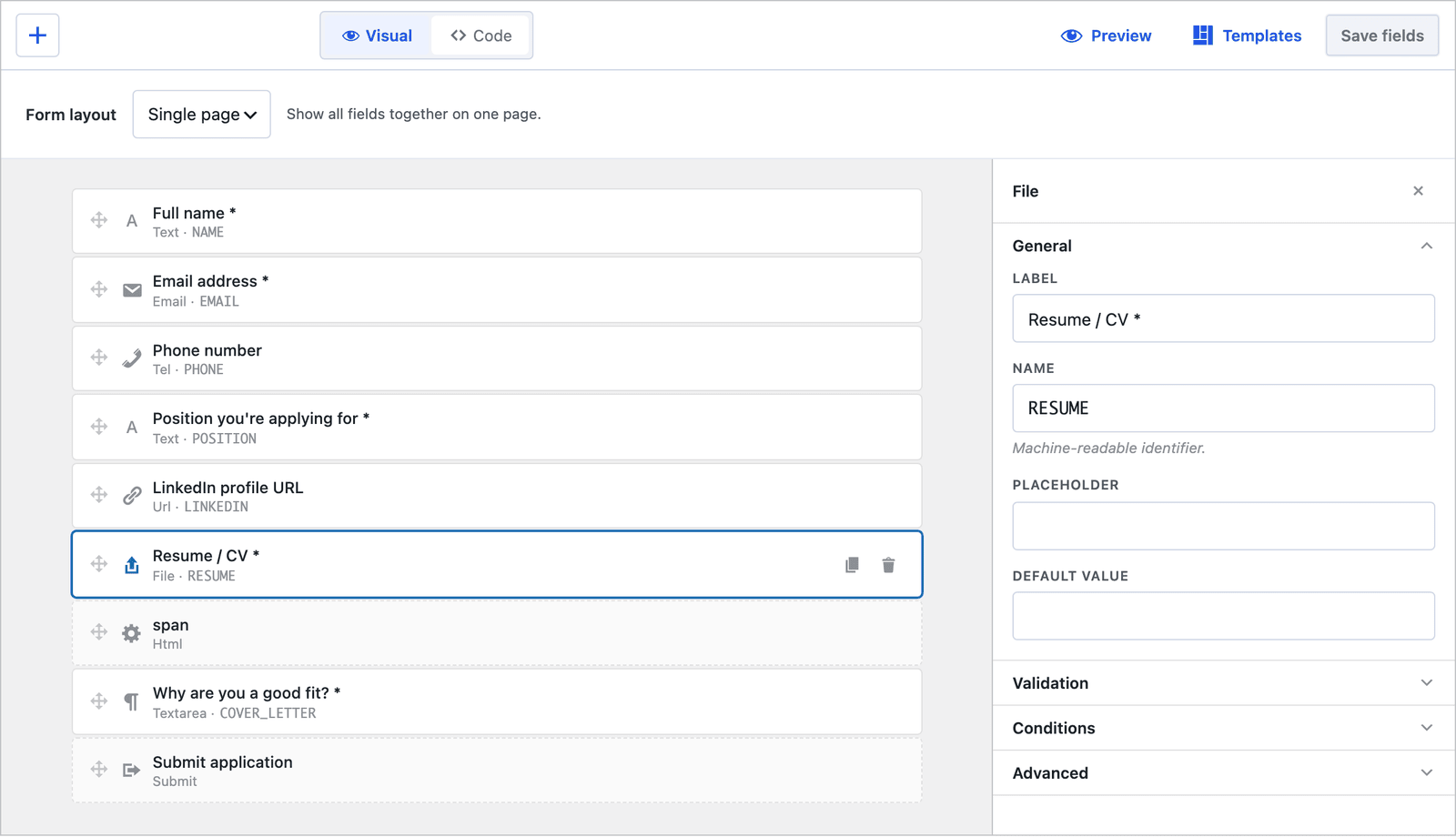 The accepted types are an accept attribute on the field. The help text under it is a separate item, so edit both when you change the types.
Choose the File Types
The accept attribute on the input lists the extensions the browser’s file picker offers, .pdf,.doc,.docx for a resume, .jpg,.jpeg,.png,.webp for photos. The inspector holds the label, the name, the required flag and the help text, and the attribute itself is edited in the Code tab, where the builder keeps it through every visual change. It is a courtesy to the visitor, not a security check, and the server does its own checking below.
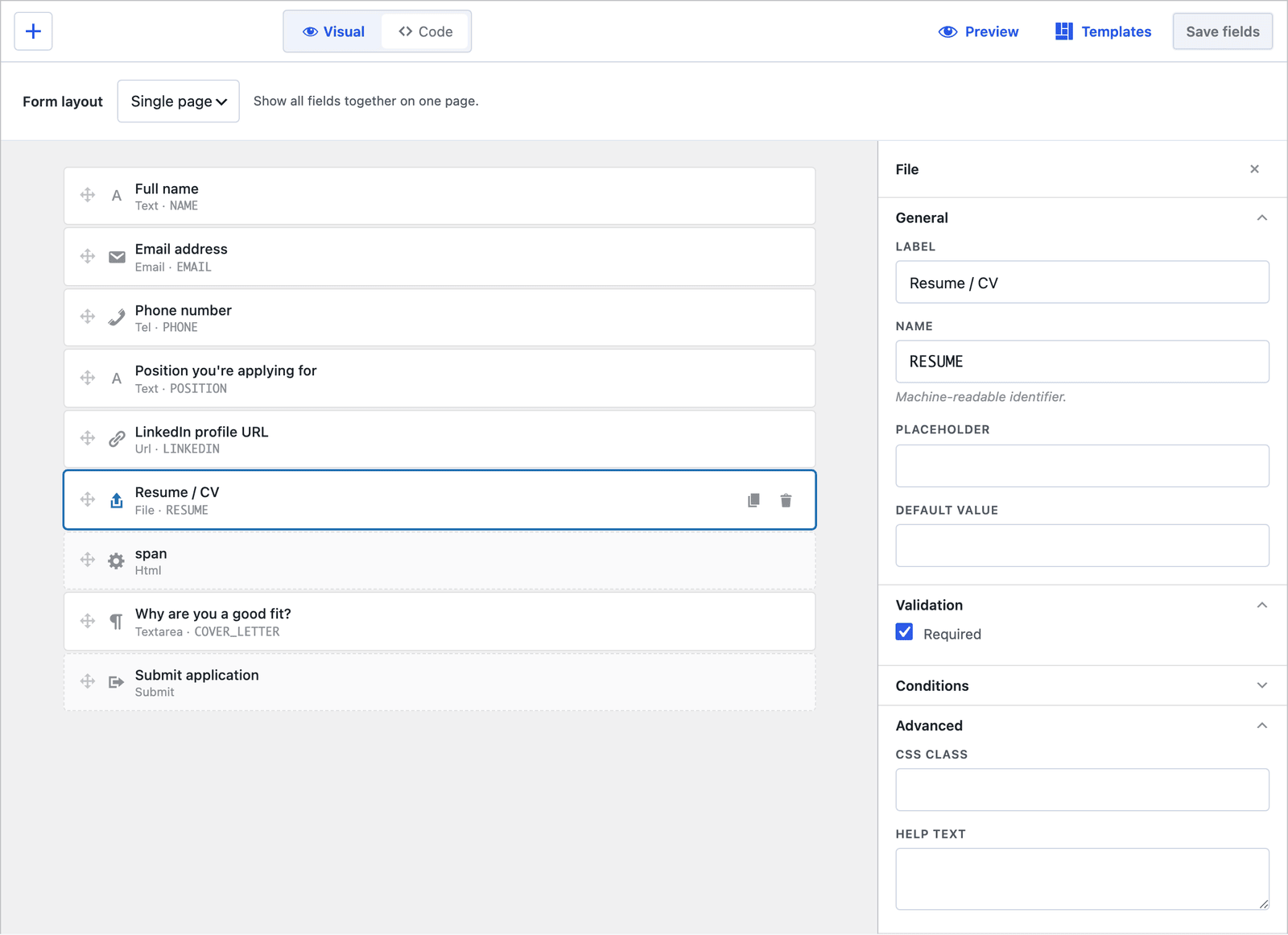 What the inspector edits. The accept and multiple attributes live on the input in the Code tab.
The plugin accepts these families out of the box:
- Images: jpg, jpeg, png, gif, webp, avif, bmp, tif, tiff.
- Documents: pdf, doc, docx, xls, xlsx, ppt, pptx, odt, ods, rtf.
- Text and data: txt, log, csv.
- Archives: zip, rar, gz, 7z.
- Audio and video: mp3, wav, ogg, m4a, mp4, webm, mov, avi.
SVG is not on the list, on purpose. An SVG is an XML document that can carry a script, and a form that accepts logos should ask for a PNG.
Set the Size Limit and Say So
The limit is 8 MB per file out of the box, and the help text under the field is the only place a visitor learns it. Write it there: “PDF, DOC or DOCX, up to 8 MB.”
To change the limit, one filter in a small plugin or the theme’s functions file:
add_filter( 'cf_upload_max_filesize', function () {
    return 25 * 1024 * 1024; // 25 MB in bytes
} );
The server’s own limits still apply. PHP’s upload_max_filesize and post_max_size have to be at least as large as the form’s limit, or the upload fails before the plugin sees it, and the hosting control panel is where those live.
What the Visitor Sees
The field renders as the browser’s native file picker with the accepted types applied, and the chosen filename appears next to the button.
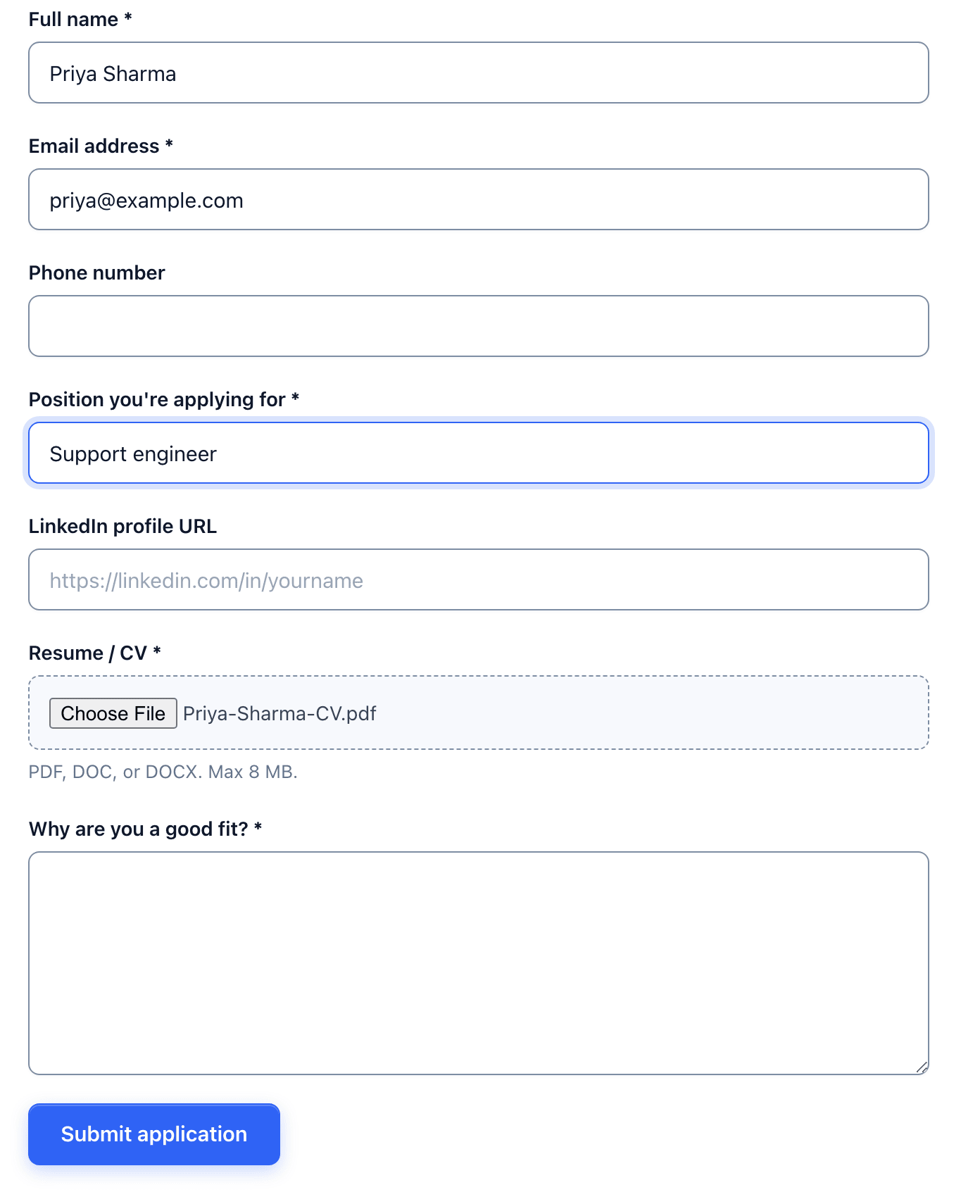 The help text is the visitor’s only warning about the limit, so keep it accurate.
A file over the limit, or of a type the server refuses, fails with a message next to the field, and the visitor’s other answers stay filled in. If any field on the form fails validation, the pending upload is discarded rather than stored, so a half-finished submission never leaves a file behind.
The Checks That Run on Every File
Five checks run on every upload, whether you configured anything or not, and they are the reason the accept attribute can be a courtesy:
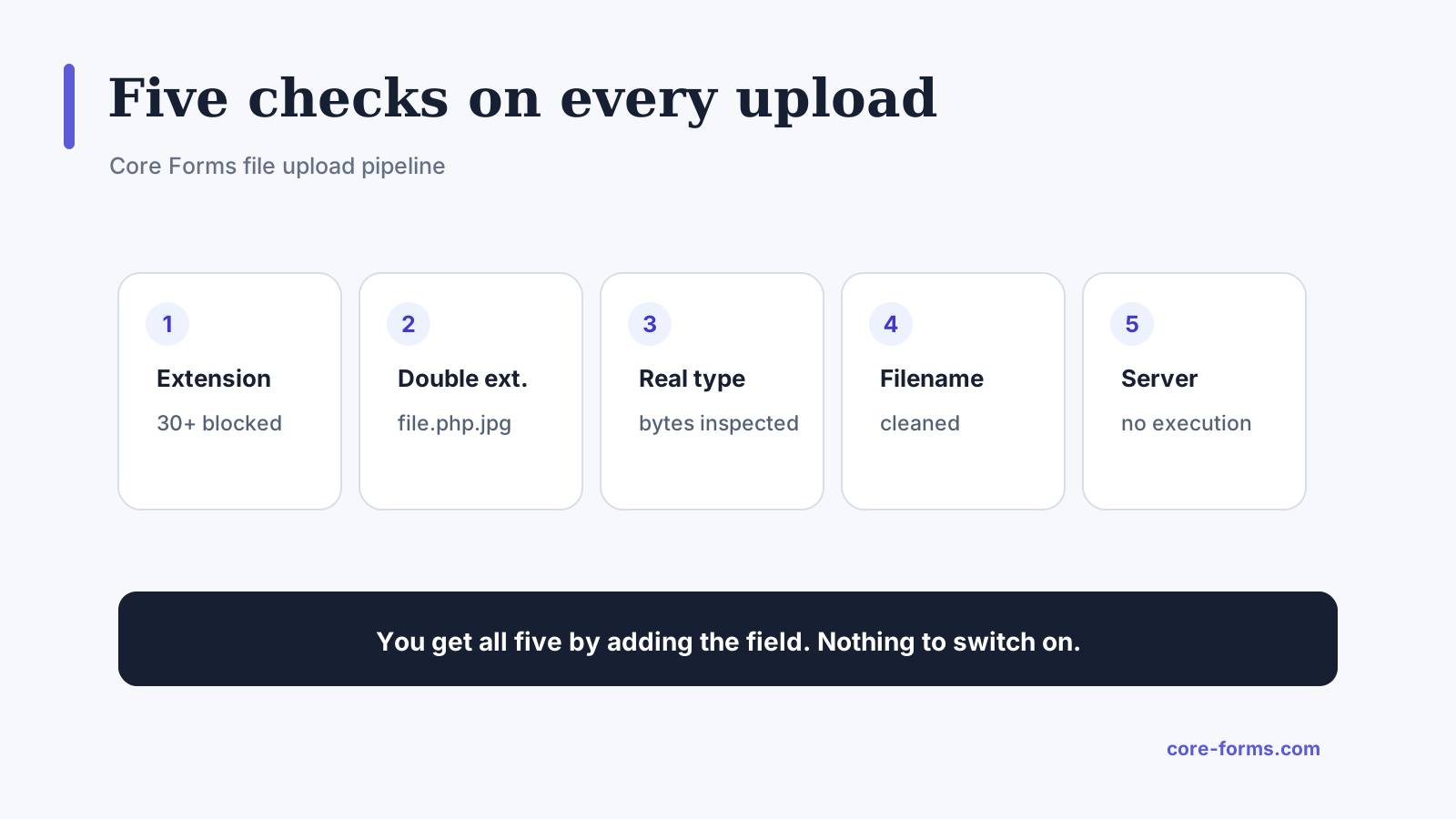 The order the checks run in. A file has to pass all 5.
- A blocklist of 30 or more extensions is rejected outright: php in every spelling, exe, bat, sh, cgi, pl, py, rb, jsp, asp, htaccess, svg and the rest.
- Double extensions are caught.
report.php.jpgis refused because of the php in the middle, anddata.backup.csvis fine because backup is harmless. - The real file type is inspected. The file’s bytes are read to find its actual type, and a file whose content does not match its extension is rejected, so a PHP script renamed to
photo.jpgnever gets in. - The filename is cleaned. Path characters, angle brackets, quotes and control characters are removed, spaces become hyphens, and an empty name becomes “upload.”
- Execution is blocked at the server. An
.htaccessfile in the upload folder denies script execution, and an index file prevents directory listing.
You get these by adding the field. There is no setting to turn them on, and no setting to turn them off.
Where the Files Live
Uploads are stored under your site’s uploads folder, in a core-forms directory, in a subfolder per form, with the submission ID, the field name and a random string in the filename:
wp-content/uploads/core-forms/job-application/42_resume_6612a3b4c5d6e.pdf
Each file is also added to the Media Library as a private attachment, so it shows up in the media screen for the admin and nowhere public. If you would rather keep uploads out of the library, one filter turns that off:
add_filter( 'cf_upload_add_to_media', '__return_false' );Read the Uploads in the Inbox
Every submission lands in the form’s Submissions tab, with the upload as a link in its own column.
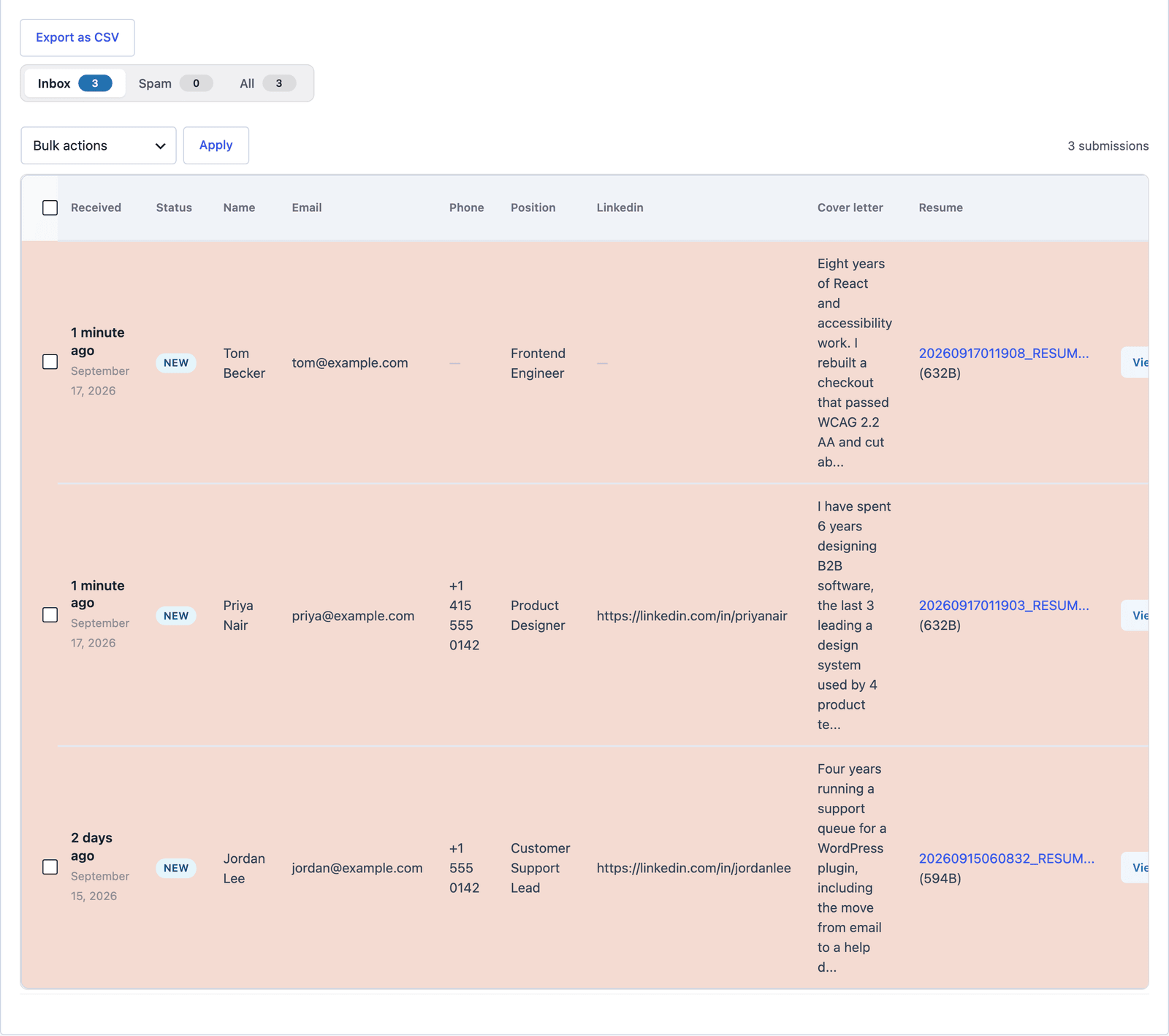 The link opens the file. The original filename is kept in the record next to the stored one.
Click View for the full record, which holds the original name, the stored name, the size and the type. An email notification can carry the link, and a Google Sheets action or a webhook receives the file’s URL and metadata rather than the bytes.
Multiple Files
For a portfolio or a set of photos, add the multiple attribute to the input in the Code tab and give the name square brackets, name="PHOTOS[]". The visitor picks several files at once, and each one is validated on its own against the type checks and the size limit. A batch where one file fails fails as a batch, with the message naming the file, so the visitor fixes one file rather than guessing.
PHP’s max_file_uploads setting caps how many files one request can carry, and 20 is the usual default.
The Limits
The limit is per file, not per submission. Ten 8 MB files on one form is 80 MB in one request, and the server’s post size limit is the one that will stop it.
Files are stored on your server. A form that takes large videos fills the disk, and a site that expects that should send uploads to object storage through a webhook rather than keep them in the uploads folder.
There is no virus scan. The type checks stop scripts and mismatched files, and a document with a malicious macro passes as a document. Open uploads from strangers with the same care as email attachments.
Deleting a submission removes its record. The submissions inbox feature covers bulk delete, and a retention rule written above the form is the honest way to tell people how long you keep their files.
Before It Goes Live
Five things to tick off, in the browser, before the form goes on a public page:
What Quietly Ruins a File Upload Form
A help text that does not match the limit. The visitor with a 6 MB file reads “Max 5 MB,” compresses it, and you never learn the real limit was 8.
Accepting SVG for logos. It is an XML file that can carry a script, and a PNG does the job without the risk.
A required upload on a first-contact form. Plenty of people want to ask a question before they attach a document, and the upload belongs on the second form.
Leaving 3 years of resumes in the uploads folder. They are personal data, and a bulk delete once a quarter is the whole retention policy.
Final Remarks
You now have a file upload form that offers the right types, states the limit the server enforces, checks the real file behind every extension, keeps scripts from ever running and links each file from its submission. If you keep one idea from this guide, keep this one: the accept attribute is for the visitor, and the checks that matter run on the server whether you set anything or not.
The file uploads feature page has the full list of checks, and the job application form guide builds the most common upload form from its template. If something here does not behave the way this guide describes, the support team can help.
I hope the first file through it is the one you were waiting for.
FAQ
Can visitors upload files without a plugin add-on?
Yes. File uploads are part of the Core Forms license, with the type checks, the size limit and the server-level protection included, and there is no upload add-on to buy.
Where does WordPress store form file uploads?
In a core-forms folder inside the site’s uploads directory, in a subfolder per form, with execution blocked by an .htaccess file. Each file is also a private attachment in the Media Library unless you turn that off.
Can I send uploaded files to Google Drive or Dropbox?
Not directly. A webhook or a Zapier or Make action receives the file’s URL and metadata, and the automation fetches the file from that URL and stores it where you want.