
Tutorial
Use Slack as your contact form inbox
Form submissions in your team's Slack channel beat email by a wide margin. Here's how to wire it up and what message format actually works.

Email is a terrible inbox for form submissions. Subject lines collide. The “from” address is your own server. Replying threads doesn’t work the way Gmail thinks it does. Three teammates each respond to the lead because no one knew who was on it.
Slack solves all of this. Drop the submission into a channel where everyone sees it, react with an emoji to claim it, thread the follow-up.
The wire-up is two minutes. Worth it on the first lead.
Step 1: Make the Slack incoming webhook
In Slack:
- Click your workspace name → Settings & administration → Manage apps.
- Search Incoming Webhooks, install it.
- Click Add to Slack.
- Pick the channel you want submissions to land in (
#leads,#contact,#support, your call). - Authorize.
- Copy the Webhook URL Slack gives you. It looks like
https://hooks.slack.com/services/T0/B0/abc123.
That URL is the only auth Slack needs. Keep it secret like a password.
Step 2: Wire the action in Core Forms
In your form’s Actions tab:
- Add action → Send to Slack.
- Paste the webhook URL.
- Compose the message body, and set a username the channel will recognize.
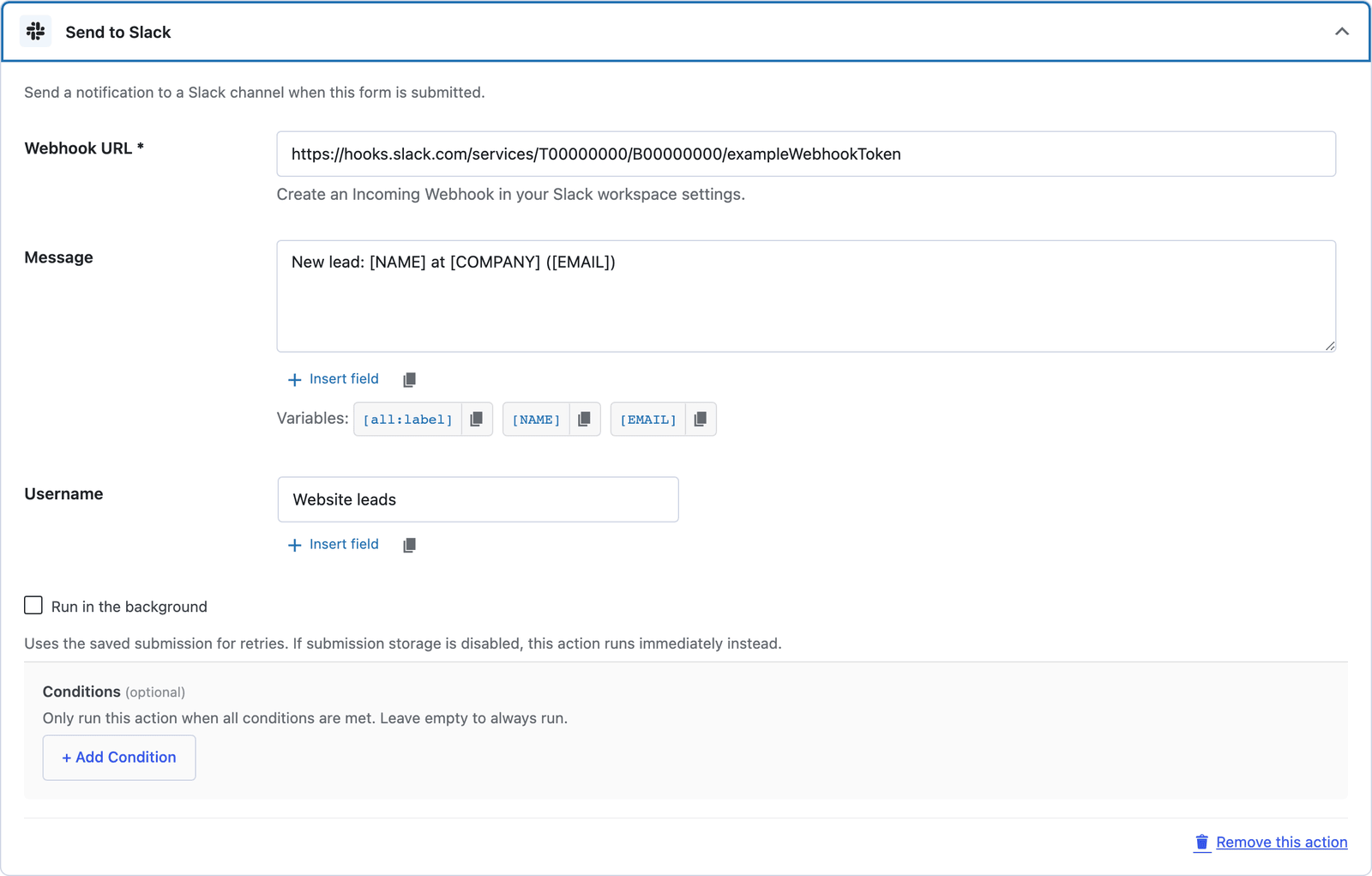 The Variables row under the message lists every field on the form, so the tokens are one click away.
This is where most setups go wrong. They paste the form data verbatim and end up with a wall of text in the channel. Don’t.
The message format that actually works
Here’s the pattern I use on every client site:
*New {form name} submission*

*From:* [name]
*Email:* [email]
*Reason:* [inquiry]
*Page:* [CF_REFERRER_URL]

*Message:*
[message]
Asterisks make the field labels bold (Slack Markdown). Tokens in [brackets] are Core Forms data variables. The form field values get inlined when the message sends.
Three things to notice:
- The first line is the headline. It’s what your teammates skim. Keep it short.
- Email is on its own line. Click-to-email works in Slack.
- The page URL is in there. So you know whether the lead came from
/pricing/or/contact/.
Use the Slack thread for follow-up
When a teammate claims a lead, they reply in a thread on that message. The whole conversation about that submission stays attached.
This is the actual unlock. Email threading is a hot mess. Slack threads are cheap and obvious.
Set a team norm: react with :eyes: to claim a lead, :white_check_mark: when responded. Two emojis, no process doc, the whole flow visible at a glance.
Conditional posting
Don’t pipe every submission to Slack. Pipe the ones that matter.
In the action’s Conditions section, set:
inquiry equals demoNow only “demo request” submissions hit Slack. Everything else stays out of the channel. Saves you from “another job application notification at 2am” fatigue.
For a lead-gen site, I usually set:
- Slack for “demo request” or “high-intent” submissions.
- Email auto-responder for everything else.
- Notion as the persistent record for all of it.
Three actions on one form. Each does one thing well.
What this won’t do
Two-way reply. You can’t respond to a Slack message and have it email the lead. You’d need a separate inbox for that. (Front, Help Scout, Missive — pick one.)
Search history beyond Slack’s free retention. If you’re on the free Slack plan, messages older than 90 days are gone. Pair Slack with Notion or Airtable for the actual archive.
File attachments. Slack incoming webhooks don’t accept attachments. If a submission has a file upload, the Slack message will link to the file URL, not embed it. Click through to view.
Test it before the first lead
The Slack action has no test panel, so submit the form once from a draft page and watch the channel. The message arrives with the sample values you typed, which is the fastest way to see the formatting before a visitor does.
The Discord variant
The Discord integration guide covers the Discord side in full, including the 25-field limit on an embed.
The exact same pattern works on Discord. Different webhook URL, slightly different markdown (Discord uses **bold**, Slack uses *bold*), otherwise identical.
If your team’s already in Discord, use Discord. Don’t migrate communities just to wire a form.
The next step
Pick the highest-intent form on your site. Pipe its submissions to Slack with the message format above. Start the team norm of :eyes: to claim.
The shift from “I check the form email when I remember” to “the team triages leads in real-time” happens on the first lead.
Slack is bundled with every Core Forms license. Pricing here.