
FlowMattic Integration for WordPress Forms: Trigger a Workflow From Every Submission
Trigger a FlowMattic workflow from a WordPress form with a per-form or shared Plugin Actions hook, capture a sample submission, map the entry fields and test it from the form before it goes live.

FlowMattic is an automation plugin that runs inside WordPress, and connecting a form to it means one thing: the form fires a hook, and a FlowMattic workflow listens for it.
I build Core Forms, which has a FlowMattic action built in, and every screen here comes from it running on a test site.
One guide cannot cover FlowMattic’s 200-odd app integrations, because that is what the workflow does after the trigger. It covers the trigger: the hook the form fires, the per-form and shared modes, capturing a sample so the fields map, what the payload carries, and how to test it from the form before a visitor submits.
There is nothing to download. Or, if you get stuck halfway, support is a message away.
How the Connection Works
FlowMattic has a trigger called Plugin Actions, which listens for any WordPress action hook. Core Forms fires one on each successful submission, with the submission as its single argument. That is the whole bridge.
Four things follow from that:
- Nothing leaves the server. The hook fires inside WordPress, and FlowMattic runs on the same site, so there is no webhook URL, no auth header and no outbound request to fail.
- Each form can have its own hook, named
cf_flowmattic_form_followed by the form’s ID, or several forms can sharecf_flowmattic_submissionand the workflow filters by form. - Payment forms wait. The hook fires only after the gateway confirms the payment, and spam submissions never reach it.
- A missing listener is a reported failure. If no workflow is listening on the hook, the action logs a configuration failure instead of pretending it worked.
There is no separate Core Forms app in FlowMattic’s catalog, and there does not need to be. The Plugin Actions trigger is one FlowMattic documents and supports.
Add the Action to the Form
- Open the form in Core Forms and click the Actions tab.
- Click Add Action and choose Trigger FlowMattic from the Automation group.
- Leave Trigger scope on This form.
- In Fields to expose, enter the field names, comma separated, or
*for every field. - Click Save Changes.
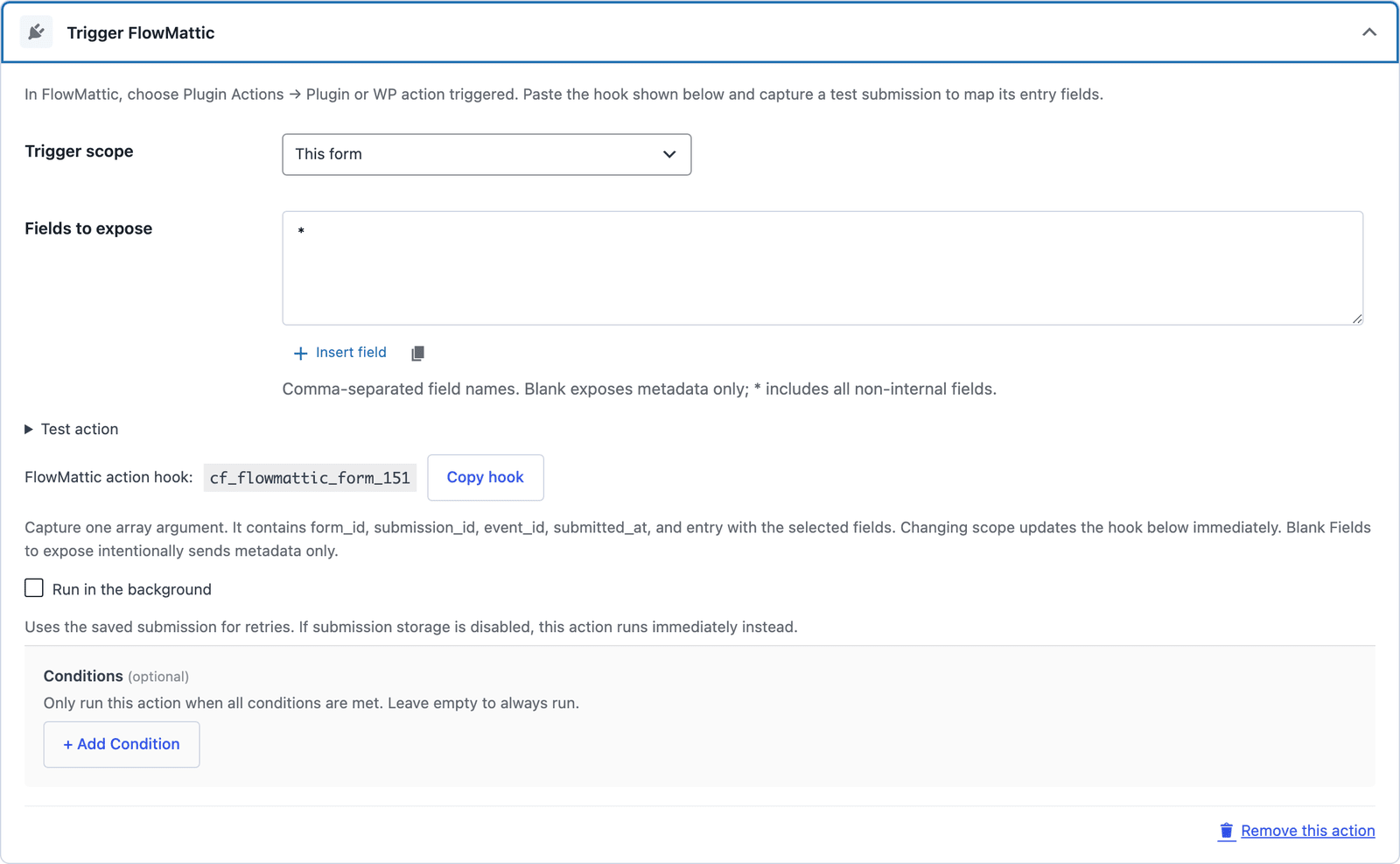 The hook name is shown on the card, with a Copy hook button next to it.
The field names are the uppercase names from the builder, NAME and EMAIL, and Insert field opens a picker so the list matches the form. A blank box sends metadata only, on purpose, for a workflow that needs to know a submission happened and nothing else.
Copy the Hook
Below the fields, the card shows the hook name, such as cf_flowmattic_form_151, with a Copy hook button. Copy it. That string is what FlowMattic listens for, and it changes the moment you change the scope, so copy it after the scope is set.
Set Up the FlowMattic Trigger
- In FlowMattic, create a new workflow and choose Plugin Actions as the trigger.
- Pick Plugin or WP action triggered and paste the hook name.
- Set the number of arguments to 1.
- Click Capture Response so FlowMattic listens for a sample.
- Back in Core Forms, expand Test action on the FlowMattic card and click Send test, or submit the form once on the front end.
- FlowMattic shows the captured payload. Map the keys inside
entryinto the next step of the workflow and enable it.
The capture step is the one people skip, and it is the one that makes the mapping work. Until FlowMattic has seen a sample, it does not know the form has an EMAIL key to map.
What the Payload Carries
The single argument is an array with the envelope and the entry:
form_id,form_title,form_slug,submission_id,submitted_atandevent_iddescribe the submission.entryholds the fields you chose, keyed by field name. Checkbox groups stay arrays.
IP address, user agent, nonces, passwords and local upload paths are never added. Files arrive as metadata. A submission that was not saved, on a form with saving turned off, has a unique event ID and a submission ID of zero.
One Hook for Many Forms
For 5 lead forms that all feed the same workflow, switch Trigger scope to Shared hook for opted-in forms on each of them. They all fire cf_flowmattic_submission, and the workflow reads form_id or form_slug to tell them apart. A Router step in FlowMattic on form_slug sends each form down its own branch.
Only forms with the action send the shared hook. Every other form on the site is untouched.
Test It From the Form
The Test action panel on the card starts with sample values for the form’s exact field names, so the test looks like a real submission:
- Expand Test action.
- Edit the JSON if you want a particular case, or click Use form field samples to reset it.
- Click Send test.
A successful test means the hook fired and a listener ran. The card then shows the hook and the entry payload it dispatched. What FlowMattic did after that is in FlowMattic’s execution history, which is where to look when the trigger fires and the Google Sheet stays empty.
A test with no listener fails with a message saying so, which is the fastest way to find out the workflow is not enabled yet.
Retries and Payments
Run in the background below the settings queues the trigger, and a failure is retried from the saved submission. The shared action runner does not replay a completed execution, and the event_id stays the same on a retry, so a workflow that creates records should check it before creating a second one.
On a payment form, the trigger waits for the gateway’s confirmation. A visitor who abandons the checkout never fires the workflow, and the “new customer” email FlowMattic sends goes only to people who paid.
The Limits
FlowMattic has to be on the same site. The hook is a WordPress action, and a workflow on another site listens through a webhook instead, which is what the webhook action is for.
The trigger reports that the listeners ran, not that every later step in the workflow succeeded. FlowMattic’s execution history is the record for that.
Files arrive as metadata, not as bytes. A workflow that needs the file fetches it from the submission through the REST API.
Deduplication is the workflow’s job. The event ID is there for it.
What Quietly Ruins a FlowMattic Integration
Mapping before capturing. FlowMattic cannot map keys it has not seen, and a workflow built from memory of the field names breaks on the first one that is spelled differently.
Changing the scope after copying the hook. The hook changes with the scope, and a workflow listening for the per-form hook hears nothing once the form is on the shared one.
Sending every field with * to a workflow that forwards them. The field list is where you decide which systems see the phone number.
Leaving the workflow disabled. The test fails with a clear message, and the message is worth reading before assuming the plugin is broken.
Final Remarks
You now have a WordPress form firing a FlowMattic workflow on every successful submission, with the fields you chose mapped from a captured sample, a hook that is per form or shared as you need, and a test panel that tells you the truth about whether anyone is listening. If you keep one idea from this guide, keep this one: capture a sample before you map, and copy the hook after you set the scope.
The FlowMattic integration page has the action’s reference, and the webhooks vs Zapier piece covers the outbound route for an automation tool on another server. If something here does not behave the way this guide describes, the support team can help.
I hope the first workflow you trigger is the one that has been waiting on a Zapier plan.
FAQ
Do I need a Core Forms app in FlowMattic?
No. The connection uses FlowMattic’s Plugin Actions trigger, which listens for a WordPress hook, and neither plugin needs an add-on.
Can one form trigger 2 workflows?
Yes. Two FlowMattic workflows can listen for the same hook, and both run. A single form can also carry 2 FlowMattic actions with different field lists if each workflow should see different fields.
What is the difference between this and a webhook?
A webhook is an HTTP request to a URL, which can be on any server. The FlowMattic trigger is a WordPress hook on the same site, with no request, no URL and no auth to configure. Use the hook when FlowMattic is on the site and the webhook action when the automation lives elsewhere.