
Airtable WordPress Integration: Build an Airtable Form With WordPress
Set up an Airtable WordPress integration that creates a typed record for every form submission, with a personal access token, a field map and numbers, checkboxes and multi-selects that arrive as the right types.

An Airtable WordPress integration is worth setting up the day a Google Sheet stops being enough: when you need a checkbox to be a checkbox, a number to sort as a number and a linked record instead of a name typed 3 different ways.
I build Core Forms, and the Airtable action here is the one that ships with it. Every screen comes from a lead form on a test site.
Airtable bases vary a lot, so one guide cannot cover every field type or a multi-table design. But almost every form-to-Airtable setup needs the same things, a token, a base, a table and a map from form fields to columns, and in this one I will try my best to cover those properly, including the type rules that decide whether a record is created or rejected.
There is no download for this one, because the action is already in the plugin. Or, if you get stuck halfway, support is a message away.
Why Airtable Over an Embedded Form
Airtable has its own form view, and you could embed it in WordPress. The reason to use a WordPress form that writes to Airtable instead is that the form then belongs to your site: your theme, your spam protection, your email notifications and a copy of every submission in WordPress that survives an Airtable outage or a plan change.
The Google Sheets to Airtable piece covers the sheet-versus-base decision. This guide assumes you have made it.
Create a Personal Access Token
Airtable uses personal access tokens with scopes limited to the bases you choose:
- Go to airtable.com/create/tokens and click Create new token.
- Add 2 scopes:
data.records:write, to create records, andschema.bases:read, so the action can read your table’s field types. - Under Access, add only the base the form will write to.
- Create the token and copy it. It starts with
pat.
The schema scope is what makes the action typed. It reads the table’s field definitions and converts each value before sending, which is the part that keeps a number from arriving as text.
Add the Action to the Form
- Open the form and go to the Actions tab.
- Under Add Action, find Data and click Add to Airtable.
- Paste the token into Personal Access Token.
- Enter the Base ID, the
app...string from the base’s URL or its API page. - Enter the Table Name exactly as it appears, or the
tbl...ID, which survives a rename. - Fill in the Field Mapping and click Save Changes.
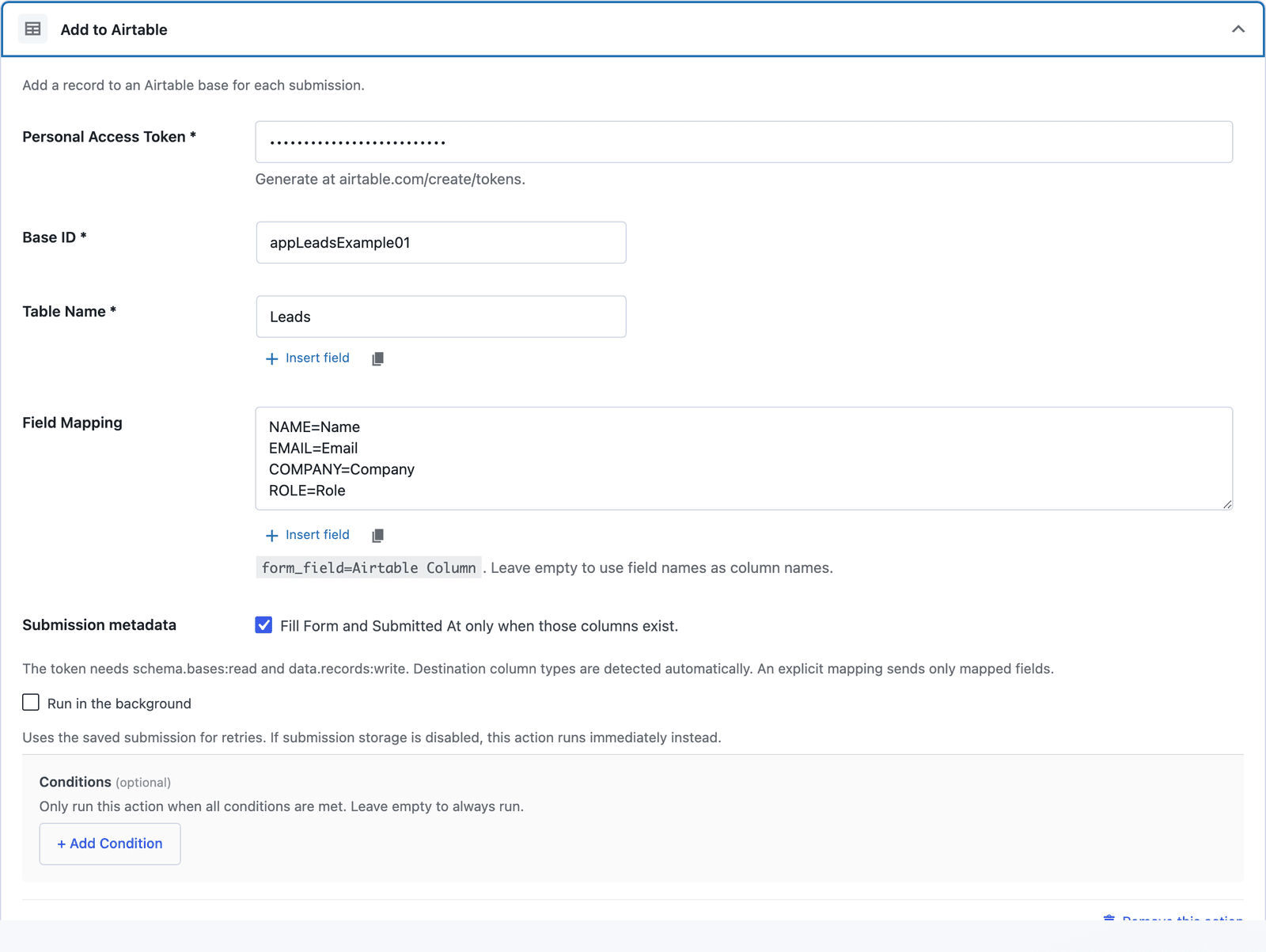 Submission metadata is on by default. It fills Form and Submitted At only if columns with those names exist.
Map the Fields
The Field Mapping box takes one line per field, form field on the left and Airtable column on the right:
NAME=NameEMAIL=EmailCOMPANY=CompanyROLE=Role
Two rules govern the map. With an explicit map, only the mapped fields are sent, so the honeypot and the consent checkbox stay home. With the box empty, the action matches form field names to column names directly, which works when you named the columns NAME and EMAIL to begin with.
Column names are exact, including capitals and spaces. A mapped column has to exist and has to be writable, so a formula or a lookup column on the right side fails with a configuration error rather than a silent skip.
The Types Airtable Expects
This is where Airtable earns its keep over a sheet, and where most first attempts fail. The action converts each value to match the column’s type:
- Number columns get numbers. A number field on the form arrives as a number, and a text field with “12” arrives as 12.
- Checkbox columns get true or false. A consent checkbox that was ticked becomes true.
- Multiple select columns get arrays. A checkbox group with 3 ticked options becomes 3 selected values, and the options have to exist in the column already unless the column allows new ones.
- Single select columns get one value, which also has to be an existing option.
- Date columns get
YYYY-MM-DD, and date-time columns get an ISO timestamp. A value with no timezone offset is read in the WordPress site’s timezone. - Linked record columns get record IDs, not names, so a hidden field carrying
rec...works and a typed company name does not.
A value the column cannot accept is a configuration error, reported in the action log with the field named. That is stricter than a sheet, and it is the reason the base stays clean.
Test It
The action has no test panel, so submit the form once yourself from a draft page and check the table. A row that does not arrive is a mapping or credential problem, and the submission is kept so the action can be retried once it is fixed.
Open the table in Airtable and the record should be there with the types intact. The schema is cached for 2 minutes, so a column you add in Airtable while testing may take that long to be recognized.
Run It in the Background
Tick Run in the background on the action. The submission is saved first, the visitor sees the confirmation, and the record is created afterwards with retries on a timeout or a rate limit. Invalid credentials and invalid mappings are not retried, because retrying does not fix them; they show in the action log until you correct the setting.
The Limits
The action creates records. It does not update an existing one when the same person submits again, so deduplication is a job for an Airtable automation on the base side, or for a unique field that rejects the second record.
Attachments are not supported. A file field arrives as text, the file’s name and URL on your site, not as an attachment in the column.
Computed columns cannot be written to. Formulas, lookups, rollups and counts are read-only in Airtable, and a map that points at one is a configuration error.
Select options have to exist. A new value in a checkbox group on the form does not create a new option in the column unless the column is set to allow that.
What Quietly Ruins an Airtable Integration
Giving the token access to every base. One base is what the form needs, and one base is what a leaked token can reach.
Using the table name after renaming the table. The tbl... ID is 1 click to copy and does not change.
Mapping a text field to a number column. “About 12” is not 12, and the record is rejected. Use a number field on the form, with a minimum, and the value always fits.
Leaving metadata on with no Form or Submitted At columns. Nothing breaks, and nothing is recorded either. Add the 2 columns or untick the box, so the setting means something.
Final Remarks
You now have a WordPress form that creates a typed Airtable record on every submission, with a token limited to one base, a map that sends only the fields you chose and an error for every value that would have dirtied the base. If you keep one idea from this guide, keep this one: the schema scope is what makes the action strict, and strict is what you wanted when you left the spreadsheet.
The Airtable integration page has the short setup, and the Google Sheets integration guide is the looser alternative when types do not matter. If something here does not behave the way this guide describes, the support team can help.
I hope the base stays as tidy as the day you built it.
The same pattern for Notion is in the form to Notion guide.
FAQ
Can the form write to a linked record field?
Yes, with a record ID. Put the rec... ID in a hidden field, or in a select whose option values are record IDs, and map it to the linked column. A typed name is rejected.
Does the integration need an Airtable paid plan?
No. Personal access tokens and the records API are available on the free plan. Rate limits apply per base, and the background queue retries when one is hit.
Can I send only some fields to Airtable?
Yes. An explicit field map sends the mapped fields only. Everything else stays in the WordPress submission and the email notification.