
Tutorial
Send form submissions to Notion in 3 min
Pipe leads, bug reports, and feedback into a Notion database with field mapping. The full setup, with the screenshots and the gotchas.

Most teams already write in Notion. Drop submissions into a Notion database and it stops being a “form inbox” problem and becomes “the database we already use.”
The wire-up is three minutes. The gotchas are real, but small. Here’s the whole thing.
Step 1: Create the Notion integration
In Notion, go to Settings → Integrations → Develop or manage integrations → New integration.
- Name it “Core Forms” (or whatever).
- Type: Internal.
- Capabilities: Insert content, Read content, Update content.
- Save.
Copy the Internal Integration Secret. You’ll paste it into Core Forms in a minute.
The mistake people make here: skipping “Read content.” Without it, Core Forms can’t list your databases. Tick all three.
Step 2: Share the database with the integration
Open the Notion database you want submissions to land in. Click the … menu at the top right → Connections → Add connections → pick your “Core Forms” integration.
This is the step everyone forgets. Notion integrations don’t see databases by default. You have to grant access per-database. If your integration is set up but Core Forms says “no databases found,” this is why.
Step 3: Pick the database properties
Look at the database. Note the column names exactly as they appear:
- Name (Title)
- Email (Email)
- Message (Text)
- Source (Select)
Notion’s property types matter for mapping. A Title property takes plain text. An Email property validates the format. A Select property only accepts one of the predefined options.
If your form might submit a value that isn’t in the Select options, Notion rejects the row. Either pre-populate the Select options or use a Text property. I default to Text for anything unpredictable.
Step 4: Wire it in Core Forms
Open the form you want to push to Notion. Go to the Actions tab.
- Click Add action → Add to Notion.
- Paste the Integration Secret into Integration Token.
- Paste the Database ID from the database’s URL, the 32-character string before the
?. For a database with more than one data source, paste the Data source ID instead, and it takes precedence. - Map form field names to Notion property names, one per line.
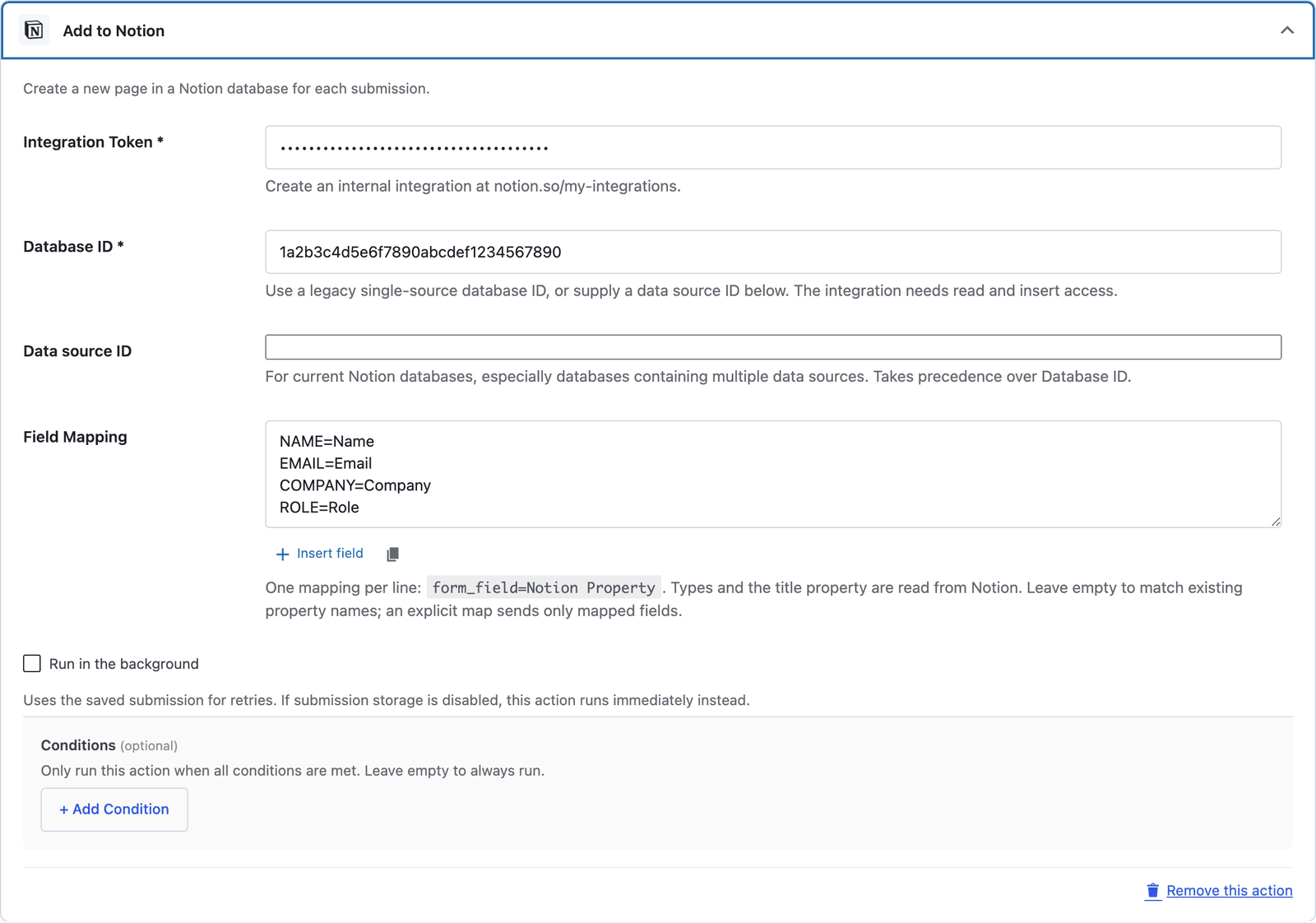 Property types and the title property are read from Notion, so a number field arrives as a number and the title lands in the Title column.
The mapping looks like:
NAME=Name
EMAIL=Email
MESSAGE=Message
CF_REFERRER_URL=Source
That last one is a Core Forms data variable. It captures the URL the form was submitted from. So you’ll know whether the lead came from your /pricing/ page or your /about/ page.
Save the form.
Step 5: Test it
Submit the form. Within a few seconds, the row appears in your Notion database.
If it doesn’t:
- Submit the form once yourself and check the database. The Notion action has no test panel, and a page that does not appear is almost always a property name that does not match the field map, so compare the two character for character.
- Check that the integration has access to the database (the most common failure).
- Check that property names in the mapping match exactly. Notion is case-sensitive.
What works well in this setup
Notion’s filtered views become inboxes. Add a filter “Status is unread” and you’ve got a triage view. Add another “Status is responded” and you’ve got a follow-up view.
Comments and history are free. Notion comments turn each lead into a discussion thread. You can @-mention a teammate, leave notes, attach docs, all on the same row.
Custom views per project. A board view by status, a calendar view by date, a gallery view by source — same data, three lenses.
API + sync. Once the data’s in Notion, you’ve got Notion’s API. Build a dashboard somewhere else, sync to a CRM, pipe to Slack on new rows.
What doesn’t work well
Search is mediocre. Notion’s search is fine for documents and bad for structured rows. If you’ll be searching submissions by exact-match strings often, a real database (Airtable, a SQL view) is better.
Property type changes are destructive. If you start with a Select property and switch to Text, Notion silently re-types existing rows. Sometimes the data survives, sometimes it doesn’t. Decide property types up front.
Rate limits exist. Notion’s API throttles at around 3 requests per second. For a typical contact form, never relevant. For a launch form that gets 500 submissions in an hour, you’ll see queueing.
The Notion vs Airtable call
If you’re picking between Notion and Airtable:
- Notion: when the team already lives there. When you want comments, threads, and free-form notes on each submission.
- Airtable: when you want strict schema, formulas, automations, and rich filtering. Better for high-volume structured data.
Both are bundled with Core Forms. Pick the one your team already uses.
The next step
Pick one form. Pick one Notion database. Wire it up.
Once you stop emailing yourself form submissions and start treating them as rows in the team’s existing workspace, the whole “form inbox” problem disappears.
The Notion action is included with every Core Forms license. Pricing here.
The same submission can go to a spreadsheet or a base as well, and the Google Sheets guide and the Airtable guide cover those routes.