
WordPress Google Sheets Integration: Send Form Submissions to a Sheet Without Zapier
Set up a WordPress Google Sheets integration that appends every form submission as a row, using a 30-line Apps Script receiver and a shared secret instead of Zapier or OAuth.

A WordPress Google Sheets integration is the one most teams want first, because a sheet is where a sales lead, an RSVP or a booking request gets looked at by the people who never open WordPress.
I build Core Forms, and the Google Sheets action here is the one that ships with it. Every screen comes from a lead form on a test site.
Google Sheets can be connected in several ways, so one guide cannot cover OAuth apps and service accounts as well. But almost every site needs the same thing, a new row per submission with the columns in the right order, and in this one I will try my best to cover that properly, using the route the plugin takes: a small Apps Script receiver in your own Google account and a shared secret.
The receiver script is a download on this site, and it is linked below. Or, if you get stuck halfway, support is a message away.
How the Connection Works
Before the steps, the idea, because it is different from most plugins. There is no Google login inside WordPress and no OAuth consent screen.
Instead, a short Apps Script runs in your own Google account as a web app. Core Forms posts each submission to that script’s URL as JSON, and the script appends a row to the sheet you name. A shared secret, set in both places, is checked before anything is written, so a stranger who finds the URL cannot add rows.
That design has 2 consequences worth knowing. Nothing about your Google account is stored in WordPress, and the script is 30 lines you can read in full before you deploy it.
Deploy the Receiver Script
The maintained receiver is on the Google Sheets integration page, as a file called Code.gs:
- Create a new spreadsheet, and in the first row type the form’s field names as headers:
NAME,EMAIL,COMPANY,ROLE. Add_form_titleand_submitted_atas headers too if you want those columns. - Copy the spreadsheet’s ID from its URL, the long string between
/d/and/edit. - Open Extensions > Apps Script from the spreadsheet, delete the sample code and paste in the receiver.
- Under Project Settings > Script Properties, add
CF_SHARED_SECRETwith a long random value,SPREADSHEET_IDwith the ID from step 2 and, if the tab is not the first one,SHEET_NAME. - Click Deploy > New deployment, choose Web app, set Execute as to yourself and Who has access to Anyone, then deploy and copy the URL that ends in
/exec.
“Anyone” sounds wrong, and it is correct. The script itself rejects every request that does not carry the secret, so the URL being reachable is not the same as the sheet being writable.
Headers match field names exactly, and matching is case-sensitive. NAME in the sheet and NAME on the form work; Name and NAME do not. Column order does not matter, because the script reads the header row and puts each value under its own heading.
Add the Action to the Form
- Open the form and go to the Actions tab.
- Under Add Action, find Data and click Add to Google Sheet.
- Paste the deployment URL into Web App URL.
- Paste the same secret into Shared secret.
- In Fields, list the fields to send, or leave it empty to send all of them.
- Click Save Changes.
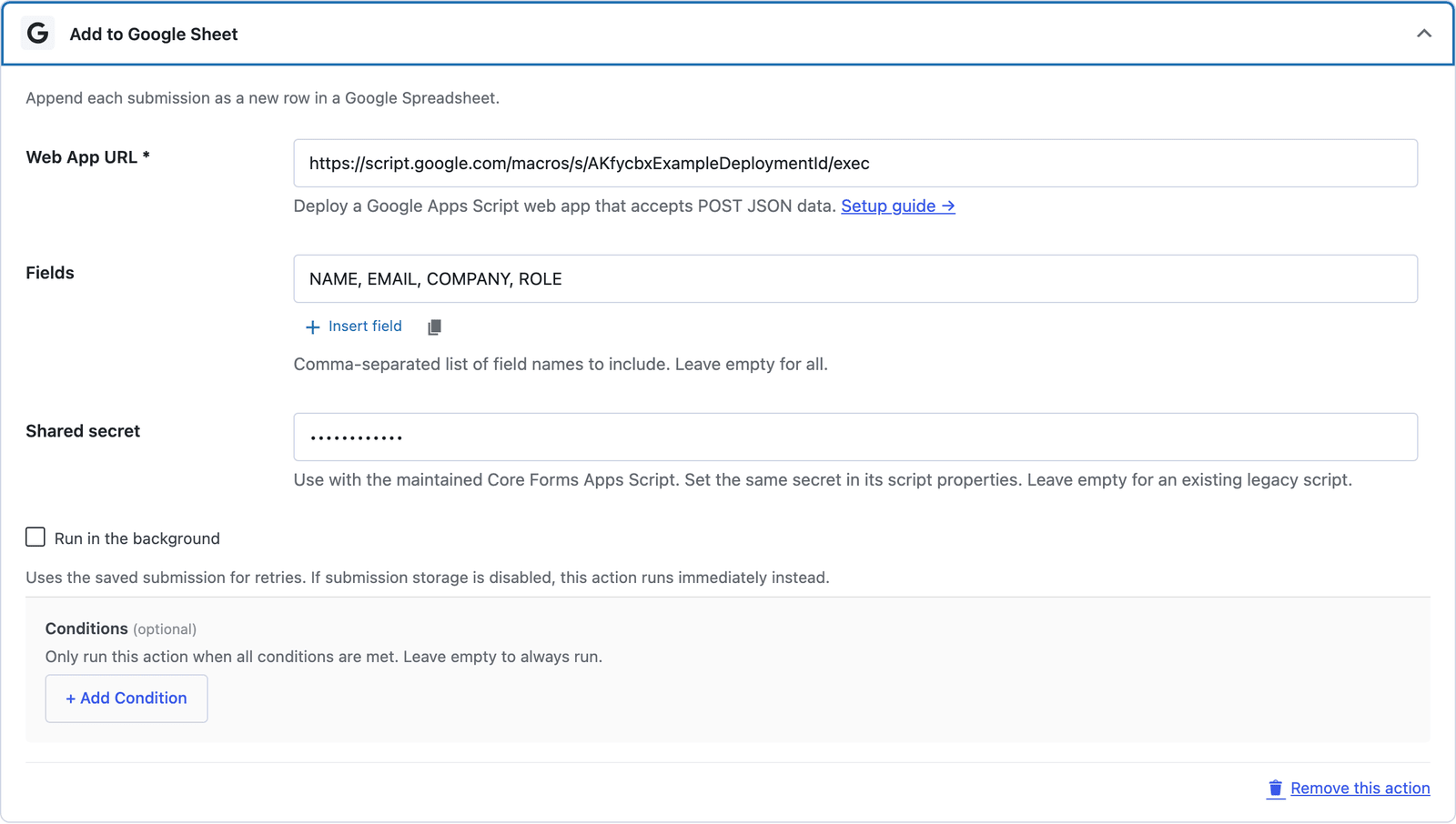 The Fields box limits what leaves your site. A form with a message field can send the name and email and keep the message in WordPress.
The URL has to be the deployed /exec one. The Apps Script editor URL and the /dev URL both look similar and neither one accepts requests from Core Forms.
Test It
The action has no test panel, so submit the form once yourself from a draft page and check the sheet. A row that does not arrive is a mapping or credential problem, and the submission is kept so the action can be retried once it is fixed.
Open the sheet and the sample row should be there. If the reply says unauthorized, the 2 secrets do not match. If it says missing headers, the first row of the sheet is empty or the sheet name is wrong.
What Ends Up in the Sheet
A few details of the receiver are worth knowing before the real submissions start:
- A value of
0stays0and a checkbox that was left unticked staysfalse, rather than becoming an empty cell. - Checkbox groups and multi-selects arrive as one cell with the values separated by commas.
- A value that starts with
=,+,-or@is stored as text, so a visitor cannot type a formula into your sheet. - The shared secret is removed from the payload before the row is written and never appears in a cell.
That third one is the quiet security point. A sheet that other people open with formulas enabled is a place where a typed =IMPORTRANGE(...) would otherwise run.
Run It in the Background
Apps Script has cold starts, and the first request after a quiet hour can take a few seconds. Tick Run in the background on the action so the visitor sees the confirmation right away and the row is written from the saved submission afterwards, with a retry if the script times out. The request itself waits up to 30 seconds.
The Limits
The receiver appends. It does not update a row when the same person submits twice, so a lead who fills in the form again is a second row. If you need one row per email, that is a formula or a script on the sheet side, or an Airtable action instead, which can hold a unique field.
Delivery is at least once, not exactly once. If the script appends a row and the reply is lost on the way back, a background retry adds a second row. Adding _submitted_at as a column makes those duplicates easy to spot and remove.
Uploaded files are not attached. A file field arrives as the file’s name and URL on your site, not as a file in Drive.
The script runs as you, with access to that one spreadsheet ID. If you leave the company, the deployment goes with your account, so deploy it from a shared or service mailbox on a team site.
What Quietly Ruins a Google Sheets Integration
Deploying with “Only myself” access. It feels safer, and it means every request from your site is turned away at Google’s login page, which the action logs as a failure.
Retyping the headers with spaces or lowercase. The match is exact, so Work email in the sheet and EMAIL on the form leave an empty column and nobody notices for a week.
Sending every field. The message box, the consent checkbox and the honeypot value do not belong in a sheet the whole company can open. List the fields you need.
Using the sheet as the only copy. Saved submissions in WordPress are the record; the sheet is a view of it. Keep both.
Final Remarks
You now have a WordPress form that writes every submission to a Google Sheet through a script you can read, with a secret that keeps strangers out and a field list that keeps private answers in. If you keep one idea from this guide, keep this one: the headers are the mapping, so name them exactly as the form fields and the rest takes care of itself.
The Google Sheets integration page has the receiver download and the short setup, and the Google Sheets to Airtable piece explains when a sheet stops being enough. If something here does not behave the way this guide describes, the support team can help.
I hope the sheet fills up with the right rows.
FAQ
Do I need a Google Cloud project or a service account?
No. The receiver is an Apps Script web app deployed from your own Google account, and the shared secret handles authentication. No OAuth client, no service account key.
Can I send submissions from several forms to one sheet?
Yes, if the forms share field names, or if the sheet has a header for every field across the forms. Empty columns are left blank. Adding the _form_title header tells the rows apart.
Can the sheet update an existing row instead of adding one?
Not with the maintained receiver, which appends. A custom Apps Script can look up a row by email before writing, and the payload gives it everything it needs.