
How to Create a WordPress Ticketing System With Core Forms
Create a WordPress ticketing system with Core Forms: saved requests, ticket numbers, email confirmations, routing and replies, without another helpdesk plugin.

A WordPress ticketing system needs a reliable way to keep each request and follow it through to an answer. Core Forms can handle that with saved submissions and email actions, including a ticket reference that appears in both the team notification and the customer’s confirmation. You don’t need another helpdesk plugin for this setup.
I’m using this arrangement for support on gauravtiwari.org and core-forms.com. The support pages serve different audiences, but both send requests to Core Forms on the same WordPress installation.
This is an email-led support system. Core Forms keeps the original request and replies sent from its admin screen, while your mailbox receives the customer’s email follow-ups. It suits an operation where someone can monitor that mailbox and keep the queue current. It doesn’t add a customer ticket portal or automatically import incoming email.
The settings below follow that arrangement, with email templates you can copy and a checklist for checking your own setup.
How the Core Forms Ticketing System Works
Each saved submission becomes the record for a support request. Core Forms gives it an ID, and the email actions turn that ID into the reference the customer sees.
The two support pages show how the same approach can serve different needs:
| Part of the Setup | gauravtiwari.org/support | core-forms.com/support |
|---|---|---|
| Audience | Customers of several products | Core Forms customers |
| Product selection | Required Product dropdown | Unnecessary because the page is already product-specific |
| Form display | Core Forms on WordPress | Core Forms through its headless REST mode |
| Request storage | Core Forms on gauravtiwari.org | Core Forms on gauravtiwari.org |
| Reference pattern | GT-[CF_SUBMISSION_ID] | CF-[CF_SUBMISSION_ID] |
| Submission actions | Send Email and Auto-Responder | Send Email and Auto-Responder |
These are separate forms sharing a backend. Their prefixes make the source recognizable when a message reaches the support inbox.
You can see the intake pages at Gaurav Tiwari product support and Core Forms support. The sequence behind them is:
- The customer submits the support form.
- Core Forms validates the request and saves the submission.
- Send Email notifies the team, including the reference and request details.
- Auto-Responder sends the customer the same reference and explains how to follow up.
- The operator answers the request and archives the submission when the conversation is finished.
The reference connects the messages to the stored request. It doesn’t create an incoming-email connection by itself.
What You Need Before Starting
Core Forms is the only form or helpdesk plugin required for the WordPress setup. Email still needs a working delivery service and a mailbox someone reads.
Before building the form, have these ready:
- A WordPress site with Core Forms active and permission to edit forms and submissions.
- A support mailbox that receives customer replies.
- A sender address on a domain you control, configured for your site’s email delivery.
- Working WordPress email delivery. Core Forms’ Send Email, Auto-Responder and admin reply tools use WordPress mail. A working host mail setup can handle this; a site that needs SMTP must configure that transport separately.
- A response-time statement you can meet, such as replying within 1 business day. This is your operating commitment, not a timer Core Forms enforces.
The example addresses below use example.com. Replace them with your own addresses before submitting anything.
Step 1: Create the Support Form
Start with the Support request template, which already includes the fields and the 2 email actions this workflow needs.
- Open Core Forms > Add New.
- Search the templates for
support. - Choose Support request and name the form.
- Review the fields, then save your changes.
Keep these field names if you want to paste the email templates below without changing their variables:
| Field | Field Name | Purpose |
|---|---|---|
| Your name | NAME | Address the customer by name |
| Email address | EMAIL | Send the acknowledgment and your answer |
| Site URL | SITE_URL | Identify the affected site |
| Category | CATEGORY | Distinguish bugs from questions or account issues |
| Priority | PRIORITY | Let the customer explain urgency |
| Subject | SUBJECT | Give the request a recognizable email subject |
| Describe the issue | DESCRIPTION | Collect the problem and reproduction details |
The visible label and the field name have different jobs. A label can say “Your Email Address,” but [EMAIL] only reads the field whose name is EMAIL.
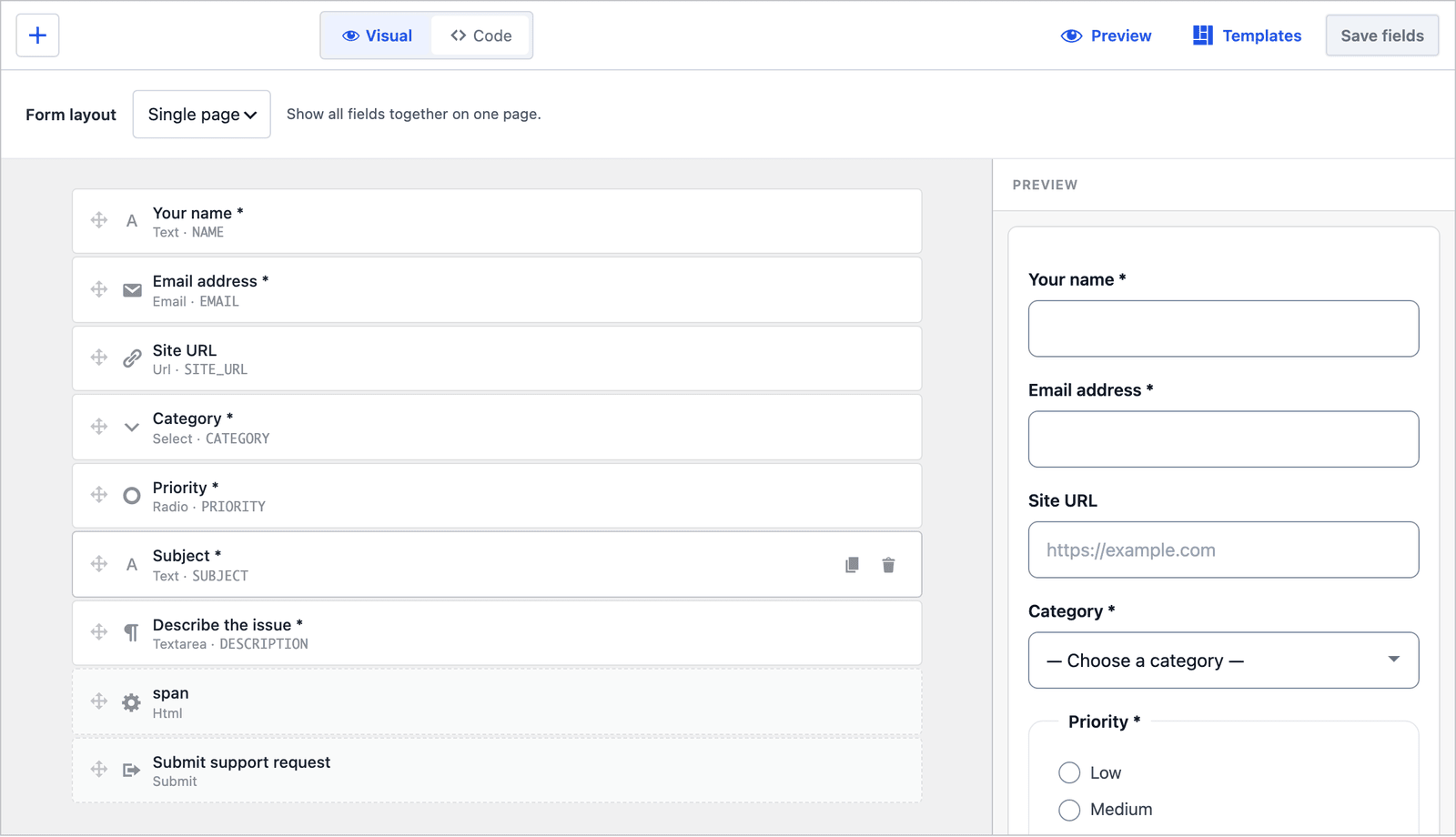
The field names shown in the builder are the names your email actions should reference.
For a support page covering several products, add a required Product select named PRODUCT. For a page dedicated to one product, leave it out. The customer shouldn’t have to select the only possible answer.
The template’s stored choice values are:
- Category:
bug,feature,helpandaccount. - Priority:
low,mediumandhigh.
These values matter when you add routing conditions later. The support request form tutorial covers the template and layout choices in more detail.
Above the form, explain what makes a useful request. Ask for the steps that trigger the problem, what the customer expected and what happened instead. A short reminder to leave out passwords and full license keys also belongs here, because the description will be copied into emails.
Keep the honeypot enabled in Settings. This hidden field catches bots that fill every input. For a public support page, review the form’s rate limit as well, allowing enough requests for customers on a shared connection. Neither measure should prevent a customer from reporting a separate issue.
Expected result: the form collects enough information to begin helping, and each field has a stable name that the actions can use.
Step 2: Save Submissions and Add Ticket References
Submission storage is essential for a Core Forms ticketing system. The reference comes from the saved record, so a form that only sends email cannot provide the same record-backed workflow.
- Open the form’s Settings tab.
- Keep Save submissions enabled.
- Choose a short prefix for the reference, such as
CF-orSUP-. - Use that prefix with
[CF_SUBMISSION_ID]in both email actions.
For the Core Forms support form, the pattern is:
CF-[CF_SUBMISSION_ID]If a saved submission has ID 482, this becomes CF-482. That number is an example; Core Forms supplies the actual ID when it saves your request.
There is no ticket-number field to add and no counter to maintain. The prefix is ordinary text, and [CF_SUBMISSION_ID] is a built-in data variable that the action replaces.
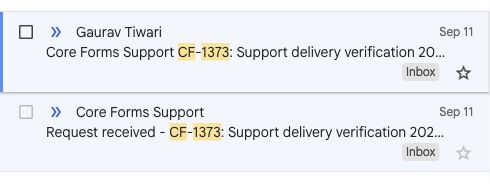
The notification and acknowledgment for sample request CF-1373 share the same reference.
Keep these boundaries in mind:
- IDs belong to saved submissions on that WordPress installation. They aren’t a separate sequence for each support form, so gaps between support references are normal.
- The same pattern must appear in the notification and acknowledgment. Otherwise, the team and customer will refer to different labels for the same request.
- A reference identifies a request. It isn’t a password or permission to view private information.
Expected result: both actions are ready to identify the same saved submission. You’ll check the replaced value after configuring the emails.
Step 3: Configure the Team Notification
The Send Email action should give the operator enough context to start work without asking the customer to repeat the form.
Open Actions, expand the existing Send Email action and configure it as follows. Edit the action already supplied by the template so you don’t accidentally send duplicate notifications.
| Setting | Example Value |
|---|---|
| From | support@example.com |
| To | team@example.com |
| Subject | Support CF-[CF_SUBMISSION_ID]: [SUBJECT] |
| Content Type | text/html |
| Additional Headers | Reply-To: [NAME] <[EMAIL]> |
The From address belongs to your business. The Reply-To address belongs to the customer, so replying to this notification from your mailbox addresses the person who needs help.
Paste this into Message:
<h2>Support request CF-[CF_SUBMISSION_ID]</h2>
[all:label]
<p>Submitted from: [CF_REFERRER_URL]</p>
[all:label] includes the submitted fields with their labels. [CF_REFERRER_URL] identifies the page the request came from, which is useful when several pages feed the same WordPress backend.
For a multiproduct form, the subject can include the product:
Product Support GT-[CF_SUBMISSION_ID]: [PRODUCT]: [SUBJECT]Use GT- in that form’s message body and acknowledgment as well. The reference should remain consistent through the conversation.
Save the action with no conditions for the basic setup. Every accepted support request should notify the team, regardless of its category or priority.
Expected result: the operator receives the reference, request details and source page, with replies addressed to the customer.
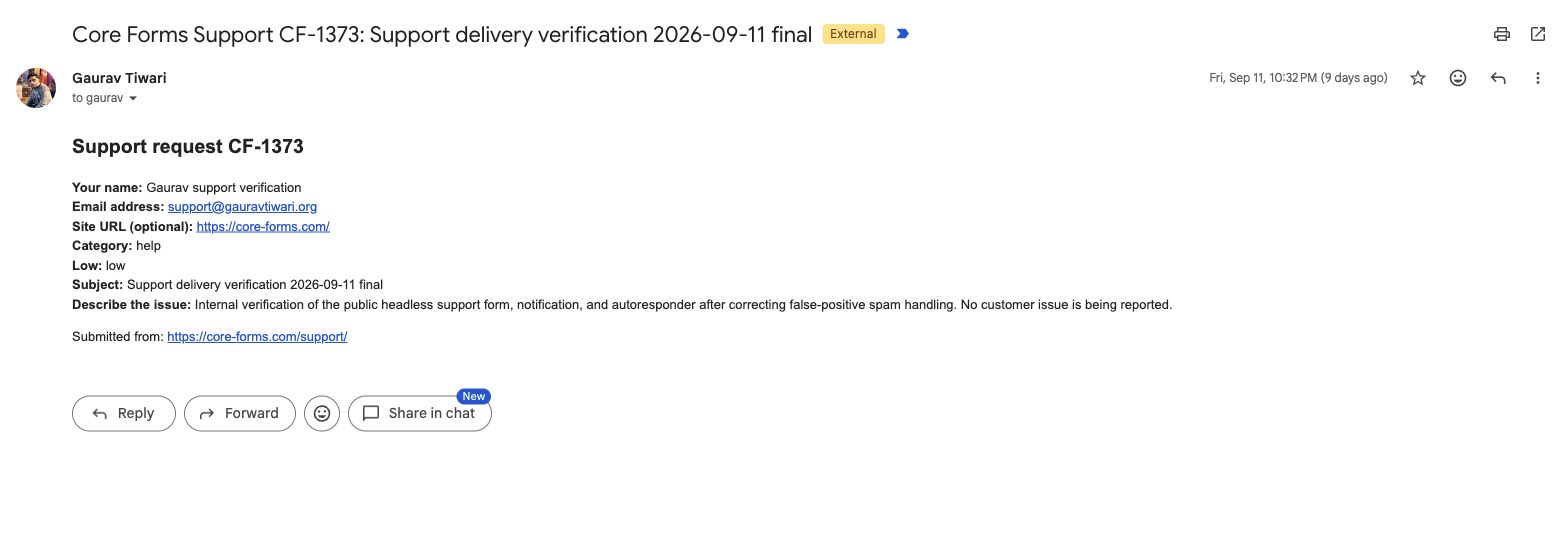
The team notification includes the request details and the page it came from. View the full-size email.
Step 4: Configure the Customer Acknowledgment
The Auto-Responder confirms receipt and gives the customer a reference they can keep. Its Reply-To needs to point back to your team.
In Actions, expand the existing Auto-Responder and set:
| Setting | Example Value |
|---|---|
| Recipient Email Field | EMAIL |
| From Name | Your Product Support |
| From Email | support@example.com |
| Reply-To Email | support@example.com |
| Subject | Request received - CF-[CF_SUBMISSION_ID]: [SUBJECT] |
| Content Type | HTML |
The recipient field is the name EMAIL, selected from the form fields. It isn’t a fixed email address. The Reply-To, on the other hand, is a real mailbox your team monitors.
Use this message, changing the response-time promise to match your operation:
<p>Hi [NAME],</p>

<p>We've received your support request.</p>

<p>
  <strong>Reference:</strong> CF-[CF_SUBMISSION_ID]<br>
  <strong>Subject:</strong> [SUBJECT]
</p>

<p>
  We usually reply within 1 business day.
  If you need to add details, reply to this email
  and keep the reference in the subject.
</p>

<h3>Your request</h3>

<p>
  <strong>Site:</strong> [SITE_URL]<br>
  <strong>Category:</strong> [CATEGORY]<br>
  <strong>Priority:</strong> [PRIORITY]
</p>

<div style="white-space:pre-wrap">[DESCRIPTION]</div>

<p>Your Product Support</p>
The customer gets both a reference and a copy of the request, so a follow-up can add missing information without starting again. A multiproduct form can add <p><strong>Product:</strong> [PRODUCT]</p> under the reference.
The 2 Reply-To settings are deliberately different:
- Team notification: Reply-To is the customer’s
[EMAIL]. - Customer acknowledgment: Reply-To is your support mailbox.
Neither setting imports incoming mail into Core Forms. They tell the customer’s or operator’s email app where to send a reply.
Save this action without conditions too. The email and auto-responder documentation explains the other message options if you need them.
Expected result: the customer receives the same ticket reference as the team and can reply to a monitored address.
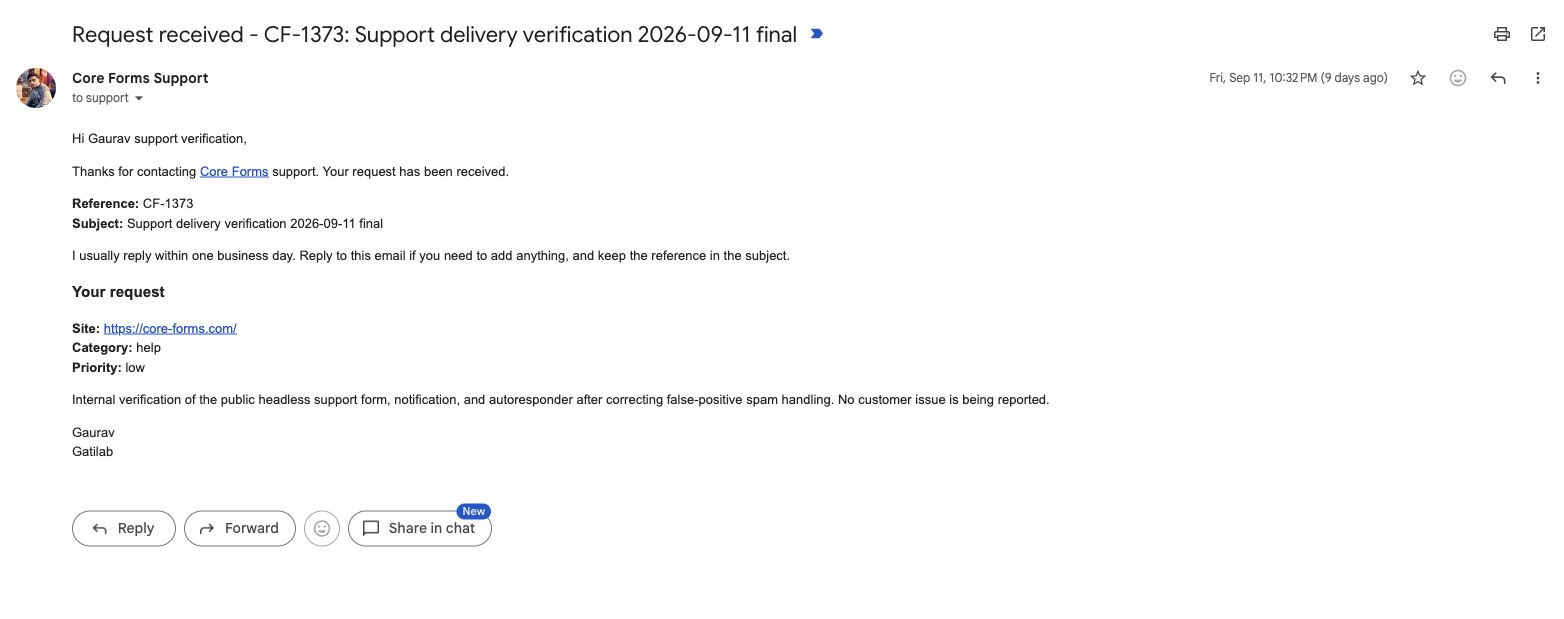
The acknowledgment repeats CF-1373 and asks the customer to keep that reference when replying. View the full-size email.
Step 5: Add Routing If You Need It
One team inbox is enough to start. Both of our support forms use that arrangement; conditional recipient routes are an optional extension when different people handle different requests.
To route high-priority requests separately:
- Expand Send Email in the Actions tab.
- Under Recipient routes, click Add route.
- Set When field to
PRIORITYand Operator toequals. - Enter
highas the value. - Set Send to to the mailbox responsible for urgent requests and save.
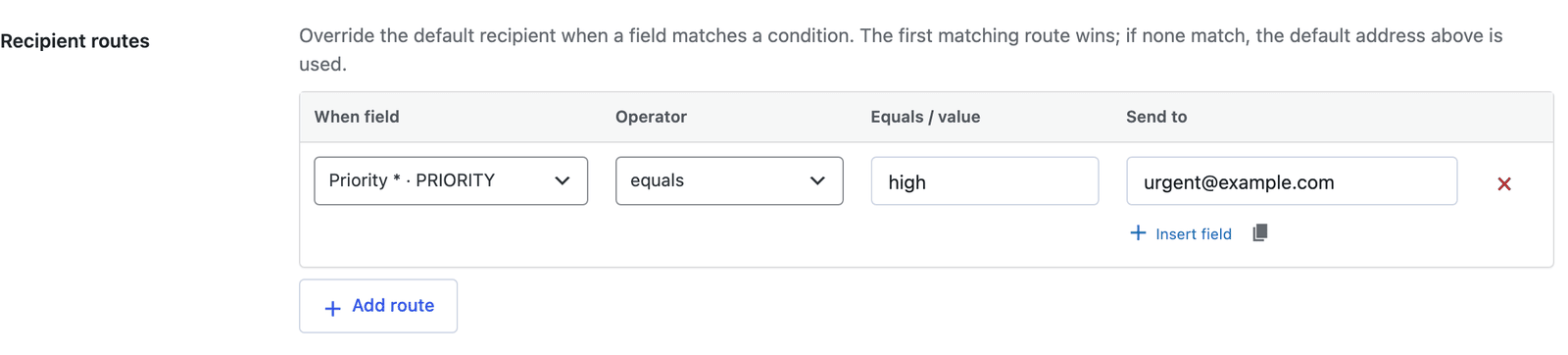
The route matches the stored value high, even though the customer sees the label “High.”
Route order controls what happens when several rules could match:
- The first matching route wins.
- Its recipient replaces the default To address for that action.
- If no route matches, Core Forms uses the default To address.
For example, put CATEGORY equals account first if account requests must always reach billing. Put PRIORITY equals high first if urgent handling takes precedence, including for account requests.
An action-level condition does a different job: it decides whether the entire action runs. Adding a high-priority condition to your only notification action would leave other requests without a team notification. Recipient routes preserve the fallback.
Expected result: matching requests reach the chosen mailbox, and ordinary requests still reach the default inbox. The route does not assign an agent or change the submission’s status.
Step 6: Put the Form on Your Support Page
On WordPress, add the Core Forms block to your support page and select the form. You can also paste its shortcode into a Shortcode block:
[cf_form slug="support-request"]Use the slug shown in your own form editor if it differs. The form’s saved settings and actions apply wherever you embed that form.
In the Messages tab, set a useful success message, such as:
Your support request has been received. Please check your inbox for the confirmation email and reference number.
This directs the customer to the acknowledgment without claiming that a human has read the request or that an email has already reached their inbox.
Expected result: the support page displays the form and provides an on-page response after submission. The acceptance checklist below checks the stored request and both emails separately.
The core-forms.com Approach
An external website can use the same WordPress backend through headless REST forms. That’s how core-forms.com uses Core Forms despite its public site being built with Astro.
The arrangement has these parts:
- The WordPress form has headless access enabled.
- The external site’s build fetches the form’s rendered HTML from Core Forms.
- The browser posts the customer’s answers to a same-origin server route.
- That route forwards the request to Core Forms and adds the API key on the server.
- Core Forms saves the request and runs the form’s existing actions.
The key stays out of public JavaScript. Because this particular site includes the form HTML during its build, changing form fields also requires rebuilding the external site.
This route needs server-side setup on the external site. The WordPress block or shortcode route above doesn’t. The headless WordPress forms guide covers that additional setup.
Step 7: Run the Support Inbox
The Core Forms submissions inbox is where the saved requests become a working queue. You can use the form’s Submissions tab or All Submissions when several forms feed your support operation.
The native support workflow uses these statuses:
| Status | How to Use It for Support |
|---|---|
| New | The request needs initial review |
| Read | Someone has opened or reviewed it; work may still be needed |
| Replied | Core Forms has successfully sent an admin reply; the problem may still be open |
| Archived | Remove a finished request from the active queue while retaining its record |
Read and Replied don’t mean resolved. Archiving is the manual closure convention for this setup; Core Forms doesn’t decide whether your answer fixed the customer’s problem.
Reply From WordPress
To keep a record of an answer in Core Forms:
- Open the request and find Send Reply.
- Check To against the customer’s email address.
- Set From to a monitored support address authorized for your site’s mail delivery.
- Replace the generic subject with the actual reference and request subject, for example
Re: CF-482: Form confirmation not arriving. - Write the answer and click Send Reply.
After a successful send, Core Forms stores the outgoing message in Reply History and marks the submission Replied.
There is a small but important difference between this screen and the email actions: the manual reply composer doesn’t expand the action’s data variables. Paste the actual reference, such as CF-482, rather than typing CF-[CF_SUBMISSION_ID] into the reply subject.
Under Core Forms > Settings > Reply Settings, set Default Sender Email to the address you normally use. Admin replies use their From address as Reply-To, so that address must accept follow-ups as well as send mail.
Handle Customer Follow-Ups
Customer email replies arrive in the mailbox specified by Reply-To. They don’t automatically appear in the WordPress submission history, and answering from your email app doesn’t automatically update the submission’s status.
Choose a consistent way to handle this:
- Check the support mailbox alongside the Core Forms queue.
- Keep the actual reference in follow-up subjects so the original record remains identifiable.
- Leave a request active while you’re waiting for information or working on a fix.
- Archive the submission when you’ve finished handling it.
- If an archived request needs more work, find it in All Submissions > Archived and use Mark as new.
The mailbox holds the incoming conversation. Core Forms holds the intake record and the answers sent from its reply screen. Keeping that division clear prevents a quiet mailbox reply from being mistaken for a closed ticket.
Check the Complete Ticket Flow
A success message on the support page checks only one part of the system. Before relying on it for customers, run a controlled request on your own site using addresses you can access.
The complete check is:
- Submit a recognizable request. Use a subject such as “Support workflow check” and a real email address you control.
- Find the saved submission. Confirm that the request details and ID are present in Core Forms.
- Read the team notification. Its reference should contain that submission ID, and clicking Reply should address the customer.
- Read the customer acknowledgment. Its reference should match the notification, and clicking Reply should address your support mailbox.
- Send an answer from the submission screen. Include the actual reference. Check that the answer reaches the customer mailbox and appears in Reply History.
- Reply from the customer mailbox. Check that the follow-up arrives at your support address. It should not be expected to appear automatically in Core Forms.
- Finish the request. Archive it and confirm you can find it again in the archived view.
If you added recipient routes, repeat the notification check with a matching request and a request that should use the fallback address.
Core Forms > Email Logs records the Send Email and Auto-Responder attempts. A Sent status means the mail transport accepted the message; it doesn’t prove inbox delivery. The receiving mailboxes are part of the check.
Common Issues and Fixes
Most problems in this setup come from a missing field mapping or a misunderstanding about where a reply goes. Check the specific part that failed before changing the form.
The Reference Is Just “CF-”
Check Save submissions first, then confirm that the action contains the exact variable [CF_SUBMISSION_ID]. A record-backed ID requires a saved submission. If the variable appears literally in a manual reply, replace it with the actual reference; that composer doesn’t process action variables.
The Customer Gets No Acknowledgment
Check that Auto-Responder’s Recipient Email Field selects EMAIL and that the submission contains a valid address there. Check Email Logs for a failed attempt, then check the form’s Spam view if no action ran. An action condition can also suppress the acknowledgment.
When the log says Sent but the mailbox has nothing, investigate the mail provider and spam filtering. The guide to form emails landing in spam covers that side of delivery.
The Wrong Inbox Receives the Request
Check the route order and stored option value. A route for high won’t match a different custom value just because its visible label says “High.” Remember that the first matching route replaces the default recipient.
Email Follow-Ups Are Missing From WordPress
This setup has no automatic inbound-email import. Look in the mailbox configured as Reply-To. Changing the ticket prefix or adding another notification action won’t make that mailbox synchronize with Core Forms.
The External Support Page Shows Old Fields
If you use the same build-time rendering approach as core-forms.com, rebuild the external site after changing fields. Also check that its proxy points to the intended form. The WordPress form and its actions remain the source of the submission behavior.
The Limits
A Core Forms ticketing system works well when a small operation can manage support through email and a WordPress queue. Some helpdesk requirements go beyond this arrangement:
- No automatic incoming-email import. Customer follow-ups stay in the configured mailbox.
- No customer ticket portal from these actions. A reference in an email doesn’t give the customer a page for viewing private ticket history.
- No agent assignment from recipient routes. A route sends a notification to an address; it doesn’t establish ownership in the submissions inbox.
- No enforced response deadlines. A High priority choice doesn’t start an SLA timer or escalate an unanswered request.
- No automatic reopening from email. An operator must notice the follow-up and update the archived request.
If your team depends on automatic handoffs or a complete two-way conversation inside WordPress, these limits matter more than the convenience of using one plugin. For a smaller operation, a monitored mailbox and a consistent review routine can be enough.
What Disrupts the Workflow
Turning off submission storage removes the record the reference depends on. Email delivery alone shouldn’t be the only place the original support request survives.
Using the customer’s address as From makes your server send as a domain it doesn’t control. The customer belongs in Reply-To on the team notification; your business belongs in From.
Archiving immediately after answering hides work that may still need attention. A reply asking for reproduction steps is progress, but the request remains open.
Adding an action for every category without checking overlapping conditions can send duplicate messages. One notification with recipient routes is easier to reason about when the only difference is who receives it.
Treating High as a promise invites trouble unless someone actually watches that queue. Priority should help you review requests, and the response-time wording should describe what you can deliver.
FAQ
Ticket references and form reuse need a little care when several products share a support inbox.
Can ticket references use my own prefix?
Yes. Replace CF- with a short prefix such as SUP-, keeping the submission ID variable after it. Change both email actions so the customer and team receive the same reference. Separate WordPress installations have separate submission IDs, so use distinct prefixes if their tickets reach one mailbox.
Can customers attach screenshots?
Yes, you can add a file-upload field to the WordPress form and configure the allowed types and sizes. It isn’t included in the support template by default. An external form must also support file submission; the JSON-only proxy described here should not be assumed to upload files. See the file-upload guide before adding attachments.
Should duplicate prevention match the customer’s email?
Usually not for support. The same customer may need help with more than one issue, and preventing another request from that email can block legitimate support. The reference identifies each request separately. Spam protection and request rate limits address a different problem.
Can one form appear on several WordPress pages?
Yes. Embed the same form using its block or shortcode on each page. Its saved settings and actions remain shared, and including the source page URL in the notification helps identify where the request came from. Separate forms are useful when the fields or acknowledgment wording need to differ.
Is a support ticket number safe to use as a public access link?
No. A submission ID is an identifier, not authentication. Don’t expose private submission details through a public URL that accepts only that number. The reference is intended to help the customer and your team identify the conversation.
Final Remarks
The important operating decision is who checks the follow-up mailbox and keeps the saved requests current. Core Forms can create the reference and send both emails automatically, but a request still needs someone responsible for its next step.
Start with one support form and the 2 email actions. Add routing when another inbox has a clear owner, then run the complete flow check again. The Core Forms support page uses the same approach if you need help with your setup.
Your first finished request should be easy to find and clear about what happened next.