
WordPress Pipedrive Integration: Push Form Leads Into Pipedrive Deals
Set up a WordPress Pipedrive integration that turns a form submission into a Pipedrive lead or deal, matched to the right person and organization, with a follow-up activity for the rep.

A WordPress Pipedrive integration should do what a good sales assistant does with a web lead: find the person, find the company, open the deal in the right pipeline and put a call on someone’s list.
I build Core Forms, and the Pipedrive action here is the one that ships with it. Every screen comes from a lead form on a test site.
Pipedrive has pipelines, custom fields and activity types that differ from one team to the next, so one guide cannot cover every setup. But almost every web lead needs the same path, a matched person, an optional organization, a lead or deal and a follow-up, and in this one I will try my best to cover that properly, including what the action refuses to do when a match is ambiguous.
There is no download for this one, because the action is already in the plugin. Or, if you get stuck halfway, support is a message away.
What the Pipedrive Action Does
The action runs 4 steps on each submission, and each one is recorded so a retry does not repeat it:
- Organization, if you mapped a company field. It searches by exact name, updates the match or creates a new one.
- Person, always. It searches by exact email, case-insensitive, updates the match or creates a new one, and links the organization.
- Lead or deal, your choice per form, with a title, an optional value and currency, and for deals a pipeline and stage.
- Activity, optional. A call, a task or any activity type you name, with a subject and a due date, linked to the new lead or deal.
The rule that makes this safe to run unattended is in the matching. When more than one person or organization matches, the action stops and reports it rather than attaching the deal to whichever record came back first. You resolve the duplicate in Pipedrive and retry.
Get Your API Token
- In Pipedrive, open your profile menu and choose Personal preferences > API.
- Copy the API token.
- Note your company subdomain, the part before
.pipedrive.comin your address bar.
The token is sent in a request header, never in a URL, so it does not end up in server logs.
Add the Action to the Form
Here the form is the Lead capture template, with a first name, a work email, a company and a role:
- Open the form and go to the Actions tab.
- Under Add Action, find Marketing & CRM and click Create Pipedrive Lead or Deal.
- Enter the Pipedrive company subdomain and the API token.
- Pick the Email field and the Name field, and map the Organization name field to the company field.
- Under Create, choose Lead or Deal, and set the Lead / deal title, such as
Website lead: [COMPANY]. - Click Save Changes.
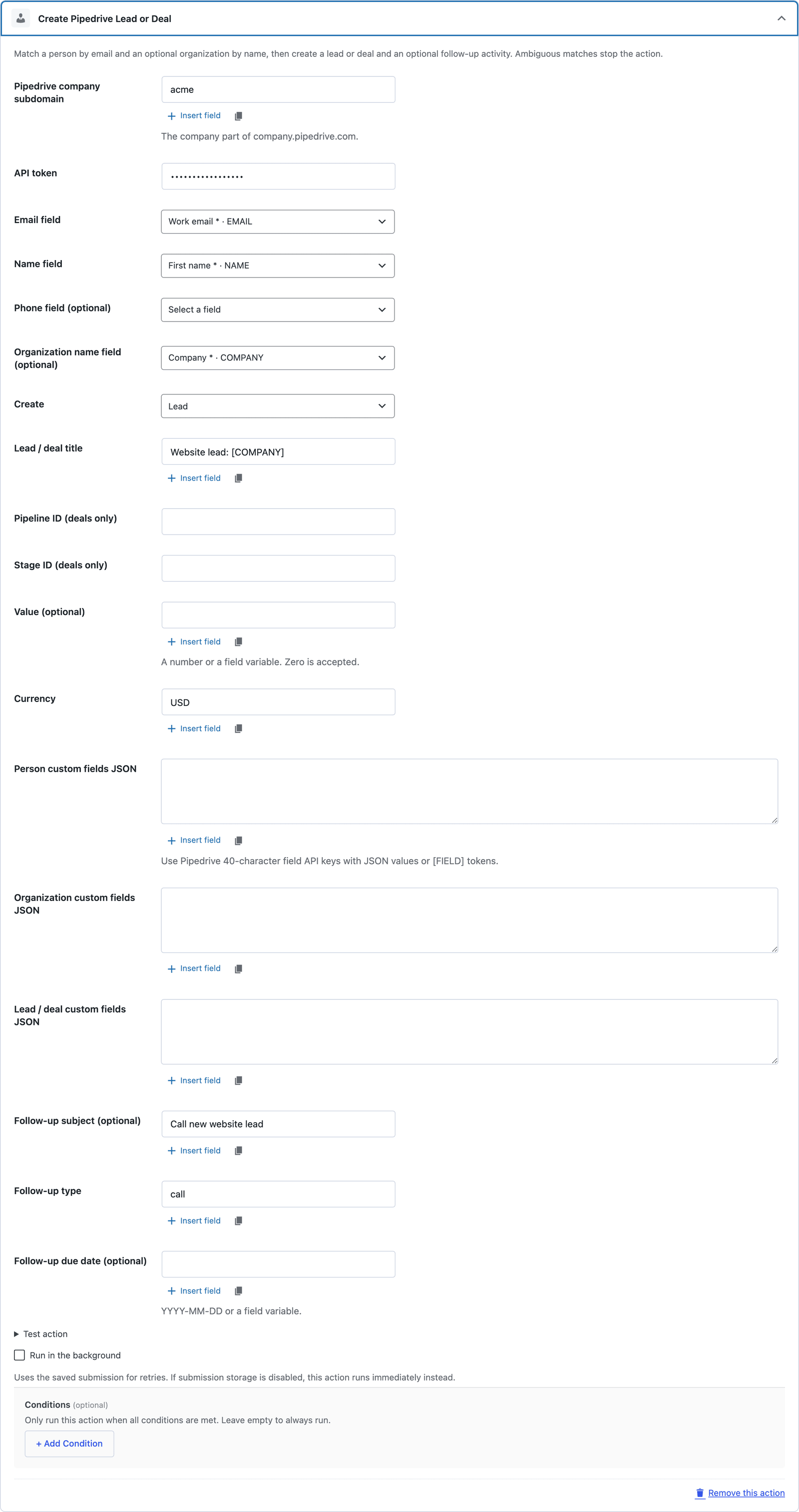 The title takes form variables, so each deal is named after the company that submitted it.
Lead or Deal
Pipedrive keeps leads in an inbox for qualifying and deals in a pipeline for working. The action creates either:
- Lead needs only a title. Leave pipeline and stage empty, because the action refuses them on a lead.
- Deal takes a Pipeline ID and a Stage ID, both numbers from Pipedrive’s settings. The action checks that the stage belongs to that pipeline before it creates anything.
For a web form I would start with leads. A rep qualifies the inbox and converts the real ones to deals in Pipedrive, which keeps the pipeline honest. Switch to deals once the form only receives leads that are already qualified, such as a request for a quote from an existing customer.
Value, Currency and Custom Fields
The Value box takes a number or a field variable, such as [BUDGET], with a 3-letter currency code. Zero is accepted, so a lead with no known value can still carry the currency you sell in.
Custom fields go in 3 JSON boxes, one each for the person, the organization and the lead or deal. The keys are Pipedrive’s 40-character field API keys, which you copy from the field’s settings in Pipedrive:
{"9f0e1b2c3d4e5f60718293a4b5c6d7e8f9a0b1c2":"[ROLE]"}
A field token in quotes keeps its submitted type, so a number stays a number and a multi-select stays a list. Pipedrive checks each value against the field’s type, and a mismatch comes back as an error with the field named.
Add a Follow-Up Activity
Three optional settings create an activity on the new lead or deal:
- Follow-up subject, such as “Call new website lead.”
- Follow-up type, the activity type’s name, such as
callortask. - Follow-up due date, a date in
YYYY-MM-DDform or a field variable.
This is the setting most teams skip and the one that changes whether web leads get called. An activity on the deal shows up on the rep’s list the same morning, and a lead in the inbox with no activity is a lead someone has to remember to look at.
Test It
Expand Test action under the card, click Use form field samples, put a test company name and an email you control in the JSON, and click Send test request.
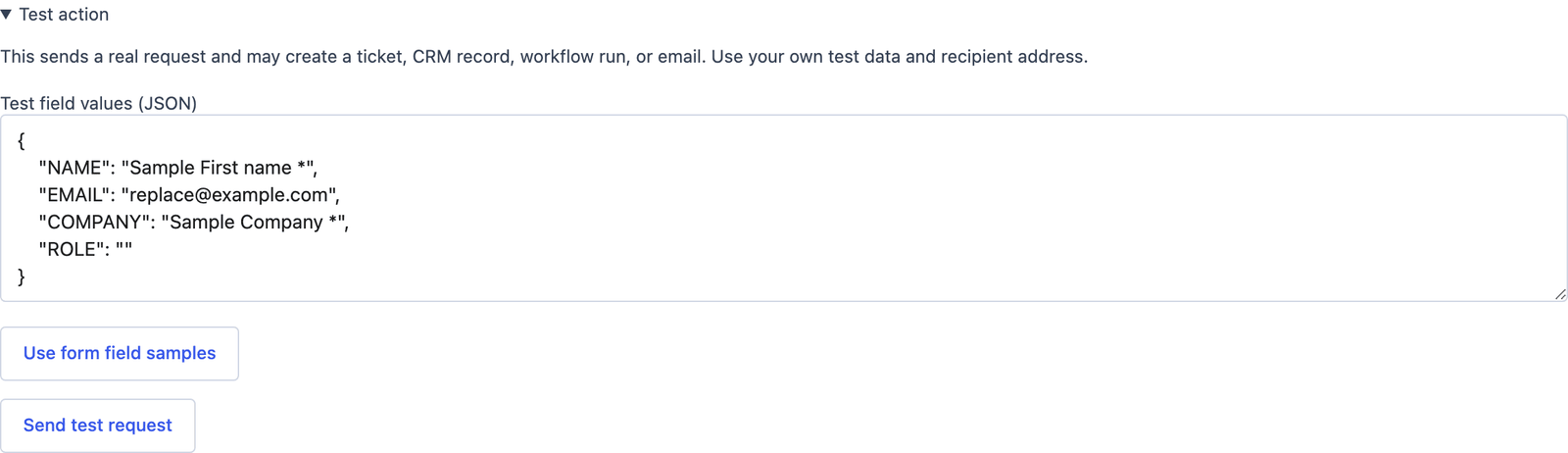 The panel shows the result inline, including the person, organization and record IDs that were created.
Then check Pipedrive. There should be one person, one organization, one lead and, if you set a subject, one activity. Send the test again and the person and organization are updated rather than duplicated, and a second lead is created, which is the expected behavior for a second inquiry.
Run It in the Background
Tick Run in the background so the visitor’s confirmation does not wait for 4 Pipedrive requests. Each completed step is checkpointed, so a retry after a failed activity does not create the lead a second time. The one case the action cannot make exact is a timeout after Pipedrive has accepted a create but before the reply arrives, so after an ambiguous timeout, check Pipedrive for a duplicate before replaying by hand.
The Limits
The action does not update deals. It creates one per submission, and a returning contact gets a new lead or deal attached to the same person. Deduplicating deals is a job for your pipeline rules.
Matching is exact. “Acme Inc” and “Acme Inc.” are 2 organizations, and if both exist the action stops on the ambiguity. Clean organization names before you rely on the match.
Products, notes and files are not created. A note can be replaced by putting the message field into a custom field on the deal, and files stay on your WordPress site.
Pipeline and stage are IDs, not names. They are visible in Pipedrive’s settings, and the action validates the pair before use.
What Quietly Ruins a Pipedrive Integration
Creating deals from a form that gets tire-kickers. Every submission becomes a deal in the pipeline, the pipeline value inflates and the reps stop trusting it. Start with leads.
Mapping the organization from a free-text company field without cleaning it. Three spellings of the same company become 3 organizations, and the fourth submission stops on the ambiguity.
Skipping the follow-up activity. The lead arrives in Pipedrive and nobody is assigned to do anything with it, which is the same outcome as not having the integration.
Retrying a timed-out submission without looking. If Pipedrive accepted the create before the timeout, the replay makes a second record. Check first.
Final Remarks
You now have a WordPress form that finds or creates the person and the organization in Pipedrive, opens a lead or a deal named after the company and puts a call on a rep’s list, and that stops rather than guesses when the data is ambiguous. If you keep one idea from this guide, keep this one: the follow-up activity is the part that turns a record into a phone call, so set it.
The Pipedrive integration page has the short setup, and the HubSpot integration guide covers the same job for teams on HubSpot. If something here does not behave the way this guide describes, the support team can help.
I hope the first deal through it closes.
FAQ
Does the integration create the person if they already exist?
No. It searches by exact email first and updates the existing person’s mapped fields. The person’s existing email list is kept as is.
Can I send the form’s message into the deal?
Yes, through the lead or deal custom fields JSON, mapped to a text field’s API key. There is no separate notes setting.
What if my form has no company field?
Leave the organization field empty. The action creates the person and the lead or deal without an organization, and skips the organization custom fields.