
WordPress Discord Integration: Post Form Submissions to a Discord Channel
Set up a WordPress Discord integration that posts every form submission to a channel as a rich embed, using a Discord webhook and no bot, in about 3 minutes.

A WordPress Discord integration is the shortest way to get form submissions in front of a team that lives in Discord, whether that is a community’s mod team, a game studio’s support crew or a small company that never opens email.
I build Core Forms, and the Discord action here is the one that ships with it. Every screen comes from a lead form on a test site.
Discord servers are set up in many ways, so one guide cannot cover roles, threads or slash commands. But almost every team needs the same thing, a message in a channel with the fields laid out so it can be read at a glance, and in this one I will try my best to cover that properly, including what the embed looks like and where it runs out of room.
There is no download for this one, because the action is already in the plugin. Or, if you get stuck halfway, support is a message away.
What the Discord Action Sends
The action posts a rich embed, not a plain line of text. Each form field becomes a labeled field inside the embed:
- The title is “New submission:” followed by the form’s name.
- Each field shows its label and value. Values under 50 characters sit side by side, and longer ones, such as a message, take the full width.
- Checkbox groups arrive as one value with the options separated by commas.
- The footer says Core Forms and carries the submission time.
That layout is why an embed beats a text message for forms. A name, an email and a company sit on one line, the message sits under them, and a channel of 40 submissions still scans.
Create a Discord Webhook
A webhook is a URL that posts into one channel, with no bot to invite and no permissions to manage:
- In your Discord server, open Server Settings > Integrations > Webhooks.
- Click New Webhook, give it a name and pick the channel it posts to.
- Click Copy Webhook URL.
The URL is the credential. Anyone who has it can post to that channel, so treat it like a password and create a new one if it ever ends up in a screenshot or a shared document.
Add the Action to the Form
- Open the form and go to the Actions tab.
- Under Add Action, find Notifications and click Send to Discord.
- Paste the URL into Webhook URL.
- Set a Bot Name, which is the name shown on each message. “Website leads” reads better in a channel than the default.
- Click Save Changes.
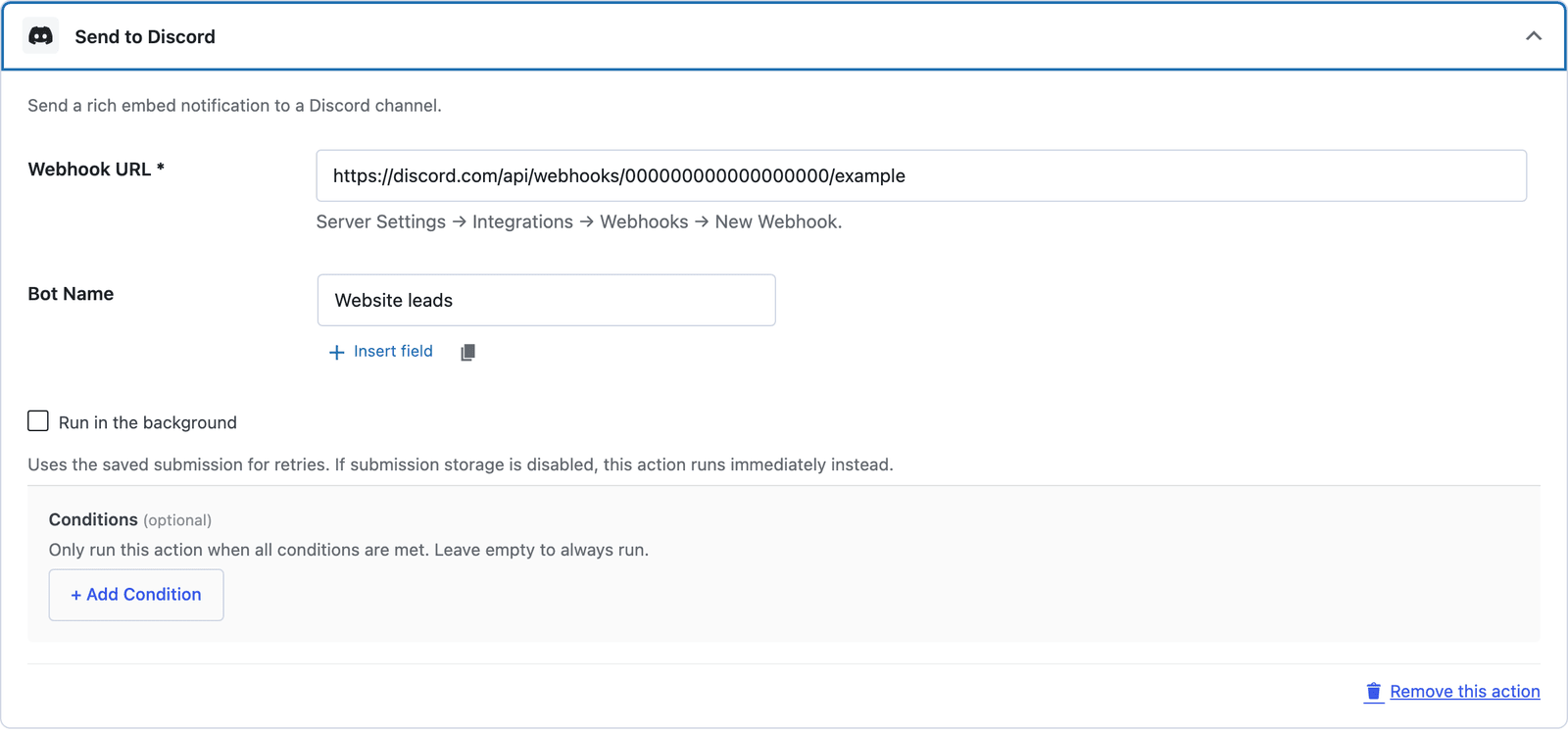 Two settings, and the form posts to the channel from the next submission.
Test It
The action has no test panel, so submit the form once yourself from a draft page and check the channel. A row that does not arrive is a mapping or credential problem, and the submission is kept so the action can be retried once it is fixed.
If nothing appears, the webhook was deleted from the server or the URL was pasted with a character missing. Both come back as an error in the panel.
Send Only What the Channel Needs
The embed includes every field in the submission, and a Discord channel is often wider than the group who should see a phone number. Two settings keep it in check:
- Conditions on the action run it only when a field matches, such as a topic select equal to support, so sales inquiries do not reach the mod channel.
- A second Discord action with a different webhook posts different forms, or different topics, to different channels.
For a form with private answers, the email notification is the right place for the full submission and the Discord post is the alert. Post the summary field and keep the rest in WordPress.
Run It in the Background
Tick Run in the background on the action. Discord is fast, but a rate limit during a busy launch is real, and the background queue retries from the saved submission while the visitor sees the confirmation right away.
The Limits
An embed holds 25 fields. A form with more than 25 fields posts the first 25 and drops the rest, which is a reason to keep the long forms in the email notification and post the short ones here.
Each field value is cut at 1,024 characters, which is Discord’s limit for an embed field. A long message arrives with its end missing, and the full text stays in the WordPress submission.
The embed’s color is not in the settings. It is blue by default, and a developer can change it with the cf_process_form_action_discord filter.
Nobody can reply from Discord. The post is a notification, and the reply happens from the submission in WordPress or from your inbox, where the Reply-To header points at the person.
What Quietly Ruins a Discord Integration
Posting a form with an email and a phone number into a public or semi-public channel. The webhook does not know who reads the channel, and neither does the person who filled in the form.
Sharing the webhook URL in a screenshot or a Notion page. It is a write credential for that channel, and rotating it means every form that uses it has to be updated.
Sending every form to one channel. Support requests, sales leads and bug reports in one stream is a channel nobody reads after the first week.
Turning off the email notification because Discord has it. Discord messages scroll away. The email and the WordPress inbox are the record.
Final Remarks
You now have a WordPress form that posts each submission to a Discord channel as a readable embed, with a webhook you can rotate, conditions that keep the wrong forms out and the full record still in WordPress. If you keep one idea from this guide, keep this one: the channel is for noticing a submission, and the reply still happens from the record.
The Discord integration page has the short setup, and the Slack as a form inbox guide is the same idea for teams on Slack. If something here does not behave the way this guide describes, the support team can help.
I hope the channel stays useful past the first week.
FAQ
Do I need a Discord bot?
No. A webhook is created in the server’s settings in a few clicks and posts to one channel. No bot, no developer portal, no permissions to grant.
Can I post to different channels depending on the form?
Yes. Each form has its own actions, so each can use a different webhook. Within one form, two Discord actions with conditions can post to two channels based on an answer.
Can I mention a role or a person in the post?
Not from the settings. The action posts an embed with the submission fields and no message text, so there is no place for a mention. A webhook in a channel with notifications on is the usual way to get attention.