
n8n WordPress Integration: Send Form Submissions to an n8n Workflow
Connect a WordPress form to n8n with an authenticated webhook: import the starter workflow, paste the production URL, choose the fields and test it before a visitor submits, with typed JSON and an event ID for deduplication.

An n8n WordPress integration for forms comes down to one HTTP request: the form submits, WordPress posts the fields to an n8n Webhook node, and the workflow takes it from there. So, if you are looking to send WordPress form submissions to n8n, self-hosted or on n8n cloud, without a Zapier plan in the middle, this guide can surely help.
I build Core Forms, which has an n8n action built in, and every screen here comes from it running on a test site.
One guide cannot cover what your workflow does after the webhook, because that is the whole of n8n. It covers the connection: the starter workflow, the authentication, which fields go out and in what shape, the test panel, and the 2 URLs n8n gives you, only one of which should ever go live.
The starter workflow is a small download on this page. Or, if you get stuck halfway, support is a message away. Without further ado, let’s get started.
What the n8n Action Does
The action posts each submission to an n8n Webhook node over HTTPS, and 5 things about it decide whether you need anything else:
- Every request is authenticated, with Header Auth or Basic Auth, and the credential lives only in the request headers.
- You choose the payload. Named fields, every non-internal field with
*, or metadata only. IP address, user agent and server paths are never included. - Values keep their types. A custom JSON map sends numbers, booleans, arrays and null as what they are, not as strings.
- The test URL cannot go live. n8n’s
/webhook-test/URL works in the test panel and is refused for real submissions, so it cannot ship by accident. - Each request carries an event ID, in the body and in an
X-Core-Forms-Event-Idheader, for deduplication inside the workflow.
There is no n8n community node to install and no WordPress REST polling. The form pushes, n8n receives.
Import the Starter Workflow
The starter workflow is 2 nodes: a Webhook node with Header Auth and a Respond to Webhook node that acknowledges receipt.
- In n8n, create a new workflow and choose Import from file, then pick the downloaded JSON.
- Open the Webhook node and create a Header Auth credential. Name the header
X-Core-Forms-Keyand set a secret of your choice. - Add your real nodes between the Webhook and the Respond node, or leave them for later.
- Publish the workflow.
The Respond node answers as soon as the webhook fires, so Core Forms sees success once n8n has received the submission. If the response should depend on your later nodes finishing, move the Respond node after them.
Copy the Production URL
The Webhook node shows 2 URLs, and this is where n8n integrations go wrong.
- The Test URL contains
/webhook-test/and works only while you are listening for a test event in the editor. - The Production URL contains
/webhook/and works once the workflow is published.
Copy the production one. Core Forms will accept the test URL inside its own test panel, which is useful while you build, and will refuse it for live submissions. A form saved with the test URL sends nothing to n8n once a visitor submits, and the action log says why.
Add the Action to the Form
- Open the form in Core Forms and click the Actions tab.
- Click Add Action and choose Send to n8n from the Automation group.
- Paste the production webhook URL.
- Set Authentication to Header Auth, the header name to
X-Core-Forms-Keyand the header value to the secret you set in n8n. - In Fields to send, enter the field names, comma separated, or
*for every field. - Click Save Changes.
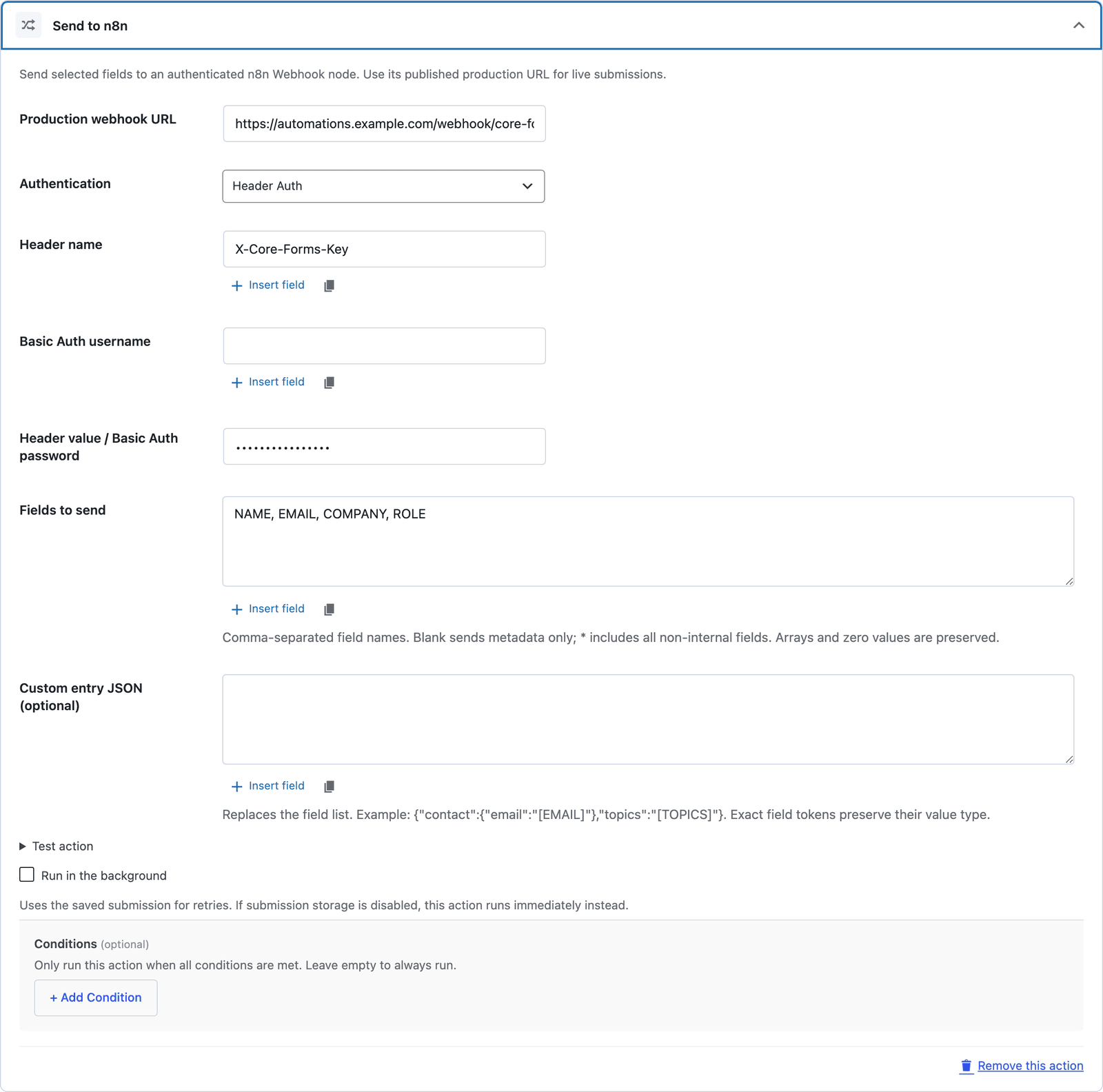 Insert field opens a picker with the form’s field names, so the list matches the form.
Field names are the uppercase names in the builder, NAME and EMAIL, not the labels. Leaving the box blank sends metadata only, which is deliberate: a workflow that only needs to know a submission happened does not need the submission.
What Arrives in n8n
The Webhook node receives a JSON body with an envelope and the entry:
event,event_id,form_id,form_title,form_slug,submission_idandsubmitted_atdescribe the submission.entryholds the fields you chose, keyed by field name.
File uploads arrive as metadata, the filename, type and size, without a local server path. Checkbox groups arrive as arrays, and a number field’s zero is a zero, not an empty string.
Shape the Payload With JSON
When the workflow wants a particular structure, Custom entry JSON replaces the field list:
{"contact":{"email":"[EMAIL]"},"topics":"[TOPICS]","count":"[COUNT]"}The JSON is parsed before the values go in, and a token that stands alone in its value, like "[TOPICS]", keeps the submitted type. An array stays an array and a number stays a number. A token inside text, like "Lead: [NAME]", is a string. A token for a field that does not exist fails with an error that names it, rather than sending an empty value that breaks the workflow 3 nodes later.
The metadata keys cannot be overwritten by the map, so event_id and form_id are always the real ones.
Test It Before a Visitor Does
Every action card has a Test action panel:
- Expand Test action under the settings.
- The JSON sample is prefilled with values matching the form’s fields. Edit it if you want a specific case.
- Click Send test.
The result shows what n8n answered, and the workflow’s execution log shows the request on the n8n side. While n8n is listening for a test event, the test URL works here, which lets you map the entry fields in the editor before publishing.
An accepted webhook means n8n received the request, not that every node after it succeeded. The execution log in n8n is where the rest of the story is.
Retries and the Background
Below the settings, Run in the background hands the request to a queue. The visitor’s success message shows without waiting for n8n, and a failed request is retried from the saved submission. Turn it on for any workflow that talks to a slow API, and leave it off while testing, so a failure shows on the spot.
The event_id is the same on every retry. A workflow that writes to a database or sends an email should check it, so a retried request does not create a second row or a second email.
What to Build in n8n
The 3 workflows I see most, and each is a Webhook node plus 2 or 3 more:
- Form to a spreadsheet and Slack. A Google Sheets node appends the entry, and a Slack node posts the name and the message. The Slack action does the second half without n8n, so this one earns n8n only when the sheet is involved.
- Form to a CRM with enrichment. An HTTP Request node looks the company up, and a CRM node creates the contact with what it found. This is what a direct action cannot do.
- Form to an AI classifier. An OpenAI or Anthropic node reads the message, decides what kind of request it is, and a Switch node routes it. The reply goes back through an email node with the classification in the subject.
For a plain “send it to one app” job, the built-in integrations are less to maintain. n8n earns its place when there is a decision or a lookup between the form and the destination.
The Limits
The action sends to a public HTTPS URL. Private-network addresses, redirects and URLs with embedded credentials are rejected, which rules out an n8n on your LAN unless it has a public hostname.
It does not deduplicate for you. The event ID is there, and the workflow has to use it.
Custom endpoint prefixes on a self-hosted n8n still come with a test and a production URL, and the test URL guard recognizes n8n’s standard paths. If your instance rewrites them, check that the URL you saved is the production one.
Files travel as metadata, not as bytes. A workflow that needs the file itself fetches it from the submission through the REST API.
What Quietly Ruins an n8n Integration
Saving the test URL. It works in the test panel, the form goes live, and nothing arrives, because n8n only listens on the test URL while the editor is open.
Sending every field with * to a workflow that forwards them. A form with a phone number and a message becomes a phone number and a message in 3 other systems, and the field list is where you decide that.
Skipping the auth header because the URL is “secret.” Anyone with the URL can post to a webhook without auth, and the header is one field in each app.
Retrying without checking the event ID. Background retries are the right setting, and a workflow that creates a row on every request creates 2 on a retry.
Final Remarks
You now have a WordPress form posting to n8n over an authenticated webhook, with the fields you chose in the shape you chose, tested from the form before a visitor touched it and carrying an event ID the workflow can trust. If you keep one idea from this guide, keep this one: the production URL is the only one that goes in the form, and the test URL is for the test panel.
The n8n integration page has the starter workflow and the action’s reference, and the webhooks vs Zapier piece covers when a plain webhook is enough. If something here does not behave the way this guide describes, the support team can help.
I hope the first workflow you wire up is the one you have been doing by hand.
For a webhook you receive rather than send, the signature verification guide covers checking the HMAC.
FAQ
Do I need the n8n WordPress node?
No. The form posts to a Webhook node, which is a core n8n node, and no community node is installed on either side.
Does it work with self-hosted n8n?
Yes, as long as the instance has a public HTTPS hostname. An n8n on a private address or behind a redirect is rejected by the action’s URL checks.
Can one form send to n8n and to other integrations at the same time?
Yes. Actions run in order, and a form can have a Send Email, a HubSpot action and a Send to n8n on the same submission. Conditions on the n8n action can limit it to the submissions the workflow should see.