
Form examples
12 HTML Form Examples You Can Copy and Improve
Twelve practical HTML form examples for contact, signup, survey, application, payment, and support workflows, with accessible copy-ready patterns.

Good HTML form examples show more than a pile of inputs. They show which fields belong together, which ones are required, what the submit button promises, and how a person recovers when something goes wrong.
The fastest way to build a bad form is to copy a polished layout without understanding its job. Start with the decision the form must support, then copy the smallest pattern that collects the evidence for that decision.
Choose the HTML form example by its job
The right HTML form example is the one whose workflow matches yours. A contact form routes a message. A job application compares candidates. A payment form starts a verified transaction. Those jobs need different fields and different confirmation states.
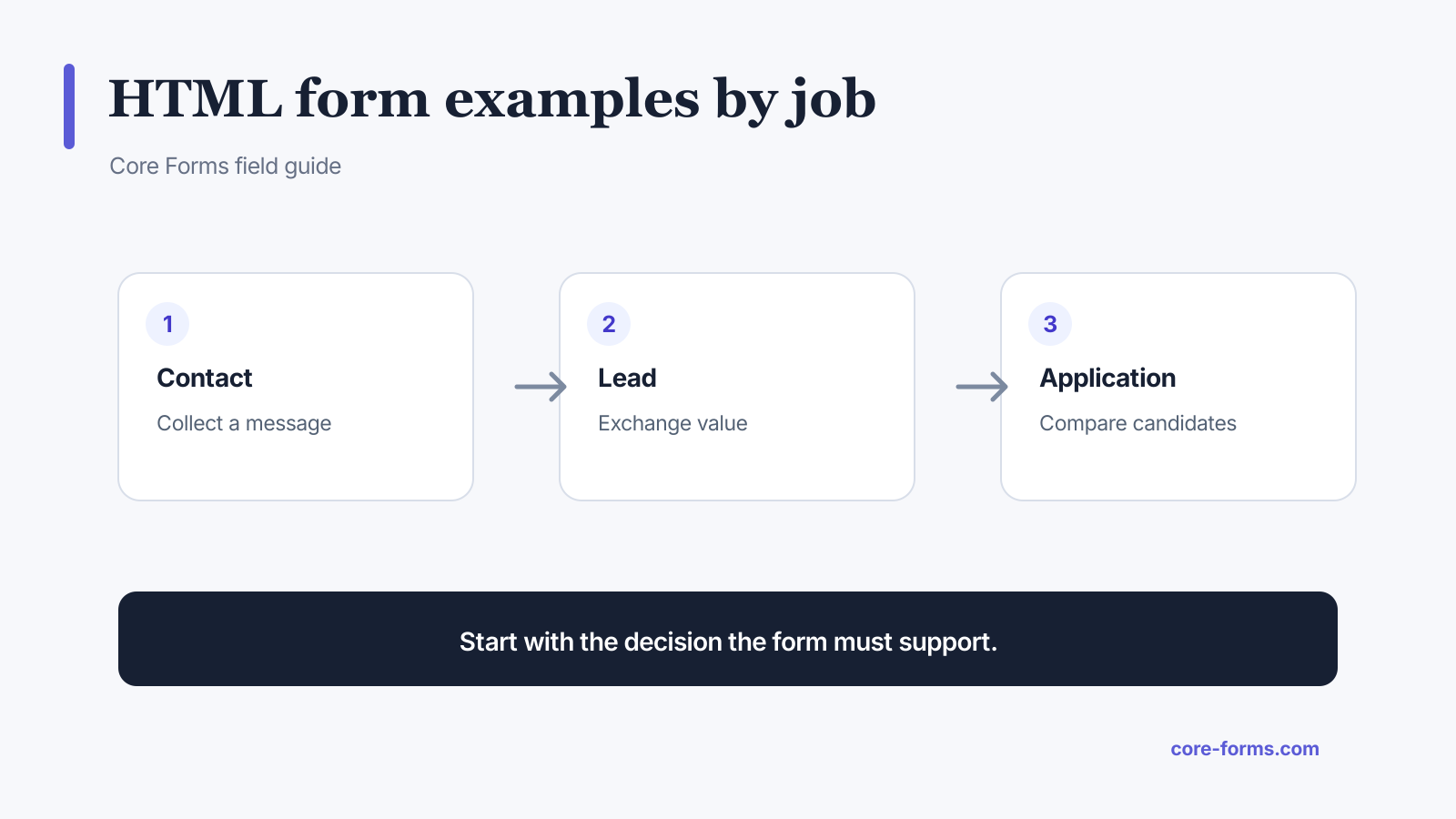 Start with the decision the form must support, then choose the fields.
Use this quick map:
- Contact: name, reply address, message, and at most one routing field.
- Newsletter: email, plus an optional first name or topic choice that changes delivery.
- Lead capture: email and one segmentation signal tied to the offer.
- Feedback: a consistent scale followed by an optional explanation.
- Job application: identity, role, work evidence, and a focused qualification answer.
- Quote request: service, scope, and enough context to choose the next sales step.
- RSVP: attendance, guest count, and only the practical needs the organizer can handle.
- Payment: customer identity and item choice, followed by provider-hosted checkout.
- Bug report: reproducible steps, expected behavior, actual behavior, and safe evidence.
- Survey: a small set of questions serving one research goal.
- Comment: public identity, private reply route, and the comment itself.
- Waitlist: email, use case, and an honest communication promise.
1. Basic contact form HTML
A basic contact form needs a visible label for every control and a specific button label. The placeholder can provide an example, but it should not replace the label.
<p>
  <label for="contact-name">Name</label>
  <input id="contact-name" name="NAME" type="text"
         autocomplete="name" required>
</p>
<p>
  <label for="contact-email">Email</label>
  <input id="contact-email" name="EMAIL" type="email"
         autocomplete="email" required>
</p>
<p>
  <label for="contact-message">Message</label>
  <textarea id="contact-message" name="MESSAGE" rows="6" required></textarea>
</p>
<button type="submit">Send message</button>
The contact form template adds a working preview, setup notes, and optional routing field.
2. Newsletter signup form HTML
Email should normally be the only required field. Ask for a name only if the email will use it, and ask for topics only if subscribers can actually receive different content.
<label for="signup-email">Email</label>
<input id="signup-email" name="EMAIL" type="email"
       autocomplete="email" required>
<button type="submit">Subscribe</button>
A vague button such as “Submit” hides the outcome. “Subscribe” names it.
3. Lead capture form HTML
A lead form is an exchange. The page promises a useful resource, demo, estimate, or answer. The form collects the minimum detail needed to deliver it and route the next step.
<label for="lead-email">Work email</label>
<input id="lead-email" name="EMAIL" type="email"
       autocomplete="email" required>
<label for="lead-role">Role <span>(optional)</span></label>
<select id="lead-role" name="ROLE">
  <option value="">Choose one</option>
  <option>Business owner</option>
  <option>Marketer</option>
  <option>Developer</option>
</select>
<button type="submit">Get the guide</button>
Do not hide a sales call behind a download. Say what happens after submission.
4. Feedback form HTML
Use a fieldset and legend for rating choices. Radio buttons are one answer from a group, so they need the same name value.
<fieldset>
  <legend>How satisfied are you?</legend>
  <label><input name="SATISFACTION" type="radio" value="1" required> Very dissatisfied</label>
  <label><input name="SATISFACTION" type="radio" value="2"> Dissatisfied</label>
  <label><input name="SATISFACTION" type="radio" value="3"> Neutral</label>
  <label><input name="SATISFACTION" type="radio" value="4"> Satisfied</label>
  <label><input name="SATISFACTION" type="radio" value="5"> Very satisfied</label>
</fieldset>
Follow the scale with one optional question: “What is one thing we should improve?”
5. Job application form HTML
Do not force a long cover letter before the applicant knows whether the role is real. Ask for evidence you will review.
<label for="job-resume">Resume (PDF or DOCX)</label>
<input id="job-resume" name="RESUME" type="file"
       accept=".pdf,.doc,.docx" required>

<label for="job-work">Portfolio or work sample <span>(optional)</span></label>
<input id="job-work" name="WORK_URL" type="url" inputmode="url">
The full job application form template includes role selection and a focused qualification answer.
6. Quote request form HTML
A quote request should establish scope without making a prospect write the full brief alone.
<label for="quote-service">What do you need?</label>
<select id="quote-service" name="SERVICE" required>
  <option value="">Choose one</option>
  <option>Consulting</option>
  <option>Implementation</option>
  <option>Support</option>
</select>
<label for="quote-summary">What are you trying to accomplish?</label>
<textarea id="quote-summary" name="SUMMARY" rows="6" required></textarea>
7. Event RSVP form HTML
Conditional fields keep the “not attending” path short. Ask guest count and dietary needs only after the person chooses yes.
<fieldset>
  <legend>Will you attend?</legend>
  <label><input name="ATTENDING" type="radio" value="yes" required> Yes</label>
  <label><input name="ATTENDING" type="radio" value="no"> No</label>
</fieldset>
<p data-show-if="ATTENDING:yes">
  <label for="rsvp-guests">Additional guests</label>
  <input id="rsvp-guests" name="GUESTS" type="number" min="0" max="5">
</p>
Core Forms reads the data-show-if rule through its conditional logic.
8. NPS survey form HTML
Net Promoter Score uses a 0 to 10 scale. The rating is not enough by itself, so include one optional reason field.
<fieldset>
  <legend>How likely are you to recommend us?</legend>
  <label><input name="NPS" type="radio" value="0" required> 0</label>
  <!-- Repeat values 1 through 9 -->
  <label><input name="NPS" type="radio" value="10"> 10</label>
</fieldset>
<label for="nps-reason">What is the primary reason for your score?</label>
<textarea id="nps-reason" name="REASON" rows="5"></textarea>
Use the NPS calculator after collecting responses.
9. Payment form HTML
Plain HTML should collect the item and customer details, not raw card numbers. Send the person to the supported payment provider and treat the signed provider webhook as the payment authority.
<label for="pay-item">Item</label>
<select id="pay-item" name="ITEM" required>
  <option value="">Choose an item</option>
  <option value="consultation">Consultation</option>
  <option value="workshop">Workshop seat</option>
</select>
<button type="submit">Continue to secure payment</button>
10. Bug report form HTML
The strongest bug report structure is factual:
- short summary;
- steps to reproduce;
- expected result;
- actual result;
- environment or version;
- optional screenshot or text log with no secrets.
Use file type and size limits. A support form is not a safe place for passwords, private keys, or payment data.
11. Multi-step form HTML
Long forms become easier to understand when related questions are grouped into logical steps. The progress indicator must reflect the reachable path, including conditional branches.
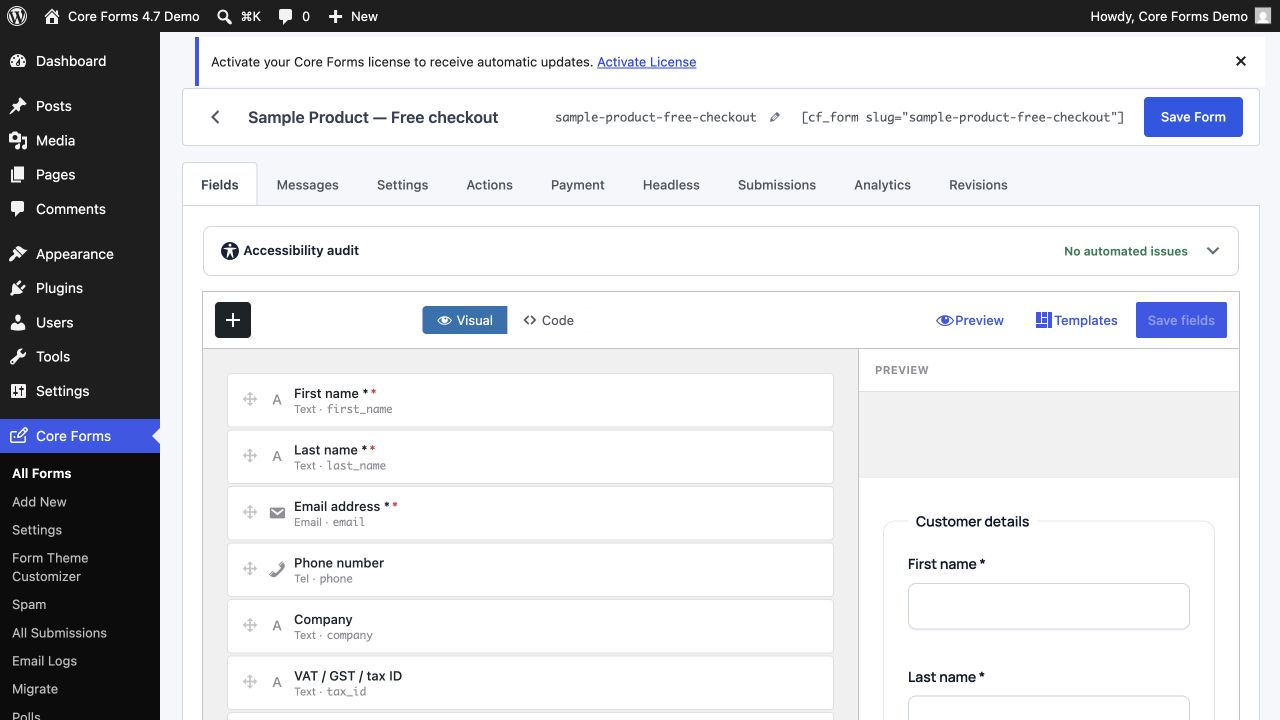 A visual editor should still produce inspectable, semantic form markup.
Do not split four fields into four screens just to imitate Typeform. Use steps when the grouping improves comprehension, not because animation looks modern.
12. Accessible error summary HTML
An error message should name the field, explain the problem, and tell the person how to fix it. Put an overall summary before the form and link each item back to its field.
<div role="alert" aria-labelledby="error-title">
  <h2 id="error-title">Fix 2 fields</h2>
  <ul>
    <li><a href="#contact-email">Enter an email address in the format name@example.com</a></li>
    <li><a href="#contact-message">Enter your message</a></li>
  </ul>
</div>
Client-side validation improves feedback, but the server must validate the same rules because browser checks can be bypassed.
What every HTML form example should keep
Keep these parts even when the visual design changes:
- one visible, descriptive label per control;
- matching
forandidvalues; fieldsetandlegendfor related choices;- the correct input type and autocomplete token;
- required fields marked in text and markup;
- instructions before the decision they affect;
- a button that names the outcome;
- specific errors and a clear success state;
- server-side validation and safe handling.
The W3C forms tutorial reaches the same practical conclusion: simple forms with labels, grouping, instructions, validation, and notifications are easier for everyone.
For the address block, the address line 1 versus line 2 piece explains what goes in each and the autocomplete values that fill them.
FAQ
What is the simplest HTML form?
The simplest useful form has a visible label, one input, and a submit button. It still needs a server endpoint or JavaScript handler to process the submitted value safely.
Can HTML save form submissions by itself?
No. HTML describes the controls and submission request. A server, service, or application must validate, store, email, or otherwise process the data.
Should placeholders replace labels?
No. Placeholder text disappears as someone types and is not a dependable visible label. Keep the label and use a placeholder only for a short example when needed.
Do I need JavaScript for form validation?
No for basic browser validation such as required, type="email", min, and max. More complex rules can use JavaScript, but the server must validate every submitted value again.
Which HTML form example should I copy first?
Copy the example with the same job and data sensitivity as your form. Then remove every field that does not change delivery, routing, qualification, payment, or follow-up.