
Under the hood
Where WordPress Stores Form Submissions (and How to Find Yours)
WordPress core stores zero form submissions — your form plugin does, in one of three places. Here's how to find yours in two minutes, no SQL required.

WordPress itself stores no form submissions. There’s no core “submissions” table, no hidden screen, nothing. Storage is entirely your form plugin’s job, and plugins handle it one of three ways: their own custom database tables, the standard posts and postmeta tables as a custom post type, or — the scary one — not at all.
Which pattern your plugin uses decides where your data lives, whether it survives a site export, and whether a missed email means a lost lead.
I’ve untangled this on enough client sites (“where did last month’s inquiries go?”) that the answer deserves a proper writeup.
Where WordPress stores form submissions: the short answer
Every WordPress form plugin picks one of three storage patterns. Know the pattern, and you know exactly where to look — whether that’s a plugin-prefixed table in the WordPress form database, rows inside wp_posts, or nowhere, because the plugin fired an email and moved on.
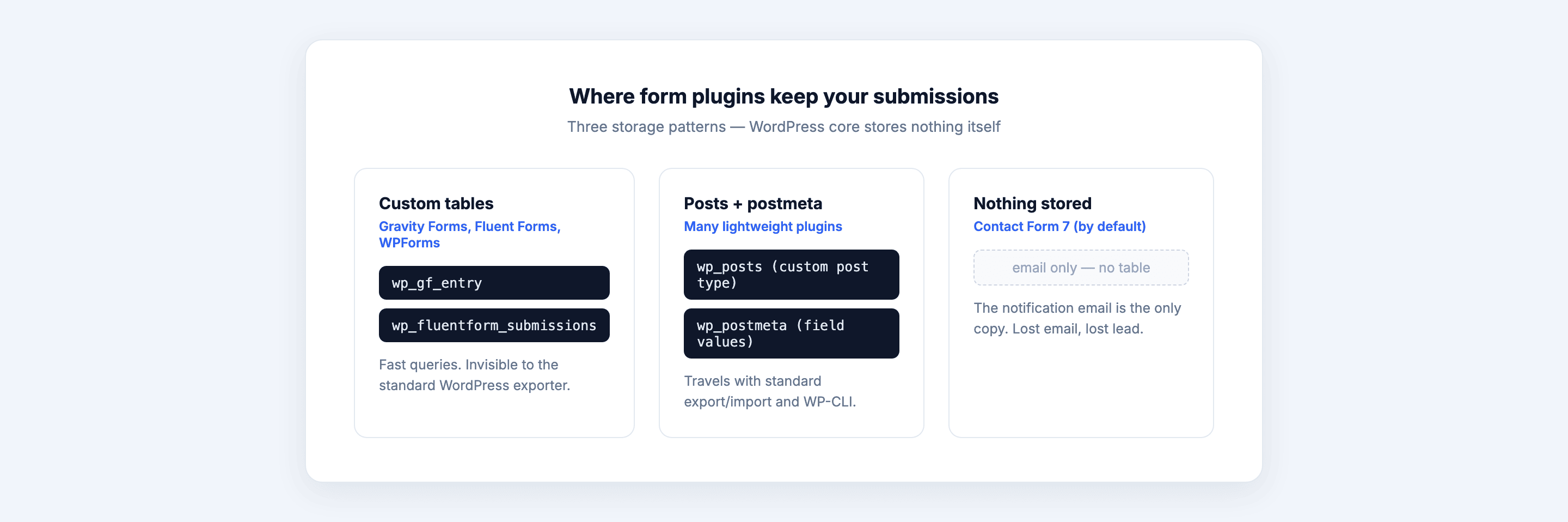 Three patterns, three very different answers to “where’s my data?”
Quick reference:
| Pattern | Where the data lives | Survives WP export? | Example |
|---|---|---|---|
| Nothing | Only in the notification email | No — there’s nothing to export | Contact Form 7 |
| Custom tables | Plugin-prefixed tables like wp_cf_submissions | No (needs the plugin’s own export) | Core Forms, Gravity Forms style |
| Custom post type | wp_posts + wp_postmeta | Yes | Flamingo, several others |
None of these is “wrong.” But you should know which one you’re running before a client asks for six months of leads.
Pattern 1: nothing at all
Some plugins store zero submissions — Contact Form 7 is the famous one. CF7 takes the submission, fires the notification email, and forgets. No table, no post, no record. If that email lands in spam, bounces, or your SMTP config hiccups, the lead is gone. Not archived somewhere obscure. Gone.
The CF7 ecosystem’s fix is Flamingo, a companion plugin that bolts storage on after the fact. It works, but it’s a second plugin to maintain for what most people assume is table-stakes behavior.
I’ve watched this bite real businesses. A client’s transactional email provider silently rate-limited them for nine days. Every form “worked” — green success message, happy visitors — and every submission evaporated. That failure mode is why I treat email as a notification channel, never as storage, and why I log what happens to every submission on sites I manage.
If you’re on CF7 and this makes you nervous, it should. It’s one of the gaps I covered in the CF7 migration guide.
Pattern 2: custom database tables
Plugins like Gravity Forms and Fluent Forms create their own tables in the WordPress form database — separate, plugin-prefixed tables that live alongside wp_posts but aren’t part of core’s schema. A submission becomes a row (or several) in those tables, with columns designed for form data.
The upside is real: purpose-built tables are fast to query and filter, even at 50,000 submissions. Entry lists load quickly, searches don’t crawl through serialized meta, and the schema fits the data.
The tradeoff: custom tables are invisible to WordPress’s own machinery. The standard Tools → Export screen doesn’t know they exist. Neither do most “export my content” workflows or simpler backup setups that only grab core tables. Move a site by exporting content the WordPress way and your submissions silently stay behind. You need the plugin’s own export tool, or a full-database backup, every time.
Pattern 3: custom post types in wp_posts
The third pattern stores each submission as a custom post type — a row in wp_posts with field values in wp_postmeta, the same tables that hold your pages and posts. Flamingo does this for CF7 data; a number of standalone plugins do the same.
What you gain: everything that understands WordPress content understands your submissions. Standard export/import carries them along. wp post list --post_type=... finds them from the command line. Any backup that covers core tables covers your leads.
What you give up: performance at volume. Each submission scatters across many postmeta rows, and querying “all entries where budget > 5000” through meta joins gets slow past a few thousand submissions. For a contact form, fine. For a high-traffic lead machine, you’ll feel it.
Where Core Forms keeps them
Core Forms uses pattern 2: a dedicated wp_cf_submissions table, created on activation. Each submission is one row with the field data as JSON, plus columns for form_id, ip_address, user_agent, referer_url, is_spam, and submitted_at. One table, one row per submission, fast to query at volume.
You almost never touch the table directly, because the submissions inbox in wp-admin is the front door: per-form Submissions tabs, an All Submissions view across every form, statuses, bulk actions, and reply-from-admin. There’s also a REST endpoint (/wp-json/cf/v1/submissions) and a wp core-forms submission list WP-CLI command when you’d rather script it.
Storage is on by default and per-form switchable — a “Save submissions” toggle, for throwaway forms where email-only genuinely is enough. And uninstalling (deleting, not deactivating) the plugin drops the table, so export before you delete.
How to find your submissions
Start in wp-admin, not the database. Check the sidebar for your form plugin’s menu — most storing plugins have an Entries, Submissions, or Inbox screen one click deep. That answers the question for 90% of people in under a minute.
If the admin screen comes up empty or doesn’t exist, check the database:
phpMyAdmin (or Adminer): open your database and scan the table list for plugin-prefixed names — wp_cf_submissions, wp_gf_entries, wp_fluentform_submissions, anything that isn’t a stock wp_ core table. Found one? That’s pattern 2, and your data’s inside.
WP-CLI: faster if you have shell access:
wp db tablesSame scan, one command. To check for pattern 3, list custom post types with wp post-type list and look for submission-ish names.
Nothing anywhere? Your plugin is pattern 1. Your only “storage” is the notification inbox, and it’s time to fix that.
Export beats SQL
Once you’ve found your submissions, resist the urge to hand-roll SQL for handoffs and backups. A CSV export is the format everyone downstream actually wants — the client opens it in Excel, the marketer imports it into their CRM, the next developer doesn’t need your database credentials.
Core Forms handles this with a built-in CSV export: the form’s Submissions tab, one Export CSV click, and you get every field column plus metadata (ID, status, timestamp, IP). Filtered sets export too, so “just Q2’s entries” is the same click.
Whatever plugin you run, do one export now and file it. The day you need submission history is never the day you have leisure to learn your plugin’s table schema.
FAQ
Does WordPress have a built-in form submissions table?
No. WordPress core ships no forms and no submissions storage — there’s no native WordPress form submissions database table. Every table holding form entries was created by a plugin. If you find one, its prefix (like wp_cf_ or wp_gf_) tells you which plugin owns it.
Where does Contact Form 7 store submissions?
Nowhere. Contact Form 7 sends the notification email and discards the submission — no database record at all. To store CF7 entries you need the companion plugin Flamingo, which saves them as a custom post type in wp_posts and wp_postmeta.
Will my form submissions survive a site migration?
Depends on the pattern. Post-type storage (pattern 3) travels with standard WordPress export/import. Custom tables (pattern 2) need a full-database migration or the plugin’s own export — content-only exports leave them behind. Pattern 1 has nothing to migrate. When in doubt, take a CSV export first.
Can I read form submissions with phpMyAdmin?
Yes, if your plugin stores them. Open the plugin’s table (for Core Forms, wp_cf_submissions) and browse the rows — field data is usually JSON or serialized text. It works for a quick look, but for anything a human will use, the plugin’s CSV export is the better tool.